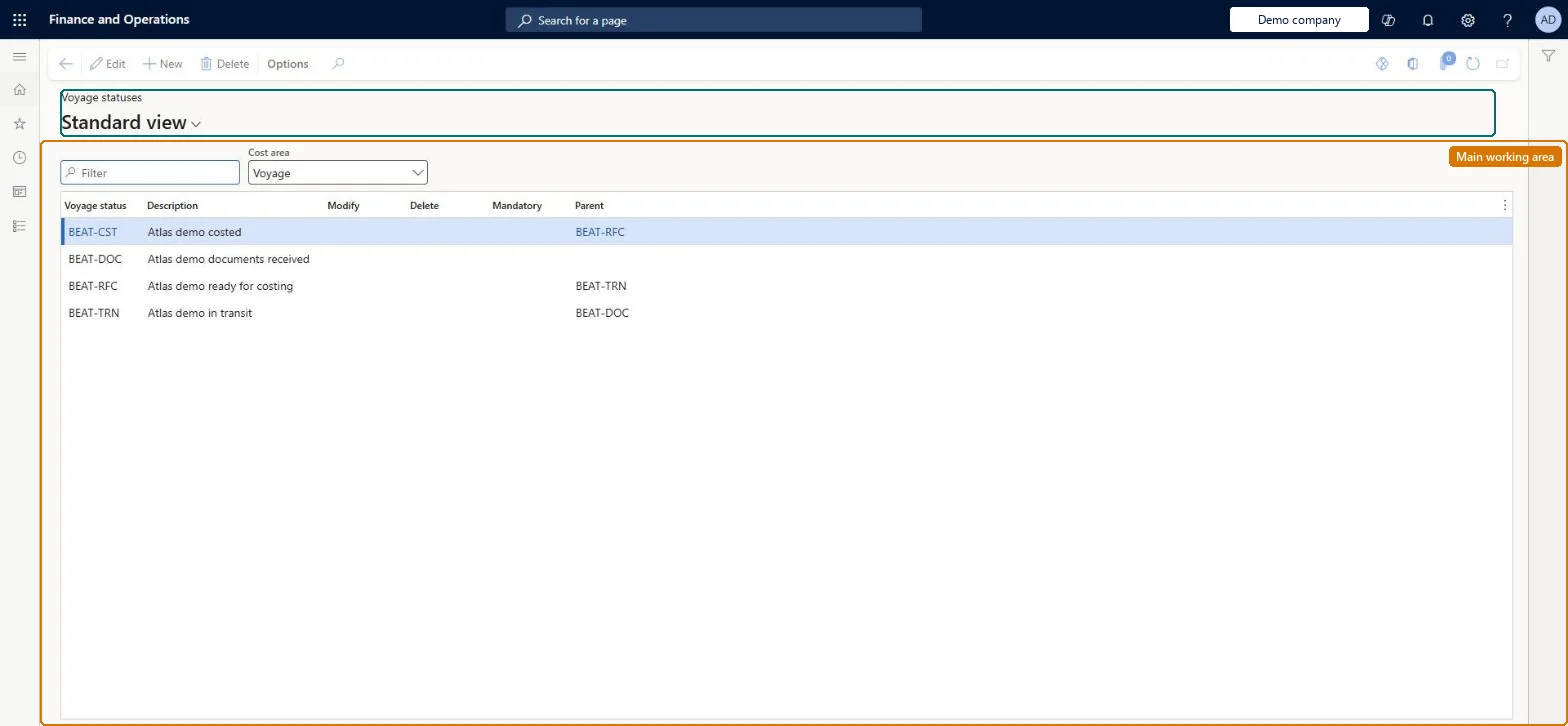
A setup page where, per cost area, you define the status values that can be assigned to voyages, shipping containers, folios, purchase orders and lines, and whether each status allows modification or deletion.
PAGE GUIDEWhat the page does and how to use it8 sections. Choose a role to highlight what matters to you.
Everyone
1What it is and why
What it is
A setup page where, per cost area, you define the status values that can be assigned to voyages, shipping containers, folios, purchase orders and lines, and whether each status allows modification or deletion.
What you do here
Use this page to create the status hierarchy that tells users where a voyage is in its journey and to lock a cost area against changes or deletion once it reaches a given status.
Example
For example, a company sets up Confirmed, Goods in transit, Received, Ready for costing and Costed for the Voyage cost area, with Delete allowed only at Confirmed.
The page in Dynamics 365. page title tab to open what to set or check
About the examples: Examples and screenshots in this guide use BEAT, a demo company in a Dynamics 365 test environment. Use your own company's codes and values instead of copying them.
Setup steps on this page
Set up Voyage statuses
Use this page to create the status hierarchy that tells users where a voyage is in its journey and to lock a cost area against changes or deletion once it reaches a given status.
Steps from Microsoft
Go to Landed cost > Setup > Voyage statuses.
In the Cost area field, select the cost area to define statuses for.
Select New on the Action Pane and enter the Voyage status name and Description.
Select the Modify and Delete check boxes if voyages at this status may be changed or deleted.
Select Mandatory if the status cannot be skipped.
Set Parent to place the status in the hierarchy; statuses can only move downward from parent to child.
Per cost area, set up only the statuses you use (typically Confirmed, Goods in transit, Received, Ready for costing, Costed) as a parent-child chain, clearing Modify and Delete on the later statusesStatuses can only move down the hierarchy from parent to child, and the Modify and Delete check boxes are how you lock a cost area once it reaches a status.
Building the Parent chain in the wrong order. Status changes, manual or automatic, can only go downward, so a status placed above where it belongs can't be reached.
Solution architect
5Design impact
Can it be undone
Reversible: You can add, edit and remove statuses. Changing Modify, Delete or Parent changes which voyages users can edit or delete and which transitions are possible from then on. Microsoft Learn
If you change it later
Changing the Modify, Delete or Parent settings alters which voyages users can edit or delete and which status transitions are possible, because statuses can only move down the hierarchy from a parent to a child. Microsoft Learn
Technical architect
6Technical
Menu item
ITMStatusTableChecked in Dynamics 365
Form
ITMStatusTableChecked in Dynamics 365
Table
ITMStatusTableShown as “VOYAGE STATUSES” in Record infoKey field: ShipStatusIdChecked in Dynamics 365
Data entities
ITMShipmentStatusEntityVoyage statuses Checked in Dynamics 365
To set it up or change itLanded cost manager ITMManagerGive people one of these roles. On this system, 1 role can open this page.Checked in Dynamics 365
Developer
7Developer
Open it by URL
https://<your-environment>/?mi=ITMStatusTable
Integrate with
ITMShipmentStatusEntity data entity Checked in Dynamics 365