About the examples: Examples and screenshots in this guide use BEAT, a demo company in a Dynamics 365 test environment. Use your own company's codes and values instead of copying them.
Step by step, with screenshots
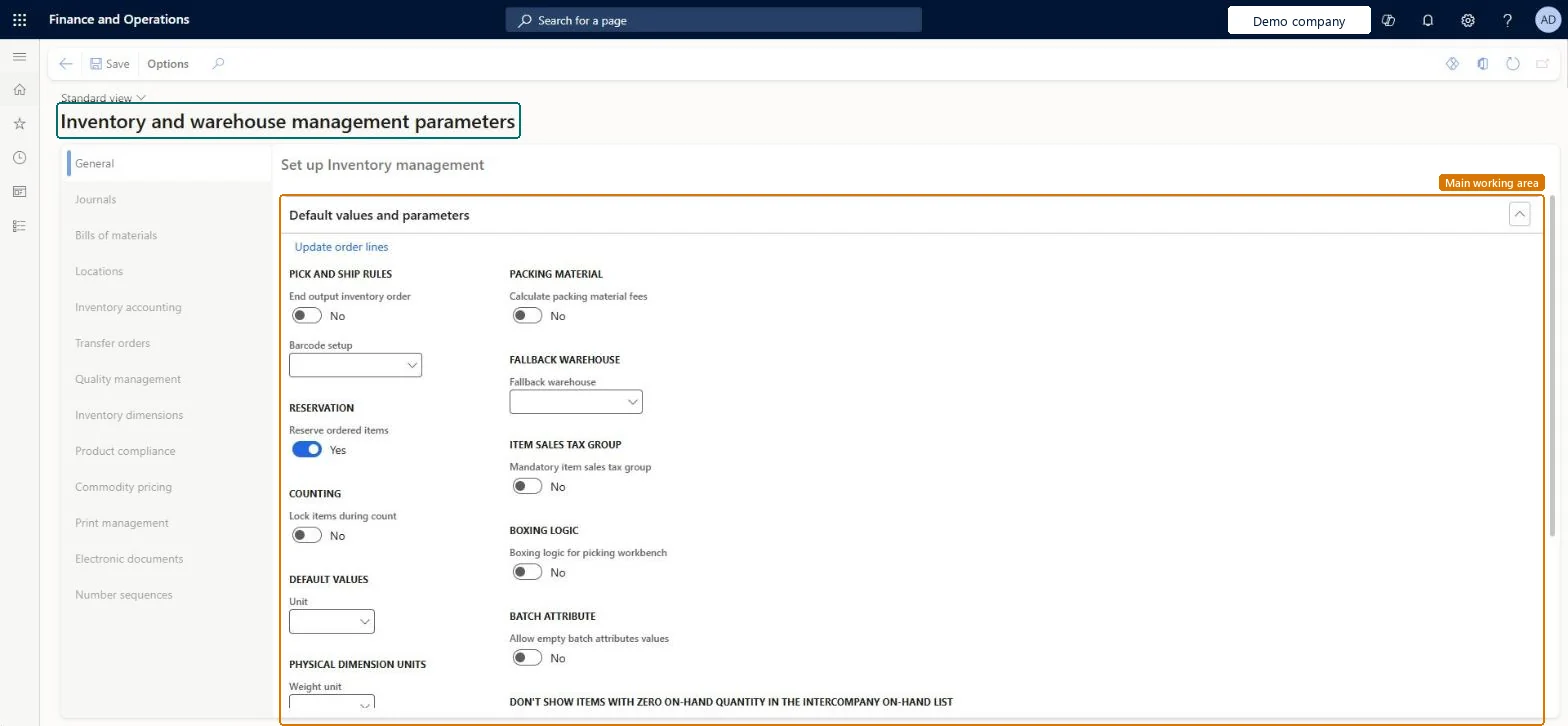
Set up Inventory and warehouse management parameters1 screen
Use this page to set company-wide defaults and options for inventory, such as default journal names, number sequences, counting and quality settings.
Screen 1
Set the inventory and warehouse management parameters
Go to Inventory management > Setup > Inventory and warehouse management parameters
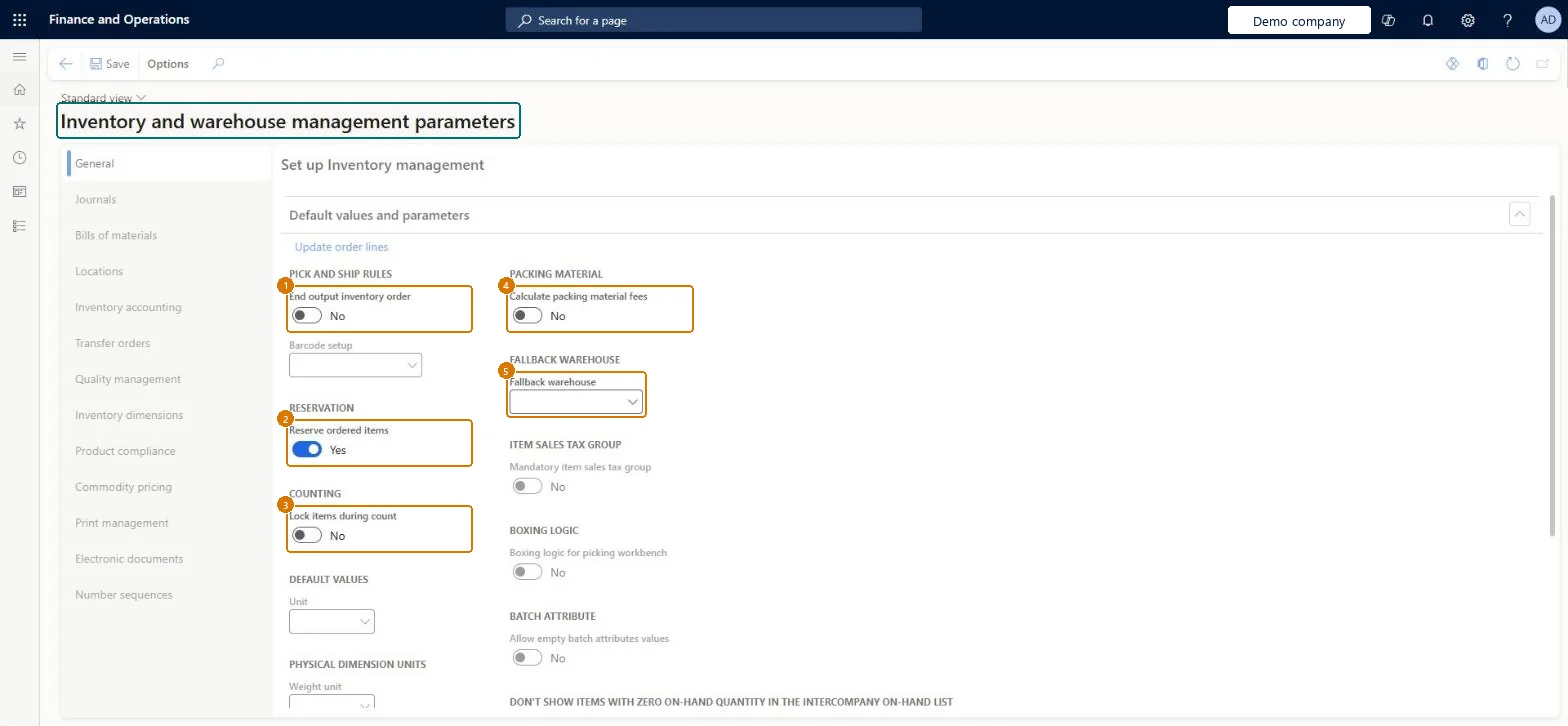
On the General tab, set the default values, such as whether ordered items are reserved and whether items are locked during counting
Turn on Calculate packing material fees if packing material fees are used
On the Journals tab, choose the default journal names
Review the other tabs (Locations, Inventory accounting, Transfer orders, Quality management) as needed
On the Number sequences tab, check the number sequences for inventory documents
Select Save
1End output inventory order
No
2Reserve ordered items
Yes
3Lock items during count
No
4Calculate packing material fees
No
5Fallback warehouse
(blank)
Show the full screen page title tab to open what to set or check
Steps from Microsoft
Go to Inventory management > Setup > Inventory and warehouse management parameters.
Open the Journals tab.
In the Counting field, select the default journal name for counting journals.
Open the General tab.
Set Lock items during count to Yes if items should be locked while they're counted.
The default journal name for inventory journals of the Counting type.Microsoft Learn
Lock items during count
Locks items while they're counted so that packing slips and picking lists can't update them.Microsoft Learn
No
LockCounting
Skip on-hand aggregation and clean up in on-hand consistency check
When set to Yes, the on-hand consistency check only rebuilds the on-hand tables and skips the cleanup work.Microsoft Learn
SkipInventOnhandConsistencyCheckCleanUp
Allow inventory transaction consolidation without inventory closing
Controls whether transactions can be consolidated before inventory is closed; it's No by default and only Microsoft support can change it.Microsoft Learn
Automatically assign test instrument tag number on quality order line
Lets the system pick the best available test instrument tag for new quality order test lines.Microsoft Learn
QMSAssignTagNumAutomatically
End output inventory order
No
AutoEndOrderPick
Reserve ordered items
Whether you can reserve item receipts that you have ordered but not yet received against issues.Microsoft Learn
Yes
ReserveOnOrdered
Calculate packing material fees
Whether packing material weights and fees are calculated for orders.Microsoft Learn
No
PackingMaterialEnabled
Fallback warehouse
(blank)
FallbackInventLocationId
Test checklist
On the General tab, check Allow inventory transaction consolidation without inventory closing shows No
On the Number sequences tab, check a sequence is set for Inventory transaction consolidation voucher if consolidation is planned
Open Inventory management > Periodic tasks > Clean up > Inventory transaction consolidation and start a consolidation
Check only closed periods that meet the consolidation conditions can be selected in To date in closed ledger period
Allow inventory transaction consolidation without inventory closing = No (the default)Learn says the setting is permanently No by default and only Microsoft Support can change it; with No, transactions are consolidated only for closed inventory.
Asking for consolidation on unclosed inventory without understanding the effect: after a transaction is consolidated you can no longer close that inventory period, and you can't cancel closing for consolidated periods.
Number sequences
Reference
Shared or per company
Note
Item number
Per company
BEAT uses number sequence Inve_3. Checked in Dynamics 365
Lot ID
Per company
BEAT uses number sequence Inve_7. Checked in Dynamics 365
Dimension number
Per company
BEAT uses number sequence Inve_11. Checked in Dynamics 365
Journal
Per company
BEAT uses number sequence Inve_15. Checked in Dynamics 365
Journal voucher
Per company
BEAT uses number sequence Inve_19. Checked in Dynamics 365
Closing vouchers
Per company
BEAT uses number sequence Inve_23. Checked in Dynamics 365
Adjustment vouchers
Per company
BEAT uses number sequence Inve_27. Checked in Dynamics 365
Revaluation vouchers
Per company
BEAT uses number sequence Inve_31. Checked in Dynamics 365
Settlement transaction No.
Per company
BEAT uses number sequence Inve_35. Checked in Dynamics 365
Batch/Serial No.
Per company
BEAT uses number sequence Inve_39. Checked in Dynamics 365
Quarantine number
Per company
BEAT uses number sequence Inve_43. Checked in Dynamics 365
Transfer number
Per company
BEAT uses number sequence Inve_47. Checked in Dynamics 365
Transfer order voucher
Per company
BEAT uses number sequence Inve_51. Checked in Dynamics 365
Quality order
Per company
BEAT uses number sequence Inve_55. Checked in Dynamics 365
Non conformance number
Per company
BEAT uses number sequence Inve_59. Checked in Dynamics 365
Certificate of analysis
Per company
BEAT uses number sequence Inve_63. Checked in Dynamics 365
Receipt costing voucher
Per company
BEAT uses number sequence Inve_67. Checked in Dynamics 365
Invoice costing voucher
Per company
BEAT uses number sequence Inve_71. Checked in Dynamics 365
Credit note costing voucher
Per company
BEAT uses number sequence Inve_75. Checked in Dynamics 365
Packing box transaction ID
Per company
BEAT uses number sequence Inve_79. Checked in Dynamics 365
Hard to reverse: Counting, quality and packing settings can be changed any time and apply to new work. The consolidation setting is locked at No unless Microsoft Support changes it, and once transactions are consolidated the period can't be closed or reopened by canceling the close. Microsoft Learn
Technical architect
6Technical
Menu item
InventParametersChecked in Dynamics 365
Form
InventParametersChecked in Dynamics 365
Table
InventParametersShown as “Inventory parameters” in Record infoChecked in Dynamics 365
Data entities
InventInventoryManagementParametersEntityInventory parameters Microsoft data model CostOperationalSiteFinancialDimensionLinkPolicyEntitySite dimension link policies Microsoft data model
Roles to set it up and use it
To set it up or change itQuality control manager InventQualityControlManagerWarehouse manager WMSWarehouseManagerAccounting manager LedgerAccountingManagerProduct design manager BOMProductDesignManagerTo use itMaterials manager InventMaterialsManagerInventory accountant clerk InventCostCostClerkInventory accountant InventCostAccountantProduction manager ProdProductionManagerProcess engineer RouteProcessEngineerGive people one of these roles. On this system, 12 roles can open this page.Checked in Dynamics 365
Actions on the page
Options: Personalize, Page options, Edit, ShareChecked in Dynamics 365
InventInventoryManagementParametersEntity (Inventory parameters): loaded for each company, in Microsoft's default template 300 - Inventory.CostOperationalSiteFinancialDimensionLinkPolicyEntity (Site dimension link policies): loaded for each company, in Microsoft's default template 300 - Inventory.Load order: Microsoft's default template 300 - Inventory loads Inventory parameters at execution unit 1, level 300, sequence 90. Lower levels load first, and entities at the same level load in sequence order.Load first: Units, Bill of materials journal names, Inventory adjustment journal names, Inventory counting journal names, Inventory movement journal names, the default templates at lower levels (System setup to Budgeting)Microsoft Learn
Checked in a working Dynamics 365 system, version 10.0.49: the menu item, form, table and security, the page, the demo records and the values in the screenshots.