Setup step on the Packaging material allocation page · Inventory management
Set up Packaging material allocation
Use this page to define the packing unit and the packing materials, with their weights, that each item uses so that packing material weights and fees can be calculated.
Product design manager, Materials manager, Production supervisor and 2 more roles
Business process
Maintain inventory levels
Menu item
InventPackagingUnit
Main table
InventPackagingUnit
Data entity
InventPackingMaterialAllocationV2Entity
Setup steps
1 on this page
Show what matters for
SETUP GUIDEHow to set it up8 sections. Choose a role to highlight what matters to you.
Everyone
1What it is and why
What it is
A setup page where you allocate packing materials to individual items, packing groups or all items.
What you do here
Use this page to define the packing unit and the packing materials, with their weights, that each item uses so that packing material weights and fees can be calculated.
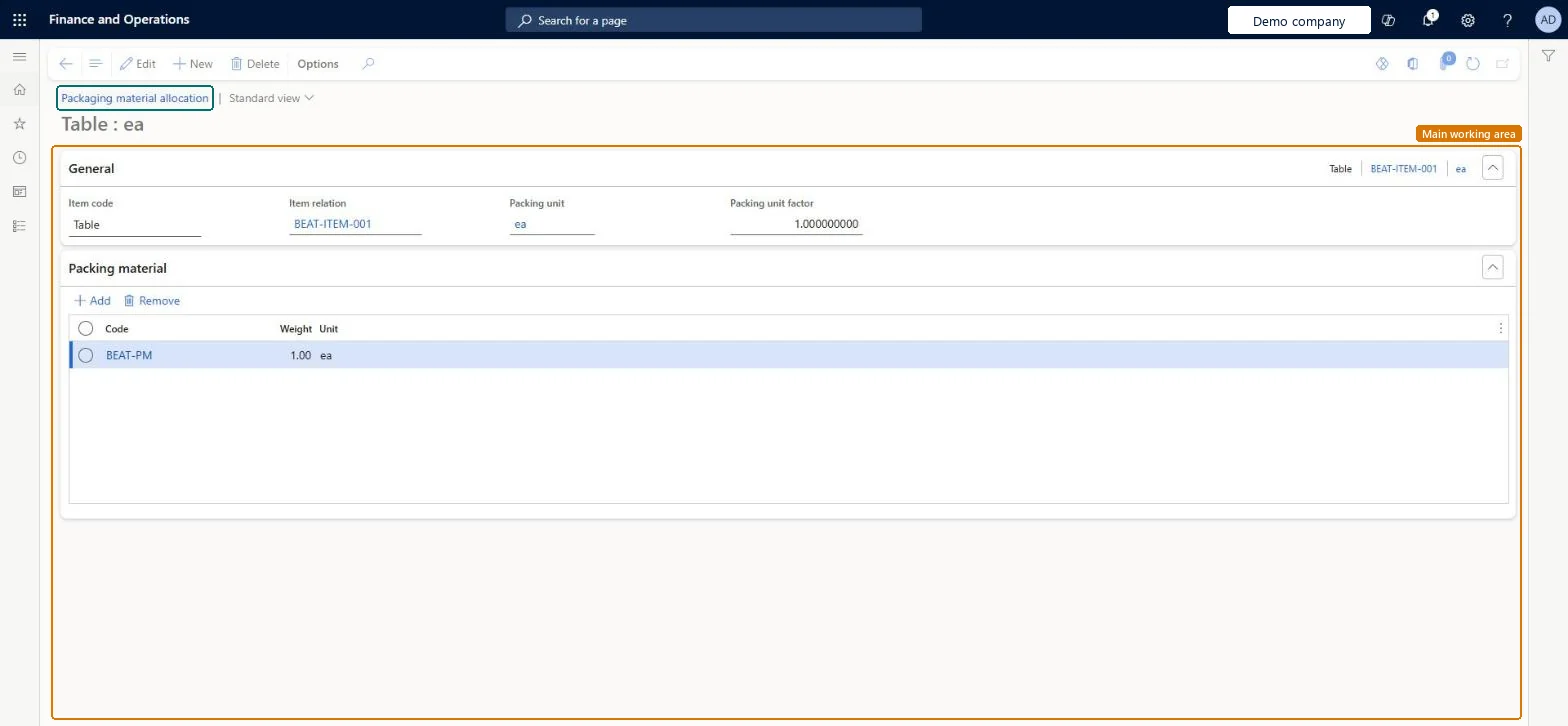
The page in Dynamics 365. page title tab to open what to set or check
About the examples: Examples and screenshots in this guide use BEAT, a demo company in a Dynamics 365 test environment. Use your own company's codes and values instead of copying them.
Step by step, with screenshots
Set up Packaging material allocation1 screen
Use this page to define the packing unit and the packing materials, with their weights, that each item uses so that packing material weights and fees can be calculated.
Screen 1
Allocate packing material to an item
Go to Inventory management > Setup > Packing material > Packaging material allocation
Make sure the item and the packing material code exist (here demo item BEAT-ITEM-001 and code BEAT-PM)
Select New
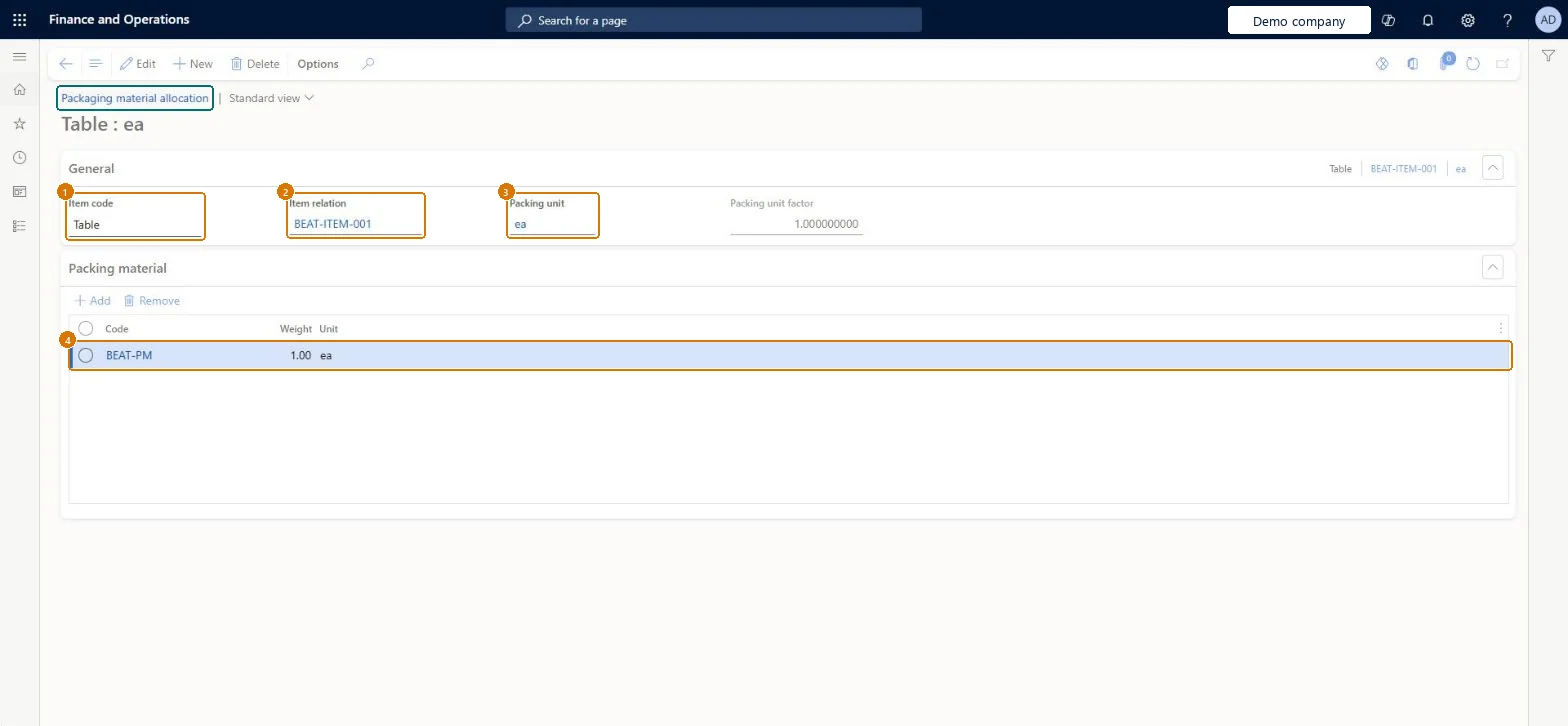
Set Item code to Table for one item, Group for a packing group or All for every item, then select the item or group in Item relation
Select the packing unit and, if needed, the packing unit factor
Under Packing material, select Add, choose the packing material code and enter its weight per packing unit
Select Save
1Item code
Table
2Item relation
BEAT-ITEM-001
3Packing unit
ea
4Code
BEAT-PM
Weight
1.00
Show the full screen page title tab to open what to set or check
Steps from Microsoft
Go to Inventory management > Setup > Packing material > Packaging material allocation.
Create a new allocation.
On the General FastTab, in the Item code field, select Table, Group or All.
In the Item relation field, select the item or packing group, or leave it blank for all items.
Enter any Configuration, Size, Color or Style values that apply.
Select the Packing unit and enter the Packing unit factor.
On the Packing material FastTab, add a line for each packing material and the amount used for each shipped unit.
Make all allocations at one level (Table, Group or All)Learn says you should usually keep allocations at the same level; if you mix levels, Table wins over Group and both win over All.
Wrong Packing unit factor: packing units = item units × packing unit factor, so a wrong factor gives wrong packing quantities and weights.
Reversible: Allocations can be changed; packing material transactions can be modified after invoicing.
If you change it later
If allocations exist at more than one level, the most specific one is used for each item: Table first, then Group, then All. Microsoft Learn
Technical architect
6Technical
Menu item
InventPackagingUnitChecked in Dynamics 365
Form
InventPackagingUnitChecked in Dynamics 365
Table
InventPackagingUnitShown as “Packaging material allocation” in Record infoKey field: ItemCode, ItemRelation, UnitChecked in Dynamics 365
Data entities
InventPackingMaterialAllocationV2EntityPacking material allocations V2 Microsoft data model
Who can open it
PrivilegesMaintain packing units InventPackagingUnitMaintainView packing units InventPackagingUnitViewDutiesInquire into packing material management policies InventPackMaterialManagementPoliciesInqEnable packing material management process InventPackMaterialManagementProcessEnab5 security rolesProduct design manager BOMProductDesignManagerMaterials manager InventMaterialsManagerProduction supervisor ProdProductionSupervisorProcess engineer RouteProcessEngineerProcess engineering manager RouteProcessEngineeringManagerChecked in Dynamics 365
Roles to set it up and use it
To set it up or change itMaterials manager InventMaterialsManagerProcess engineer RouteProcessEngineerTo use itProduction supervisor ProdProductionSupervisorProduct design manager BOMProductDesignManagerProcess engineering manager RouteProcessEngineeringManagerGive people one of these roles. On this system, 5 roles can open this page.Checked in Dynamics 365
Actions on the page
Options: Personalize, Page options, ShareChecked in Dynamics 365
InventPackingMaterialAllocationV2Entity (Packing material allocations V2): loaded for each company, in Microsoft's default template 300 - Inventory.Load order: Microsoft's default template 300 - Inventory loads Packing material allocations V2 at execution unit 1, level 300, sequence 10. Lower levels load first, and entities at the same level load in sequence order.Load first: the default templates at lower levels (System setup to Budgeting)Microsoft Learn
Checked in a working Dynamics 365 system, version 10.0.49: the menu item, form, table and security, the page, the demo records and the values in the screenshots.
To cite this step: IM-SETUP-350, Set up Packaging material allocation. Beyond ERP Atlas Hub, 2026-11-11. https://www.beyonderp.cloud/atlas/step/IM-SETUP-350