PAGE GUIDEWhat the page does and how to use it8 sections. Choose a role to highlight what matters to you.
Everyone
1What it is and why
What it is
A setup page where you create inventory journal names, and you can set up several names for each inventory journal type.
What you do here
Use this page to give each new inventory journal its default settings, such as the journal type, voucher series, detail level, reservation method and approval workflow.
Example
For example, when several departments use the same journal type, you can create one journal name for each department.
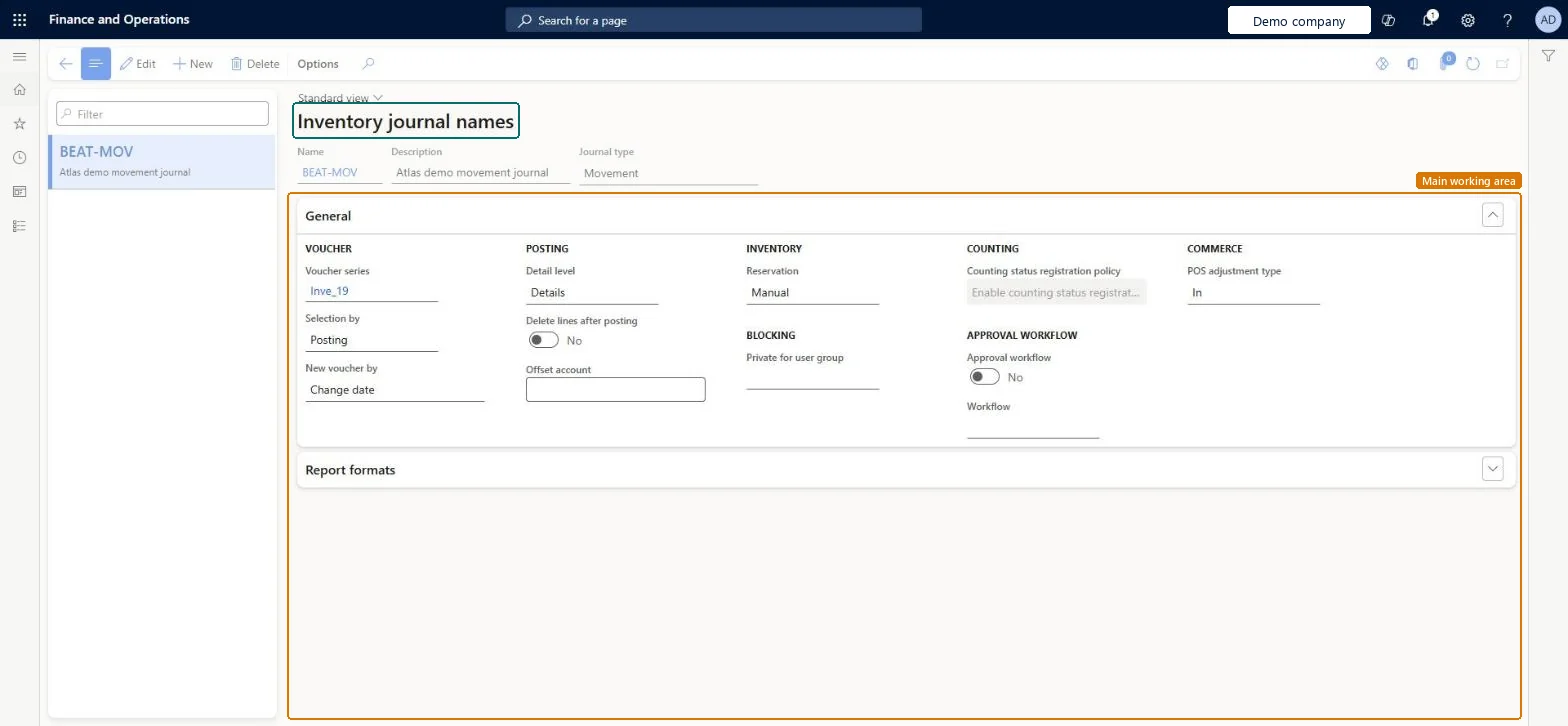
The page in Dynamics 365. page title tab to open what to set or check
About the examples: Examples and screenshots in this guide use BEAT, a demo company in a Dynamics 365 test environment. Use your own company's codes and values instead of copying them.
Step by step, with screenshots
Set up Inventory1 screen
Use this page to give each new inventory journal its default settings, such as the journal type, voucher series, detail level, reservation method and approval workflow.
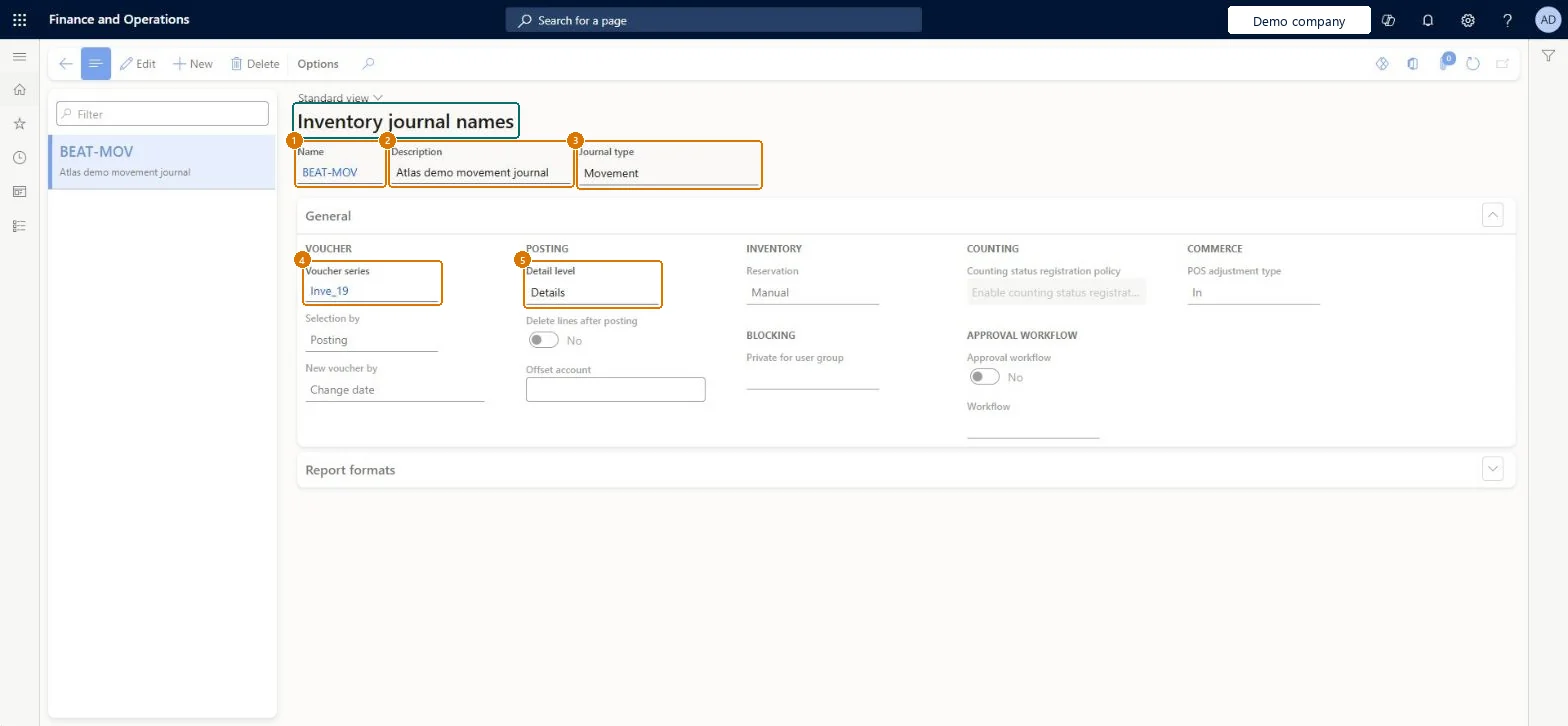
Screen 1
Create an inventory journal name
Go to Inventory management > Setup > Journal names > Inventory
Select New
Enter the journal name and a description
Select the journal type, for example Movement
Select the voucher series (an existing number sequence)
Choose the detail level, reservation method and, if needed, an approval workflow
Select Save
1Name
BEAT-MOV
2Description
Movement journal
3Journal type
Movement
4Voucher series
Inve_19
5Detail level
Details
Show the full screen page title tab to open what to set or check
Steps from Microsoft
Go to Inventory management > Setup > Journal names > Inventory.
Select New.
Enter a Name and a Description.
In the Journal type field, select the type, such as Counting.
In the Voucher series field, select the number sequence for voucher IDs.
In the Detail level field, select how much detail to post.
In the Reservation field, choose Manual, Automatic or Explosion.
At least one journal name per journal type in use; on Counting names keep counting status registration on unless your process needs items in several active counting journalsJournal names supply the defaults for new journals, and counting status registration stops the same item being in more than one active counting journal, which prevents double counting.
Reversible: Journal name settings can be changed at any time. They are copied to journals when the journal is created, so journals already created keep the old values. Microsoft Learn
If you change it later
When Approval workflow is turned on, journals that use the name can't be posted until the approvers in the workflow approve them. Microsoft Learn
Technical architect
6Technical
Menu item
InventJournalNameChecked in Dynamics 365
Form
InventJournalNameChecked in Dynamics 365
Table
InventJournalNameShown as “Inventory journal names” in Record infoKey field: JournalNameId, JournalType, DescriptionChecked in Dynamics 365
Data entities
AssetInventoryFixedAssetTransferJournalNameEntityFixed asset inventory to fixed asset transfer journal names Microsoft data model InventInventoryAdjustmentJournalNameEntityInventory adjustment journal names Microsoft data model InventInventoryCountingJournalNameEntityInventory counting journal names Microsoft data model InventInventoryMovementJournalNameEntityInventory movement journal names Microsoft data model InventInventoryTagCountingJournalNameEntityInventory tag counting journal names Microsoft data model InventInventoryTransferJournalNameEntityInventory transfer journal names Microsoft data model ProjInventoryProjectConsumptionJournalNameEntityProject inventory consumption journal names Microsoft data model InventInventoryOwnershipChangeJournalNameEntityInventory ownership change journal names Microsoft data model BOMBillOfMaterialsJournalNameEntityBill of materials journal names Microsoft data model
Who can open it
PrivilegesMaintain journal names, inventory InventJournalNameMaintainView journal names, inventory InventJournalNameViewDutiesInquire into warehouse operation policies WMSWarehouseOperationPoliciesInquireEnable warehouse operation process WMSWarehouseOperationProcessEnable3 security rolesMaterials manager InventMaterialsManagerWarehouse planner WHSWarehousePlannerWarehouse manager WMSWarehouseManagerChecked in Dynamics 365
Roles to set it up and use it
To set it up or change itWarehouse manager WMSWarehouseManagerTo use itMaterials manager InventMaterialsManagerWarehouse planner WHSWarehousePlannerGive people one of these roles. On this system, 3 roles can open this page.Checked in Dynamics 365
Actions on the page
Options: Personalize, Page options, ShareChecked in Dynamics 365
AssetInventoryFixedAssetTransferJournalNameEntity (Fixed asset inventory to fixed asset transfer journal names): loaded for each company, in Microsoft's default template 150 - Fixed assets.InventInventoryAdjustmentJournalNameEntity (Inventory adjustment journal names): loaded for each company, in Microsoft's default template 300 - Inventory.InventInventoryCountingJournalNameEntity (Inventory counting journal names): loaded for each company, in Microsoft's default template 300 - Inventory.Load order: Microsoft's default template 150 - Fixed assets loads Fixed asset inventory to fixed asset transfer journal names at execution unit 1, level 30, sequence 10. Lower levels load first, and entities at the same level load in sequence order.Load first: the default templates at lower levels (System setup to General ledger)Microsoft Learn
Checked in a working Dynamics 365 system, version 10.0.49: the menu item, form, table and security, the page, the demo records and the values in the screenshots.