Product designer, Product design manager, Materials manager and 8 more roles
Business process
Maintain inventory levels
Menu item
PdsMRCRestrictionList
Main table
PdsMRCRestrictionList
Data entity
PdsRegionalRestrictedProductListEntity
Setup steps
1 on this page
Show what matters for
SETUP GUIDEHow to set it up8 sections. Choose a role to highlight what matters to you.
Everyone
1What it is and why
What it is
A setup page where you create lists, by country or region and by state or province, of products that are allowed or not allowed to be sold there.
What you do here
Use this page to limit where restricted products can be sold, with each list marked as including or excluding its products for that area.
Example
For example, if a product can be sold in most states of a country, you set up an inclusion list for the country and then exclusion lists for the states where it can't be sold.
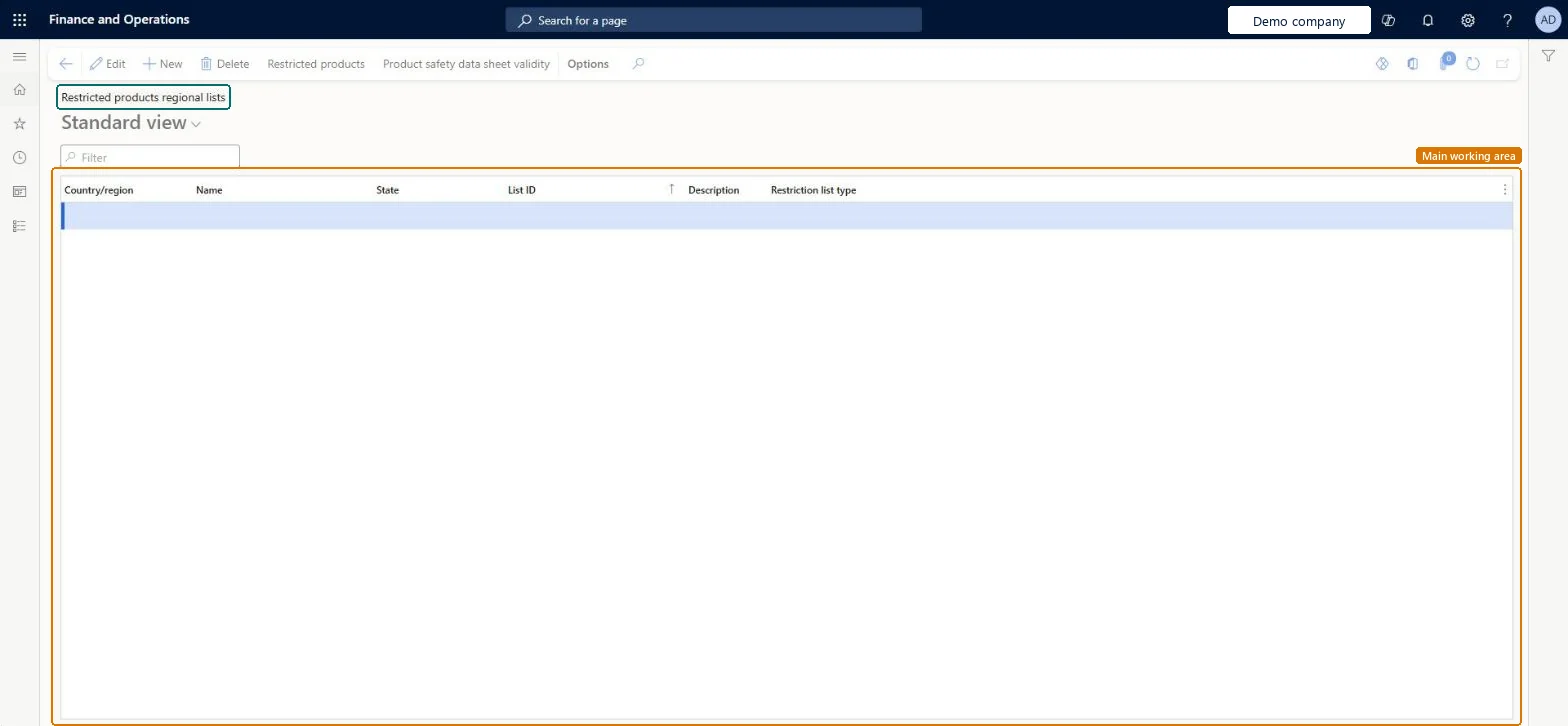
The page in Dynamics 365. page title tab to open what to set or check
About the examples: Examples and screenshots in this guide use BEAT, a demo company in a Dynamics 365 test environment. Use your own company's codes and values instead of copying them.
Step by step, with screenshots
Set up Restricted products regional lists1 screen
Use this page to limit where restricted products can be sold, with each list marked as including or excluding its products for that area.
Screen 1
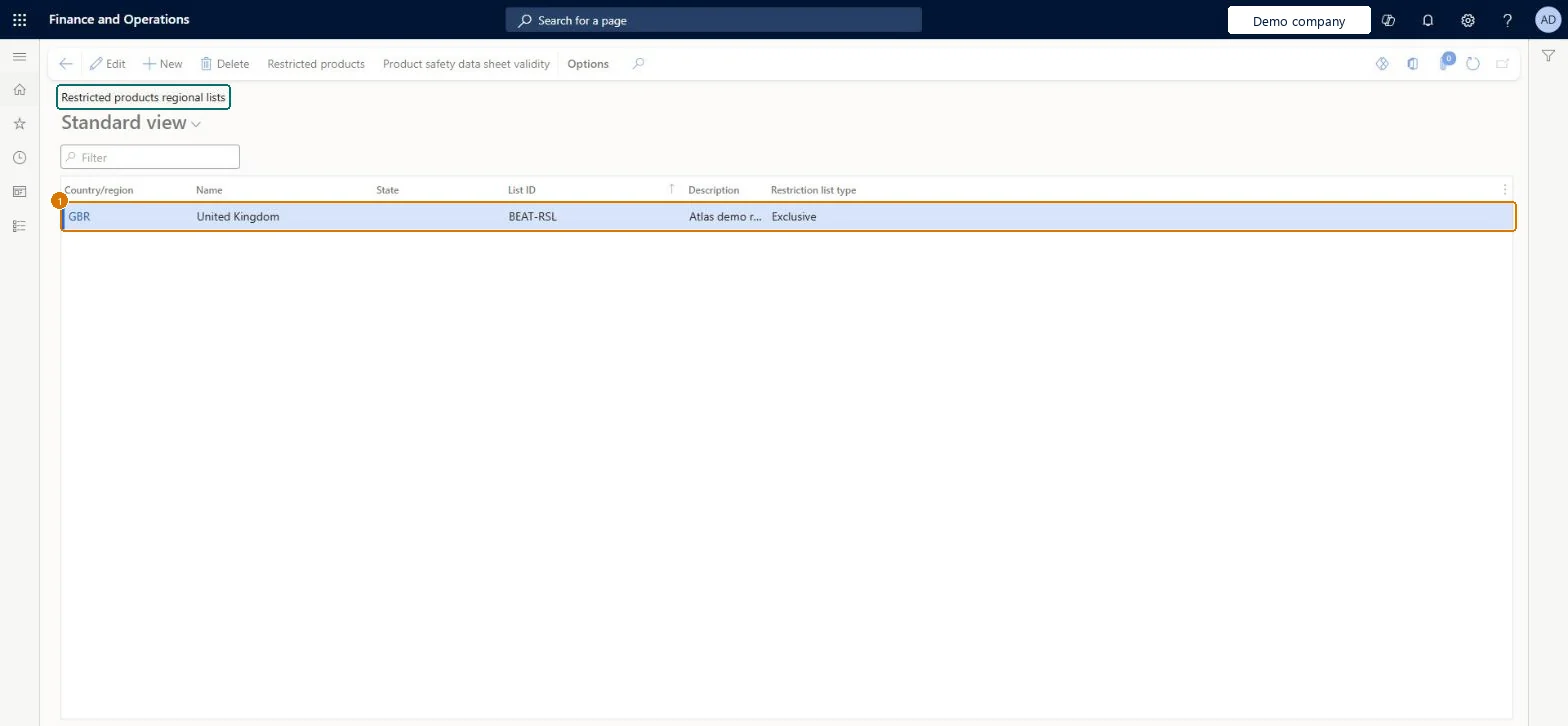
Create a restricted products regional list
Go to Inventory management > Setup > Product compliance > Restricted products regional lists
Select New
Select the country or region and, optionally, the state
Enter the list ID and a description
Choose the restriction list type: Exclusive (listed products may not be sold there) or Inclusive (only listed products may be sold there)
Select Save
Select Restricted products to add the products on the list
1List ID
BEAT-RSL
Country/region
GBR
Description
Restricted products list
Restriction list type
Exclusive
Show the full screen page title tab to open what to set or check
Steps from Microsoft
Go to Inventory management > Setup > Product compliance > Restricted products regional lists.
In the Country/region field, select the country or region for the list.
In the List ID field, enter a unique ID.
In the Restriction list type field, select Inclusive or Exclusive.
If a product may be sold in more states than not, create an inclusion list for the country first, then an exclusion list for each state or province where it can't be soldLearn recommends this order. A product on exclusion lists is assumed to be included for all other states in the country or region.
Reversible: The restriction check runs at sales order entry, so a list change affects orders entered afterwards.
If you change it later
An item can be on only one type of list for a country or region. Microsoft Learn
Technical architect
6Technical
Menu item
PdsMRCRestrictionListChecked in Dynamics 365
Form
PdsMRCRestrictionListChecked in Dynamics 365
Table
PdsMRCRestrictionListShown as “Restricted products regional lists” in Record infoKey field: CountryId, StateId, ListIdChecked in Dynamics 365
Data entities
PdsRegionalRestrictedProductListEntityRestricted products regional lists Microsoft data model
Who can open it
PrivilegesMaintain restricted products PdsRestrictedProductsMaintainView restricted products PdsRestrictedProductsViewDutiesInquire into products for operations master EcoResProductForOperationsMasterInquireMaintain products for operations master InventProductsForOperationsMasterMainta11 security rolesProduct designer BOMProductDesignerProduct design manager BOMProductDesignManagerMaterials manager InventMaterialsManagerQuality control manager InventQualityControlManagerLanded cost agent ITMAgentLanded cost manager ITMManagerShop supervisor JmgShopSupervisorProduction supervisor ProdProductionSupervisorProcess engineer RouteProcessEngineerProcess engineering manager RouteProcessEngineeringManagerWarehouse manager WMSWarehouseManagerChecked in Dynamics 365
Roles to set it up and use it
To set it up or change itProcess engineer RouteProcessEngineerProduct designer BOMProductDesignerTo use itQuality control manager InventQualityControlManagerWarehouse manager WMSWarehouseManagerMaterials manager InventMaterialsManagerProduction supervisor ProdProductionSupervisorProduct design manager BOMProductDesignManagerGive people one of these roles. On this system, 11 roles can open this page.Checked in Dynamics 365
Actions on the page
Options: Personalize, Page options, ShareChecked in Dynamics 365
Checked in a working Dynamics 365 system, version 10.0.49: the menu item, form, table and security, the page, the demo records and the values in the screenshots.
To cite this step: IM-SETUP-480, Set up Restricted products regional lists. Beyond ERP Atlas Hub, 2026-11-11. https://www.beyonderp.cloud/atlas/step/IM-SETUP-480