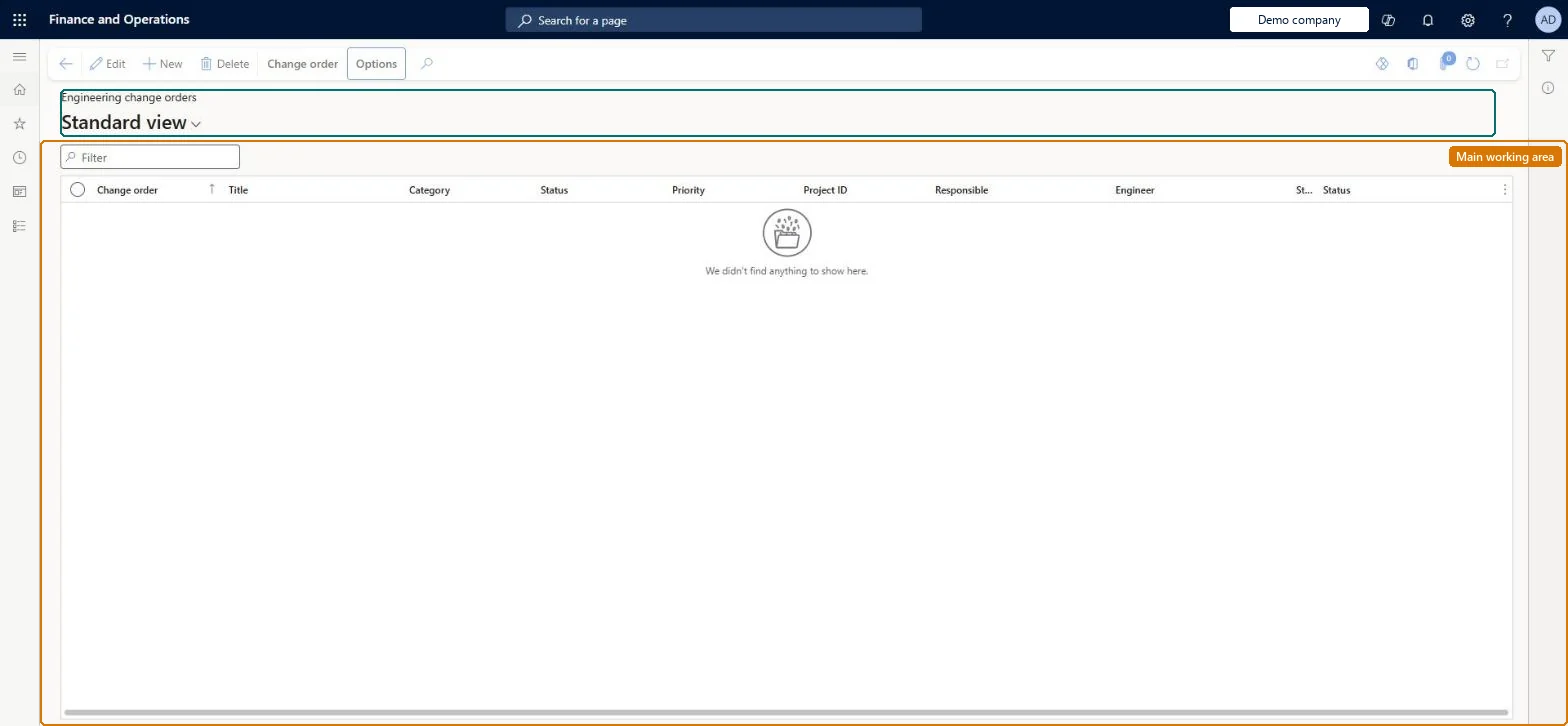
A page where engineers create and process engineering change orders, which are the structured, workflow-approved records used to change engineering products and their versions, BOMs, routes and attributes.
Manually create a change order in Dynamics 365 Supply Chain Management
Menu item
EngChgEcmHeaderDetailsGrid
Main table
EngChgEcmHeader
Data entity
EngChgEngineeringChangeOrderHeaderEntity
Show what matters for
PAGE GUIDEWhat the page does and how to use it7 sections. Choose a role to highlight what matters to you.
Everyone
1What it is and why
What it is
A page where engineers create and process engineering change orders, which are the structured, workflow-approved records used to change engineering products and their versions, BOMs, routes and attributes.
What you do here
Use this page to propose changes to one or more products on a copy of their engineering data, get the order reviewed and approved by workflow, process it to update the real product data, and then release the changed products.
Example
For example, an engineer creates a change order that sets Impact to New version for product Z0001, deletes a BOM line, approves and processes the order, and then re-releases the product to the operational company.
The page in Dynamics 365. page title tab to open what to set or check
About the examples: Examples and screenshots in this guide use BEAT, a demo company in a Dynamics 365 test environment. Use your own company's codes and values instead of copying them.
Steps from Microsoft
Go to Engineering change management > Common > Engineering change management > Engineering change orders.
On the Action Pane, select New and set Change order, Title, Category, Priority and Severity.
On the Impacted products FastTab, select New > Add existing product, then set Product and Impact (None, New version, New product or New variant).
On the Product details FastTab, edit the BOM lines, route, attributes or documents as required and save.
On the Action Pane, on the Change order tab, in the Change status group, select Approve (or submit to workflow).
Select Process to update the product's information.
In the Product releases group, select Search, View and then Process (or Release product structure) to release the changed products.
Select Complete to mark the change order as finished.
Whether environmental health and safety rules apply to the change, and which ones.Microsoft Learn
Solution architect
4Design impact
If you change it later
Processing a change order updates the real engineering data of the product in the engineering company only, so the changed products must then be released again to operational companies; a product can sit on only one change order at a time. Microsoft Learn
Technical architect
5Technical
Menu item
EngChgEcmHeaderDetailsGridChecked in Dynamics 365
Form
EngChgEcmHeaderDetailsChecked in Dynamics 365
Table
EngChgEcmHeaderShown as “ENGINEERING CHANGE ORDERS” in Record infoKey field: OrderIdChecked in Dynamics 365
Data entities
EngChgEngineeringChangeOrderHeaderEntityEngineering change order headers Checked in Dynamics 365EngChgEnvironmentalHealthAndSafetyCodeEntityEnvironmental Health and Safety codes Checked in Dynamics 365
Who can open it
PrivilegesEngineering change orders EngChgEcmHeaderDetailsGridDutiesMaintain engineering change orders EngChgEngineeringChangeOrderMaintainInquire into engineering change order progress EngChgEngineeringChangeOrderProgressInquire2 security rolesProduct engineer EngChgProductEngineerProduct engineering manager EngChgProductEngineeringManagerChecked in Dynamics 365
Roles to set it up and use it
To set it up or change itProduct engineering manager EngChgProductEngineeringManagerProduct engineer EngChgProductEngineerGive people one of these roles. On this system, 2 roles can open this page.Checked in Dynamics 365