Approve and process a change order in Dynamics 365 Supply Chain Management
Menu item
EngChgWorkflowConfiguration
Main table
WorkflowTable
Show what matters for
PAGE GUIDEWhat the page does and how to use it7 sections. Choose a role to highlight what matters to you.
Everyone
1What it is and why
What it is
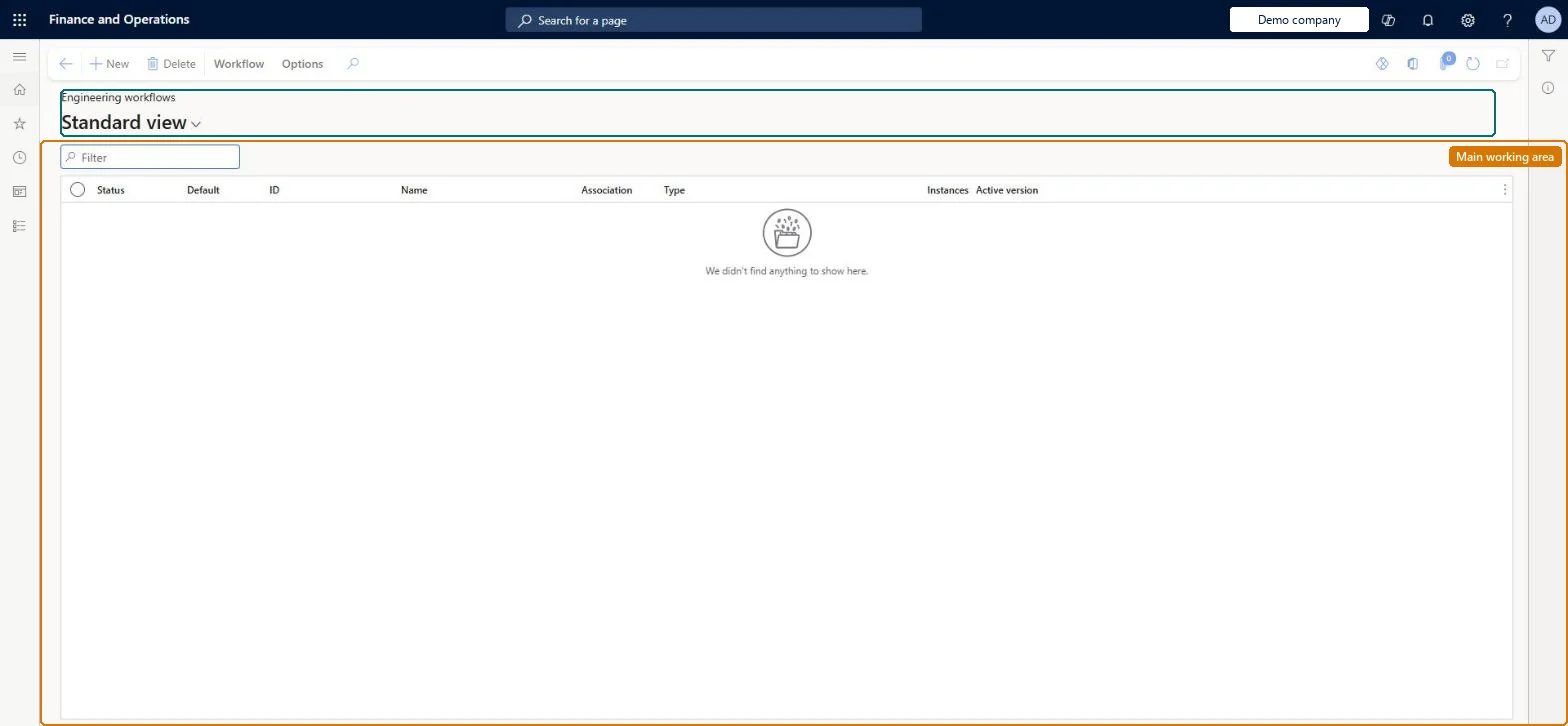
A setup page where you create and configure the workflows that review and approve engineering change requests and engineering change orders.
What you do here
Use this page to define who reviews and approves change requests and change orders (for example product owners), to vary the workflow by priority and severity, and to decide whether an approved change order is processed automatically or later by hand.
Example
For example, you create one change-order workflow for high-severity changes that routes approval to the product owner and the Finance department, and another lighter workflow for low-severity changes.
The page in Dynamics 365. page title tab to open what to set or check
About the examples: Examples and screenshots in this guide use BEAT, a demo company in a Dynamics 365 test environment. Use your own company's codes and values instead of copying them.
Steps from Microsoft
Go to Engineering change management > Setup > Engineering workflows.
Select New.
Select whether the workflow reviews engineering change orders or engineering change requests.
Configure the workflow elements, approvers (for example product owners as participant providers) and conditions in the workflow editor, then save and activate it.
Reversible: Workflows can be created and changed at any time. They control review and approval of change requests and change orders; changes already processed stay processed. Microsoft Learn
If you change it later
The workflow decides who must approve each request or order and whether approved change orders are processed and their products released automatically, so changing it changes how every subsequent change is routed and applied. Microsoft Learn
Technical architect
5Technical
Menu item
EngChgWorkflowConfigurationChecked in Dynamics 365
Form
WorkflowTableListPageRnrChecked in Dynamics 365
Table
WorkflowTableShown as “WORKFLOW CONFIGURATIONS” in Record infoKey field: SequenceNumberChecked in Dynamics 365
Who can open it
PrivilegesMaintain engineering change management workflows EngChgWorkFlowConfigurationMaintainView engineering change management workflows EngChgWorkFlowConfigurationViewDutiesInquire into engineering change management policies EngChgEngineeringChangeManagementPoliciesInquireEnable the engineering change management process EngChgEngineeringChangeManagementProcessEnableMaintain engineering change master EngChgEngineeringChangeMasterMaintain2 security rolesProduct engineer EngChgProductEngineerProduct engineering manager EngChgProductEngineeringManagerChecked in Dynamics 365
Roles to set it up and use it
To set it up or change itProduct engineering manager EngChgProductEngineeringManagerTo use itProduct engineer EngChgProductEngineerGive people one of these roles. On this system, 2 roles can open this page.Checked in Dynamics 365
Actions on the page
Workflow: Manage, HierarchyChecked in Dynamics 365