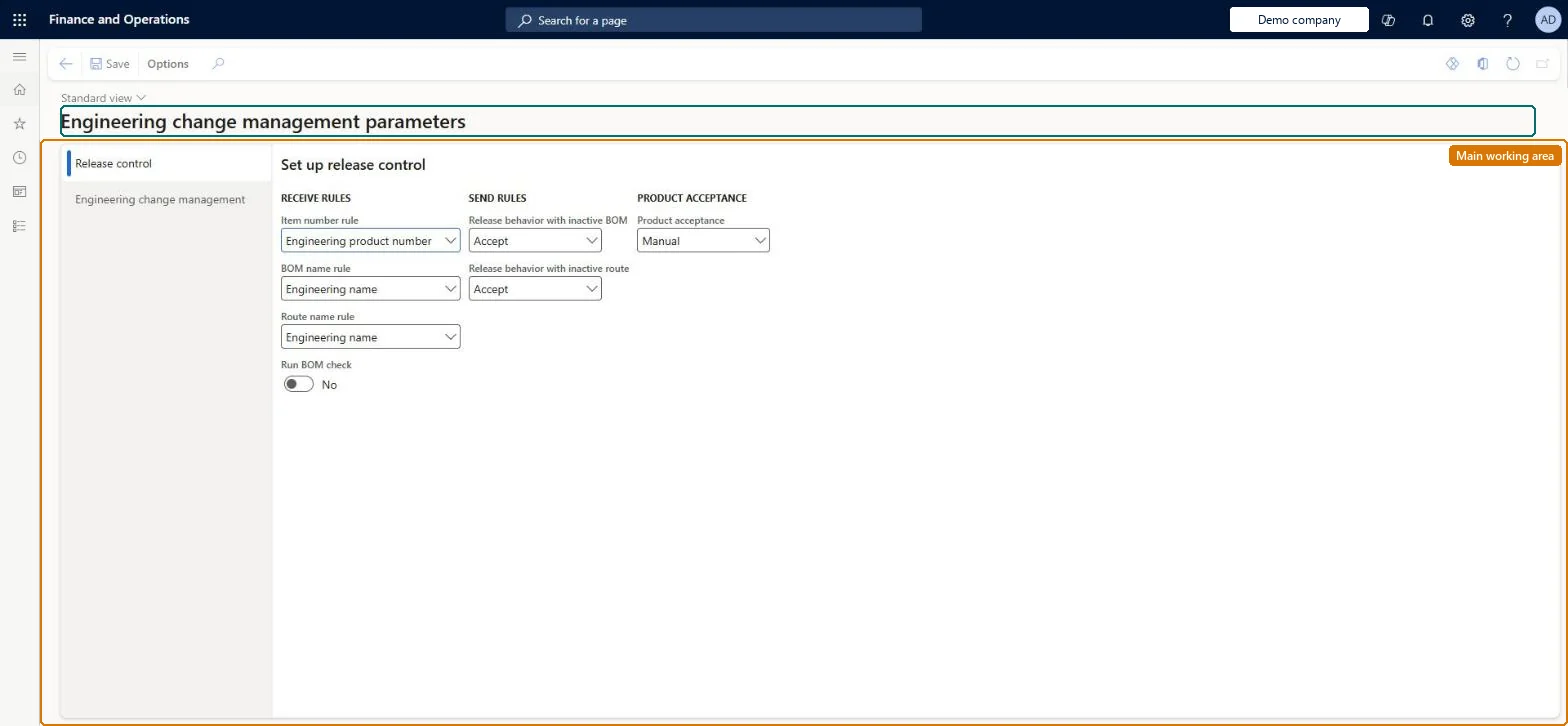
A setup page, per company, holding the parameters that control how products are received when released from the engineering company (Release control tab) and the defaults and rules for engineering change requests and orders (Engineering change management tab).
PAGE GUIDEWhat the page does and how to use it8 sections. Choose a role to highlight what matters to you.
Everyone
1What it is and why
What it is
A setup page, per company, holding the parameters that control how products are received when released from the engineering company (Release control tab) and the defaults and rules for engineering change requests and orders (Engineering change management tab).
What you do here
Use this page to decide how item, BOM and route names are assigned on release, whether inactive BOMs or routes may be released, whether releases need manual acceptance, and to set default category, priority, severity calculation and BOM release depth for change orders.
Example
For example, in the operational company you set Product acceptance to Manual so that releases from engineering must be reviewed on the Open product releases page before they become released products.
The page in Dynamics 365. page title tab to open what to set or check
About the examples: Examples and screenshots in this guide use BEAT, a demo company in a Dynamics 365 test environment. Use your own company's codes and values instead of copying them.
Setup steps on this page
Set up Engineering change management parameters
Use this page to decide how item, BOM and route names are assigned on release, whether inactive BOMs or routes may be released, whether releases need manual acceptance, and to set default category, priority, severity calculation and BOM release depth for change orders.
Steps from Microsoft
Go to Engineering change management > Setup > Engineering change management parameters.
On the Release control tab, set Item number rule, BOM name rule and Route name rule.
Set Run BOM check and the release behaviour for inactive BOMs and routes.
Set Product acceptance to Manual or Automatic.
On the Engineering change management tab, set the default Category and Priority and the Severity rule.
Set Re-release impacted products and BOM levels to release, then save.
Whether a released product keeps the engineering product number or takes the next local product number sequence value.Microsoft Learn
ReleaseItemNumberRule
BOM name rule
Whether the received BOM is named after the engineering name or the receiving item number.Microsoft Learn
ReleaseBOMNameRule
Route name rule
Whether the received route is named after the engineering name or the receiving item number.Microsoft Learn
ReleaseRouteNameRule
Run BOM check
Whether a BOM check runs when the product is received.Microsoft Learn
AutoCheckBOM
Release behavior of inactive BOM
Accept, warn or refuse releasing a product whose BOM is inactive.Microsoft Learn
Product acceptance
Manual adds an acceptance step on Open product releases; Automatic shows the product on Released products straight away.Microsoft Learn
ProductReleaseControlRule
Severity rule
Whether change order severity is entered manually, calculated on demand, or calculated automatically from severity rule sets.Microsoft Learn
EcmSeverityRuleType
BOM levels to release
How many BOM levels are released with a product; deeper levels are not released.Microsoft Learn
EcmMaxBOMLevelRestriction
Test checklist
Check the BOM number sequence (and the formula number sequence if formulas are used) is set to Automatic.
In an operational company set Product acceptance to Manual, then release an engineering product to it from the engineering company.
In the operational company open Engineering change management > Common > Product releases > Open product releases and check the product shows Pending acceptance.
Select Accept and check the item appears on Released products with the number the Item number rule predicts.
Item number rule = Engineering product number when operational companies must use the same product number as the engineering company; Product acceptance = Manual in companies that must review products before they become released productsLearn says to select Engineering product number when the number in the receiving legal entity should match the engineering company, and Manual adds an acceptance step through the Open product releases page before the product reaches Released products.
Reversible: Parameters change the default behaviour of later product releases and new change requests. Releases already processed are not renumbered. Microsoft Learn
If you change it later
Changing Product acceptance switches a company between automatic release (products appear directly on Released products) and manual review on Open product releases; the other release-control rules change how item numbers, BOM and route names are assigned on every future release. Microsoft Learn
Technical architect
6Technical
Menu item
EngChgProductParametersChecked in Dynamics 365
Form
EngChgProductParametersChecked in Dynamics 365
Table
EngChgProductParametersLocalShown as “PRODUCT PARAMETERS” in Record infoChecked in Dynamics 365
Who can open it
PrivilegesManage engineering change management parameters EngChgProductParametersMaintainView engineering change management parameters EngChgProductParametersViewDutiesInquire into engineering change management policies EngChgEngineeringChangeManagementPoliciesInquireEnable the engineering change management process EngChgEngineeringChangeManagementProcessEnable2 security rolesProduct engineer EngChgProductEngineerProduct engineering manager EngChgProductEngineeringManagerChecked in Dynamics 365
Roles to set it up and use it
To set it up or change itProduct engineering manager EngChgProductEngineeringManagerTo use itProduct engineer EngChgProductEngineerGive people one of these roles. On this system, 2 roles can open this page.Checked in Dynamics 365