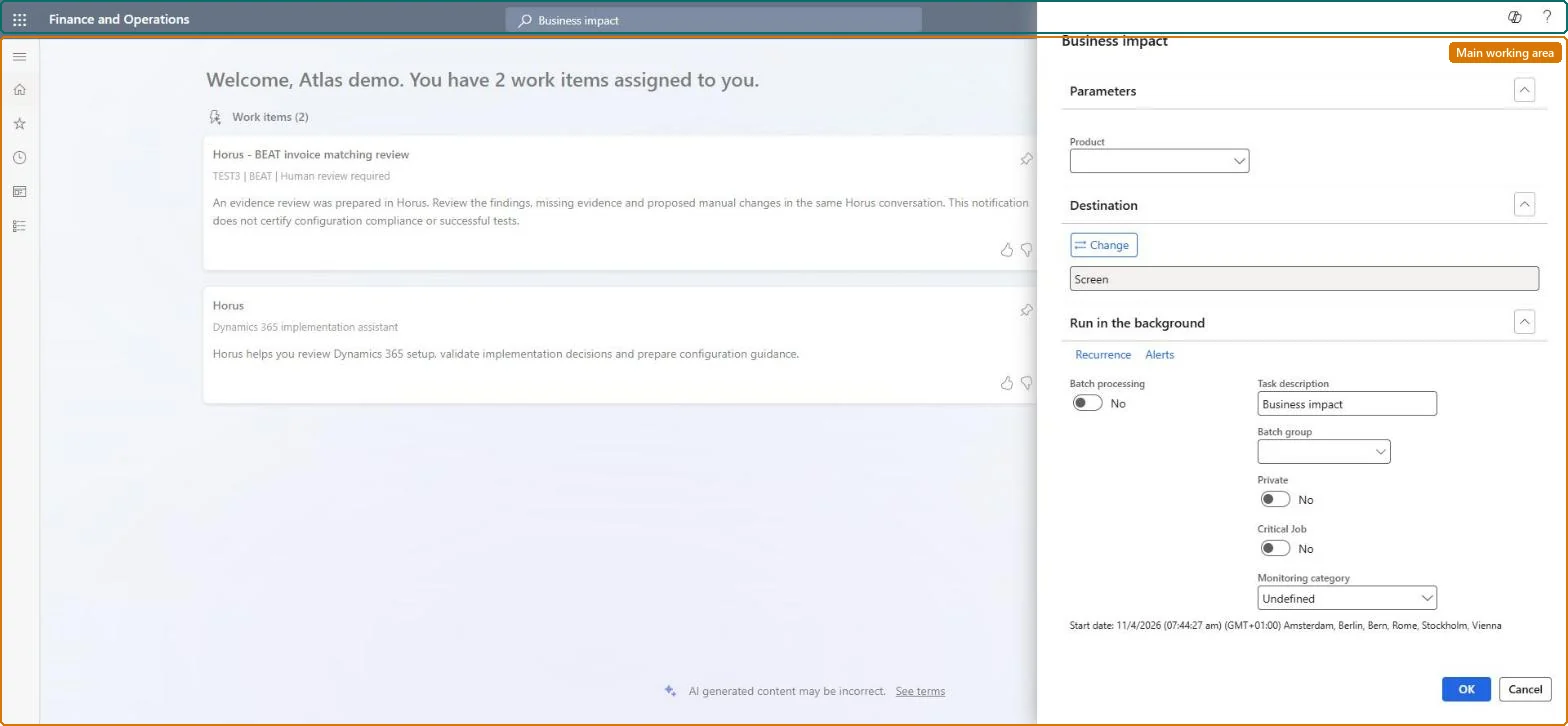
An inquiry (the Business impact to open transactions dialog) that lists, by transaction type, the open sales orders, purchase orders, production orders, inventory and other transactions affected by the products on an engineering change request or order.
Engineering change managementInquiries and reports
Dynamics 365
Business process
Process change requests
Show what matters for
PAGE GUIDEWhat the page does and how to use it6 sections. Choose a role to highlight what matters to you.
Everyone
1What it is and why
What it is
An inquiry (the Business impact to open transactions dialog) that lists, by transaction type, the open sales orders, purchase orders, production orders, inventory and other transactions affected by the products on an engineering change request or order.
What you do here
Use this page to assess what a proposed change would affect, open the affected transactions, block selected sales orders or purchase order lines, scrap affected inventory, and send change notifications to the people responsible for those orders.
Example
For example, on the Sales orders tab you select an affected order and choose Notify responsible so the sales owner is told about the change in the Action center.
The page in Dynamics 365. page title tab to open what to set or check
About the examples: Examples and screenshots in this guide use BEAT, a demo company in a Dynamics 365 test environment. Use your own company's codes and values instead of copying them.
When to run it
When to run it
While you review an engineering change request or order, before approving the change.
How often
For each change request or order that affects products in open transactions.
What the output shows
Lists of open transactions that contain the affected products, grouped by transaction type with a count per tab. An empty tab means no open transaction of that type uses the products; a search result that looks old means you opened View previous search.
Go to Engineering change management > Inquiries and reports > Business impact.
From a change request, use Search to scan open transactions again, or View previous search to open the last result without a new scan.
Go through the tabs (Sales orders, Purchase orders, Production orders, Inventory and so on); the number on each tab is the count of affected transactions.
Use Block order on a sales order, Block line on a purchase order line, or Scrap on inventory when the change makes them unusable.
Use Notify responsible, Notify orderer, Notify production, Notify preparer or Notify sales responsible to tell the owners, then open View history to see what was sent and blocked.
Partly: The search itself changes nothing. Blocks must be removed on the order itself, scrapped inventory is posted, and notifications that were sent can't be recalled. Microsoft Learn
If you change it later
Actions taken here change live transactions: blocking stops the selected sales order or purchase line, scrapping removes affected inventory, and notifications go to the users responsible for the orders. Microsoft Learn