Lease clerk, Lease accountant, Lease manager and 3 more roles
Business process
Lease assets
Menu item
AssetLeaseLeaseDetailEntity
Main table
AssetLeaseLeaseDetails
Data entity
AssetLeaseLeaseMasterEntity
Setup steps
1 on this page
Show what matters for
PAGE GUIDEWhat the page does and how to use it8 sections. Choose a role to highlight what matters to you.
Everyone
1What it is and why
What it is
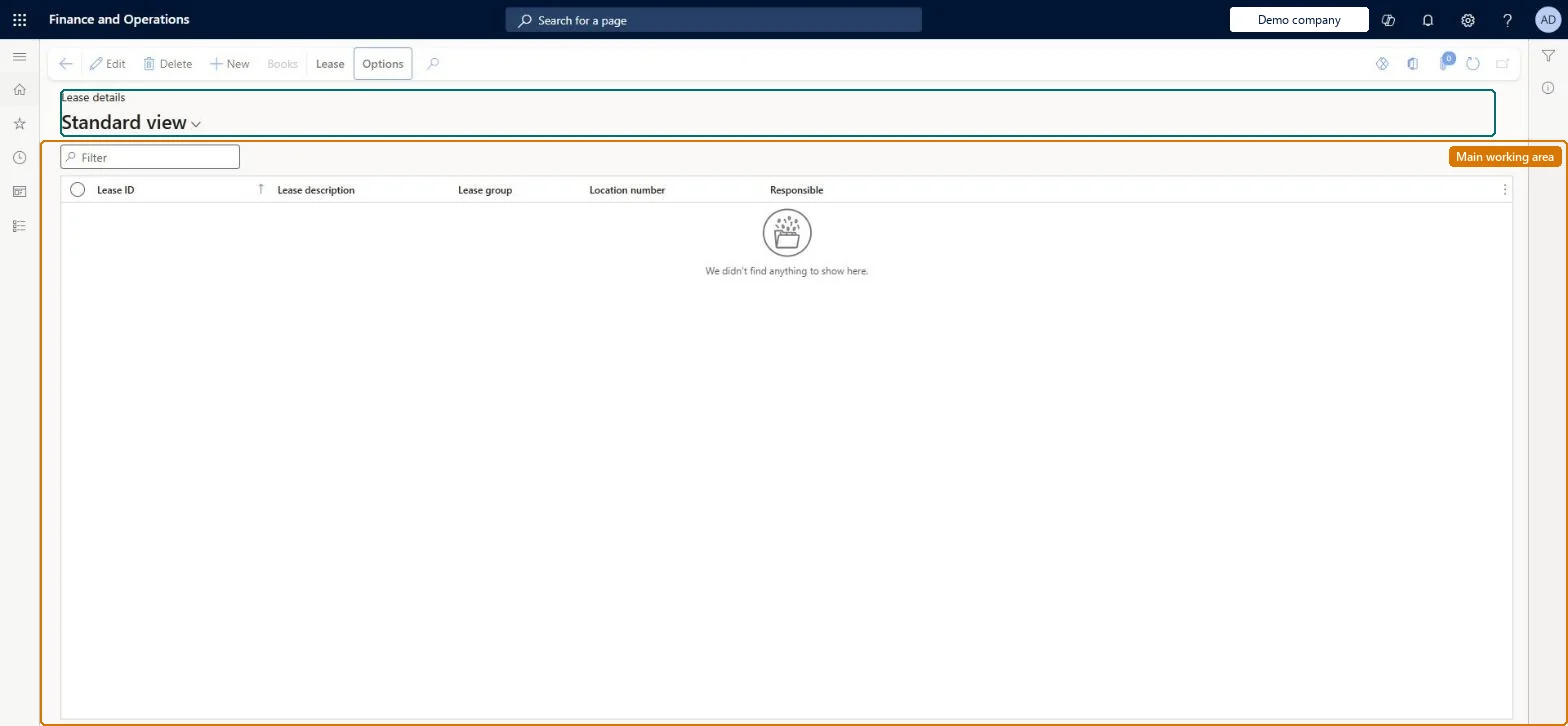
A list page that shows the leases in Asset leasing, where you create new leases, copy existing ones and open a lease to work with its books.
What you do here
Use this page to enter a lease and its payment schedule lines, create the lease schedules and books, and start later actions such as copying, adjusting or terminating the lease.
Example
For example, after you set up one lease you can copy it to create a similar lease and then edit the copied details.
The page in Dynamics 365. page title tab to open what to set or check
About the examples: Examples and screenshots in this guide use BEAT, a demo company in a Dynamics 365 test environment. Use your own company's codes and values instead of copying them.
Setup steps on this page
Enter a lease and confirm its schedule
Create the lease, its books and schedules, and confirm the payment schedule so journals can be posted.
Steps from Microsoft
Go to Asset leasing > Leases > Lease summary.
Select New.
Enter the lease information; required fields have red borders.
On the Payment schedule lines FastTab, enter a payment line.
Select Create schedules.
Select Books to review the schedules, then confirm the payment schedule.
Whether each lease payment is due at the start or the end of the payment period.Microsoft Learn
Annuity due
Commencement date
The date the lessor makes the asset available to the lessee; all lease calculations start from it.Microsoft Learn
Payment frequency
How often a payment falls due: monthly, quarterly, semiannually or annually.Microsoft Learn
Monthly
Breakdown payment amount
When set to Yes, the payment amount is built from itemised payment types and the Payment amount field is locked.Microsoft Learn
Sales tax group
The sales tax group (and item sales tax group) carried into the vendor invoice journal when the book pays to a vendor.Microsoft Learn
Fixed asset number
Links the lease to a fixed asset that isn't acquired yet; initial recognition then posts as the asset's acquisition and depreciation runs in Fixed assets.Microsoft Learn
Fixed rate
Set to Yes to override the accounting and reporting currency exchange rates taken from the commencement date.Microsoft Learn
Common errors and fixes
Message
What to do
The lease payment start date can't be earlier than the lease start date
Change the start date of the payment schedule line to the commencement date or later. Microsoft Learn
The compounding interval is less frequent than the payment frequency
Set Compounding interval to the payment frequency or more often, for example Monthly for monthly payments. Microsoft Learn
Payment amount doesn't match the itemized breakdown
Pressing Esc in Payment amount breakdown keeps the amounts in the dialog only. Select Add totals to payment amount. Microsoft Learn
Test checklist
On Lease summary select New, fill the required General fields (Asset useful life (Months), Lease group, Incremental borrowing rate (%), Compounding interval, Annuity type, Currency, Commencement date) and add one payment schedule line.
Enter a payment start date earlier than the lease start date and check that the system rejects it with an error.
Select Create schedules, open Books and check that Initial right-of-use asset, Lease liability and the Lease type on the Lease classification test FastTab are filled.
Select Confirm schedule, then try to edit the lease and check that it is locked.
Create the Initial recognition journal, post it from Asset leasing journal, and check Asset transactions and Liability transactions show the ROU asset and lease liability.
Use a commencement date on the first of a month, enter the incremental borrowing rate from treasury, and confirm the payment schedule only after checking Initial right-of-use asset and Lease liability on Books.All calculations start from the commencement date, and Microsoft advises the first of a period for accurate figures. Once confirmed, the lease can't be edited and any change becomes a lease adjustment.
Asset leasing must be turned on in Feature management (feature Asset leasing). Microsoft Learn describes three Asset leasing roles: Maintain lease (add, edit and post leases), View lease (view leases and schedules and run reports) and Lease clerk (create new leases only). Lease clerks and Maintain lease users create leases here; View lease users can only read them.
Per company: leases with their books, schedules and journals belong to the legal entity you are working in, and Lease ID numbers come from a number sequence set per company. Turn on Cross entity batch in Asset leasing parameters to create journals for other legal entities from the current one. Microsoft Learn
Can it be undone
Hard to reverse: You can edit the lease and its payment schedule lines until you select Confirm schedule on the lease book. After that the lease can no longer be edited, so any change to terms or payments must go through the Lease adjustment wizard, which creates a new lease version and posts an adjustment entry. Posted entries such as initial recognition can only be undone with a reversing transaction. Microsoft Learn
If you change it later
Once the payment schedule is confirmed the lease can no longer be edited, so later changes must go through a lease adjustment. Microsoft Learn
Technical architect
6Technical
Menu item
AssetLeaseLeaseDetailEntityChecked in Dynamics 365
Form
AssetLeaseDetailChecked in Dynamics 365
Table
AssetLeaseLeaseDetailsShown as “LEASES” in Record infoKey field: LeaseIdChecked in Dynamics 365
Data entities
AssetLeasePaymentAmountBreakdownEntityLease payment amount breakdown (only the payment amount breakdown lines) Checked in Dynamics 365AssetLeaseLeaseMasterEntityParent leases Checked in Dynamics 365
To set it up or change itLease accountant AssetLeaseLeaseMaintainAccountant LedgerAccountantLease clerk AssetLeaseClerkRoleAccounts payable payments clerk PaymAccountsPayablePaymentsClerkTo use itLease manager AssetLeaseLeaseViewAccounting manager LedgerAccountingManagerGive people one of these roles. On this system, 6 roles can open this page.Checked in Dynamics 365
Actions on the page
Lease(Action Pane without tabs): New, BooksChecked in Dynamics 365
AssetLeaseLeaseMasterEntity data entity Checked in Dynamics 365
Data migration
AssetLeaseLeaseMasterEntity (Parent leases): exports and reads the lease headers. To add, update or adjust leases in bulk, Microsoft's route is the Lease import framework: Lease staging, Payment contract staging and Executory contract staging, then Validate and Migrate lease records.Load order: Load the Asset leasing setup in Microsoft's order: lease books, lease groups, then the parameters (journal names, posting accounts, executory cost accounts), expense types, payment amount types, index rate types and locations, and only then the leases. After Migrate lease records (Add record), confirm each payment schedule and post initial recognition; for a lease already running, use Assigning initial recognition posting date in Batch journal creation.Load first: Lease books, Lease groups, Asset leasing parametersMicrosoft Learn