PAGE GUIDEWhat the page does and how to use it8 sections. Choose a role to highlight what matters to you.
Everyone
1What it is and why
What it is
A workspace that lists the features delivered in each release and lets administrators turn them on or off.
What you do here
Use this workspace to read about new features and to turn features on, schedule them for a later date, or turn them off.
Example
For example, before go-live the BEAT team turns on (Preview) Batch concurrency control in a sandbox, tests the batch groups, and only then schedules the same feature in production.
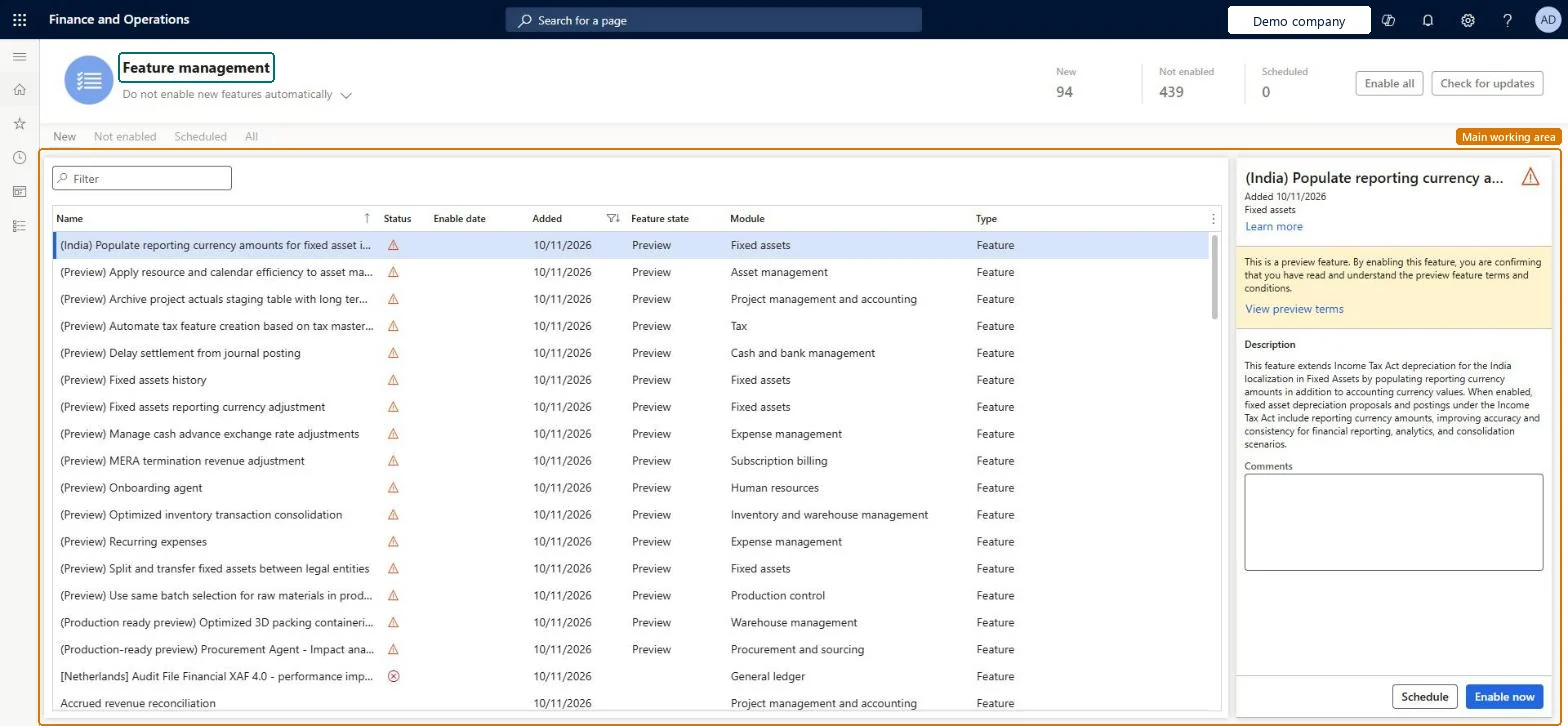
The page in Dynamics 365. page title tab to open what to set or check
About the examples: Examples and screenshots in this guide use BEAT, a demo company in a Dynamics 365 test environment. Use your own company's codes and values instead of copying them.
Setup steps on this page
Turn on features from Feature management
Decide which new features to turn on, when, and in which environment first.
Steps from Microsoft
Open the Feature management workspace from its tile on the dashboard.
Select the All tab, or the New or Not enabled tab.
Select the feature to see its details and the Learn more link.
Read any warning message shown for the feature.
Select Enable now to turn on the feature, or Schedule to set a later Enable date.
To turn off a feature that can be turned off, select Disable.
Turn a feature on in a sandbox first, test the process it changes, then schedule it in production with an Enable dateSome features can't be turned off again, so a feature turned on in production without a test can't be taken back.
On this system the page opens for Feature manager and Feature viewer. Feature managers turn features on and off; feature viewers only read. Turning features on and off is what this page does.
Shared: a feature is turned on for the whole environment, for every legal entity. Microsoft Learn
Can it be undone
Can't be undone: Some features can't be turned off after they are turned on, and features that become mandatory stay on. Check the feature's details before you select Enable now. Microsoft Learn
If you change it later
Some features can't be turned off again after you turn them on, and features that become mandatory stay on. Microsoft Learn
Technical architect
6Technical
Menu item
FeatureManagementWorkspaceChecked in Dynamics 365
Form
FeatureManagementWorkspaceChecked in Dynamics 365
Data entities
FeatureManagementEntityFeature management entity
Who can open it
PrivilegesMaintain features FeatureManagementMaintainView features FeatureManagementViewDutiesMaintain features FeatureManagementMaintainView features FeatureManagementView2 security rolesFeature manager FeatureManagementManagerFeature viewer FeatureManagementViewerChecked in Dynamics 365
Roles to set it up and use it
To set it up or change itFeature manager FeatureManagementManagerTo use itFeature viewer FeatureManagementViewerGive people one of these roles. On this system, 2 roles can open this page.Checked in Dynamics 365
FeatureManagementEntity (Feature management entity): shared by all companies; not in Microsoft's default templates.Load order: The entity isn't part of Microsoft's default configuration templates in this system. Turn features on in each environment and test them there rather than copying their state.Checked in Dynamics 365