Lease accountant, Lease manager, Accountant and 1 more role
Business process
Make payments on asset leases
Menu item
AssetLeasePaymentConfirmationBatch
Main table
AssetLeasePaymentConfirmationDetails
Setup steps
1 on this page
Show what matters for
PAGE GUIDEWhat the page does and how to use it8 sections. Choose a role to highlight what matters to you.
Everyone
1What it is and why
What it is
A periodic page for confirming the payment schedules of many lease books in one run.
What you do here
Use this page to confirm payment schedules in a batch instead of lease by lease; confirmation is the final approval of a lease's financial information.
Example
For example, to confirm all books in one lease group, select that group in the Lease group field.
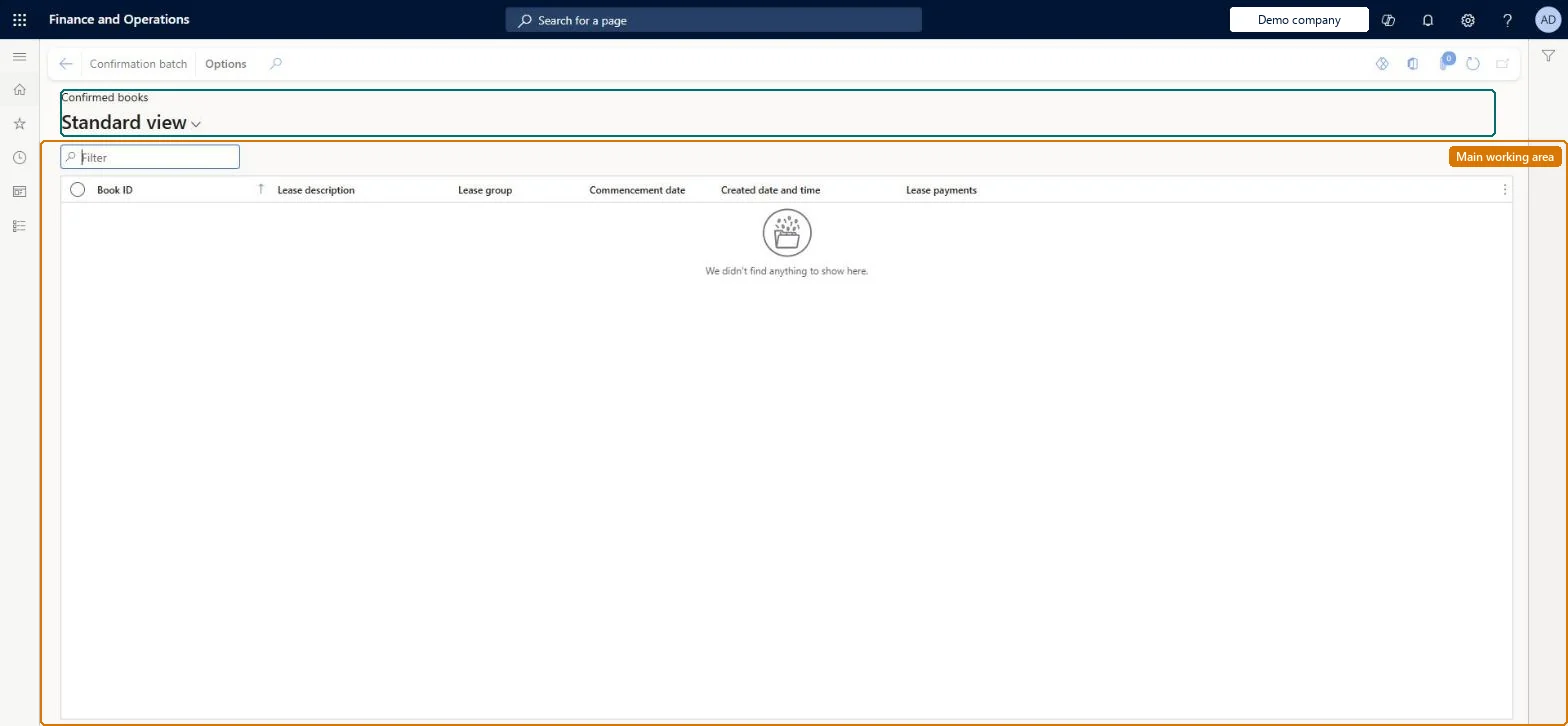
The page in Dynamics 365. page title tab to open what to set or check
About the examples: Examples and screenshots in this guide use BEAT, a demo company in a Dynamics 365 test environment. Use your own company's codes and values instead of copying them.
When to run it
When to run it
After new leases are entered or migrated and their payment schedules are reviewed, before you post initial recognition.
How often
On demand, whenever a group of new or migrated leases is ready for final approval.
What the output shows
The Confirmed books page lists the books whose payment schedules are now confirmed. A book that is missing was outside the Lease group or Book ID filter, or wasn't ready to confirm.
Confirm by lease group after a migration or month-end intake, and only after the books' classification and present value have been checked.Confirmation is the final approval: journals can only post against confirmed schedules, and any later change to payments or term must go through a lease adjustment.
Asset leasing must be turned on in Feature management (feature Asset leasing). Microsoft Learn describes three Asset leasing roles: Maintain lease (add, edit and post leases), View lease (view leases and schedules and run reports) and Lease clerk (create new leases only). Maintain lease users confirm schedules.
Per company: leases with their books, schedules and journals belong to the legal entity you are working in, and Lease ID numbers come from a number sequence set per company. Turn on Cross entity batch in Asset leasing parameters to create journals for other legal entities from the current one. Microsoft Learn
Can it be undone
No: Confirmation is the final approval of the lease's financial information. After it, changes to payments or the lease term must be processed as a lease adjustment. Microsoft Learn
If you change it later
Confirms the payment schedules, so journal entries can be posted; any later change to payments or the lease term must be processed as a lease adjustment. Microsoft Learn
Technical architect
6Technical
Menu item
AssetLeasePaymentConfirmationBatchChecked in Dynamics 365
Form
AssetLeasePaymConfirmationDetailsChecked in Dynamics 365
Table
AssetLeasePaymentConfirmationDetailsShown as “PAYMENT SCHEDULE CONFIRMATION BATCH” in Record infoKey field: LeaseIdChecked in Dynamics 365
To set it up or change itLease accountant AssetLeaseLeaseMaintainAccountant LedgerAccountantTo use itLease manager AssetLeaseLeaseViewAccounting manager LedgerAccountingManagerGive people one of these roles. On this system, 4 roles can open this page.Checked in Dynamics 365
Actions on the page
(Action Pane without tabs): Confirmation batchChecked in Dynamics 365
Load order: Confirmation batch has no data entity in Data management, so it can't be loaded from a file or a configuration template. It confirms schedules of leases already in the system, for example after a Lease import framework migration.Microsoft Learn