Lease clerk, Lease accountant, Lease manager and 3 more roles
Business process
Maintain asset leases
Menu item
AssetLeaseTerminateLeaseListPage
Main table
AssetLeaseLeaseTerminationTable
Setup steps
1 on this page
Show what matters for
PAGE GUIDEWhat the page does and how to use it8 sections. Choose a role to highlight what matters to you.
Everyone
1What it is and why
What it is
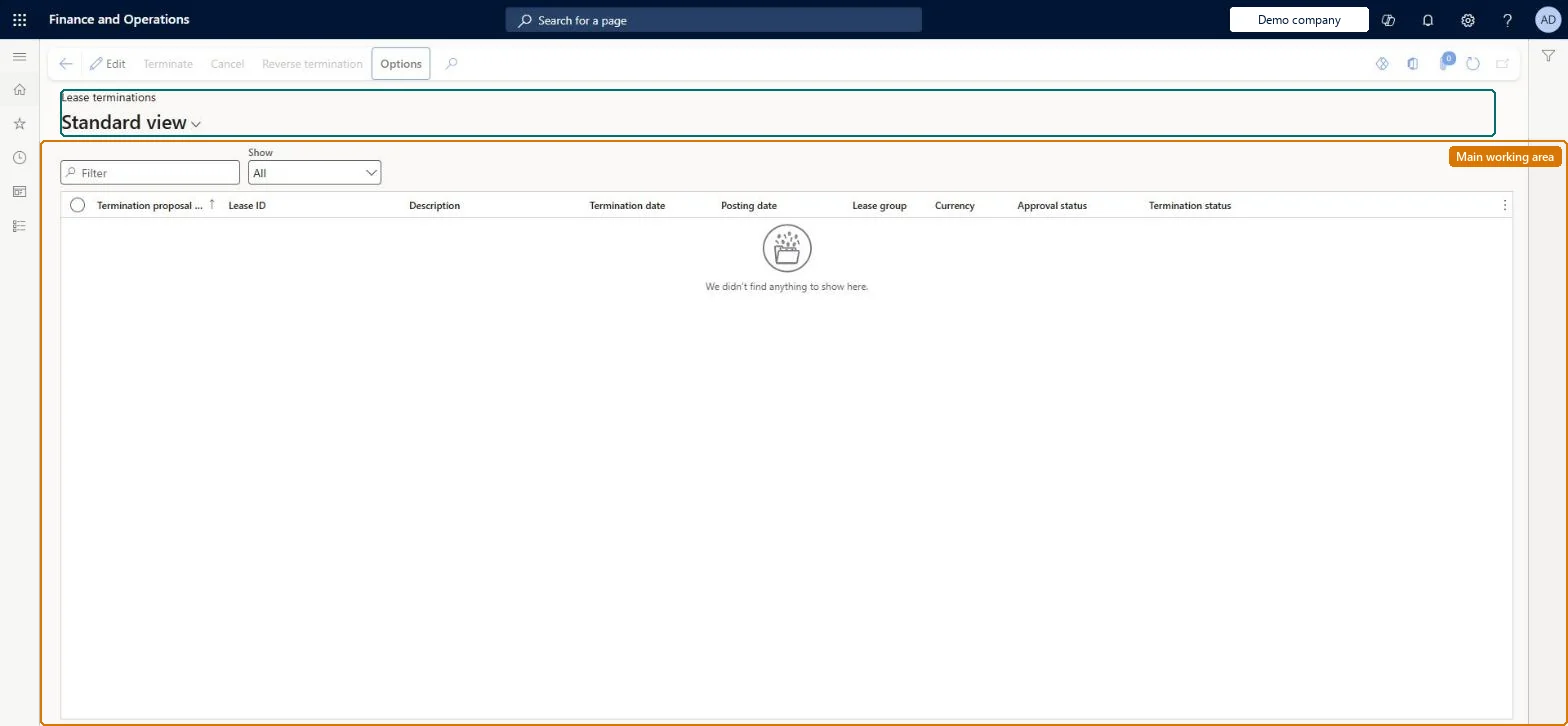
A list page that shows leases proposed for termination, where you post, cancel or reverse the termination journal entry.
What you do here
Use this page to review the termination lines for a proposed lease and then post the termination, which writes off the lease balances and books any gain or loss.
Example
For example, when the business and the lessor agree to end a lease early, you propose it for termination and then terminate it from this page.
The page in Dynamics 365. page title tab to open what to set or check
About the examples: Examples and screenshots in this guide use BEAT, a demo company in a Dynamics 365 test environment. Use your own company's codes and values instead of copying them.
Setup steps on this page
Post, cancel or reverse a lease termination
Finish an early termination proposed for a lease, or undo it.
Steps from Microsoft
Go to Asset leasing > Leases > Lease terminations.
Select the lease ID to view its termination lines.
Shows that the lease book is ready for termination after it is proposed.Microsoft Learn
TerminationStatus
Lease status
Set to Terminated after the termination journal entry is posted.Microsoft Learn
Terminated
Common errors and fixes
Message
What to do
Termination proposal is unavailable on the lease
A book of the lease has unposted journal entries. Post or delete them, then propose the termination. Microsoft Learn
A lease ready for termination can't be posted, adjusted or impaired
That is by design once the proposal is made. Cancel the proposal (version 10.0.44 and later) to work on the lease again. Microsoft Learn
Test checklist
Post or delete any unposted journal entries on the lease, then on the lease select Termination proposal and set Effective date and Posting date.
Open Lease terminations, select the lease ID and check the termination lines show the carrying liability, ROU asset, accumulated depreciation and gain or loss.
Check that the lease book Termination status is Ready for termination and that adjustment and impairment are no longer possible.
Select Terminate and OK, then check the lease book Lease status is Terminated and the liability and asset transactions net to zero.
Select Reverse termination and check the Lease status returns to Open and the lease leaves the Lease terminations page.
Check the proposal lines (right-of-use asset, liability, accumulated depreciation, deferred rent and gain or loss) before Terminate; use Cancel for a proposal that shouldn't go ahead and Reverse termination only for a posted one.Terminate posts the entry and sets Lease status to Terminated. Cancel sets the proposal to Canceled and resets the book's Termination proposal status to None; Reverse termination reopens a terminated lease.
Asset leasing (Must be on)Lease termination proposal cancellation (Optional)
Licence or add-in
Asset leasing must be turned on in Feature management (feature Asset leasing). Microsoft Learn describes three Asset leasing roles: Maintain lease (add, edit and post leases), View lease (view leases and schedules and run reports) and Lease clerk (create new leases only). Maintain lease users terminate, cancel or reverse here.
Per company: leases with their books, schedules and journals belong to the legal entity you are working in, and Lease ID numbers come from a number sequence set per company. Turn on Cross entity batch in Asset leasing parameters to create journals for other legal entities from the current one. Microsoft Learn
Can it be undone
Reversible: A proposal that isn't yet terminated can be revoked with Cancel (version 10.0.44 and later), which sets the Termination proposal status back to None. A posted termination can be undone with Reverse termination, which reverses the termination journal entry and sets the Lease status back to Open. While a lease is Ready for termination you can't post journal entries against it, adjust it or impair it. Microsoft Learn
If you change it later
Once a lease is proposed for termination you can no longer post journal entries against it, adjust it or impair it; Reverse termination reopens it. Microsoft Learn
Technical architect
6Technical
Menu item
AssetLeaseTerminateLeaseListPageChecked in Dynamics 365
Form
AssetLeaseTerminateLeaseListPageChecked in Dynamics 365
Table
AssetLeaseLeaseTerminationTableShown as “LEASE TERMINATION TABLE” in Record infoChecked in Dynamics 365
To set it up or change itLease accountant AssetLeaseLeaseMaintainAccountant LedgerAccountantTo use itLease manager AssetLeaseLeaseViewAccounting manager LedgerAccountingManagerLease clerk AssetLeaseClerkRoleAccounts payable payments clerk PaymAccountsPayablePaymentsClerkGive people one of these roles. On this system, 6 roles can open this page.Checked in Dynamics 365
Actions on the page
(Action Pane without tabs): Terminate, Cancel, Reverse terminationChecked in Dynamics 365
Load order: A lease termination has no data entity in Data management, so it can't be loaded from a file or a configuration template. Terminations are created by Termination proposal and posted with Terminate; migrate the leases still running and terminate them in the new system.Microsoft Learn