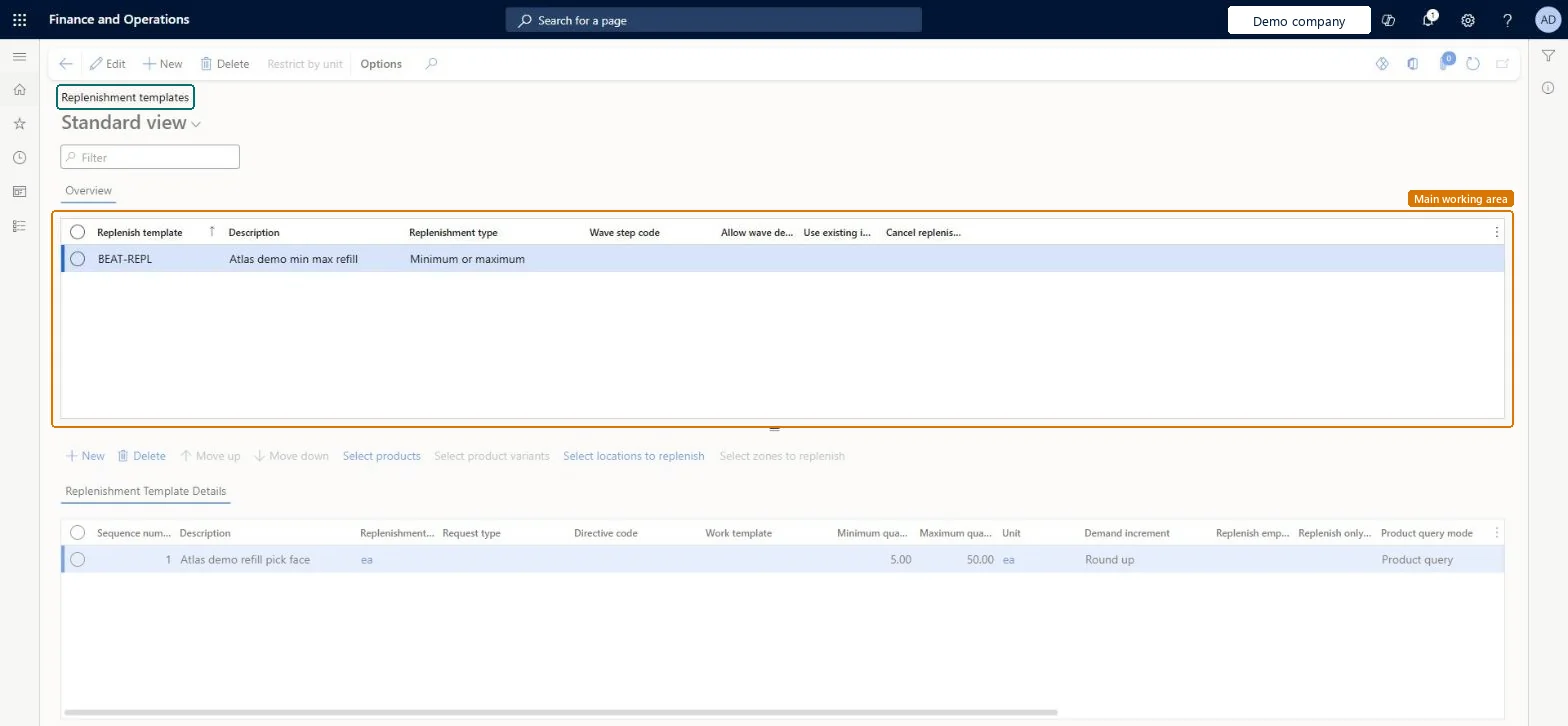
About the examples: Examples and screenshots in this guide use BEAT, a demo company in a Dynamics 365 test environment. Use your own company's codes and values instead of copying them.
Setup steps on this page
Set up Replenishment templates
Use this page to set up minimum and maximum, wave demand and load demand replenishment for picking locations.
Steps from Microsoft
Go to Warehouse management > Setup > Replenishment > Replenishment templates.
On the Action Pane, select New.
In the Replenish template and Description fields, enter a name and a description.
In the Replenishment template details section, select New.
Enter the Sequence number, the Replenishment unit and the Work template.
Enter the Minimum quantity, the Maximum quantity and the Unit.
Select Select products to define which products are replenished.
Min/max templates for picking locations, run daily as a batch job before picking starts; select Replenish only fixed locations when you replenish fixed locations; use wave demand replenishment as a supplement between min/max cyclesLearn says min/max typically runs once a day so picking locations are full before picking starts, recommends Replenish only fixed locations for performance when replenishing fixed locations, and describes demand replenishment as a supplement between min/max cycles.
Hard to reverse: The Sequence number of a template line can't be changed after you save the line; to reorder lines you must recreate them. Other fields can be changed and apply to the next replenishment run.
Technical architect
6Technical
Menu item
WHSReplenishmentTemplatesChecked in Dynamics 365
Form
WHSReplenishmentTemplatesChecked in Dynamics 365
Table
WHSReplenishmentTemplateShown as “REPLENISHMENT TEMPLATES” in Record infoKey field: ReplenishTemplateIdChecked in Dynamics 365
Data entities
WHSWarehouseReplenishmentTemplateEntityWarehouse replenishment templates Microsoft data model
Who can open it
PrivilegesMaintain replenishment templates WHSReplenishmentTemplatesMaintainView replenishment templates WHSReplenishmentTemplatesViewDutiesInquire into warehouse operation master WMSWarehouseOperationMasterInquireMaintain warehouse operation master WMSWarehouseOperationMasterMaintain6 security rolesField Service Integration User FieldServiceIntegrationUserProduction supervisor ProdProductionSupervisorProcess engineer RouteProcessEngineerProcess engineering manager RouteProcessEngineeringManagerWarehouse planner WHSWarehousePlannerWarehouse manager WMSWarehouseManagerChecked in Dynamics 365
Roles to set it up and use it
To set it up or change itWarehouse manager WMSWarehouseManagerProcess engineer RouteProcessEngineerTo use itWarehouse planner WHSWarehousePlannerProduction supervisor ProdProductionSupervisorProcess engineering manager RouteProcessEngineeringManagerField Service Integration User FieldServiceIntegrationUserGive people one of these roles. On this system, 6 roles can open this page.Checked in Dynamics 365
Actions on the page
(Action Pane without tabs): Restrict by unitChecked in Dynamics 365
WHSWarehouseReplenishmentTemplateEntity (Warehouse replenishment templates): loaded for each company, in Microsoft's default template 400 - Warehouse management.Load order: Microsoft's default template 400 - Warehouse management loads Warehouse replenishment templates at execution unit 1, level 30, sequence 10. Lower levels load first, and entities at the same level load in sequence order.Load first: the default templates at lower levels (System setup to General ledger)Microsoft Learn