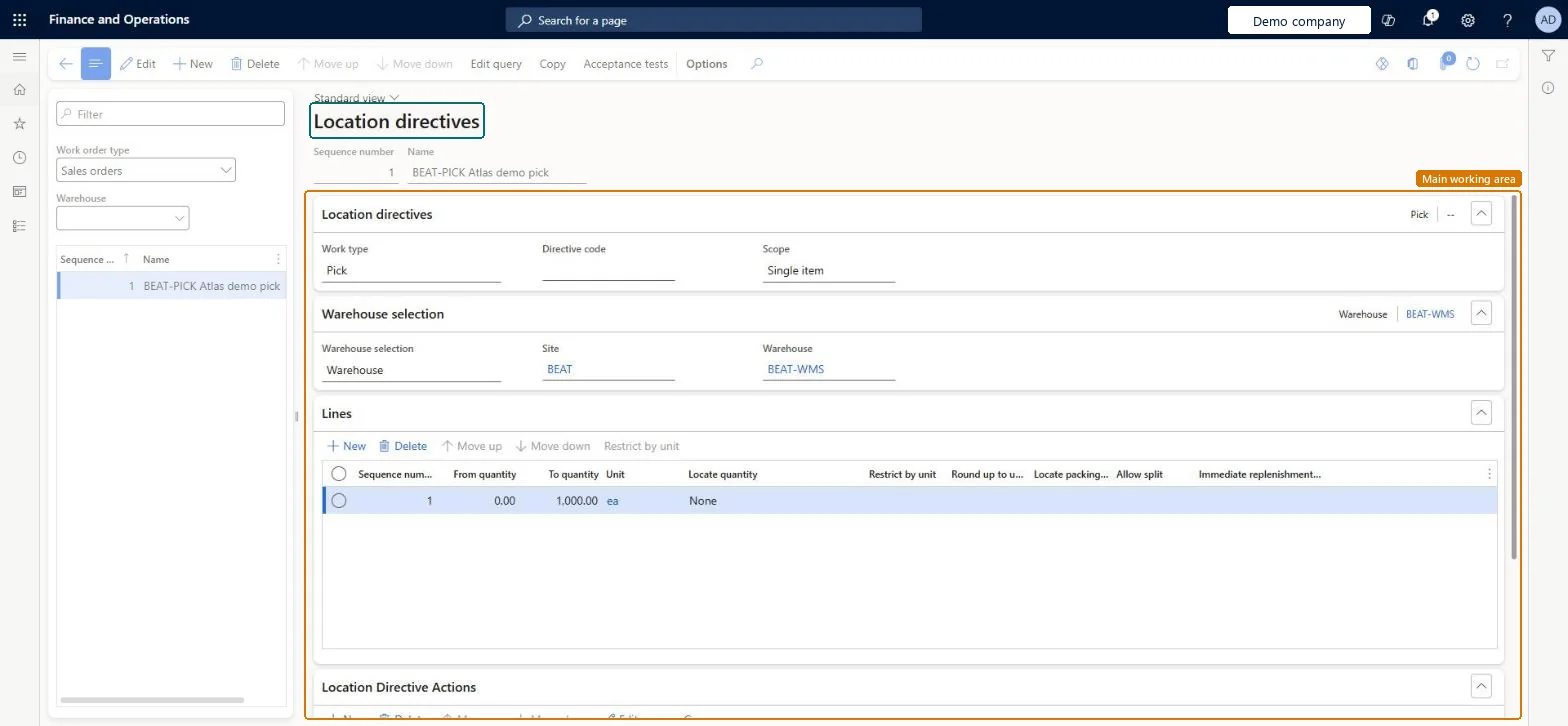
A setup page where you create the rules that identify pick and put locations for inventory movement, by work order type, with lines and actions for each directive.
Field Service Integration User, Production supervisor, Process engineer and 3 more roles
Business process
Manage warehouse operations
Menu item
WHSLocDirTable
Main table
WHSLocDirTable
Data entity
WHSWarehouseLocationDirectiveV2Entity
Setup steps
1 on this page
Show what matters for
PAGE GUIDEWhat the page does and how to use it8 sections. Choose a role to highlight what matters to you.
Everyone
1What it is and why
What it is
A setup page where you create the rules that identify pick and put locations for inventory movement, by work order type, with lines and actions for each directive.
What you do here
Use this page to define where warehouse work picks inventory from and puts it, for each work order type.
Example
For example, a purchase order putaway directive can first try to consolidate with existing on-hand inventory and then fall back to an empty location.
The page in Dynamics 365. page title tab to open what to set or check
About the examples: Examples and screenshots in this guide use BEAT, a demo company in a Dynamics 365 test environment. Use your own company's codes and values instead of copying them.
Setup steps on this page
Set up Location directives
Use this page to define where warehouse work picks inventory from and puts it, for each work order type.
Steps from Microsoft
Go to Warehouse management > Setup > Location directives.
In the Work order type field, select the work order type, for example Purchase orders, then select New.
Enter a Sequence number and a Name, then select the Work type, Site and Warehouse, and select Save.
Select Edit query to add constraints that limit when the directive is used.
On the Lines FastTab, select New and enter the From quantity, To quantity and Unit.
On the Location Directive Actions FastTab, select New, enter a Name and select a Strategy, then select Save.
For puts, use Single item or order directives for the fine-tuned cases and All directives for the rest; on each line try a Consolidate action first, then Empty location with no incoming workLearn says Single item and Multiple items scopes for puts typically lead to redundant setup, and describes consolidate-then-empty-location as the typical put setup because consolidation makes later picking more efficient.
Reversible: Directives can be changed, moved up or down, or deleted at any time. Changes act only on work created afterwards. Microsoft Learn
Technical architect
6Technical
Menu item
WHSLocDirTableChecked in Dynamics 365
Form
WHSLocDirTableChecked in Dynamics 365
Table
WHSLocDirTableShown as “LOCATION DIRECTIVES” in Record infoKey field: LocDirName, InventSiteId, InventLocationIdChecked in Dynamics 365
Data entities
WHSWarehouseLocationDirectiveV2EntityWarehouse location directives V2 Microsoft data model
Who can open it
PrivilegesMaintain location directives data WHSLocDirTableMaintainView location directives table WHSLocDirTableViewDutiesInquire into warehouse operation master WMSWarehouseOperationMasterInquireMaintain warehouse operation master WMSWarehouseOperationMasterMaintain6 security rolesField Service Integration User FieldServiceIntegrationUserProduction supervisor ProdProductionSupervisorProcess engineer RouteProcessEngineerProcess engineering manager RouteProcessEngineeringManagerWarehouse planner WHSWarehousePlannerWarehouse manager WMSWarehouseManagerChecked in Dynamics 365
Roles to set it up and use it
To set it up or change itWarehouse manager WMSWarehouseManagerProcess engineer RouteProcessEngineerTo use itWarehouse planner WHSWarehousePlannerProduction supervisor ProdProductionSupervisorProcess engineering manager RouteProcessEngineeringManagerField Service Integration User FieldServiceIntegrationUserGive people one of these roles. On this system, 6 roles can open this page.Checked in Dynamics 365
Actions on the page
(Action Pane without tabs): Move up, Move down, Edit query, Copy, Acceptance testsChecked in Dynamics 365