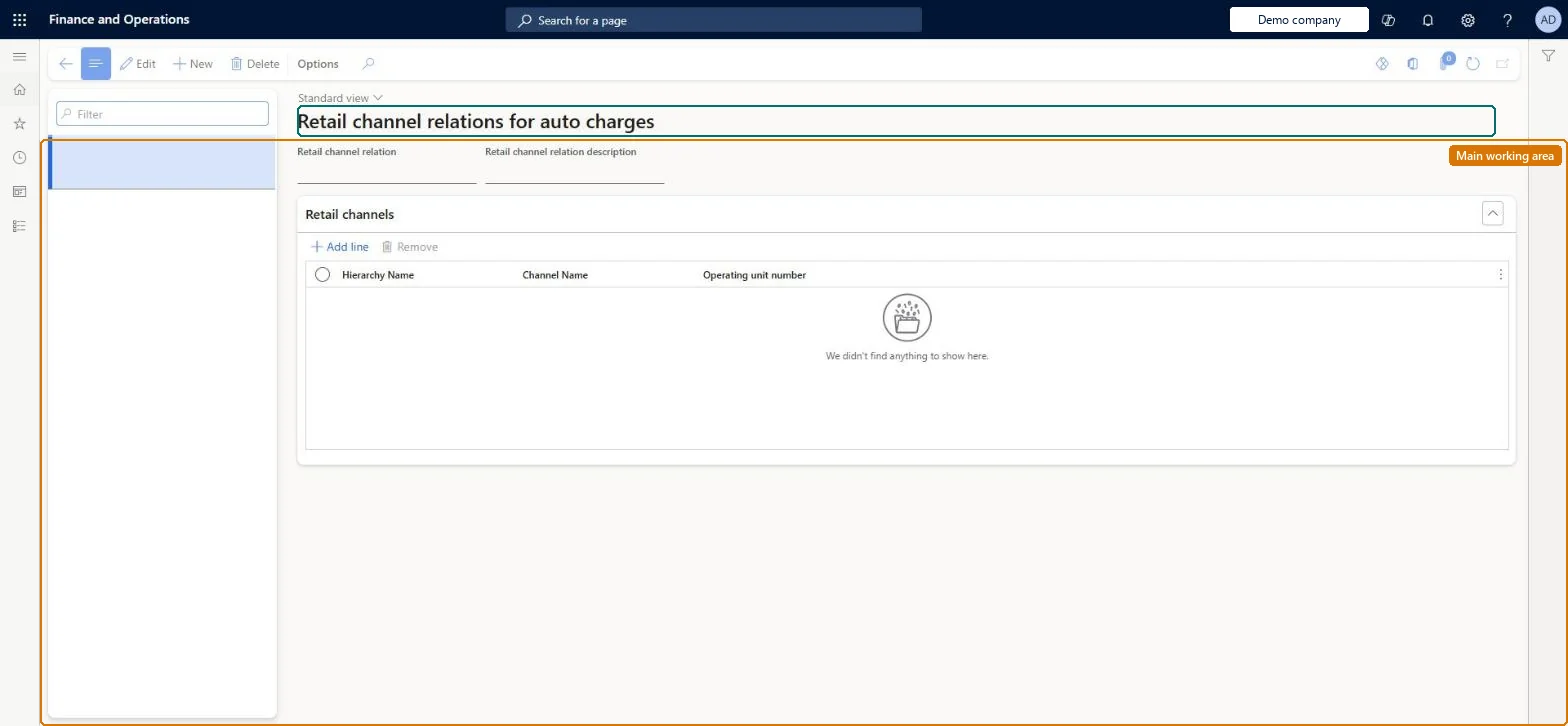
Setup step on the Retail channel charge groups page · Retail and Commerce
Set up Retail channel charge groups
Use this page to create a retail channel charges group before you set an auto charge's Retail channel code to Group, so one rule can apply to several channels at once.
Credit management clerk, Credit management manager, Project assistant and 8 more roles
Business process
Manage sales channels
Menu item
RetailMarkupAutoChannelGroup
Main table
RetailMarkupAutoChannelGroup
Data entity
RetailMarkupAutoChannelGroupEntity
Setup steps
1 on this page
Show what matters for
SETUP GUIDEHow to set it up8 sections. Choose a role to highlight what matters to you.
Everyone
1What it is and why
What it is
A setup page where you define groups of retail channels that can be referenced by an auto charges rule when its Retail channel code is set to Group.
What you do here
Use this page to create a retail channel charges group before you set an auto charge's Retail channel code to Group, so one rule can apply to several channels at once.
Example
For example, all stores in California can be grouped so that a recycling fee rule applies to that group rather than to each store separately.
The page in Dynamics 365. page title tab to open what to set or check
About the examples: Examples and screenshots in this guide use BEAT, a demo company in a Dynamics 365 test environment. Use your own company's codes and values instead of copying them.
Setup steps on this page
Set up Retail channel charge groups
Use this page to create a retail channel charges group before you set an auto charge's Retail channel code to Group, so one rule can apply to several channels at once.
How to use it
Go to Retail and Commerce > Channel setup > Charges > Retail channel charge groups.
Use the Filter box to find a group.
Select New and enter the Retail channel relation and its description.
Under Retail channels, select Add line and pick the Hierarchy Name, Channel Name and Operating unit number of each channel in the group.
Select Save; select Remove to take a channel out of the group.
Source: Checked in Dynamics 365
Test checklist
Create a charge group with the stores that must apply the fee.
In Accounts receivable > Charges setup > Auto charges, create a line-level auto charge with Retail channel code = Group and the group.
Run distribution jobs 1040, 1070 and 1110.
Create a sale in a store in the group and check the charge line appears; repeat in a store outside the group and check it doesn't.
One charge group per set of channels that share the same auto charge, for example all stores in one state that must charge a recycling feeLearn describes auto charges by channel for fees that apply in some stores, and requires a retail channel charges group when the auto charge's Retail channel code is Group.
Turning off the Enable filter auto charges by channel feature after use: the Retail channel relation field disappears and all existing channel configurations are lost.
Feature management and licence
Feature to turn on
Enable filter auto charges by channel (Must be on)
Hard to reverse: Groups can be edited, but if the feature is turned off afterwards the channel relations on auto charges are lost and must be rebuilt.
If you change it later
If the auto charges by channel feature is later turned off, channel-based configurations are lost, and the feature cannot be turned off if removing them would duplicate rules. Microsoft Learn
Technical architect
6Technical
Menu item
RetailMarkupAutoChannelGroupChecked in Dynamics 365
Form
RetailMarkupAutoChannelGroupChecked in Dynamics 365
Table
RetailMarkupAutoChannelGroupShown as “GROUPS OF INTERNAL ORGANIZATIONS THAT APPLY TO AN AUTO CHARGE” in Record infoChecked in Dynamics 365
Data entities
RetailMarkupAutoChannelGroupEntityGroups of internal organizations that apply to an auto charge Checked in Dynamics 365
Who can open it
PrivilegesRetailMarkupAutoChannelGroupMaintainDutiesMaintain sales order MCRSalesMaintainMaintain sales order SalesOrderMaintain12 security rolesCredit management clerk CredManClerkCredit management manager CredManManagerMCRTestUserRoleProject assistant ProjProjectClerkRental coordinator agent RentalCoordinatorAgentRental manager RentalManagerRental purchasing manager RentalPurchasingManagerRental sales manager RentalSalesManagerRetail service RetailServiceRevenue recognition manager RevRecManagerSales clerk TradeSalesClerkSales representative TradeSalesRepresentativeChecked in Dynamics 365
Roles to set it up and use it
To set it up or change itRetail service RetailServiceSales clerk TradeSalesClerkSales representative TradeSalesRepresentativeRental manager RentalManagerRental coordinator agent RentalCoordinatorAgentGive people one of these roles. On this system, 11 roles can open this page.Checked in Dynamics 365
Checked in a working Dynamics 365 system, version 10.0.49: the menu item, form, table and security, the page.
To cite this step: RC-CHARGES-010, Set up Retail channel charge groups. Beyond ERP Atlas Hub, 2026-11-11. https://www.beyonderp.cloud/atlas/step/RC-CHARGES-010