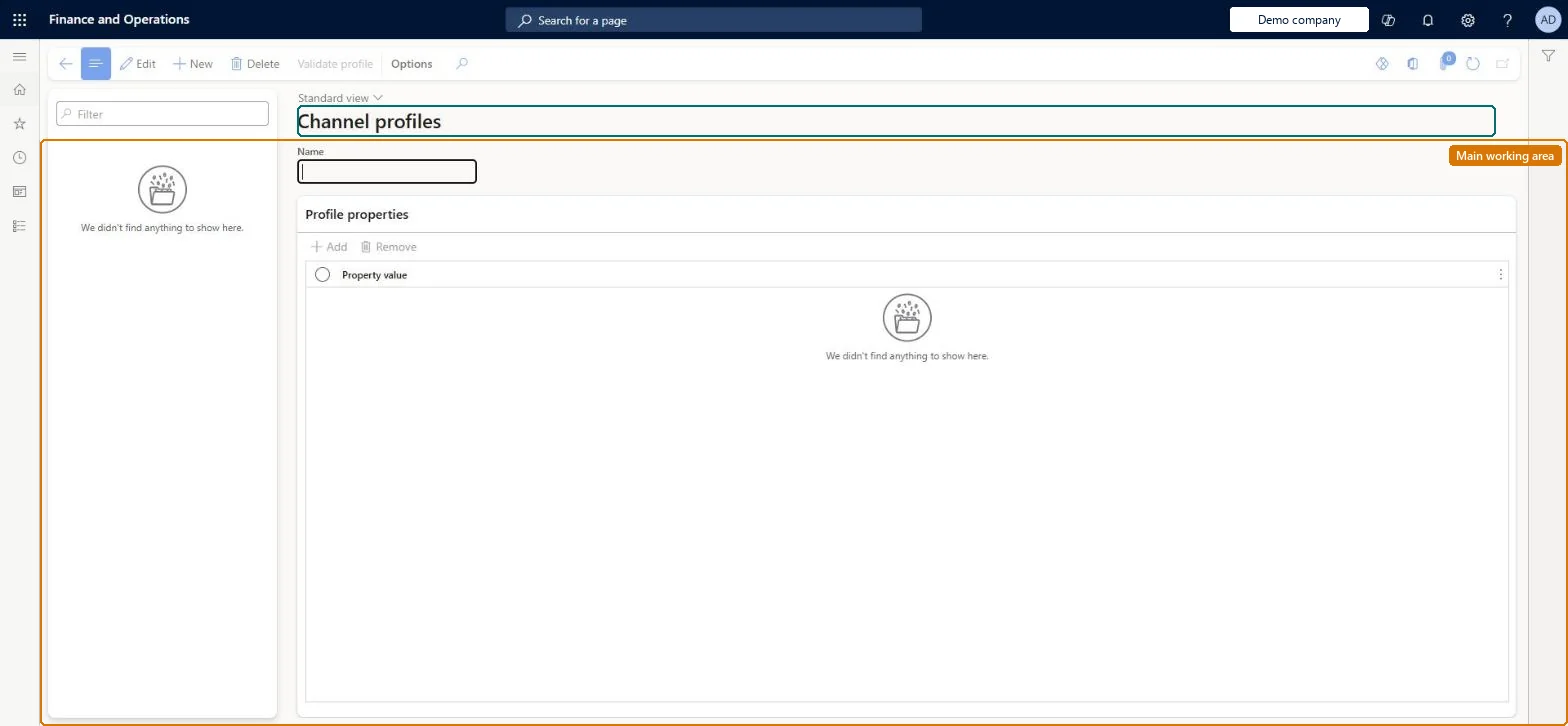
Setup step on the Channel profiles page · Retail and Commerce
Set up Channel profiles
Use this page to create or edit a channel profile and add the property keys and values (for example Retail Server URL) that point a channel at its Commerce Scale Unit and media server.
Retail operations manager, Retail service, Information technology manager
Business process
Manage sales channels
Menu item
RetailChannelProfile
Main table
RetailChannelProfile
Data entity
RetailChannelProfileEntity
Setup steps
1 on this page
Show what matters for
SETUP GUIDEHow to set it up8 sections. Choose a role to highlight what matters to you.
Everyone
1What it is and why
What it is
A setup page where you create named channel profiles that hold the connection properties a channel needs, such as the Retail Server URL, Cloud POS URL and Media Server Base URL, and that are then assigned to stores.
What you do here
Use this page to create or edit a channel profile and add the property keys and values (for example Retail Server URL) that point a channel at its Commerce Scale Unit and media server.
Example
For example, when you install a self-hosted Commerce Scale Unit in a store, you create a channel profile with the Retail Server URL and Cloud POS URL of that unit and assign it to the store.
The page in Dynamics 365. page title tab to open what to set or check
About the examples: Examples and screenshots in this guide use BEAT, a demo company in a Dynamics 365 test environment. Use your own company's codes and values instead of copying them.
Setup steps on this page
Set up Channel profiles
Use this page to create or edit a channel profile and add the property keys and values (for example Retail Server URL) that point a channel at its Commerce Scale Unit and media server.
Steps from Microsoft
Go to Retail and Commerce > Channel setup > Channel profiles.
On the Action Pane, select New.
In the Name field, enter a unique name for the channel profile, then select Save.
On the Profile properties FastTab, select Add.
In the Property key field, select Retail Server URL and enter the URL in the Property value field.
Select Add again and set the Cloud POS URL property (and Media Server Base URL if media is used).
On the Action Pane, select Save.
Open the store (All stores) and select the new profile in the Channel profile field.
One profile per Commerce Scale Unit with Retail Server URL in the form https://<computer name>:<port>/RetailServer/Commerce, plus Cloud POS URL and Media Server Base URLLearn gives this as the standard Retail Server URL format, and says a profile typically holds Retail Server URL and Cloud POS URL, often with a Media Server Base URL for images. Cloud scale units get a profile automatically; self-hosted ones need one created.
A Retail Server URL without the /Commerce suffix, with a trailing slash or with the wrong computer name. Learn's CSU debugging steps start by checking exactly this, because POS can't reach Retail Server.
Solution architect
5Design impact
Can it be undone
Reversible: Profile URLs can be edited at any time; stores pick up the profile set in their Channel profile field.
If you change it later
If a URL in the profile is wrong or badly formed, Retail Server and POS cannot connect; Microsoft's troubleshooting steps include checking each URL on the Channel profile page. Microsoft Learn
Technical architect
6Technical
Menu item
RetailChannelProfileChecked in Dynamics 365
Form
RetailChannelProfileChecked in Dynamics 365
Table
RetailChannelProfileShown as “RETAIL CHANNEL PROFILE” in Record infoChecked in Dynamics 365
Data entities
RetailChannelProfileEntityRetail channel profile Checked in Dynamics 365
Who can open it
PrivilegesMaintain Retail scheduler profiles RetailSchedulerParametersMaintDutiesManage Commerce Data Exchange: Synch Service RetailSchedulerManage3 security rolesRetail operations manager RetailOperationsManagerRetail service RetailServiceInformation technology manager SysServerITManagerChecked in Dynamics 365
Roles to set it up and use it
To set it up or change itRetail service RetailServiceRetail operations manager RetailOperationsManagerInformation technology manager SysServerITManagerGive people one of these roles. On this system, 3 roles can open this page.Checked in Dynamics 365
Actions on the page
(Action Pane without tabs): Validate profileChecked in Dynamics 365