PAGE GUIDEWhat the page does and how to use it7 sections. Choose a role to highlight what matters to you.
Everyone
1What it is and why
What it is
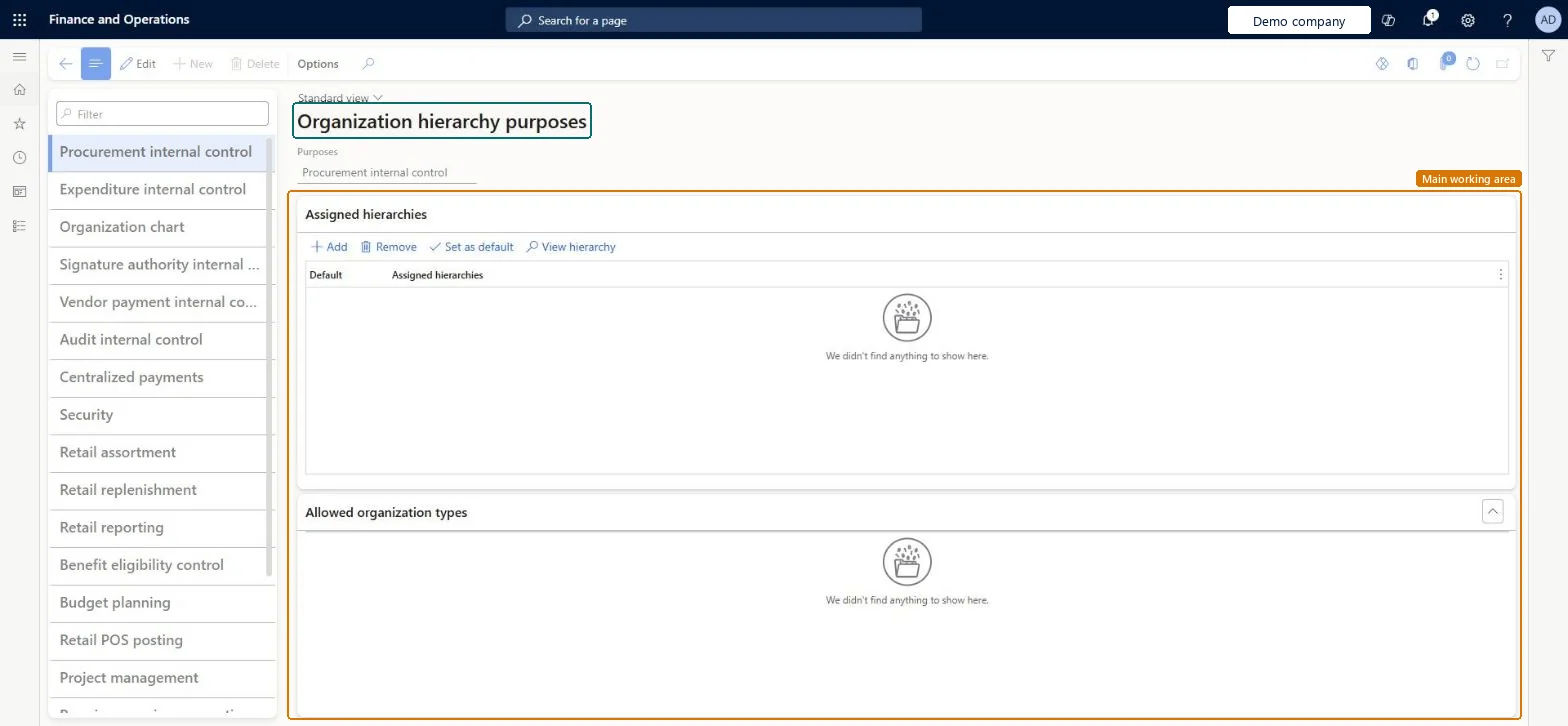
A setup page that lists the hierarchy purposes and the organization hierarchies assigned to each one.
What you do here
Use this page to assign hierarchies to a purpose, such as procurement internal control or centralized payments, which decides where each hierarchy is used.
Example
For example, a hierarchy assigned to the procurement internal control purpose can enforce that a department always buys computers from approved vendors.
The page in Dynamics 365. page title tab to open what to set or check
About the examples: Examples and screenshots in this guide use BEAT, a demo company in a Dynamics 365 test environment. Use your own company's codes and values instead of copying them.
Step by step, with screenshots
Set up Organization hierarchy purposes1 screen
Use this page to assign hierarchies to a purpose, such as procurement internal control or centralized payments, which decides where each hierarchy is used.
Screen 1
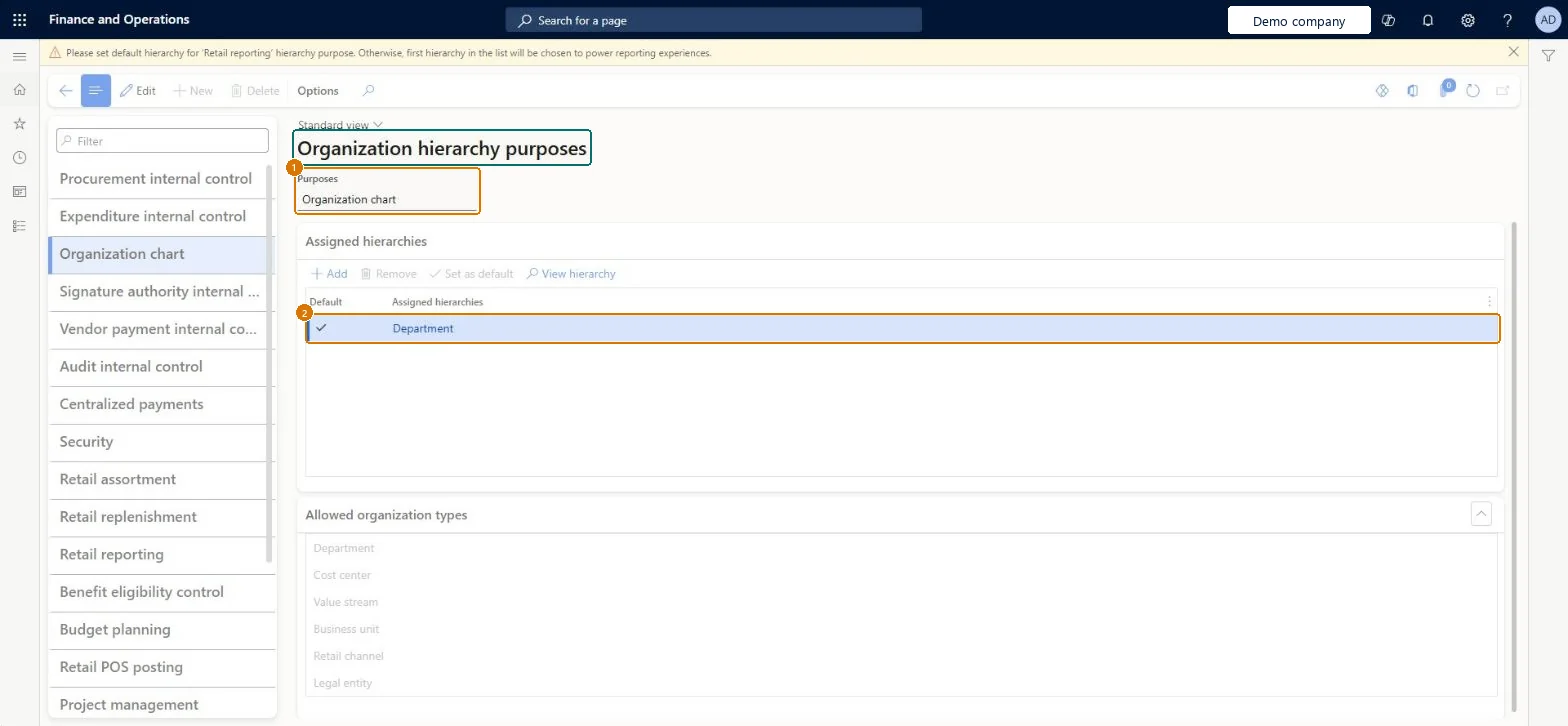
Check which hierarchy a purpose uses
Go to Organization administration > Organizations > Organization hierarchy purposes
Select the purpose in the list
Read the assigned hierarchies and which one is the default
1Purposes
Organization chart
Assigned hierarchies
Department (default)
Show the full screen page title tab to open what to set or check
Steps from Microsoft
Go to Organization administration > Organizations > Organization hierarchy purposes.
In the left pane, select the purpose.
Under Assigned hierarchies, select Add.
In the Organization hierarchies dialog box, select a hierarchy and select OK.
Under Assigned hierarchies, select Set as default.
The hierarchies assigned to the selected purpose; one can be set as the default.Microsoft Learn
Department (default)
HierarchyType
Purposes
Organization chart
HierarchyPurpose
Test checklist
Select the Centralized payments purpose and add the hierarchy that contains the paying and paid legal entities.
Select the Procurement internal control purpose and add the hierarchy used for purchasing policies.
In Procurement and sourcing > Setup > Policies > Purchasing policies, check that the hierarchy's organizations are offered on the Policy organization FastTab.
Post a vendor payment in one legal entity against an invoice in another and check that due-to and due-from transactions are created.
Assign each hierarchy only to the purposes it serves, for example Centralized payments for the legal entities that pay on behalf of each other, and Procurement internal control for the hierarchy that carries purchasing policies.The purpose decides which organizations a hierarchy can hold and in which scenarios it's used; for centralized payments the hierarchy structure doesn't matter, any legal entity in it can pay for any other.
Creating purchasing policies on organizations that aren't in a hierarchy with the Procurement internal control purpose: the policies then apply only through the flat list of companies, not through the hierarchy.
Technical architect
5Technical
Menu item
OMHIerarchyPurposeAssociationChecked in Dynamics 365
Form
OMHierarchyPurposeAssociationChecked in Dynamics 365
Roles to set it up and use it
To set it up or change itInformation technology manager SysServerITManagerProduction manager ProdProductionManagerAccounting manager LedgerAccountingManagerHuman resource assistant HcmHumanResourceAssistantRental manager RentalManagerTo use itHuman resource manager HcmHumanResourceManagerRental purchasing manager RentalPurchasingManagerRental sales manager RentalSalesManagerRental coordinator agent RentalCoordinatorAgentRental clerk RentalClerkGive people one of these roles. On this system, 18 roles can open this page.Checked in Dynamics 365
Checked in a working Dynamics 365 system, version 10.0.49: the menu item, form, table and security, the page, the demo records and the values in the screenshots.