Credit management clerk, Accounts receivable clerk, Accounts receivable manager and 16 more roles
Business process
Define freight and other charges for orders in Dynamics 365 Supply Chain Management
Menu item
MarkupAutoSetup_Cust
Main table
MarkupAutoTable
Setup steps
1 on this page
Show what matters for
PAGE GUIDEWhat the page does and how to use it8 sections. Choose a role to highlight what matters to you.
Everyone
1What it is and why
What it is
A setup page for automatic charges, which are applied automatically when a sales order (or purchase order) is created.
What you do here
Use it to define header- or line-level charges for a customer, customer charges group or all customers, optionally by item, item charges group or mode of delivery, with charge codes, categories and values.
Example
For example, you might add a charge automatically to sales orders for customers who are located outside a certain area.
The page in Dynamics 365. page title tab to open what to set or check
About the examples: Examples and screenshots in this guide use BEAT, a demo company in a Dynamics 365 test environment. Use your own company's codes and values instead of copying them.
Step by step, with screenshots
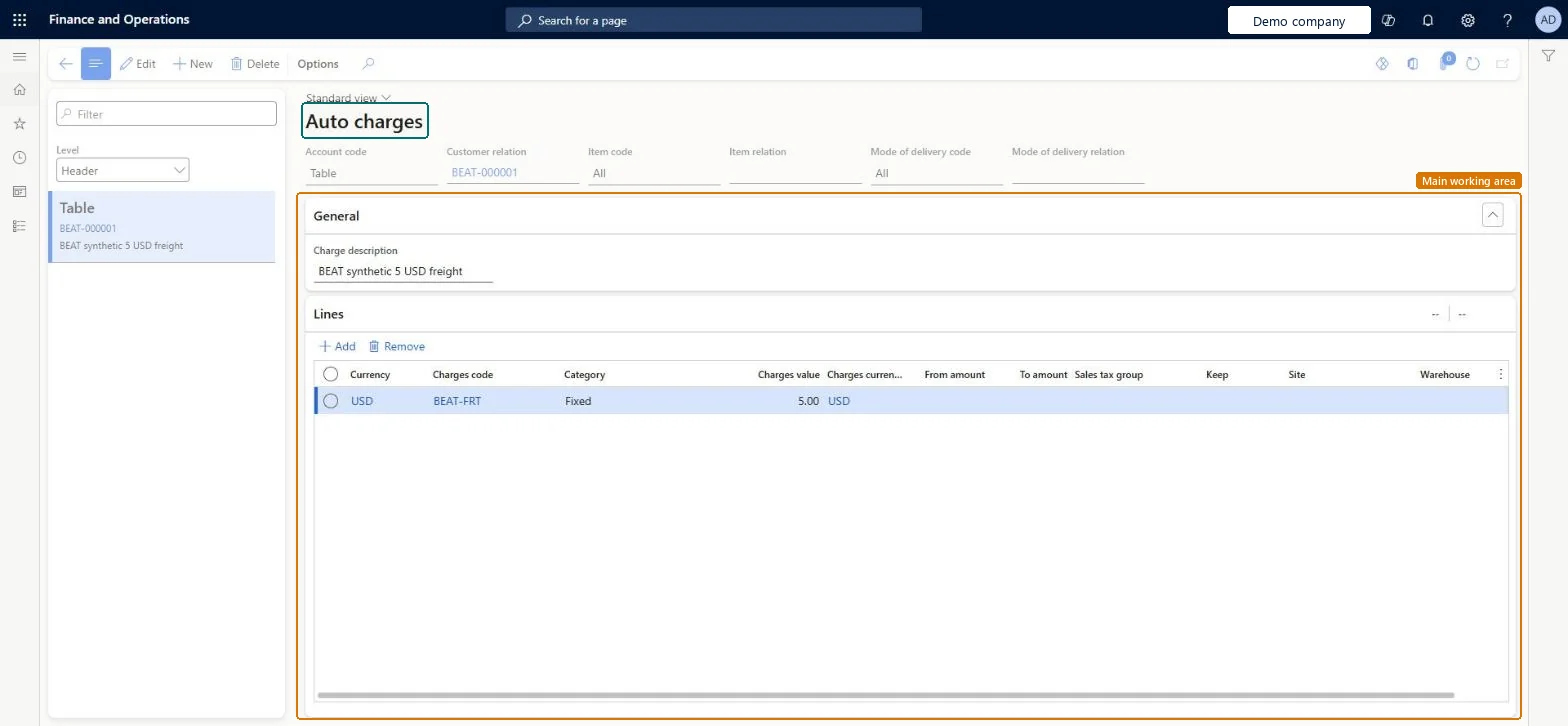
Set up Auto charges1 screen
Defines charges that are added automatically to sales quotation and sales order headers or lines based on customer, item and mode of delivery criteria.
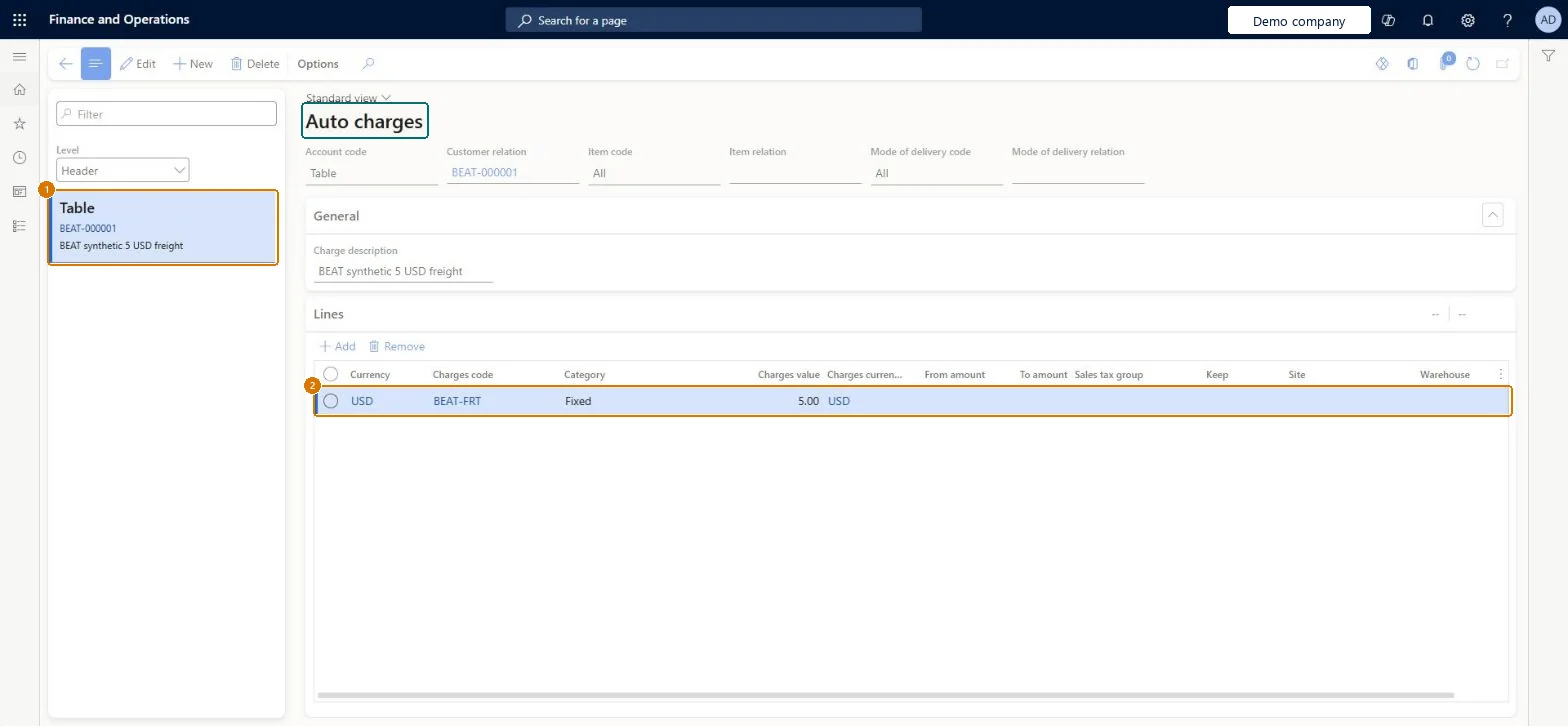
Screen 1
Create the customer auto charge
Go to Accounts receivable > Charges setup > Auto charges
Select New at Header level and set the account and item codes
On the General FastTab, enter the charge description
On the Lines FastTab, select Add and add a USD line with the charges code, category and value
2Charges code
BEAT-FRT
Account code
Table
Customer relation
BEAT-000001
Item code
All
Mode of delivery code
All
Charge description
5 USD freight
Category
Fixed
Charges value
5.00
Show the full screen page title tab to open what to set or check
Steps from Microsoft
Go to Retail and Commerce > Channel setup > Charges > Auto charges and select New.
In the Level field, select Header or Line.
In the Account code field, select Table, Group or All, and in the Customer relation field, select the customer or customer charges group.
For line-level charges, set the Item code and Item relation fields for an item, an item charges group or all items.
Optionally, set the Mode of delivery code and Mode of delivery relation fields.
On the Lines FastTab, select the Currency and the Charges code.
In the Category field, choose how the charge is calculated, and enter the Charges value.
Optionally, enter a From amount and To amount for tiered charges, and select Keep to repeat the charge on each new invoice.
Set Find auto charges for header and Find auto charges for line to Yes in Accounts receivable parameters, then define each auto charge at the level (Header or Line) and scope (Table, Group or All) it really applies to. Select Keep only for charges that must repeat on every invoice.Auto charges are only applied to sales quotations and orders when the parameters are on. With Keep selected, the charge transaction stays after invoicing and is applied again on each new invoice for the customer.
Users edit a header auto charge and then change the Charges group or Mode of delivery on the order header. The system deletes and recalculates the header auto charge, so the edited value is lost; charges already allocated to lines are not recalculated.Test: Tiered header freight
Reversible: Auto charges can be edited at any time and apply to orders created afterwards. Changing the Charges group or Mode of delivery on an order header deletes and recalculates the header auto charge; charges already allocated to lines are not changed. Microsoft Learn
If you change it later
When the charges group or mode of delivery on an order header changes, the header auto charge is deleted and recalculated; charges already moved to the lines are not changed. Microsoft Learn
Technical architect
6Technical
Menu item
MarkupAutoSetup_CustChecked in Dynamics 365
Form
MarkupAutoSetupChecked in Dynamics 365
Table
MarkupAutoTableShown as “AUTO CHARGES TRANSACTIONS” in Record infoChecked in Dynamics 365
Who can open it
PrivilegesMaintain charges in the sale process MarkupAutoSetup_CustMaintainView charges in the sales process MarkupAutoSetup_CustViewDutiesEnable quotation to sales order process RentalSalesQuotationToSlsOrdProcessEnableInquire into sales order progress SalesOrderProgressInquireEnable quotation to sales order process SalesQuotationToSalesOrderProcessEnable20 security rolesCredit management clerk CredManClerkAccounts receivable clerk CustInvoiceAccountsReceivableClerkAccounts receivable manager CustInvoiceAccountsReceivableManagerMCRTestUserRoleAccounts receivable centralized payments clerk PaymAccountsReceivableCentralPaymClerkAccounts receivable payments clerk PaymAccountsReceivablePaymentsClerkProject manager ProjProjectManagerRental clerk RentalClerkRental coordinator agent RentalCoordinatorAgentRental manager RentalManagerRental purchasing manager RentalPurchasingManagerRental representative RentalRepresentativeRental sales manager RentalSalesManagerProduction planner ReqProductionPlannerRetail service RetailServiceRetail store manager RetailStoreManagerCustomer service representative TradeCustomerServiceRepresentativeSales clerk TradeSalesClerkSales manager TradeSalesManagerSales representative TradeSalesRepresentativeChecked in Dynamics 365
Roles to set it up and use it
To set it up or change itRetail service RetailServiceSales manager TradeSalesManagerRental manager RentalManagerRental coordinator agent RentalCoordinatorAgentRental sales manager RentalSalesManagerTo use itRetail store manager RetailStoreManagerSales clerk TradeSalesClerkSales representative TradeSalesRepresentativeCustomer service representative TradeCustomerServiceRepresentativeRental purchasing manager RentalPurchasingManagerGive people one of these roles. On this system, 19 roles can open this page.Checked in Dynamics 365
Checked in a working Dynamics 365 system, version 10.0.49: the menu item, form, table and security, the page, the demo records and the values in the screenshots.