About the examples: Examples and screenshots in this guide use BEAT, a demo company in a Dynamics 365 test environment. Use your own company's codes and values instead of copying them.
Step by step, with screenshots
Set up CXML parameters1 screen
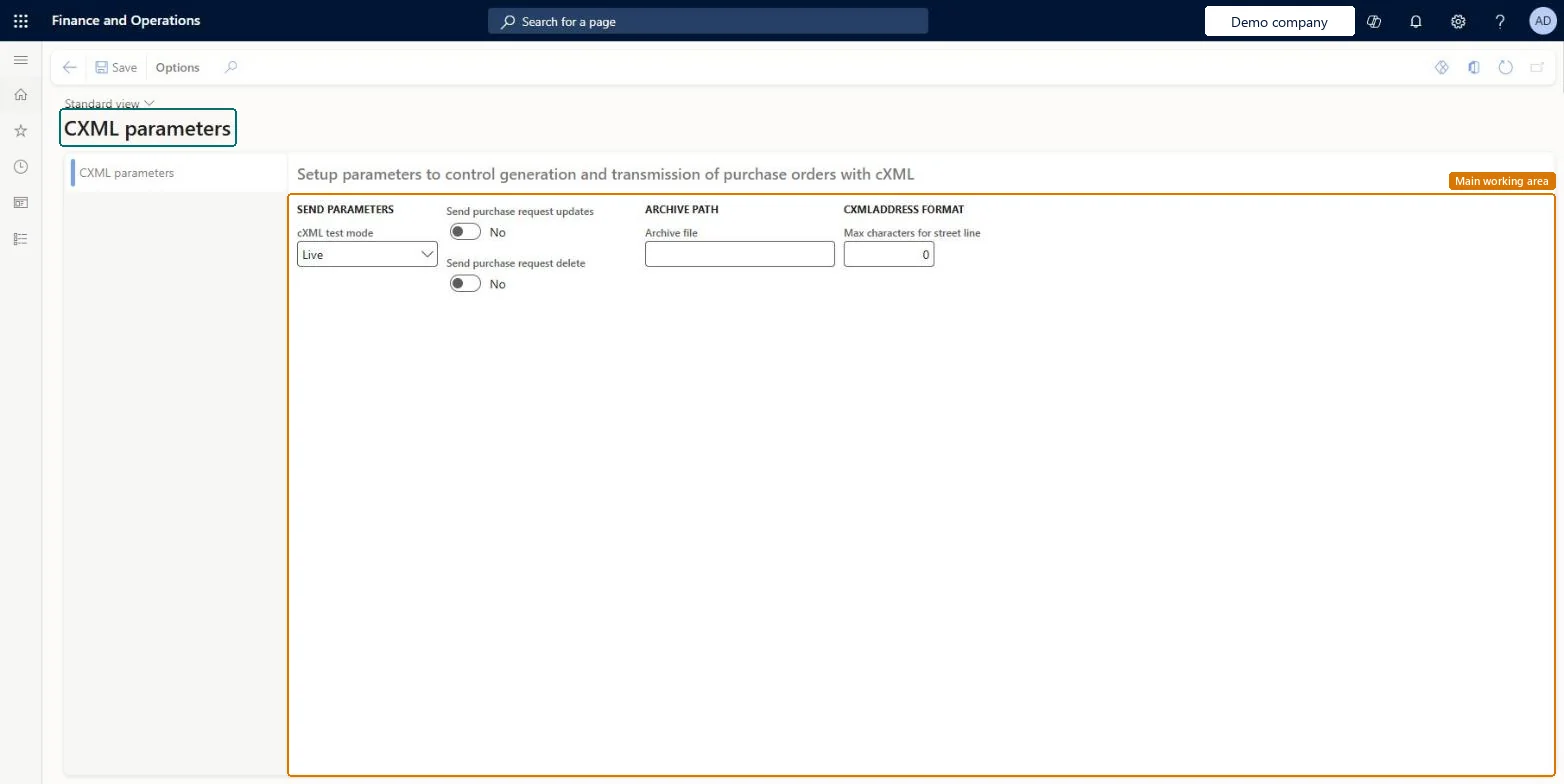
Use this page to choose test or live sending, whether update and delete messages are sent, the archive file path and the maximum street-line length.
Screen 1
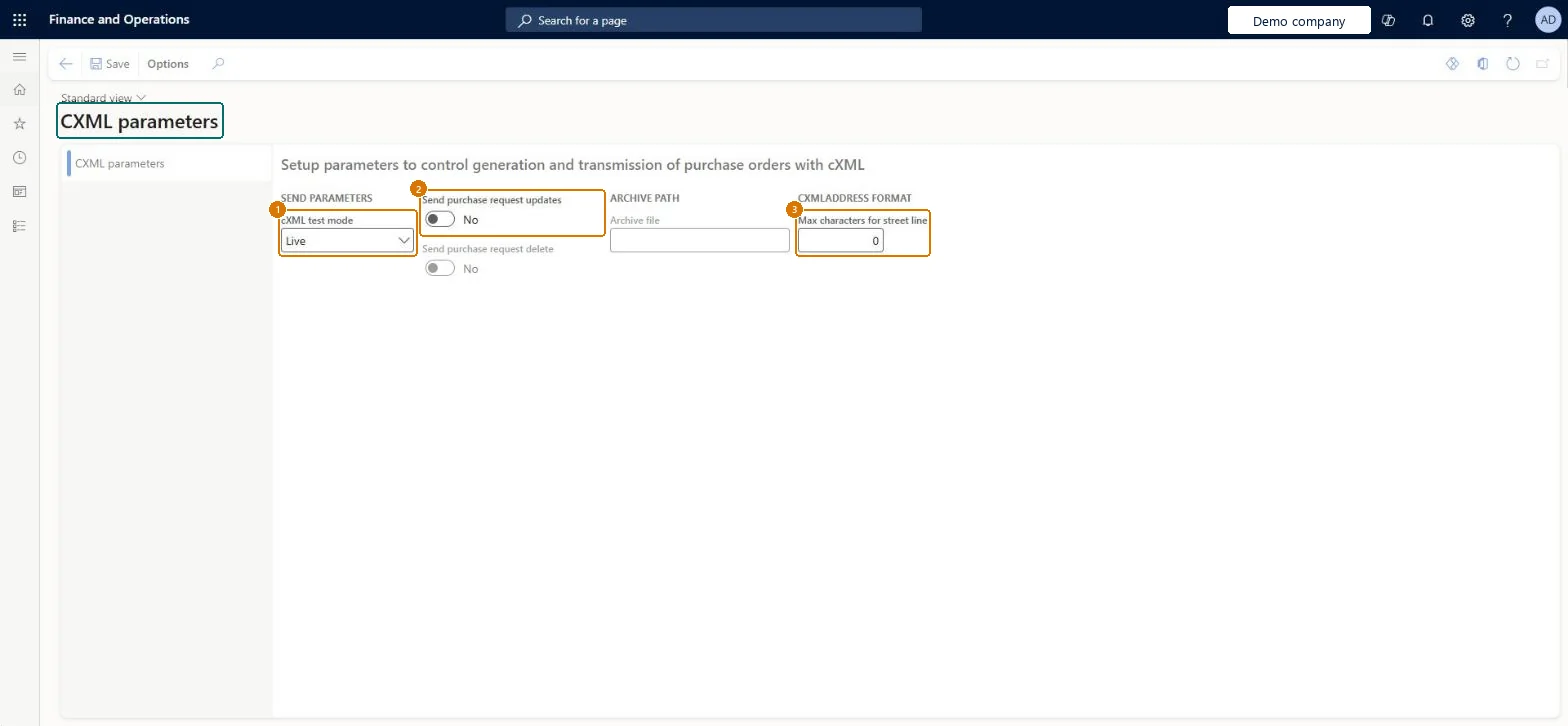
Review the cXML send settings
Go to Procurement and sourcing > Setup > CXML Management > CXML parameters
Choose the cXML test mode
Decide whether purchase order updates are sent to the vendor
Set the maximum street line length if the vendor needs one
Select Save after any change
1cXML test mode
Live
2Send purchase request updates
No
3Max characters for street line
0
Show the full screen page title tab to open what to set or check
Steps from Microsoft
Go to Procurement and sourcing > Setup > cXML management > cXML parameters.
Set cXML test mode to Test or Live.
Set Send purchase request updates and Send purchase request delete.
In the Archive file field, enter the path for archived cXML documents.
In Max characters for street line, enter the street field length.
cXML test mode Test during implementation and Live after vendor validation; Send purchase request updates and Send purchase request delete No unless a vendor asks for themTest mode generates the XML without sending it, for review and vendor validation; most vendors prefer not to receive update or delete messages and want a phone call or email instead.
Leaving cXML test mode on Test after go-live: the batch job builds the messages but nothing reaches the vendor.
Reversible: Global settings can be changed at any time; they apply to messages the Purchase order request batch job processes afterwards. Messages already sent aren't recalled.
If you change it later
A street length set on a vendor's external catalog overrides the value on this page for that vendor. Microsoft Learn
Technical architect
6Technical
Menu item
CatCXMLParametersChecked in Dynamics 365
Form
CatCXMLParametersChecked in Dynamics 365
Table
CatCXMLParametersShown as “CXML parameters” in Record infoChecked in Dynamics 365
Who can open it
PrivilegesMaintain catalog policy rules CatCatalogPolicyRuleMaintainView catalog policy rules CatCatalogPolicyRuleViewDutiesEnable purchasing process ProcPurchasingProcessEnableInquire into purchasing policies ProcPurchasingProcessInquire5 security rolesAuditor AuditPolicyManagerPurchasing manager TradePurchasingManagerAccounts payable manager VendInvoiceAccountsPayableManagerPurchasing agent VendPurchasingAgentPurchasing Agent - Public Sector VendPurchasingAgent_PSNChecked in Dynamics 365
Roles to set it up and use it
To set it up or change itPurchasing manager TradePurchasingManagerAccounts payable manager VendInvoiceAccountsPayableManagerTo use itPurchasing agent VendPurchasingAgentPurchasing Agent - Public Sector VendPurchasingAgent_PSNAuditor AuditPolicyManagerGive people one of these roles. On this system, 5 roles can open this page.Checked in Dynamics 365
Actions on the page
Options: Personalize, Page options, Edit, ShareChecked in Dynamics 365
Checked in a working Dynamics 365 system, version 10.0.49: the menu item, form, table and security, the page, the demo records and the values in the screenshots.
To cite this step: PS-SETUP-390, Set up CXML parameters. Beyond ERP Atlas Hub, 2026-11-11. https://www.beyonderp.cloud/atlas/step/PS-SETUP-390