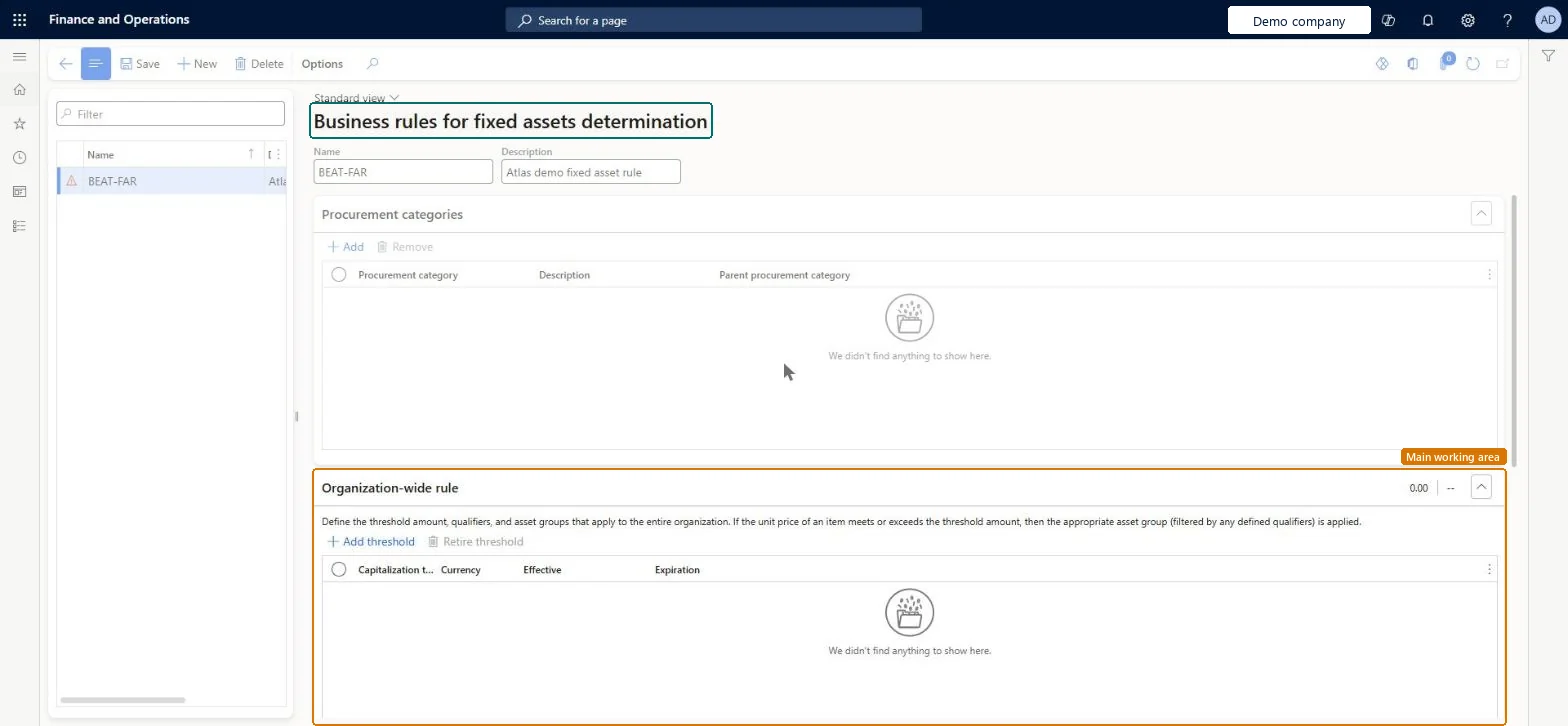
Setup step on the Business rules for fixed assets determination page · Procurement and sourcing
Set up Business rules for fixed assets determination
Use this page to treat a requisition line as a fixed asset when its unit price for a procurement category reaches a threshold, and to place it in the right fixed asset group.
Set up Business rules for fixed assets determination
Procurement and sourcingSetupFixed assets
AssetRule
Used by
Accounts payable manager, Purchasing agent, Purchasing Agent - Public Sector and 2 more roles
Business process
Procure goods and services
Menu item
AssetRule
Main table
AssetRule
Setup steps
1 on this page
Show what matters for
SETUP GUIDEHow to set it up8 sections. Choose a role to highlight what matters to you.
Everyone
1What it is and why
What it is
A setup page where you create rules that identify which purchases qualify as fixed assets.
What you do here
Use this page to treat a requisition line as a fixed asset when its unit price for a procurement category reaches a threshold, and to place it in the right fixed asset group.
Example
For example, Contoso sets a rule that products bought from the Office furniture and equipment category must be capitalized as fixed assets if they cost at least USD 1,000.
The page in Dynamics 365. page title tab to open what to set or check
About the examples: Examples and screenshots in this guide use BEAT, a demo company in a Dynamics 365 test environment. Use your own company's codes and values instead of copying them.
Setup steps on this page
Set up Business rules for fixed assets determination
Use this page to treat a requisition line as a fixed asset when its unit price for a procurement category reaches a threshold, and to place it in the right fixed asset group.
Steps from Microsoft
Go to Procurement and sourcing > Setup > Fixed assets > Business rules for fixed assets determination.
Select New and enter a short name and an optional description.
On the Procurement categories tab, select Add and choose the categories the rule applies to.
On the Organization-wide rule tab (or the Legal entity-specific rule tab), select Add threshold and enter the capitalization threshold.
Optionally enter Effective and Expiration dates.
In the Fixed asset group field, select the fixed asset group or organization-wide identifier.
Optionally select Has qualifiers? and add a qualifier question with one response per fixed asset group.
Deleting a rule doesn't change fixed assets that were already classified by it. Microsoft Learn
Technical architect
6Technical
Menu item
AssetRuleChecked in Dynamics 365
Form
AssetRuleChecked in Dynamics 365
Table
AssetRuleShown as “Business rules for fixed assets determination” in Record infoChecked in Dynamics 365
Who can open it
PrivilegesMaintain purchase requisition process PurchReqPurchasingProcessEnableInquire into purchase requisition process PurchReqPurchasingProcessInquireDutiesEnable purchasing process ProcPurchasingProcessEnableInquire into purchasing policies ProcPurchasingProcessInquire5 security rolesAuditor AuditPolicyManagerPurchasing manager TradePurchasingManagerAccounts payable manager VendInvoiceAccountsPayableManagerPurchasing agent VendPurchasingAgentPurchasing Agent - Public Sector VendPurchasingAgent_PSNChecked in Dynamics 365
Roles to set it up and use it
To set it up or change itPurchasing manager TradePurchasingManagerAccounts payable manager VendInvoiceAccountsPayableManagerTo use itPurchasing agent VendPurchasingAgentPurchasing Agent - Public Sector VendPurchasingAgent_PSNAuditor AuditPolicyManagerGive people one of these roles. On this system, 5 roles can open this page.Checked in Dynamics 365
Actions on the page
Options: Personalize, Page options, Edit, ShareChecked in Dynamics 365
Checked in a working Dynamics 365 system, version 10.0.49: the menu item, form, table and security, the page.
To cite this step: PS-SETUP-380, Set up Business rules for fixed assets determination. Beyond ERP Atlas Hub, 2026-11-11. https://www.beyonderp.cloud/atlas/step/PS-SETUP-380