About the examples: Examples and screenshots in this guide use BEAT, a demo company in a Dynamics 365 test environment. Use your own company's codes and values instead of copying them.
Step by step, with screenshots
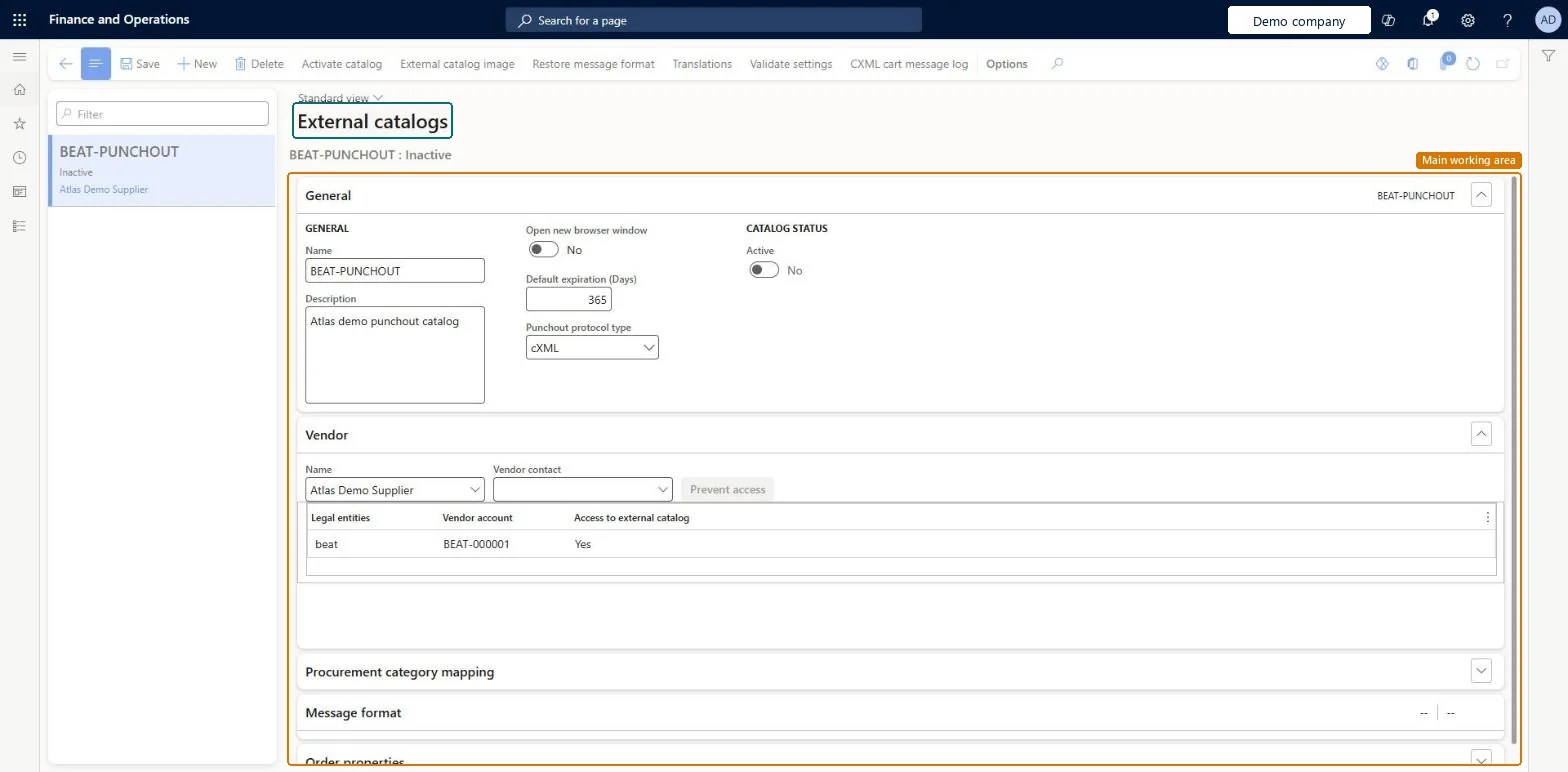
Set up External catalogs1 screen
Use this page to configure and activate a vendor's external catalog so that selected products come back with up-to-date prices.
Screen 1
Create the external catalog
Go to Procurement and sourcing > Catalogs > External catalogs
Select New and enter the name and description
Keep the punchout protocol type cXML
On the Vendor FastTab, choose the vendor
Select Save; activate the catalog only after the message format is set up
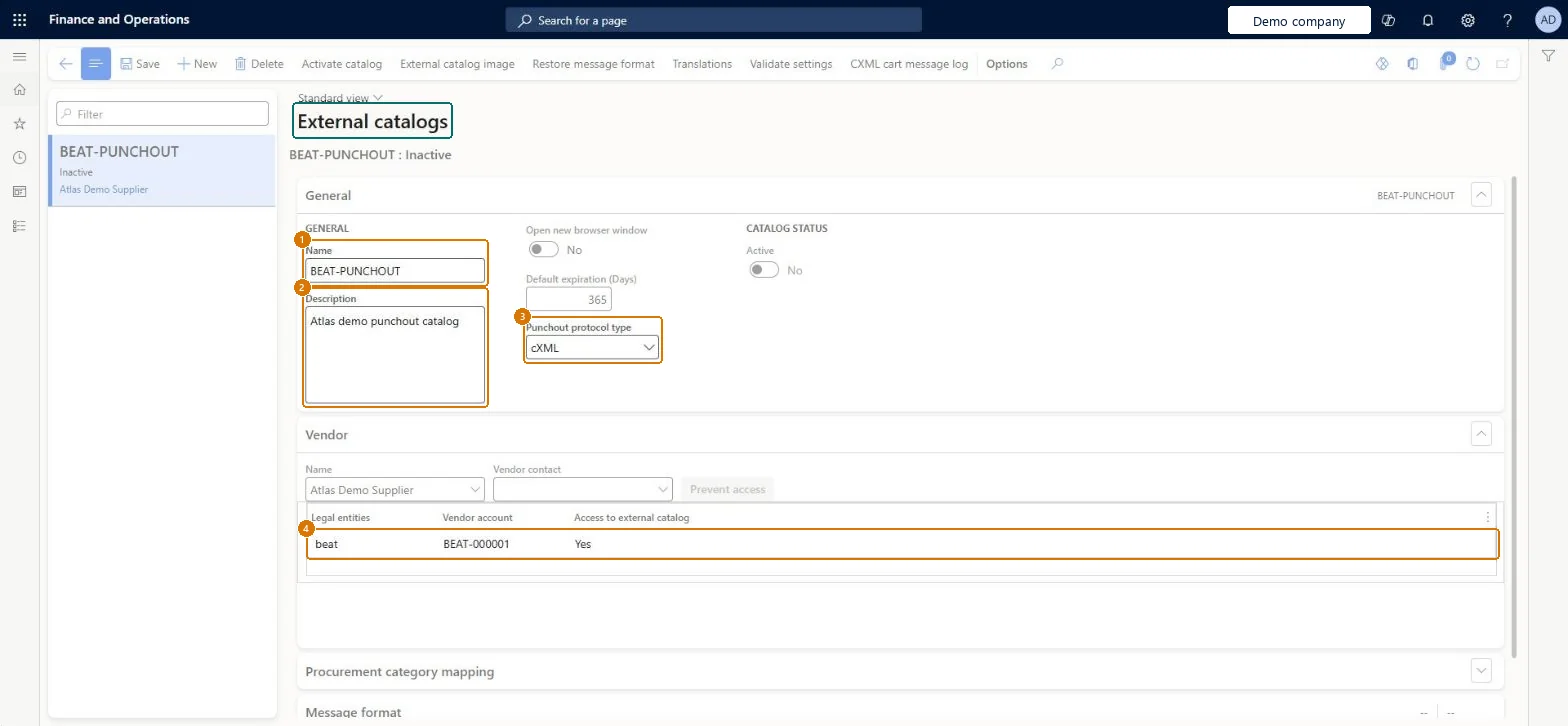
1Name
BEAT-PUNCHOUT
2Description
Punchout catalog
3Punchout protocol type
cXML
4Vendor account
BEAT-000001
Show the full screen page title tab to open what to set or check
Steps from Microsoft
Set up a procurement category hierarchy.
Register the vendor and vendor contact, and add the vendor to the procurement category.
Make sure the vendor's units of measure and currency are set up.
On the External catalogs page, enter a name and description, select the vendor, and map procurement categories to the catalog.
Fill in the cXML setup request message with the values the vendor provides.
Select Validate settings to test that the vendor's catalog site opens.
Fill the cXML setup message with the identities, shared secret and PunchOut URL from the vendor, and map a procurement category.
Select Validate settings and check the vendor's catalog site opens in a browser window.
Activate the catalog and check Allow access is set for the test legal entity.
Create a purchase requisition, punch out to the catalog, check out and check the line returns with quantity, unit, currency and unit price from the vendor.
Map at least one procurement category the requesters can access, set Default expiration (Days) to how long the vendor's PunchOut quotes stay valid, run Validate settings, then Activate catalogPunchOut requires access to at least one procurement category mapped to the catalog, quotes stay valid for the Default expiration (Days) from the retrieval date, and Validate settings proves the cXML setup message opens the vendor site before employees use it.
Pointing the catalog at a site that places real orders. The external site should only return quote information; the order is placed from the approved requisition and purchase order.
Hard to reverse: You can deactivate the catalog at any time, but after products have been requested from it a Delete only sets it to Inactive. Microsoft Learn
If you change it later
An external catalog that products were already requested from can't be deleted; it is set to inactive instead. Microsoft Learn
Technical architect
6Technical
Menu item
CatExternalCatalogEditChecked in Dynamics 365
Form
CatExternalCatalogConfigurationChecked in Dynamics 365
Table
CatExternalCatalogShown as “External catalog” in Record infoChecked in Dynamics 365
Who can open it
PrivilegesMaintain external catalog. CatExternalCatalogCreateMaintain external catalog CatExternalCatalogEditMaintainDutiesCreate or delete an external catalog. CatExternalCatalogCreateMaintain external catalog CatExternalCatalogEditMaintain2 security rolesInformation technology manager SysServerITManagerPurchasing manager TradePurchasingManagerChecked in Dynamics 365
Roles to set it up and use it
To set it up or change itPurchasing manager TradePurchasingManagerInformation technology manager SysServerITManagerGive people one of these roles. On this system, 2 roles can open this page.Checked in Dynamics 365
Actions on the page
Options: Personalize, Page options, Edit, ShareChecked in Dynamics 365
Checked in a working Dynamics 365 system, version 10.0.49: the menu item, form, table and security, the page, the demo records and the values in the screenshots.