About the examples: Examples and screenshots in this guide use BEAT, a demo company in a Dynamics 365 test environment. Use your own company's codes and values instead of copying them.
Steps from Microsoft
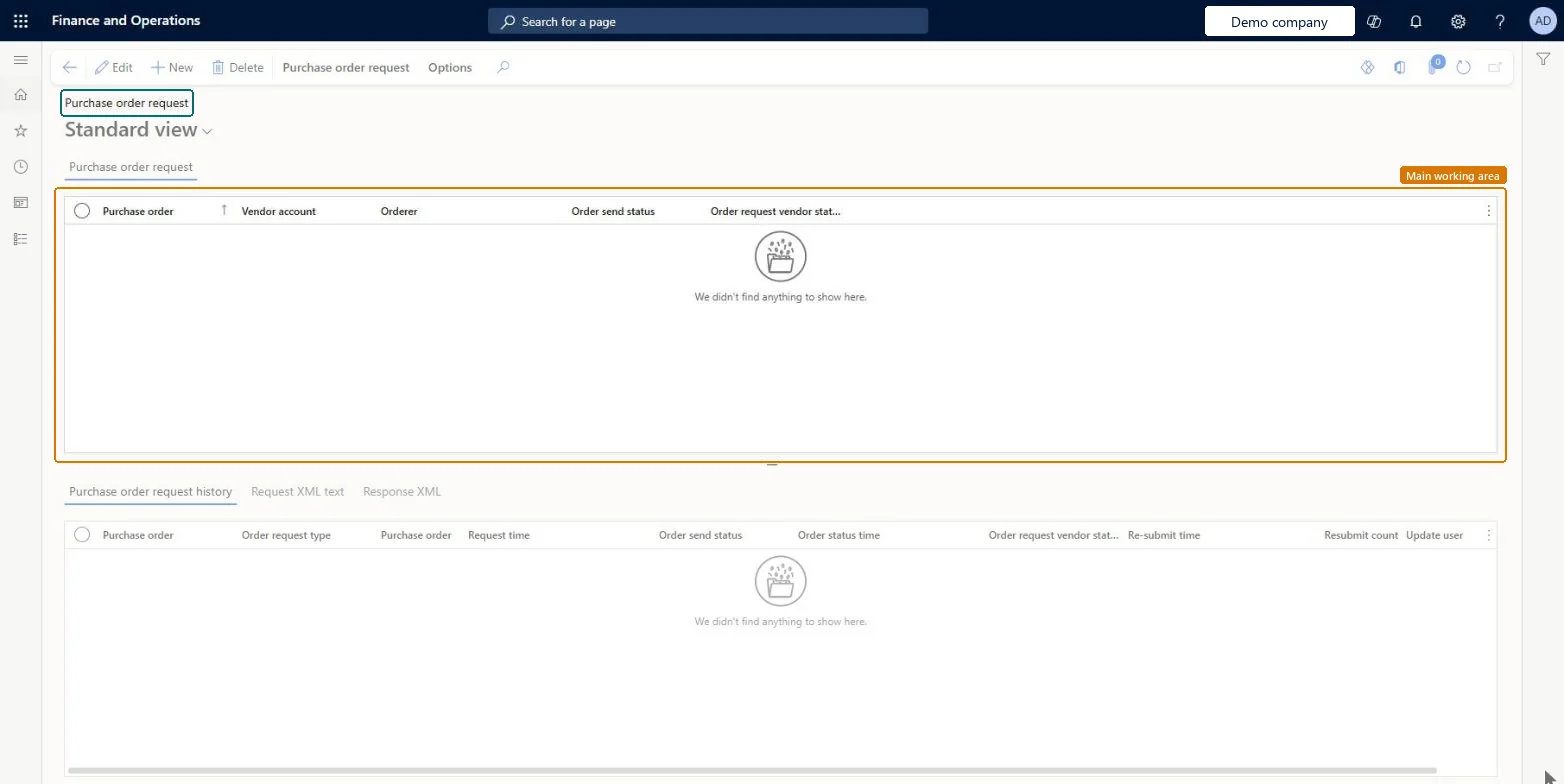
Go to Procurement and sourcing > Setup > CXML Management > Purchase order request.
On the Action Pane, on the Purchase order request tab, in the Batch group, select Submit job.
In the Purchase request prepare and send dialog box, set the recurrence for the batch job.
To send an order right away, select Submit job and set Batch processing to No.
Shows whether the document is Waiting, Sent, Stopped or Archive; the batch job sends documents that are Waiting.Microsoft Learn
Order request vendor status
Shows whether the vendor acknowledged the document or returned an error.Microsoft Learn
Order request type
Shows whether the confirmation is sent as New, Update or Delete.Microsoft Learn
PurchReqMessageType
Request time
When the confirmation was created, to compare with the time the vendor acknowledged it.Microsoft Learn
PurchReqDateTime
Re-submit count
How many times the record was resubmitted; a high number points to a data setup problem.Microsoft Learn
Test checklist
In cXML parameters set cXML test mode to Test.
Confirm a purchase order with Send purchase order via cXML set to Yes and check that it shows on the Purchase order request page with Order send status Waiting.
Select Submit job with Batch processing set to No.
Open the Request XML text tab and check that the cXML message was generated.
In Live mode, check that Order request vendor status changes to Acknowledged, or open Response XML if it shows Error.
Hard to reverse: The batch schedule can be changed or stopped at any time, and a Waiting document can be marked Stopped before it is sent. Once a document is Sent it can't be recalled: a later confirmation goes as an Update, and a cancellation as a Delete, only if Send purchase request updates or Send purchase request delete is Yes in cXML parameters. Microsoft Learn
Technical architect
5Technical
Menu item
CatCXMLPurchRequestChecked in Dynamics 365
Form
CatCXMLPurchRequestChecked in Dynamics 365
Table
CatCXMLPurchRequestShown as “Purchase order request” in Record infoChecked in Dynamics 365
Actions on the page
Purchase order request: BatchOptions: Personalize, Page options, ShareChecked in Dynamics 365