Accounts payable manager, Accounts receivable manager, Accountant and 5 more roles
Business process
Administer system features
Menu item
TaxRegistrationType
Main table
TaxRegistrationType
Data entity
TaxRegistrationTypeEntity
Setup steps
1 on this page
Show what matters for
SETUP GUIDEHow to set it up8 sections. Choose a role to highlight what matters to you.
Everyone
1What it is and why
What it is
A setup page where you create the types of registration numbers, such as a VAT ID, that legal entities, customers, vendors and workers can hold in each country or region.
What you do here
Use this page to set up each kind of registration number, with its format and rules, before anyone enters registration IDs for a party.
Example
For example, you can create a VAT ID registration type for Germany and add a line for Italy with a format, so that Italian VAT numbers are checked against that format when they're entered.
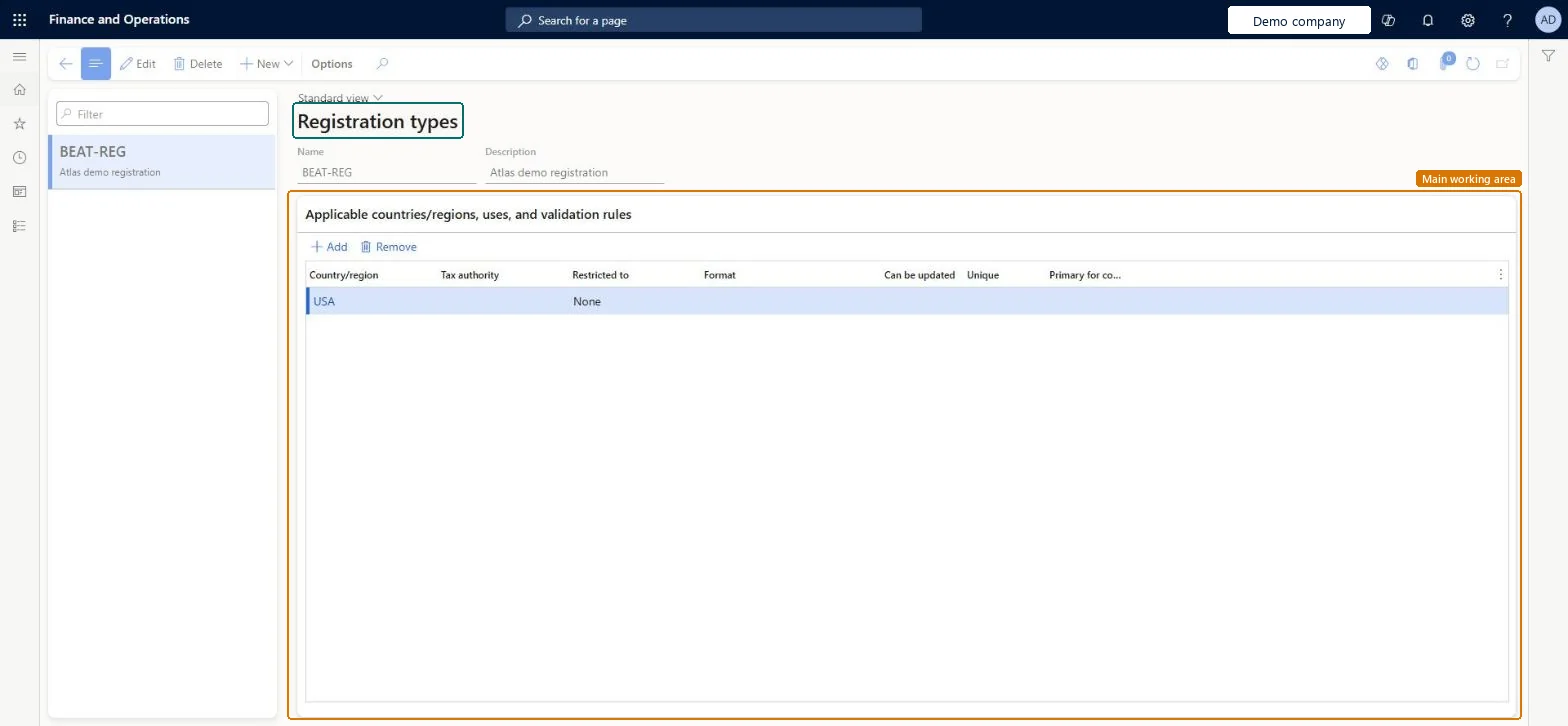
The page in Dynamics 365. page title tab to open what to set or check
About the examples: Examples and screenshots in this guide use BEAT, a demo company in a Dynamics 365 test environment. Use your own company's codes and values instead of copying them.
Step by step, with screenshots
Set up Registration types1 screen
Use this page to set up each kind of registration number, with its format and rules, before anyone enters registration IDs for a party.
Screen 1
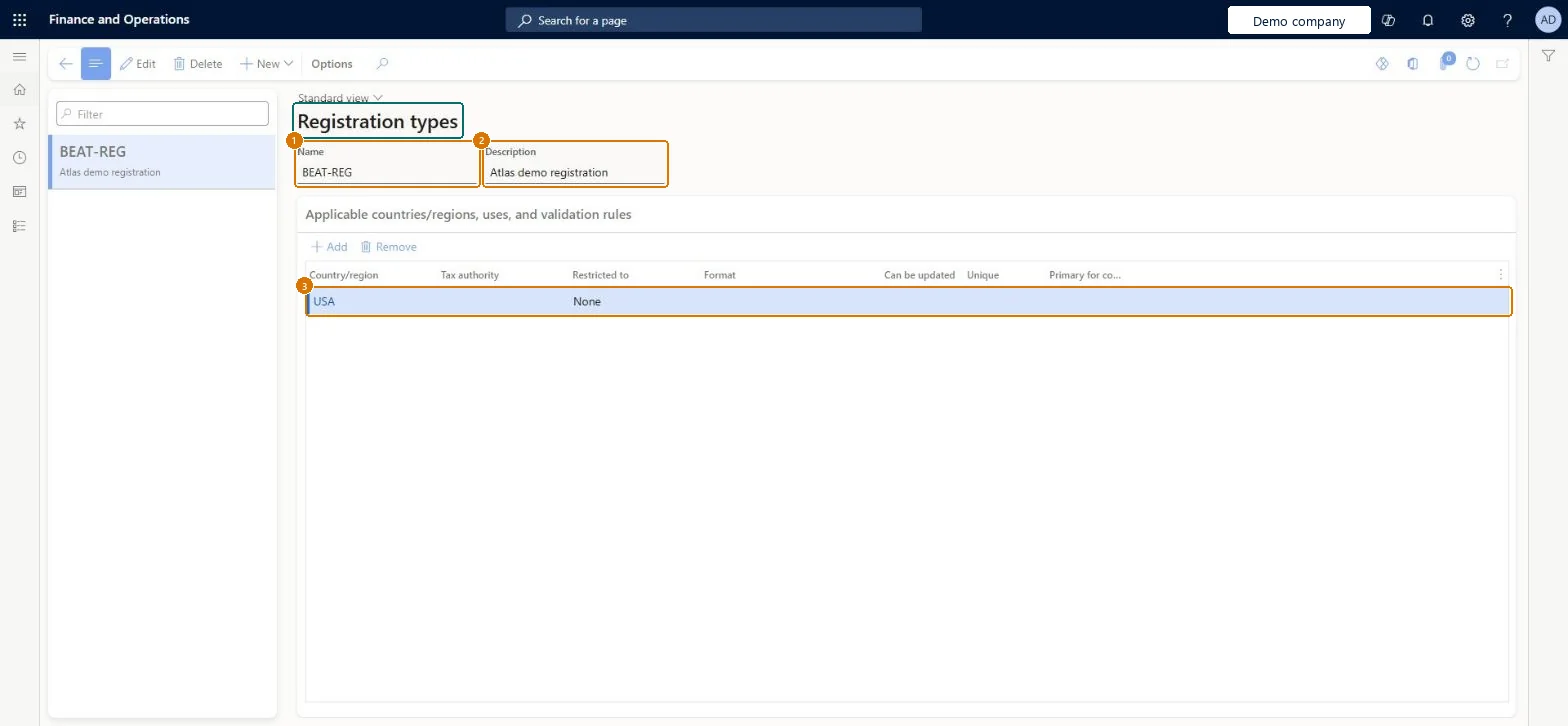
Create a registration type
Go to Organization administration > Global address book > Registration types > Registration types
Select New
Enter the name, description and country/region
Select Create
1Name
BEAT-REG
2Description
Registration
3Country/region
USA
Restricted to
None
Show the full screen page title tab to open what to set or check
Steps from Microsoft
Go to Organization administration > Global address book > Registration types > Registration types.
Select New.
In the Name field, enter a name, such as VAT ID.
In the Description field, enter a description.
In the Country/region field, select the country or region.
Set Unique to Yes if each number of this type must be unique.
Set Primary for country/region to Yes if the number applies to all addresses in that country or region.
Select Create.
To add another country or region, select Add, select the country or region, and enter a Format.
One registration type per kind of ID and country/region, with Restricted to and Format set; where persons and organizations use different formats, create separate types (for example Türkiye: 10 digits for Organization, 11 for Person).The format and party restriction on the type validate every registration ID entered, so the numbers on invoices and reports have the format the authority expects.
Leaving Can be updated off without thinking: that option decides whether a registration number of this type can be changed after it's entered.
PrivilegesMaintain registration types TaxRegistrationTypesMaintainView registration types TaxRegistrationTypesViewDutiesRental Inquire into sales tax process reference data RentalTaxSalesTaxProcessReferenceDataInquireEnable sales taxes process TaxSalesTaxesProcessEnableInquire into sales tax process reference data TaxSalesTaxProcessReferenceDataInquire8 security rolesAccounts receivable manager CustInvoiceAccountsReceivableManagerAccountant LedgerAccountantAccounting manager LedgerAccountingManagerAccounting supervisor LedgerAccountingSupervisorFinancial controller LedgerFinancialControllerRental manager RentalManagerRental purchasing manager RentalPurchasingManagerAccounts payable manager VendInvoiceAccountsPayableManagerChecked in Dynamics 365
Roles to set it up and use it
To set it up or change itAccounting supervisor LedgerAccountingSupervisorAccountant LedgerAccountantTo use itAccounting manager LedgerAccountingManagerRental purchasing manager RentalPurchasingManagerAccounts payable manager VendInvoiceAccountsPayableManagerAccounts receivable manager CustInvoiceAccountsReceivableManagerRental manager RentalManagerGive people one of these roles. On this system, 8 roles can open this page.Checked in Dynamics 365
Actions on the page
Options: Personalize, Page options, ShareChecked in Dynamics 365
Checked in a working Dynamics 365 system, version 10.0.49: the menu item, form, table and security, the page, the demo records and the values in the screenshots.
To cite this step: OA-GAB-100, Set up Registration types. Beyond ERP Atlas Hub, 2026-11-11. https://www.beyonderp.cloud/atlas/step/OA-GAB-100