About the examples: Examples and screenshots in this guide use BEAT, a demo company in a Dynamics 365 test environment. Use your own company's codes and values instead of copying them.
Step by step, with screenshots
Set up System parameters1 screen
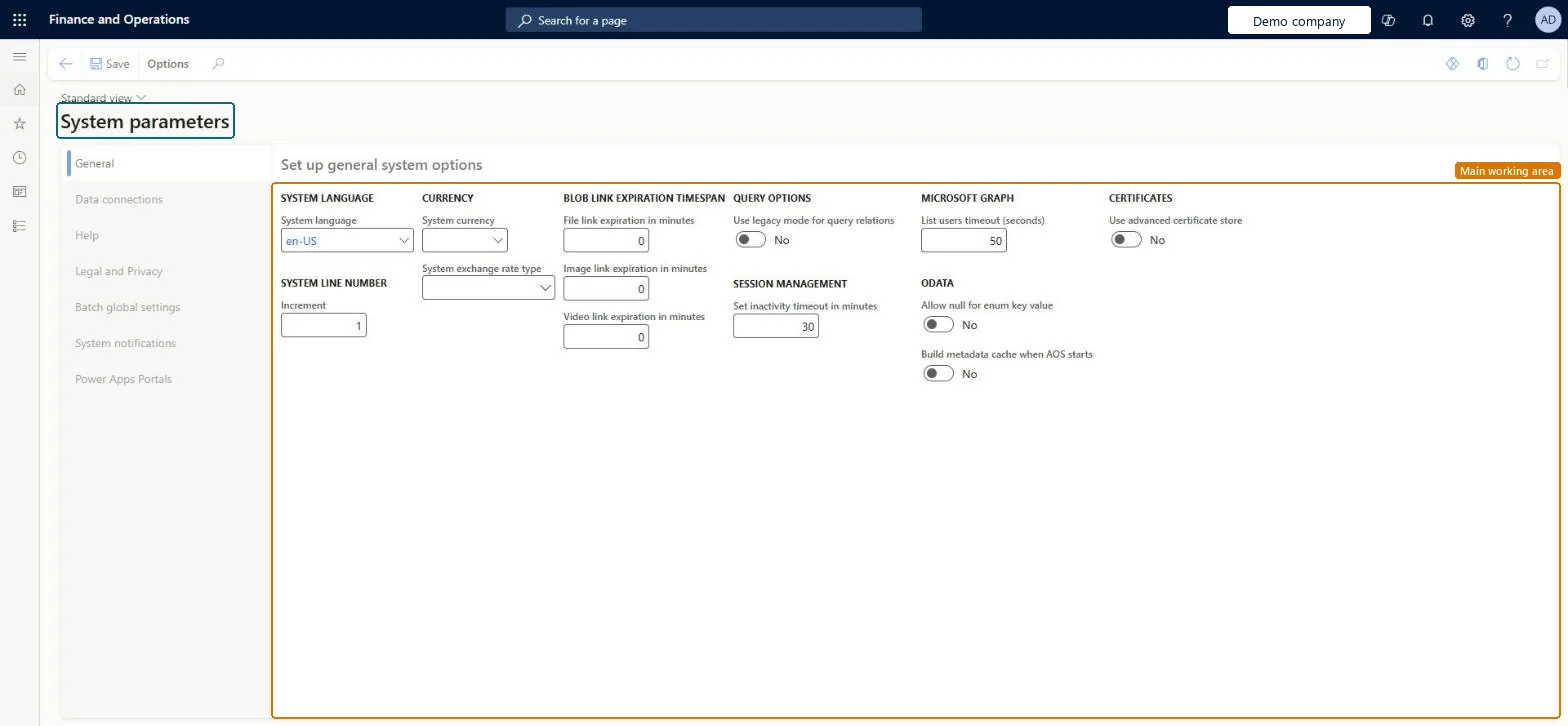
Use this page to set shared options that apply to the whole system rather than to one company, such as the system language.
Screen 1
Review the system parameters
Go to System administration > Setup > System parameters
Open the General tab
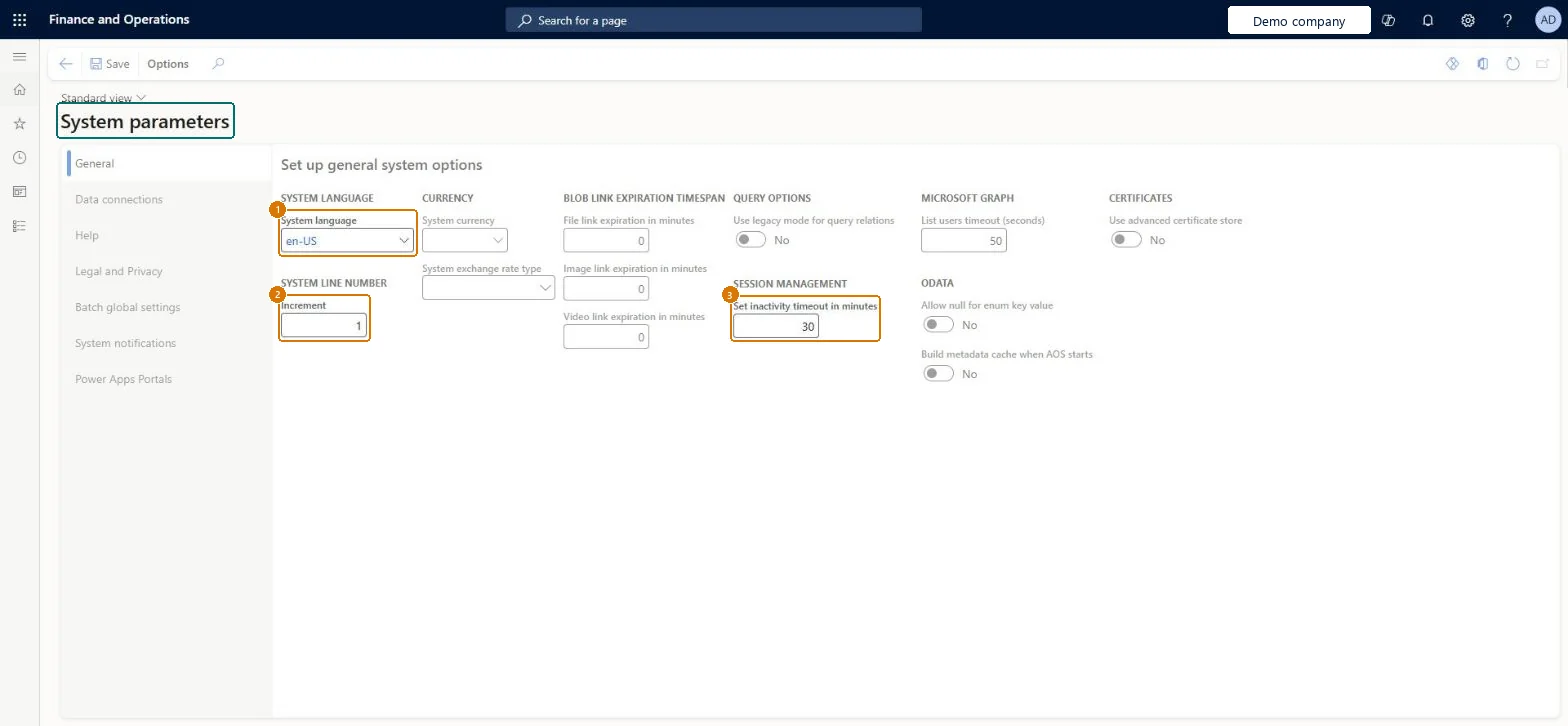
Review the system language, the line number increment and the session inactivity timeout
Open the other tabs to review data connections, help, legal and privacy, batch global settings and system notifications
Show the full screen page title tab to open what to set or check
How to use it
Go to System administration > Setup > System parameters.
On the General tab, set options such as System language, System currency and Set inactivity timeout in minutes.
Select other tabs such as Data connections, Help, Legal and Privacy, Batch global settings, System notifications or Power Apps Portals to set their options.
Select Save.
Source: Checked in Dynamics 365
Fields on the page
Field
What it means
Example
Use advanced certificate store
Whether certificates are kept in local storage (No) or in Azure Key Vault (Yes).Microsoft Learn
Batch reserved capacity level
How much batch capacity is set aside for batch jobs with Reserved capacity priority.Microsoft Learn
Lifecycle services help configuration
The Lifecycle Services project used, for example, to find Power BI files to deploy.Microsoft Learn
Session inactivity timeout in minutes
How long a browser session can be inactive before it closes: 5 to 60 minutes, default 30. Above 30 you're asked to confirm, because it adds load.Microsoft Learn
30
Common errors and fixes
Message
What to do
Increasing the inactivity session timeout can cause extra load on your system, which can lead to a decrease in performance. Are you sure you want to continue?
Shown when Session inactivity timeout is set above 30 minutes. Select Yes only if users need it; the higher the value, the higher the load. Microsoft Learn
Users lose unsaved work when their session closes
Users get a countdown before the session closes (5 minutes, 2 minutes or 30 seconds depending on the timeout). Raise the timeout carefully rather than above 30 minutes for everyone. Microsoft Learn
Test checklist
On the Batch global settings tab, set Batch reserved capacity level and save.
Create a batch group with Scheduling priority = Reserved capacity and assign a test job to it.
Run the test job alongside normal-priority jobs and check it starts without waiting.
Check normal jobs do not use the reserved threads while the reserved queue is empty.
Batch reserved capacity level = No reserved capacity, unless there is a constant load of batch jobs that must run with Reserved capacity priorityNo reserved capacity is the default. Reserved threads (10, 15 or 25 percent) serve only Reserved capacity jobs and sit idle otherwise, so Microsoft advises not to dedicate threads without a constant reserved workload.
Batch priority-based scheduling (Mandatory, on by default)
Licence or add-in
On this system the page opens for Information technology manager and Chief executive officer. IT administrators maintain it. Batch reserved capacity relies on priority-based batch scheduling, a mandatory feature that is on by default.
PrivilegesMaintain system parameters SystemParametersMaintainView system parameters SystemParametersViewDutiesMaintain system parameters master SystemParametersMasterMaintainInquire into system parameters master SystemParametersMasterView2 security rolesChief executive officer CompanyChiefExecutiveOfficerInformation technology manager SysServerITManagerChecked in Dynamics 365
Roles to set it up and use it
To set it up or change itInformation technology manager SysServerITManagerTo use itChief executive officer CompanyChiefExecutiveOfficerGive people one of these roles. On this system, 2 roles can open this page.Checked in Dynamics 365
SystemParametersEntity (System parameters): shared by all companies, in Microsoft's default template 010 - System Setup.Load order: Microsoft's default template 010 - System Setup loads System parameters at execution unit 1, level 10, sequence 30. Lower levels load first, and entities at the same level load in sequence order.Load first: Currencies, Exchange ratesMicrosoft Learn
Checked in a working Dynamics 365 system, version 10.0.49: the menu item, form, table and security, the page, the demo records and the values in the screenshots.
To cite this step: SA-SETUP-090, Set up System parameters. Beyond ERP Atlas Hub, 2026-11-11. https://www.beyonderp.cloud/atlas/step/SA-SETUP-090