About the examples: Examples and screenshots in this guide use BEAT, a demo company in a Dynamics 365 test environment. Use your own company's codes and values instead of copying them.
Step by step, with screenshots
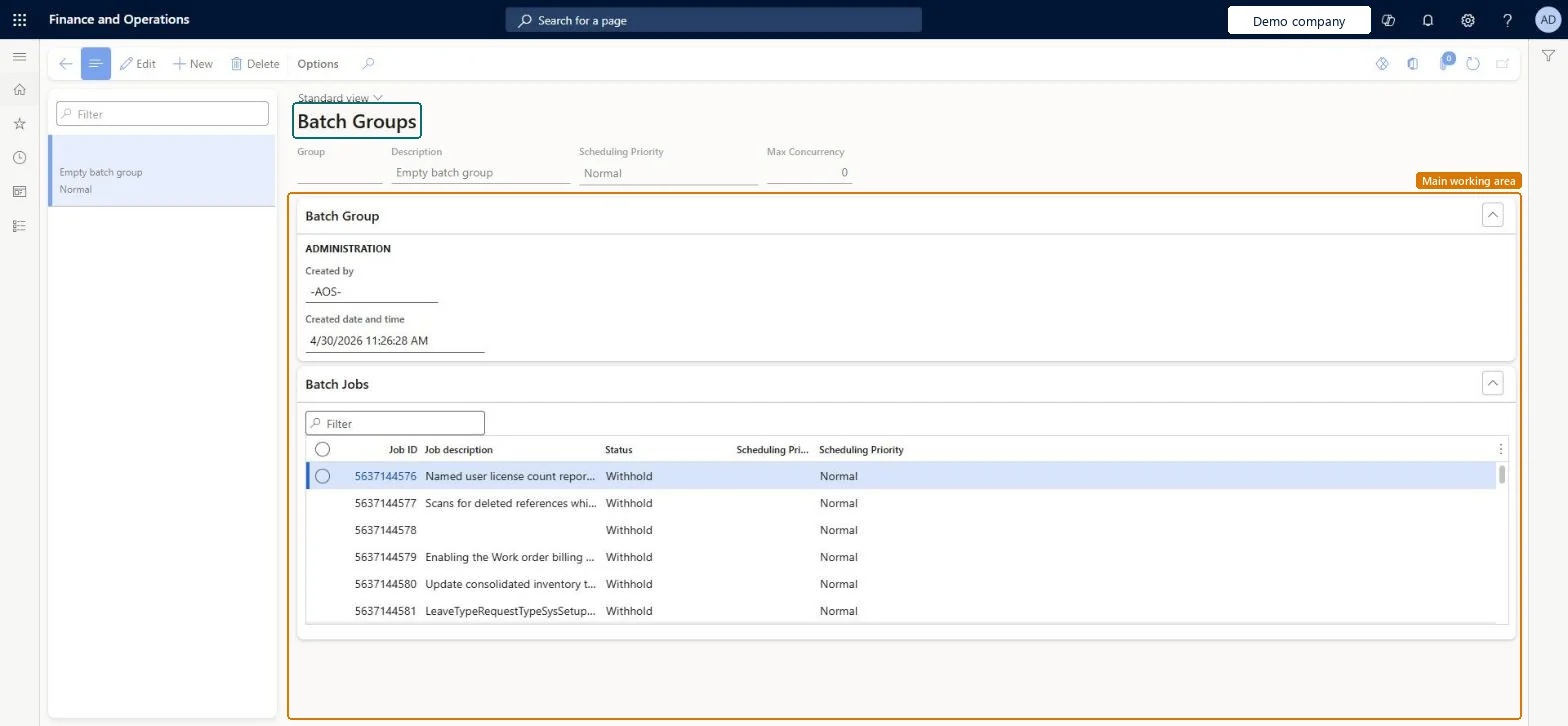
Set up Batch group1 screen
Use this page to give batch jobs a priority and to limit how many tasks of each job in the group can run at the same time.
Screen 1
Create a batch group
Go to System administration > Setup > Batch group
Select New
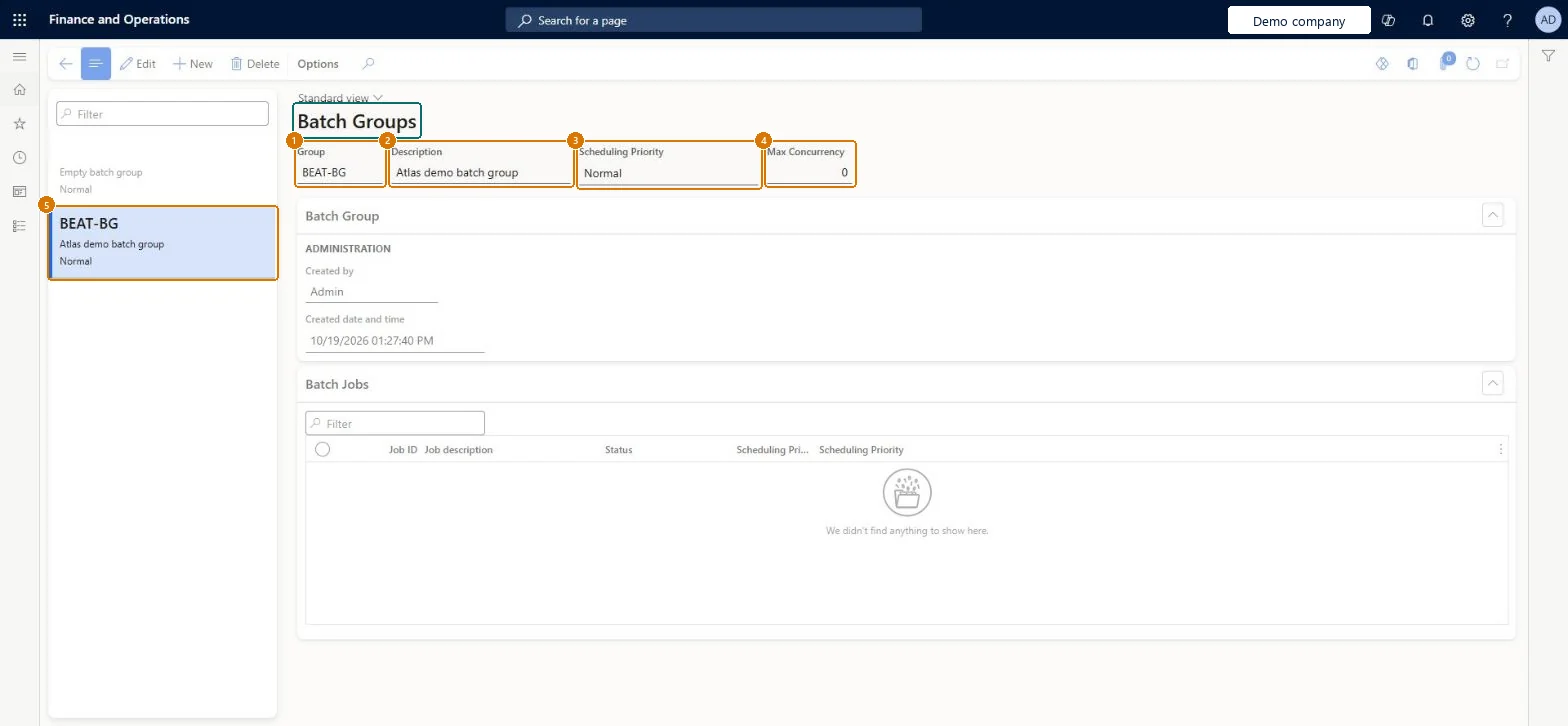
Enter the group code and a description
Leave the scheduling priority at Normal, or choose another
Set the maximum concurrency if you want to limit how many tasks of a job run at once
Select Save
1Group
BEAT-BG
2Description
Batch group
3Scheduling Priority
Normal
Show the full screen page title tab to open what to set or check
Steps from Microsoft
Go to System administration > Setup > Batch group.
Select New.
In the Group field, enter a unique name.
In the Description field, enter a description.
In the Scheduling priority field, select the default priority for jobs in the group.
Several batch groups by business process or recurrence, with a mix of Scheduling priority values (not all High or Critical), and Max concurrency 0 unless a job needs a limitPriorities set the probability that a task is picked, so they only help if they differ; Learn's best practices are to use more than one batch group with different priorities and not to give every job High or Critical. Max concurrency 0 means no concurrency control.
Batch priority-based scheduling (Mandatory, on by default)Batch concurrency control (Mandatory, on by default)
Licence or add-in
On this system the page opens for Information technology manager and Batch job manager. Batch job managers and IT administrators maintain groups. Priority-based scheduling and batch concurrency control are mandatory features that are on by default.
Reversible: Priority and Max concurrency can be changed at any time. Max concurrency -1 pauses all jobs in the group, while tasks that already started keep running.
If you change it later
Setting Max concurrency to -1 pauses all batch jobs in the group, although tasks that already started keep running. Microsoft Learn
Technical architect
6Technical
Menu item
BatchGroupChecked in Dynamics 365
Form
BatchGroupEnhancedChecked in Dynamics 365
Table
BatchGroupShown as “Batch groups” in Record infoKey field: GroupChecked in Dynamics 365
PrivilegesMaintain batch groups BatchGroupMaintainView batch groups BatchGroupViewDutiesMaintain batch jobs BatchJobMaintainMaintain system settings SysServerSettingsMaintain2 security rolesBatch job manager BatchJobManagerInformation technology manager SysServerITManagerChecked in Dynamics 365
Roles to set it up and use it
To set it up or change itInformation technology manager SysServerITManagerBatch job manager BatchJobManagerGive people one of these roles. On this system, 2 roles can open this page.Checked in Dynamics 365
Actions on the page
Options: Personalize, Page options, ShareChecked in Dynamics 365
BatchGroupEntity (Batch groups): shared by all companies.Load order: BatchGroupEntity (Batch groups) is enabled in Data management but isn't in any of Microsoft's default templates in BEAT, so add it to your own data project when you move this setup. Load groups before batch jobs, which name them.Checked in Dynamics 365
Checked in a working Dynamics 365 system, version 10.0.49: the menu item, form, table and security, the page, the demo records and the values in the screenshots.
To cite this step: SA-SETUP-030, Set up Batch group. Beyond ERP Atlas Hub, 2026-11-11. https://www.beyonderp.cloud/atlas/step/SA-SETUP-030