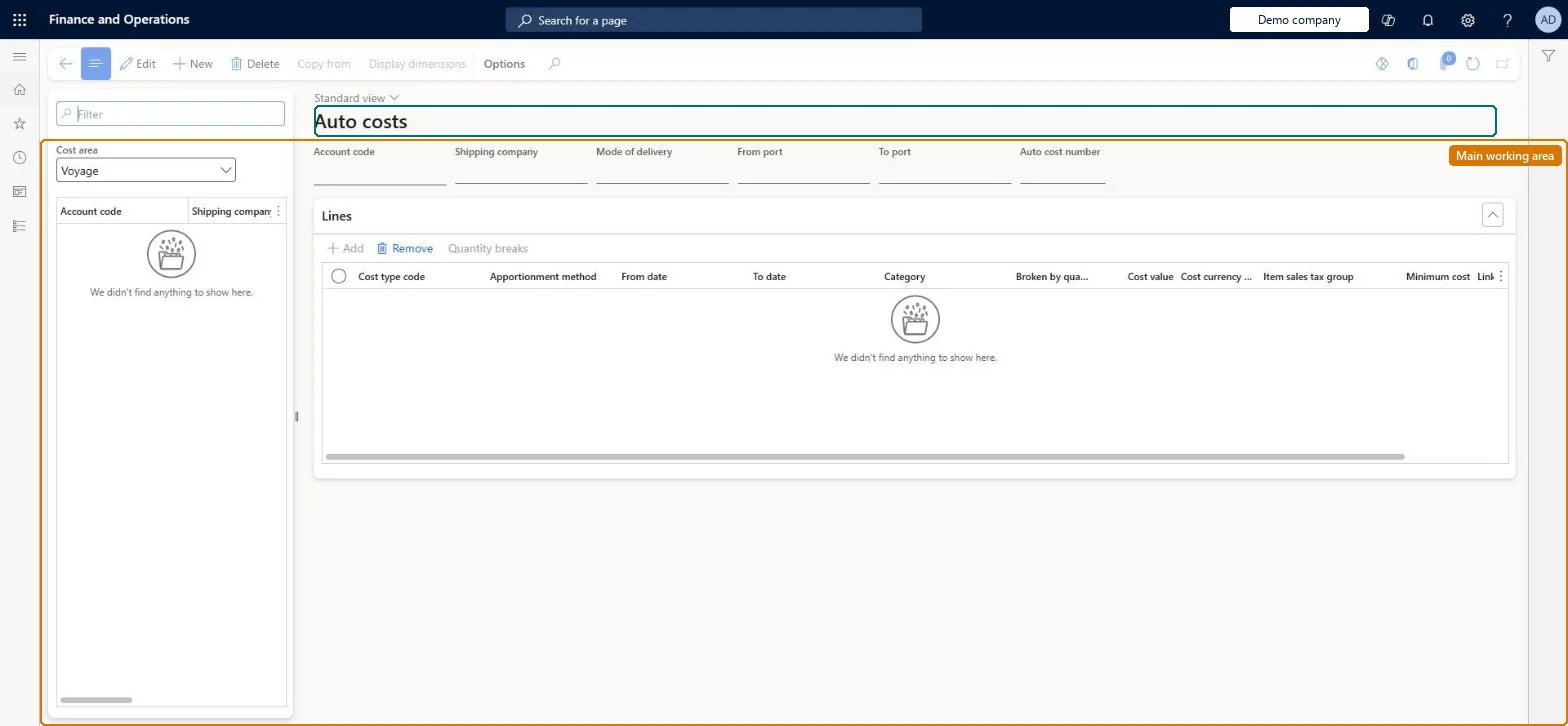
Use this page to create auto cost records whose header (vendor, item, mode of delivery, container type, ports) decides when a cost applies and whose lines (cost type, apportionment method, category, value, currency) decide how much is added and how it is spread across the goods.
SETUP GUIDEHow to set it up8 sections. Choose a role to highlight what matters to you.
Everyone
1What it is and why
What it is
A setup page where you define cost rules per cost area (voyage, shipping container, folio, purchase order, item or transfer order line) so the system calculates and adds landed costs to a voyage automatically.
What you do here
Use this page to create auto cost records whose header (vendor, item, mode of delivery, container type, ports) decides when a cost applies and whose lines (cost type, apportionment method, category, value, currency) decide how much is added and how it is spread across the goods.
Example
For example, you set a sea freight cost of $900 per container for a given shipping company, container type and port pair, apportioned by weight, so that every matching voyage gets the estimate without manual entry.
The page in Dynamics 365. page title tab to open what to set or check
About the examples: Examples and screenshots in this guide use BEAT, a demo company in a Dynamics 365 test environment. Use your own company's codes and values instead of copying them.
Setup steps on this page
Set up Auto costs
Use this page to create auto cost records whose header (vendor, item, mode of delivery, container type, ports) decides when a cost applies and whose lines (cost type, apportionment method, category, value, currency) decide how much is added and how it is spread across the goods.
Steps from Microsoft
Go to Landed cost > Costing setup > Auto costs.
In the list pane, select the Cost area you want to work with.
Select New on the Action Pane (or Copy from to base the record on an existing one).
On the header, set Account code, Item code, Mode of delivery, Container type and From/To port to define when the cost applies.
On the Lines FastTab, add a line with Cost type code, Apportionment method, Category, Cost value and Cost currency code.
Set From date and To date if the cost applies for a date range.
The level (voyage, container, folio, purchase order, item, transfer order line) the auto cost belongs to; the list pane shows only that area's records.Microsoft Learn
Account code
Whether the rule applies to one vendor (Table), a vendor cost type group (Group) or all vendors (All).Microsoft Learn
AccountCode
Item code
Whether the rule applies to one item (Table), an item cost type group (Group) or all items (All).Microsoft Learn
Container type
The shipping container type the rule applies to; it must match the voyage's container type.Microsoft Learn
From port and To port
The origin and destination ports the rule applies to; they must match the voyage's ports.Microsoft Learn
Group-level rules (Account code and Item code set to Group) using the cost type groups, with a line for every purchase currency on Purchase order and Item cost areasGroup rules find costs through the vendor and item cost type groups instead of one rule per vendor or item. For Purchase order and Item cost areas, a cost applies only when a line exists for the purchase order currency.
Reversible: Rules can be edited at any time and affect future voyages; existing voyages change only when Find auto costs is run, and invoiced costs are never overwritten.
If you change it later
Changing an auto cost changes the estimated landed cost of every future matching voyage; re-running Find auto costs on an existing voyage replaces un-invoiced cost lines but never overwrites costs that have already been invoiced. Microsoft Learn
Technical architect
6Technical
Menu item
ITMCostAutoSetupChecked in Dynamics 365
Form
ITMCostAutoSetupChecked in Dynamics 365
Table
ITMCostAutoTableShown as “AUTO COSTS” in Record infoKey field: CostAutoIdChecked in Dynamics 365
Data entities
ITMFolioAutoCostHeaderEntityFolio auto cost headers Checked in Dynamics 365ITMItemAutoCostHeaderEntityItem auto cost headers Checked in Dynamics 365ITMPurchaseOrderAutoCostHeaderEntityPurchase order auto cost headers Checked in Dynamics 365ITMShippingContainerAutoCostHeaderEntityShipping container auto cost headers Checked in Dynamics 365ITMTransferOrderLineAutoCostHeaderEntityTransfer order line auto cost headers Checked in Dynamics 365ITMVoyageAutoCostHeaderEntityVoyage auto cost headers Checked in Dynamics 365
To set it up or change itLanded cost manager ITMManagerTo use itLanded cost agent ITMAgentGive people one of these roles. On this system, 2 roles can open this page.Checked in Dynamics 365
Actions on the page
(Action Pane without tabs): Copy from, Display dimensionsChecked in Dynamics 365
Developer
7Developer
Open it by URL
https://<your-environment>/?mi=ITMCostAutoSetup
Integrate with
ITMFolioAutoCostHeaderEntity data entity Checked in Dynamics 365