PAGE GUIDEWhat the page does and how to use it8 sections. Choose a role to highlight what matters to you.
Everyone
1What it is and why
What it is
A setup page where you define the shipping ports that goods are shipped from and to, usually named by city and country/region.
What you do here
Use this page to view, add and remove shipping port records. Ports are used to build journey legs, set the from and to ports of a voyage, and match auto costs and volumetric divisors.
Example
For example, you create ports Shanghai, China and Rotterdam, Netherlands, then build a leg between them and set a freight auto cost that applies only to that port pair.
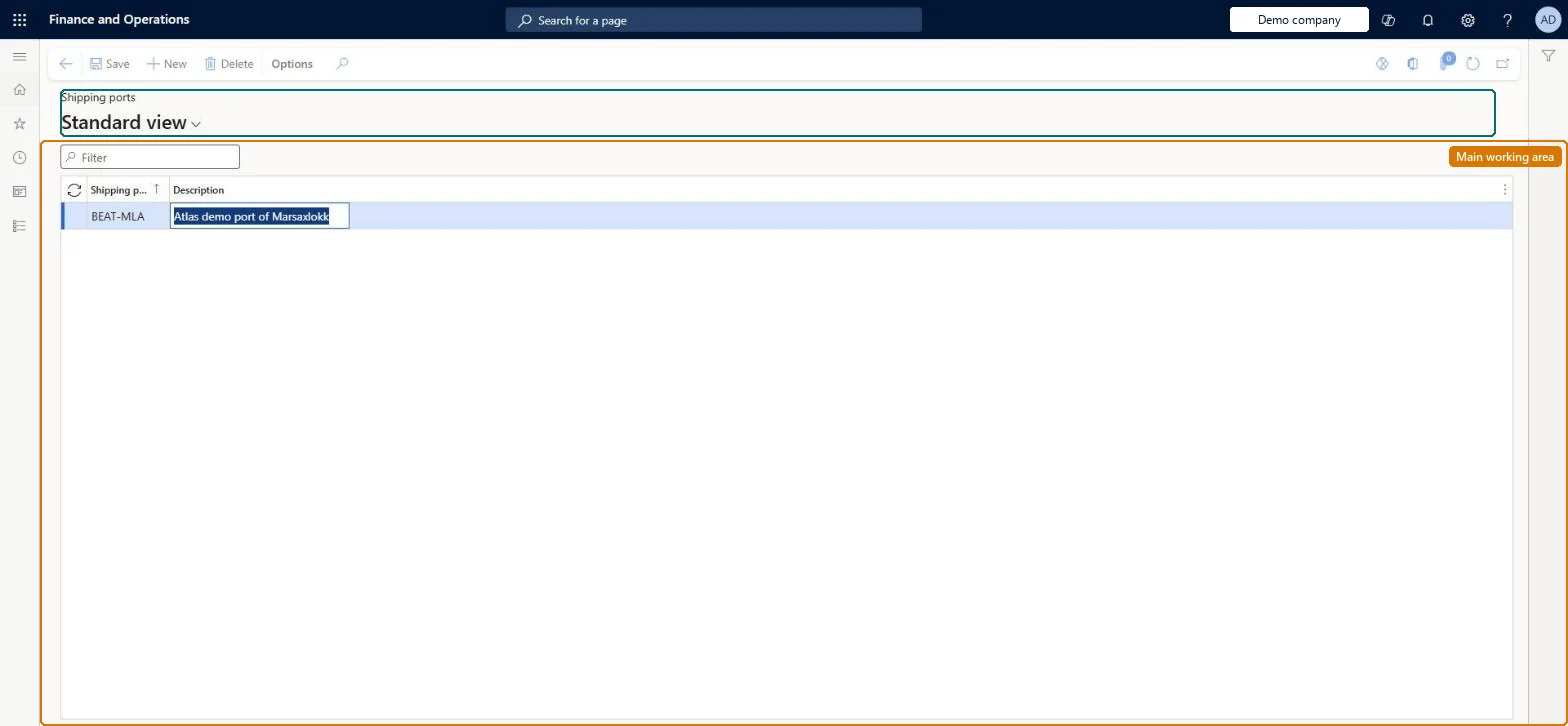
The page in Dynamics 365. page title tab to open what to set or check
About the examples: Examples and screenshots in this guide use BEAT, a demo company in a Dynamics 365 test environment. Use your own company's codes and values instead of copying them.
Setup steps on this page
Set up Shipping ports
Use this page to view, add and remove shipping port records. Ports are used to build journey legs, set the from and to ports of a voyage, and match auto costs and volumetric divisors.
Steps from Microsoft
Go to Landed cost > Delivery information setup > Shipping ports.
Select New to add a record.
In Shipping port, enter a unique identification name or number, typically the city and country/region.
Name each port by city and country/regionLearn says ports are typically defined by the city and country/region of the physical port.
Using different port IDs for the same place on legs and auto costs. Auto costs apply only when the from and to ports match the voyage.
Solution architect
5Design impact
Can it be undone
Reversible: Port records can be maintained at any time, but they build legs and are matched exactly by auto costs, so changes alter cost matching for later voyages. Microsoft Learn
If you change it later
Ports are matched exactly when auto costs are found, so renaming or changing the ports used on legs, journey templates or auto costs changes which costs apply to a voyage. Microsoft Learn
Technical architect
6Technical
Menu item
ITMPortTableChecked in Dynamics 365
Form
ITMPortTableChecked in Dynamics 365
Table
ITMPortTableShown as “SHIPPING PORTS” in Record infoKey field: ShipPortIdChecked in Dynamics 365
Data entities
ITMShippingPortEntityShipping ports Checked in Dynamics 365
To set it up or change itLanded cost manager ITMManagerGive people one of these roles. On this system, 1 role can open this page.Checked in Dynamics 365
Developer
7Developer
Open it by URL
https://<your-environment>/?mi=ITMPortTable
Integrate with
ITMShippingPortEntity data entity Checked in Dynamics 365