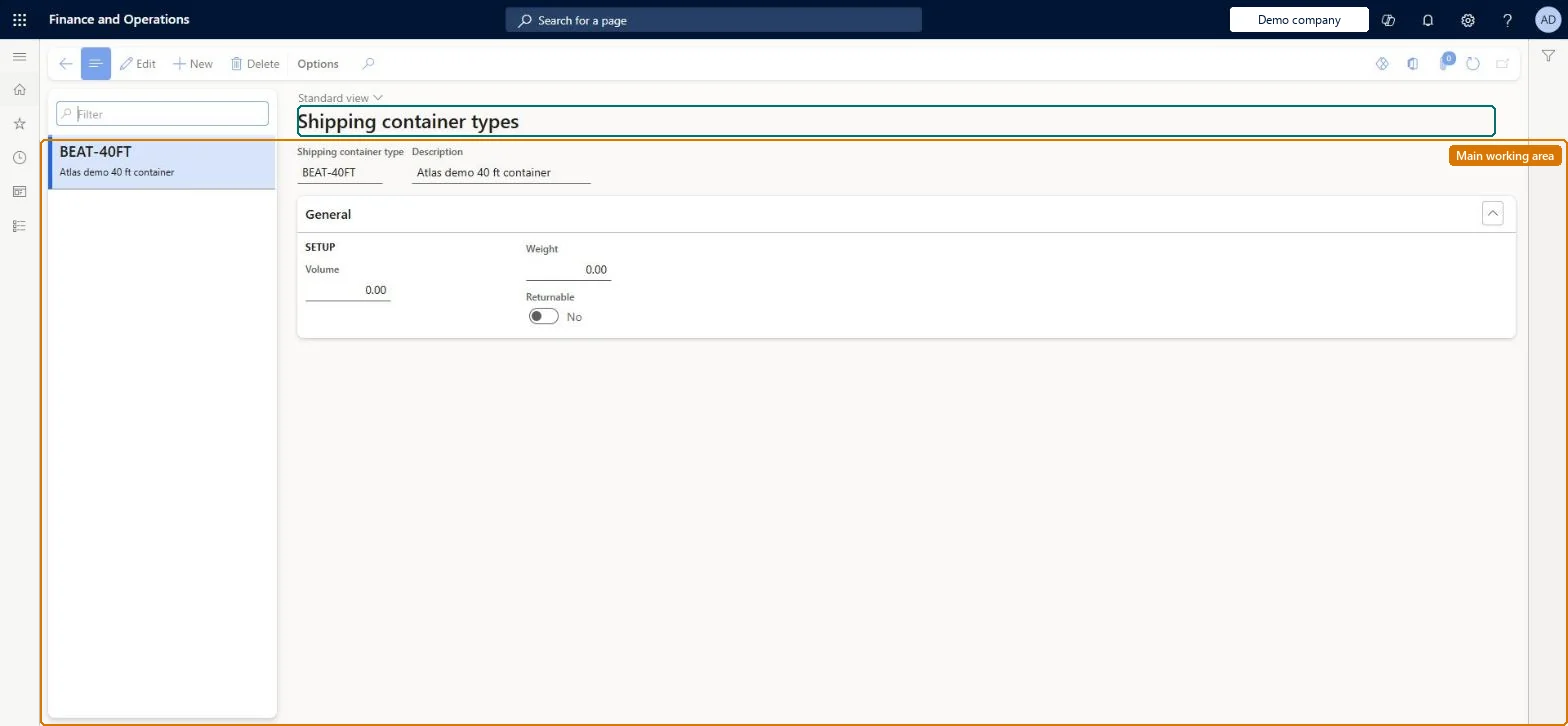
A setup page where you define the types of shipping container (with maximum volume and weight, and whether they are returnable) that can be used on voyages.
PAGE GUIDEWhat the page does and how to use it8 sections. Choose a role to highlight what matters to you.
Everyone
1What it is and why
What it is
A setup page where you define the types of shipping container (with maximum volume and weight, and whether they are returnable) that can be used on voyages.
What you do here
Use this page to view, add and remove shipping container types. The type is later selected on containers, auto costs and cost templates, and its volume and weight limits drive the over-volume and overweight warnings on the Voyage editor.
Example
For example, you create a 40-foot container type with its maximum weight and volume, mark it as returnable, and then set a freight auto cost that applies only to voyages using that container type.
The page in Dynamics 365. page title tab to open what to set or check
About the examples: Examples and screenshots in this guide use BEAT, a demo company in a Dynamics 365 test environment. Use your own company's codes and values instead of copying them.
Setup steps on this page
Set up Shipping container types
Use this page to view, add and remove shipping container types. The type is later selected on containers, auto costs and cost templates, and its volume and weight limits drive the over-volume and overweight warnings on the Voyage editor.
Steps from Microsoft
Go to Landed cost > Containers setup > Shipping container types.
Select New to add a record.
Enter a unique Shipping container type and a Description.
Enter the maximum Volume and Weight for containers of this type.
Set Returnable to Yes if containers of this type go back to the vendor after use.
The real maximum Volume and Weight of each container type, with Outside volume tolerance and Outside weight tolerance at 5 to 10 percent on Landed cost parametersThe Voyage editor warns when goods exceed the type's maximums plus the tolerance percentage, and Learn recommends 5 to 10 percent.
Leaving the tolerances at zero, which means the weight and volume of lines added must match the container type exactly. To skip the check, Learn says to set very large maximum values instead.Test: Over-volume warning uses the container type maximum
Solution architect
5Design impact
Can it be undone
Reversible: Values can be changed at any time. A change moves the over-volume and overweight warning threshold for future Voyage editor work and can change which auto costs match by container type. Microsoft Learn
If you change it later
Changing the volume or weight of a type changes when the Voyage editor warns that goods are over-volume or overweight, because the tolerance is a percentage of the type's maximums; changing the type on a voyage also changes which auto costs match. Microsoft Learn
Technical architect
6Technical
Menu item
ITMContainerTypeTableChecked in Dynamics 365
Form
ITMContainerTypeTableChecked in Dynamics 365
Table
ITMContainerTypeTableShown as “SHIPPING CONTAINER TYPES” in Record infoKey field: ShipContainerTypeIdChecked in Dynamics 365
Data entities
ITMShippingContainerTypeEntityShipping container types Checked in Dynamics 365
To set it up or change itLanded cost manager ITMManagerGive people one of these roles. On this system, 1 role can open this page.Checked in Dynamics 365