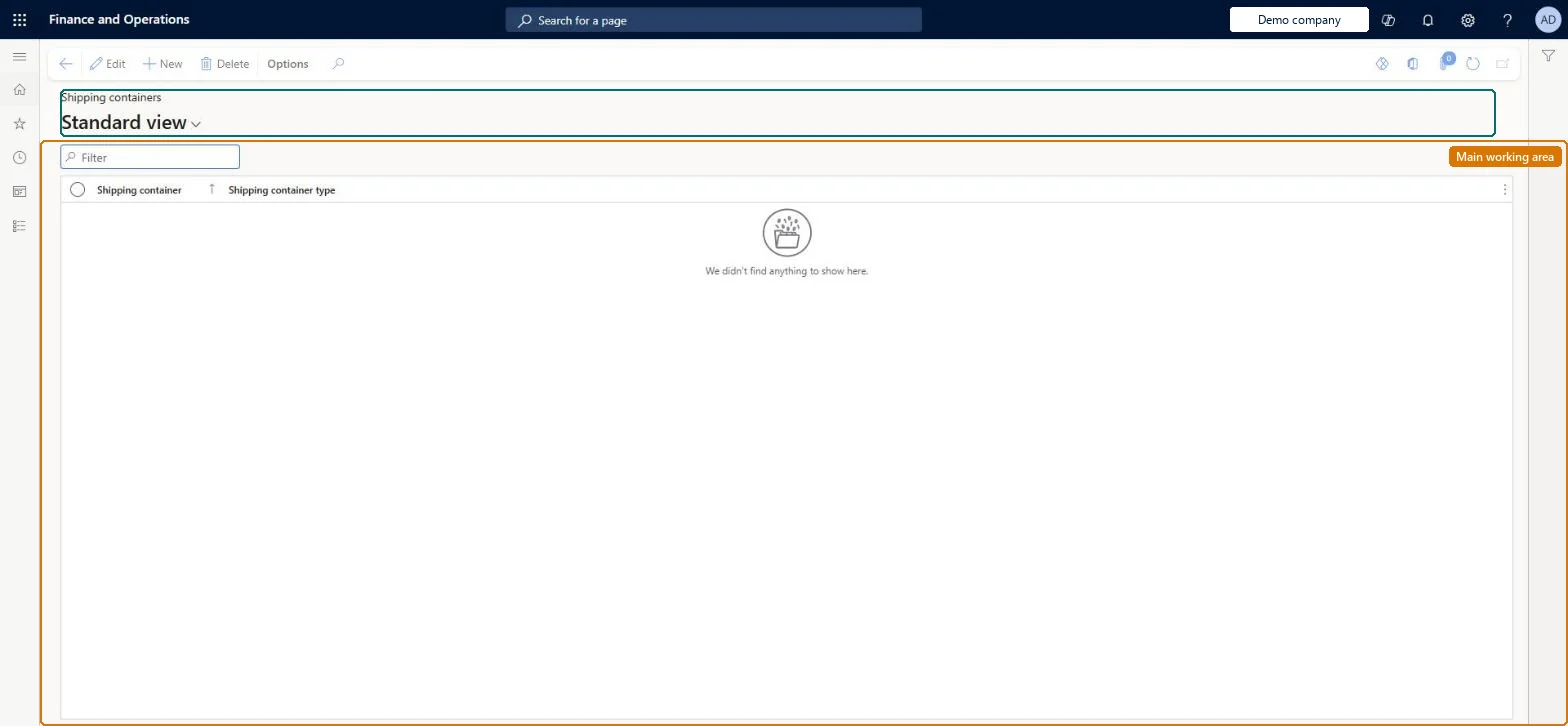
Setup step on the Shipping containers page · Landed cost
Set up Shipping containers
Use this page to view, add and remove shipping container records, giving each container a unique identifier and a shipping container type. It is optional and mainly useful when your company owns or regularly reuses the same containers.
SETUP GUIDEHow to set it up8 sections. Choose a role to highlight what matters to you.
Everyone
1What it is and why
What it is
A setup page where you record each shipping container that your company uses on voyages, so the container can be picked from a list when a voyage is created.
What you do here
Use this page to view, add and remove shipping container records, giving each container a unique identifier and a shipping container type. It is optional and mainly useful when your company owns or regularly reuses the same containers.
Example
For example, a company that owns its own containers records each one here so that users select it from a list on a voyage instead of typing the container number every time.
The page in Dynamics 365. page title tab to open what to set or check
About the examples: Examples and screenshots in this guide use BEAT, a demo company in a Dynamics 365 test environment. Use your own company's codes and values instead of copying them.
Setup steps on this page
Set up Shipping containers
Use this page to view, add and remove shipping container records, giving each container a unique identifier and a shipping container type. It is optional and mainly useful when your company owns or regularly reuses the same containers.
Steps from Microsoft
Go to Landed cost > Containers setup > Shipping containers.
Select New to add a record.
In Shipping container, enter a unique identification name or number.
In Shipping container type, select the type of container.
Record only the containers your company owns or reuses often; type one-off container numbers on the voyageLearn describes this setup as optional and mainly useful for owned or reused containers. One-off container numbers can be added when the voyage is created.
Expecting these records in Transportation management. They are used only in Landed cost, and no check digits are calculated for the container numbers, so typos are not caught.
Solution architect
5Design impact
Can it be undone
Reversible: Records can be added and removed at any time. They only feed the list users pick from on new voyages.
If you change it later
These records are used only in Landed cost, so changes here do not affect Transportation management; one-off containers need not be recorded because the number can be typed when the voyage is created. Microsoft Learn
Technical architect
6Technical
Menu item
ITMContainerTableChecked in Dynamics 365
Form
ITMContainerTableChecked in Dynamics 365
Table
ITMContainerTableShown as “SHIPPING CONTAINERS” in Record infoKey field: ShipContainerIdChecked in Dynamics 365
Data entities
ITMShippingContainerEntityShipping container Checked in Dynamics 365
To set it up or change itLanded cost agent ITMAgentTo use itLanded cost manager ITMManagerGive people one of these roles. On this system, 2 roles can open this page.Checked in Dynamics 365
Developer
7Developer
Open it by URL
https://<your-environment>/?mi=ITMContainerTable
Integrate with
ITMShippingContainerEntity data entity Checked in Dynamics 365