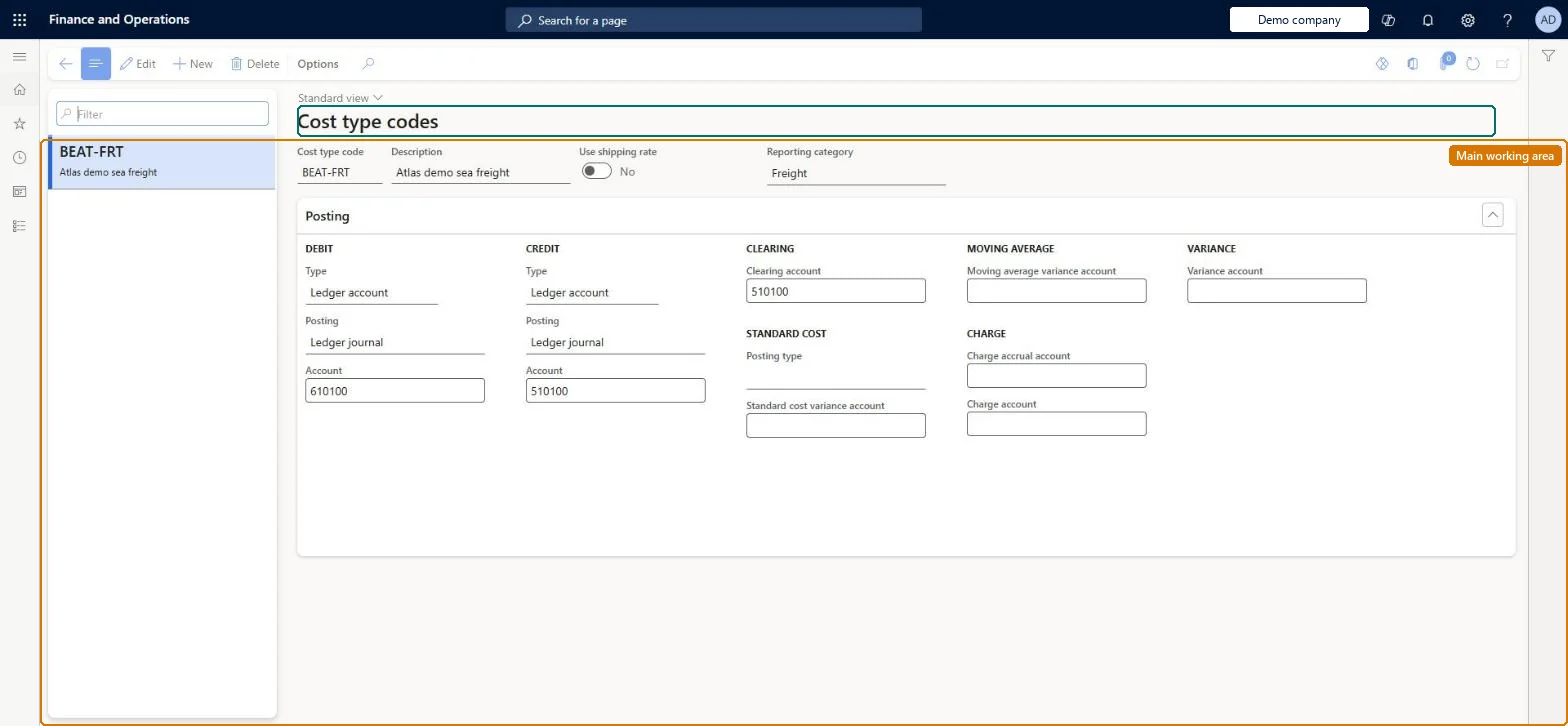
Setup step on the Cost type codes page · Landed cost
Set up Cost type codes
Use this page to create, edit and delete cost type codes and to set, for each one, the debit and credit posting, clearing account, variance accounts and charge accrual accounts. Every auto cost, volumetric divisor and apportionment mapping refers to a cost type code.
SETUP GUIDEHow to set it up8 sections. Choose a role to highlight what matters to you.
Everyone
1What it is and why
What it is
A setup page where you define the cost type codes (such as duty, freight and insurance) that identify each kind of landed cost and how it posts to items, ledger accounts or vendors.
What you do here
Use this page to create, edit and delete cost type codes and to set, for each one, the debit and credit posting, clearing account, variance accounts and charge accrual accounts. Every auto cost, volumetric divisor and apportionment mapping refers to a cost type code.
Example
For example, you create a Freight cost type that debits the item and credits the vendor, with its own clearing account so that freight invoices can be reconciled separately from duty.
The page in Dynamics 365. page title tab to open what to set or check
About the examples: Examples and screenshots in this guide use BEAT, a demo company in a Dynamics 365 test environment. Use your own company's codes and values instead of copying them.
Setup steps on this page
Set up Cost type codes
Use this page to create, edit and delete cost type codes and to set, for each one, the debit and credit posting, clearing account, variance accounts and charge accrual accounts. Every auto cost, volumetric divisor and apportionment mapping refers to a cost type code.
Steps from Microsoft
Go to Landed cost > Costing setup > Cost type codes.
Select New on the Action Pane.
Enter the Cost type code and Description.
Set Debit type and Credit type (item, ledger account or vendor) and, for ledger accounts, the posting and account.
Select a Clearing account for the cost type.
If you use standard or moving average costing, select the variance accounts.
Whether the voyage (management) exchange rate is used instead of the standard rate when valuing this cost.Microsoft Learn
ITMUseShipExchRate
Reporting category
A reporting bucket for the cost type, so reports can be printed by category or by cost type.Microsoft Learn
ITMCostReportCategory
Debit type
Whether the cost debits the item, a ledger account or the vendor.Microsoft Learn
Credit type
Whether the cost credits the item, a ledger account or the vendor.Microsoft Learn
Clearing account
The clearing account used for this cost type; a separate one per cost type eases reconciliation.Microsoft Learn
ClearingLedgerDimension
Moving average variance account
The account that receives the variance between estimated and actual cost when moving average costing is used.Microsoft Learn
MvgAvgVarianceLedgerDimension
Charge accrual account
The account used to accrue cost estimates when the purchase invoice is posted, if the matching Landed cost parameter is on.Microsoft Learn
ChargeAccrualLedgerDimension
Test checklist
Create cost types for duty, freight and insurance with Debit type, Credit type and Clearing account.
Add the cost types to an auto cost and run Find auto costs on a voyage.
Post the stock invoice and check the estimated costs post to the clearing account.
Post the actual cost invoice with a different amount and check the variance posts to the Moving average variance account or Standard cost variance account.
A separate Clearing account for each cost type codeLearn advises a separate clearing account per cost type to help with reconciliation of estimated and actual landed costs.
Hard to reverse: Accounts can be changed later, but entries already posted to the old clearing, variance or accrual accounts stay there and must be reconciled.
If you change it later
If the cost type table is shared across legal entities, the chart of accounts must be shared too, otherwise postings fail; the posting accounts set here drive where estimated and actual landed costs and their variances are booked. Microsoft Learn
Technical architect
6Technical
Menu item
ITMCostTypeTableChecked in Dynamics 365
Form
ITMCostTypeTableChecked in Dynamics 365
Table
ITMCostTypeTableShown as “COST TYPE CODES” in Record infoKey field: ITMCostTypeIdChecked in Dynamics 365
Who can open it
PrivilegesMaintain voyage auto costs ITMCostAutoSetupMaintainDutiesMaintain voyage costs setup ITMCostSetupMaintain1 security roleLanded cost manager ITMManagerChecked in Dynamics 365
Roles to set it up and use it
To set it up or change itLanded cost manager ITMManagerGive people one of these roles. On this system, 1 role can open this page.Checked in Dynamics 365