About the examples: Examples and screenshots in this guide use BEAT, a demo company in a Dynamics 365 test environment. Use your own company's codes and values instead of copying them.
Step by step, with screenshots
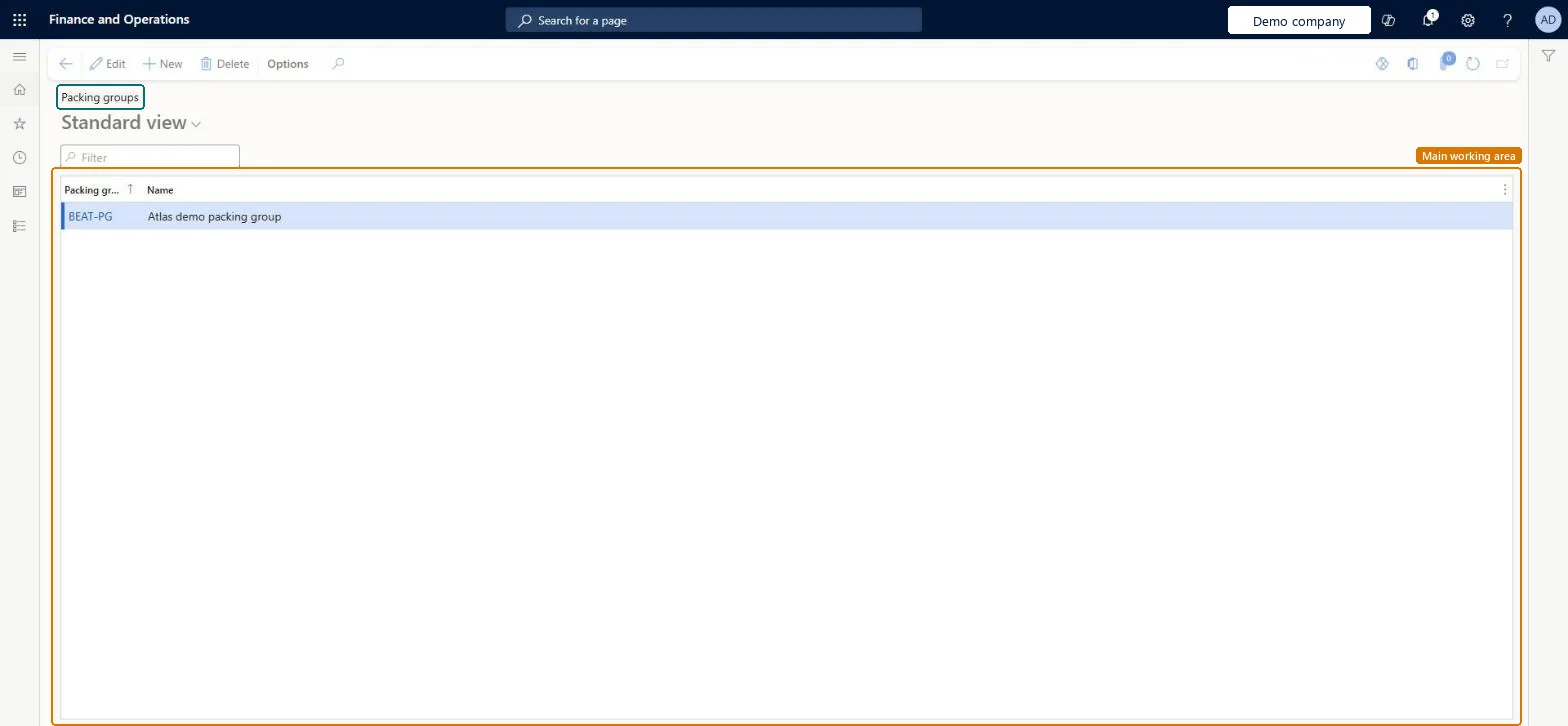
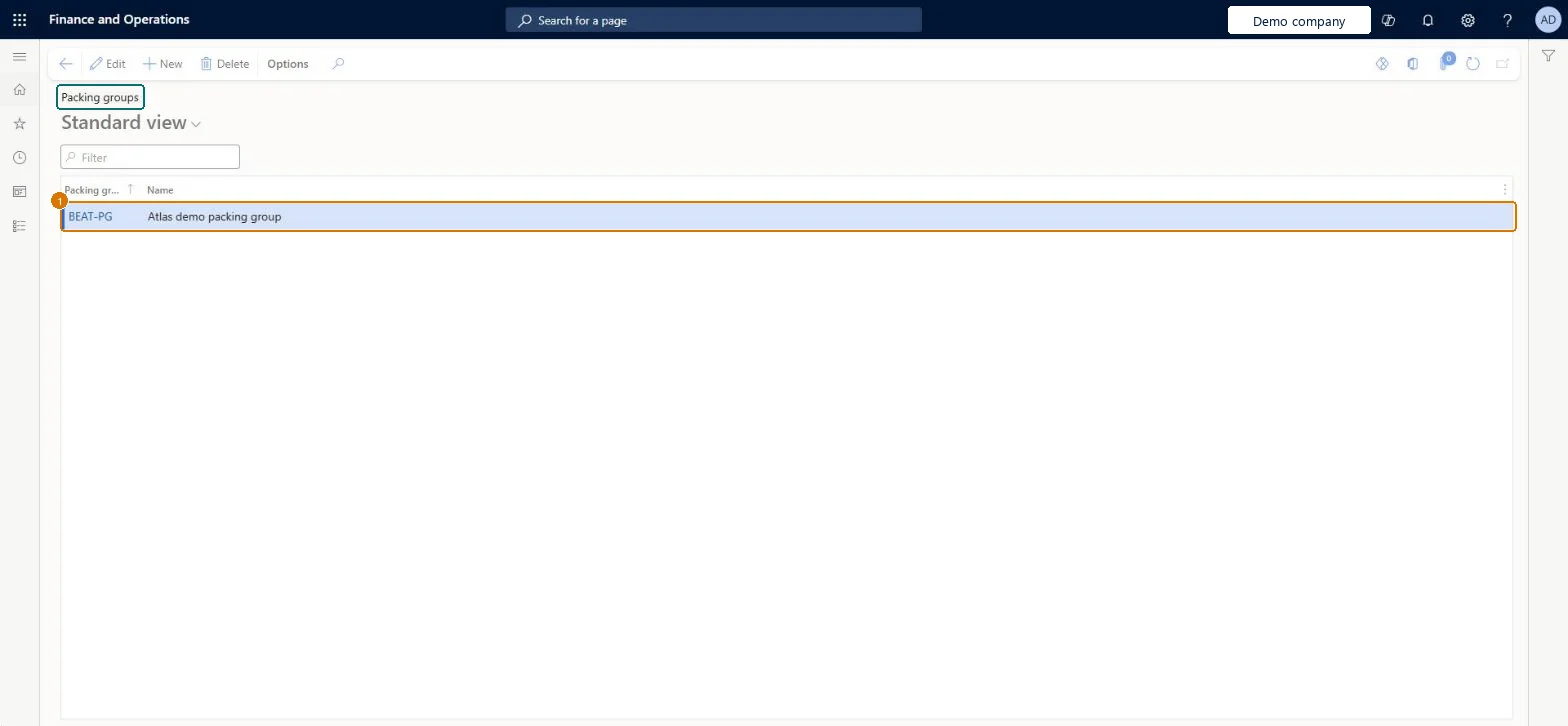
Set up Packing groups1 screen
Use this page to allocate packing materials to groups of items instead of to each item separately.
Screen 1
Create a packing group
Go to Inventory management > Setup > Packing material > Packing groups
Select New
Enter the packing group code and name
Select Save
Assign the packing group to items, then allocate packing materials to the group on Packaging material allocation
1Packing group
BEAT-PG
Name
Packing group
Show the full screen page title tab to open what to set or check
Steps from Microsoft
Go to Inventory management > Setup > Packing material > Packing groups.
Create each packing group that you use.
Go to Product information management > Products > Released products and select a product.
On the Manage inventory FastTab, in the Packing group field, select the packing group.
Packing groups only where many items share the same packing; assign the group on Released products > Manage inventory > Packing groupAll items in a packing group use the same packing material allocation, and the group must be set on each product.
Creating groups but not assigning them to products, so the Group allocation never matches any item.
Reversible: Packing groups and the group on each product can be changed. Packing material fees don't post to the ledger, and packing material transactions can be modified after invoicing. Microsoft Learn
Technical architect
6Technical
Menu item
InventPackagingGroupChecked in Dynamics 365
Form
InventPackagingGroupChecked in Dynamics 365
Table
InventPackagingGroupShown as “Packing groups” in Record infoKey field: PackagingGroupId, NameChecked in Dynamics 365
PrivilegesMaintain packing groups InventPackagingGroupMaintainView packing groups InventPackagingGroupViewDutiesEnable packing material management process InventPackMaterialManagementProcessEnabInquire into packing material management reference data InventPackMaterialManagementRefInquir5 security rolesProduct design manager BOMProductDesignManagerMaterials manager InventMaterialsManagerProduction supervisor ProdProductionSupervisorProcess engineer RouteProcessEngineerProcess engineering manager RouteProcessEngineeringManagerChecked in Dynamics 365
Roles to set it up and use it
To set it up or change itMaterials manager InventMaterialsManagerProcess engineer RouteProcessEngineerTo use itProduction supervisor ProdProductionSupervisorProduct design manager BOMProductDesignManagerProcess engineering manager RouteProcessEngineeringManagerGive people one of these roles. On this system, 5 roles can open this page.Checked in Dynamics 365
Actions on the page
Options: Personalize, Page options, ShareChecked in Dynamics 365
InventPackingMaterialGroupEntity (Packing material groups): loaded for each company, in Microsoft's default template 300 - Inventory.Load order: Microsoft's default template 300 - Inventory loads Packing material groups at execution unit 1, level 30, sequence 10. Lower levels load first, and entities at the same level load in sequence order.Load first: the default templates at lower levels (System setup to General ledger)Microsoft Learn
Checked in a working Dynamics 365 system, version 10.0.49: the menu item, form, table and security, the page, the demo records and the values in the screenshots.