About the examples: Examples and screenshots in this guide use BEAT, a demo company in a Dynamics 365 test environment. Use your own company's codes and values instead of copying them.
Step by step, with screenshots
Set up CAPA processes1 screen
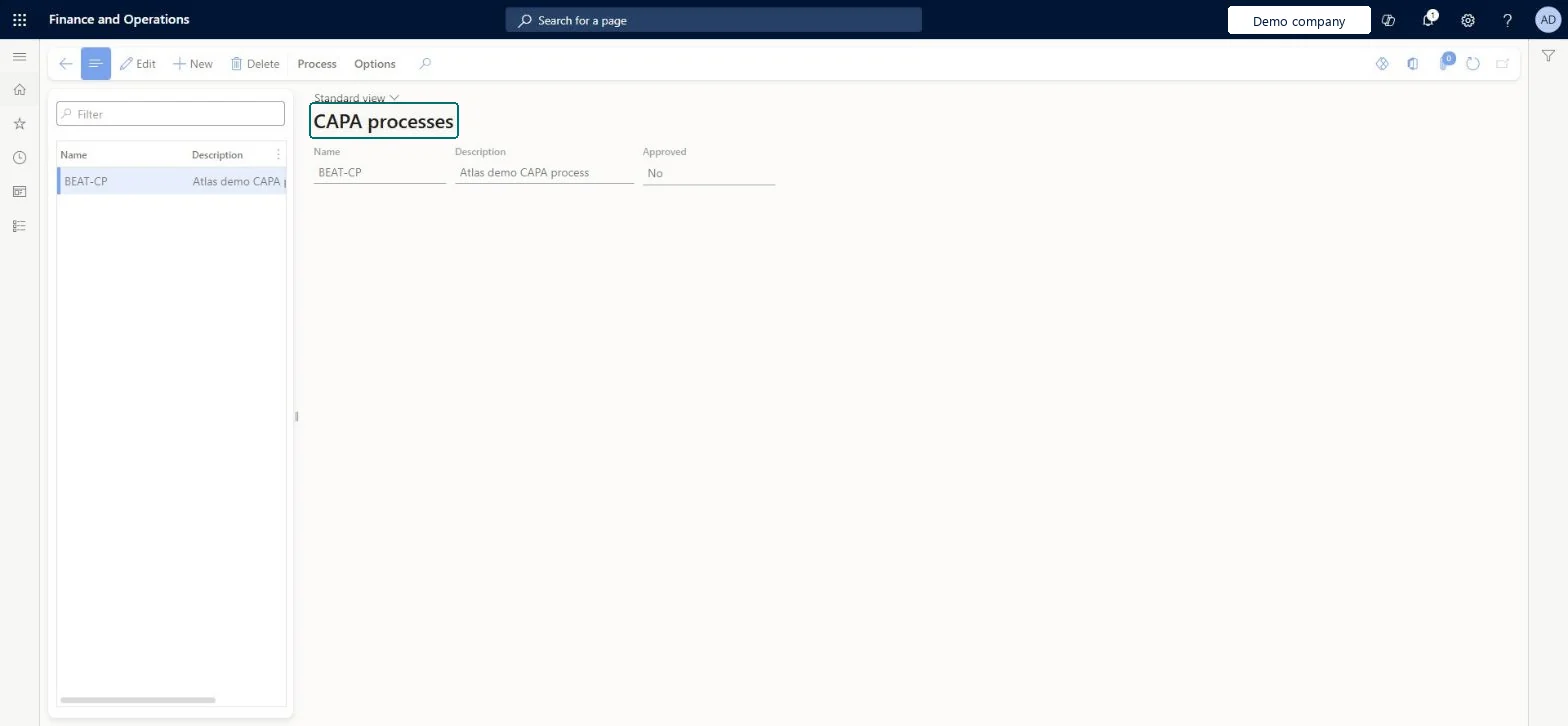
Use this page to set the sequence of stages and activities that guides workers through each CAPA case to completion.
Screen 1
Create a CAPA process
Go to Inventory management > Setup > CAPA management > CAPA processes
Select New
Enter the process name and description
Select Save
Select Process to add the stages and activities in order
Set Approved to Yes when the process is ready to use
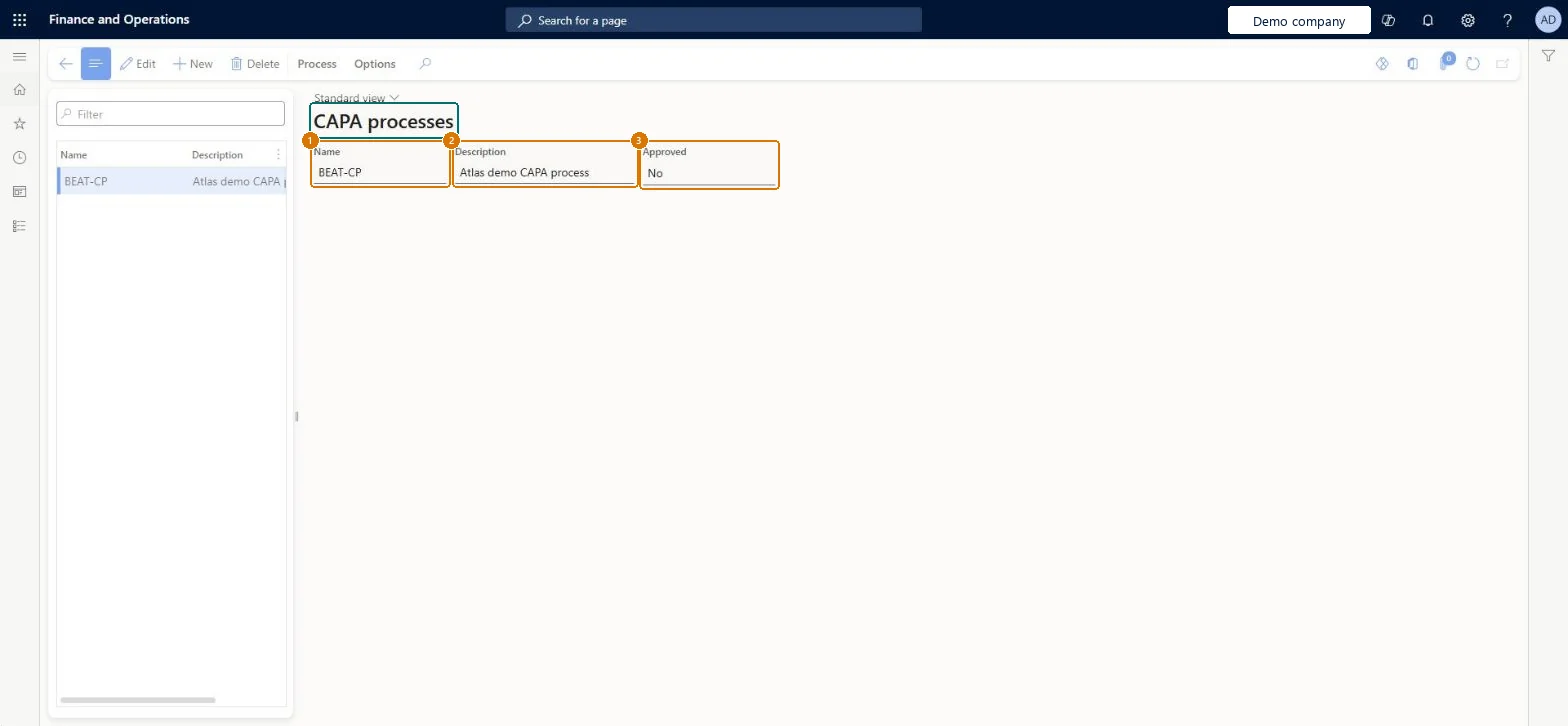
1Name
BEAT-CP
2Description
CAPA process
3Approved
No
Show the full screen page title tab to open what to set or check
Steps from Microsoft
Go to Inventory management > Setup > CAPA management > CAPA processes.
Select New to add a process, and enter its name and description.
On the Process tab of the Action Pane, select Details.
Select the process name and then select New > Create level to add each stage.
For each stage, set the CAPA worker group, Responsible worker and notification options.
Select a stage and then select New > Create action, Create appointment, Create event or Create task to add activities.
Mark mandatory activities as Required and set their scheduling fields.
Select Save, and set Approved to Yes when the process is ready to use.
Build or copy the process with Approved = No, test it, then set Approved = Yes; set Check for required activities on stages that have mandatory activitiesOnly approved processes can be selected on CAPA cases, so a process can be developed unapproved; mandatory activities only block a stage when the check is on.
Typing a placeholder Purpose on a new stage: the stage Name comes from Purpose and can't be changed later.
Feature management and licence
Feature to turn on
Advanced quality management (Mandatory, on by default)
Hard to reverse: Stage names can't be changed after creation; to rename, delete and recreate the stage or copy the process.
If you change it later
Only approved processes can be selected for CAPA cases, so a process can be built with Approved set to No and switched to Yes when it's ready. A stage's name can't be changed after it's created. Microsoft Learn
Technical architect
6Technical
Menu item
QMSCAPAProcessDefinitionChecked in Dynamics 365
Form
HierarchyChecked in Dynamics 365
Table
HierarchyShown as “Hierarchies” in Record infoKey field: HierarchyId, NameChecked in Dynamics 365
Who can open it
PrivilegesMaintain processes associated with CAPA cases QMSCAPACaseProcessDefinitionMaintainView processes associated with CAPA cases QMSCAPACaseProcessDefinitionViewDutiesInquire into processes associated with CAPA cases QMSCAPAProcessDefinitionInquireMaintain processes associated with CAPA cases QMSCAPAProcessDefinitionMaintain2 security rolesCAPA administrator QMSCAPAAdministratorCAPA updater QMSCAPAUpdaterChecked in Dynamics 365
Roles to set it up and use it
To set it up or change itCAPA updater QMSCAPAUpdaterCAPA administrator QMSCAPAAdministratorGive people one of these roles. On this system, 2 roles can open this page.Checked in Dynamics 365
Actions on the page
Process: View, InquiryOptions: Personalize, Page options, ShareChecked in Dynamics 365
Checked in a working Dynamics 365 system, version 10.0.49: the menu item, form, table and security, the page, the demo records and the values in the screenshots.
To cite this step: IM-CAPA-030, Set up CAPA processes. Beyond ERP Atlas Hub, 2026-11-11. https://www.beyonderp.cloud/atlas/step/IM-CAPA-030