About the examples: Examples and screenshots in this guide use BEAT, a demo company in a Dynamics 365 test environment. Use your own company's codes and values instead of copying them.
Step by step, with screenshots
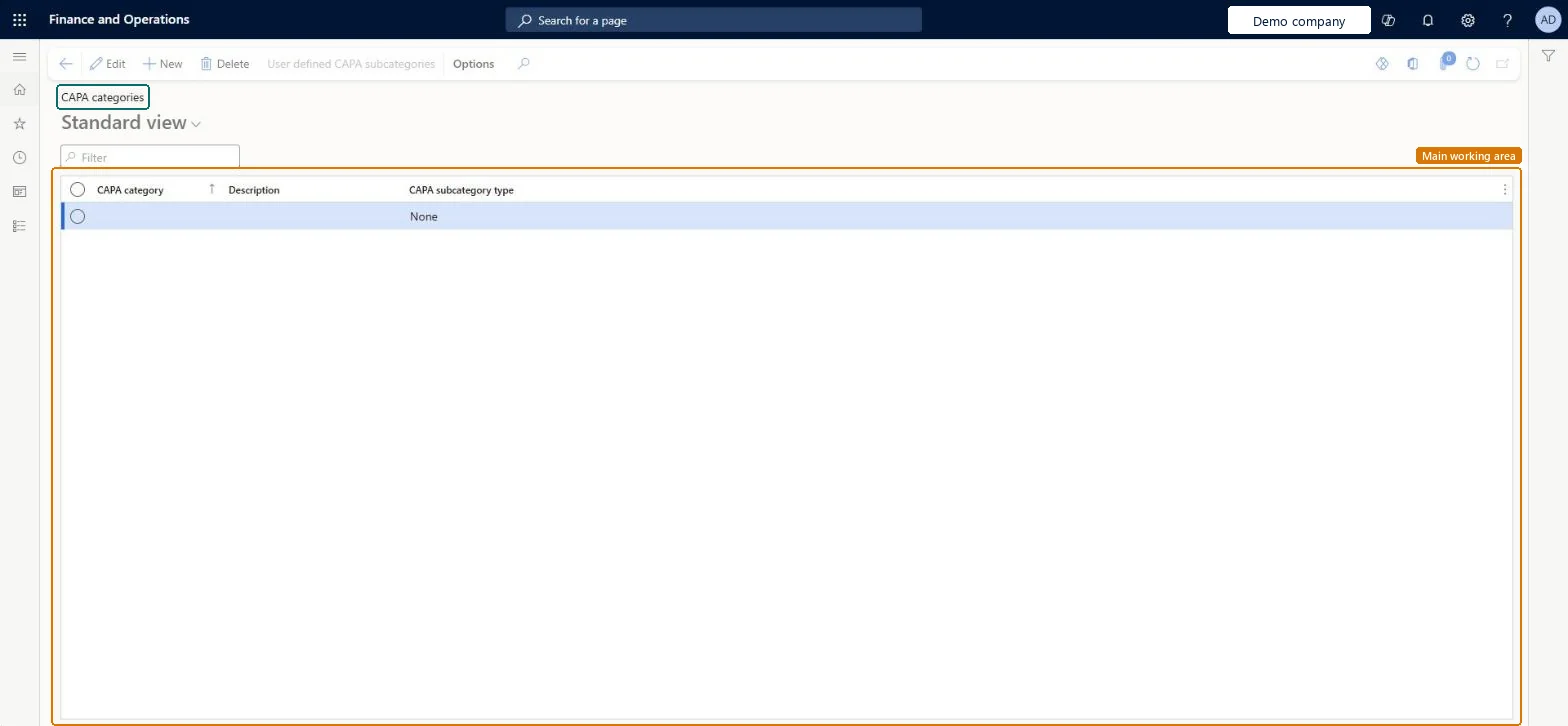
Set up CAPA categories1 screen
Use this page to help employees find known solutions for issues that occur often, and to analyze case trends by category.
Screen 1
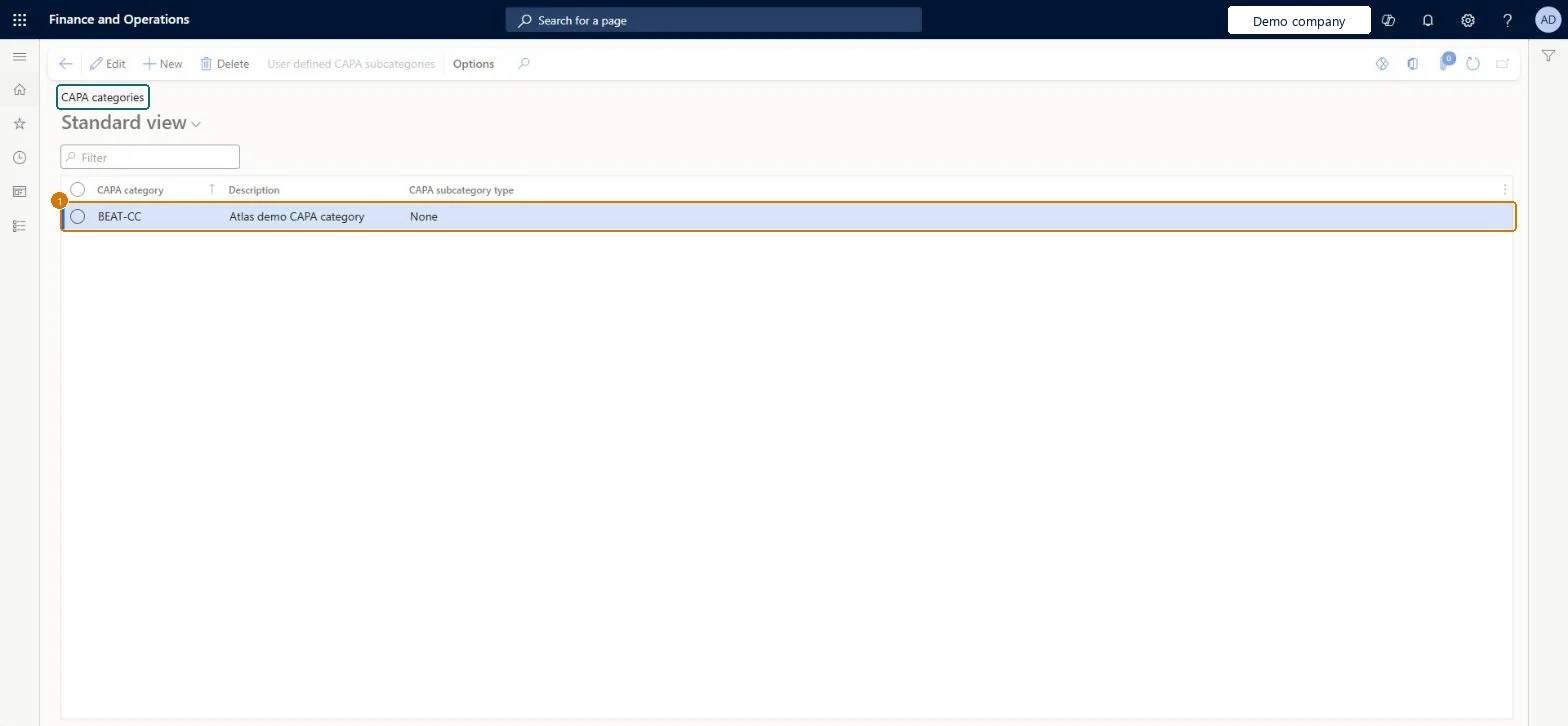
Create a CAPA category
Go to Inventory management > Setup > CAPA management > CAPA categories
Select New
Enter the category code and description
Leave CAPA subcategory type as None, or choose a type and add subcategories with User defined CAPA subcategories
Select Save
1CAPA category
BEAT-CC
Description
CAPA category
CAPA subcategory type
None
Show the full screen page title tab to open what to set or check
Steps from Microsoft
Go to Inventory management > Setup > CAPA management > CAPA categories.
Select New to add a CAPA category.
Enter a unique CAPA category name and a Description.
In the CAPA subcategory type field, select None, Customer, Vendor, Product or User defined.
For a User defined category, select User defined CAPA subcategory on the Action Pane.
Add each subcategory with a name and a short description.
Categories for recurring issue families, with the subcategory type (Customer, Vendor, Product or User defined) that matches how you analyse themCategories feed the Trending analysis by category feature and help users find known solutions.
Not setting Empty case category in the parameters: you must select a value there to use CAPA.
Feature management and licence
Feature to turn on
Advanced quality management (Mandatory, on by default)
Reversible: Categories can be added and edited. A category can be deleted only if it isn't assigned to active CAPA cases. Microsoft Learn
If you change it later
A category can be deleted only if it isn't assigned to active CAPA cases. Microsoft Learn
Technical architect
6Technical
Menu item
QMSCAPACategoryChecked in Dynamics 365
Form
QMSCAPACategoryChecked in Dynamics 365
Table
QMSCAPACategoryShown as “CAPA categories” in Record infoKey field: CategoryIdChecked in Dynamics 365
Data entities
QMSCAPACategoryEntityCAPA categories Checked in Dynamics 365
Roles to set it up and use it
To set it up or change itCAPA updater QMSCAPAUpdaterCAPA administrator QMSCAPAAdministratorGive people one of these roles. On this system, 2 roles can open this page.Checked in Dynamics 365
Actions on the page
Options: Personalize, Page options, ShareChecked in Dynamics 365
Developer
7Developer
Open it by URL
https://<your-environment>/?mi=QMSCAPACategory
Integrate with
QMSCAPACategoryEntity data entity Checked in Dynamics 365
Checked in a working Dynamics 365 system, version 10.0.49: the menu item, form, table and security, the page, the demo records and the values in the screenshots.