SETUP GUIDEHow to set it up8 sections. Choose a role to highlight what matters to you.
Everyone
1What it is and why
What it is
A page where the back-office team reviews expense reports that are eligible for VAT recovery.
What you do here
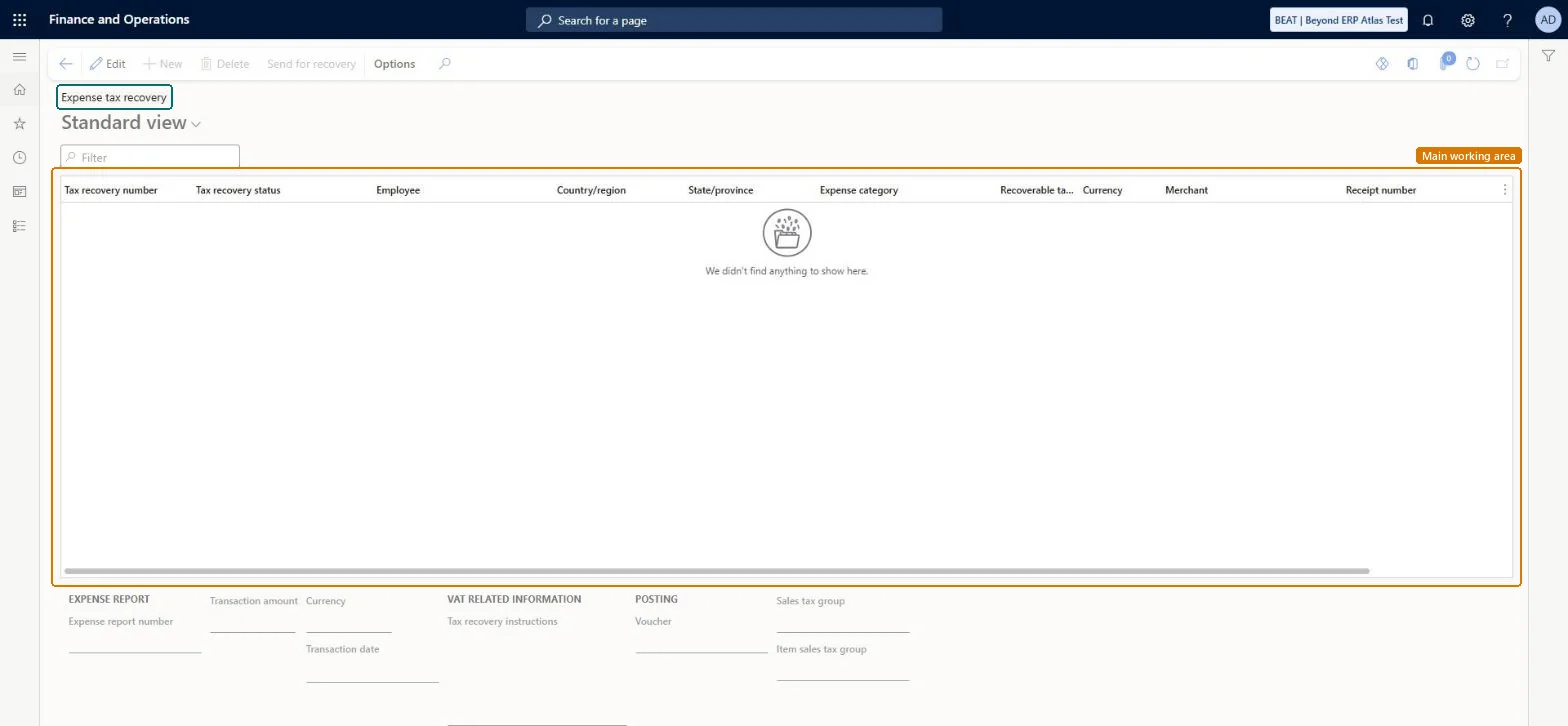
Use this page to check receipts and tax codes on eligible expense reports and to mark them Ready for recovery.
Example
For example, a back-office clerk filters the page to reports marked Ready for recovery and exports them to Excel for the third-party vendor that files international VAT returns.
The page in Dynamics 365. page title tab to open what to set or check
About the examples: Examples and screenshots in this guide use BEAT, a demo company in a Dynamics 365 test environment. Use your own company's codes and values instead of copying them.
When to run it
When to run it
After expense reports with recoverable VAT are posted and their paper receipts arrive.
How often
Per VAT claim, for example monthly or quarterly.
What the output shows
Reports marked Ready for recovery, ready to export to Excel for the third-party VAT vendor or to claim domestically.
Where the report is in recovery; set it to Ready for recovery once receipts and tax codes are checked.Microsoft Learn
Ready for recovery
Sales tax group
The tax group of the expense, filtered by the expense's country/region.Microsoft Learn
Item sales tax group
The item tax group of the expense; a report without one can't be posted.Microsoft Learn
Common errors and fixes
Message
What to do
The approved expense report can't be posted because an item sales tax group is missing
Open Expense management > Setup > General > Tax configurations, find the item sales tax group for the country/region of the expense, add it to the line and post again. Microsoft Learn
Tax recovery can't be turned on in the parameters
Enable tax recovery from expenses can't be used when US sales tax and use tax rules are on (Apply sales tax taxation rules = Yes). Microsoft Learn
A domestic receipt is refused for recovery
For domestic recovery the receipt must be in the company's name, not the employee's. Microsoft Learn
Test checklist
Turn on Enable tax recovery from expenses in Expense management parameters (not possible if US sales tax and use tax rules are on).
Post an expense report with a foreign Country/region, sales tax group, item sales tax group and receipts attached; check the posting message lists the VAT transactions found for recovery.
Open Expense tax recovery, select the report and check receipts, sales tax group and item sales tax codes.
Change the status to Ready for recovery, filter on that status and use Export to Excel to check the VAT data exports.
Work the VAT recoverable work items each claim period; compare paper and digital receipts, then set Ready for recovery and export the list for the third-party vendor.Posting creates a VAT recoverable work item for each eligible report, and only reports marked Ready for recovery go into the claim.
Recovery records take their number from the TrvTaxRecoveryNumber reference; BEAT uses number sequence Trav_9. Checked in Dynamics 365
Feature management and licence
Licence or add-in
In this system Employee and Contractor enter their own expenses, and Expense administrator sets up the module and processes documents. The expense mobile app needs the Employee role, a company on the user account and a link to an employee with active employment. A back-office team member handles the VAT recoverable work item created at posting; no Feature management feature is needed, but Enable tax recovery from expenses must be on in the parameters.
Hard to reverse: Recovery work items are created when the report is posted; missing tax data must be fixed before posting.
If you change it later
Expense tax recovery can't be turned on when US sales tax and use tax rules are enabled. Microsoft Learn
Technical architect
6Technical
Menu item
TrvTaxRecoveryChecked in Dynamics 365
Form
TrvTaxRecoveryChecked in Dynamics 365
Table
TrvExpenseTaxRecoveryShown as “Recoverable taxes” in Record infoKey field: TaxRecoveryNumberChecked in Dynamics 365
Data entities
TrvExpenseTaxConfigurationEntityExpense tax recovery configuration (the tax configurations used on this page, not the recovery records) Microsoft data model
Who can open it
PrivilegesMaintain expense tax recovery configurations TrvTaxRecoveryMaintainDutiesMaintain expense management process TrvTravelAndExpenseProcessMaintain1 security roleExpense administrator ExpenseAdministratorChecked in Dynamics 365
Roles to set it up and use it
To set it up or change itExpense administrator ExpenseAdministratorGive people one of these roles. On this system, 1 role can open this page.Checked in Dynamics 365
Actions on the page
Options: Personalize, Page options, ShareChecked in Dynamics 365
Developer
7Developer
Open it by URL
https://<your-environment>/?mi=TrvTaxRecovery
Data migration
TrvExpenseTaxConfigurationEntity (Expense tax recovery configuration): the tax configurations used to find the groups, not the recovery records.Load order: Recovery records come from posting; finish open recoveries before cutover and load only the tax configurations.Load first: Sales tax groups, Item sales tax groupsMicrosoft Learn
Checked in a working Dynamics 365 system, version 10.0.49: the menu item, form, table and security, the page.
To cite this step: EM-TAX-010, Check and release expenses for VAT recovery. Beyond ERP Atlas Hub, 2026-11-11. https://www.beyonderp.cloud/atlas/step/EM-TAX-010