PAGE GUIDEWhat the page does and how to use it8 sections. Choose a role to highlight what matters to you.
Everyone
1What it is and why
What it is
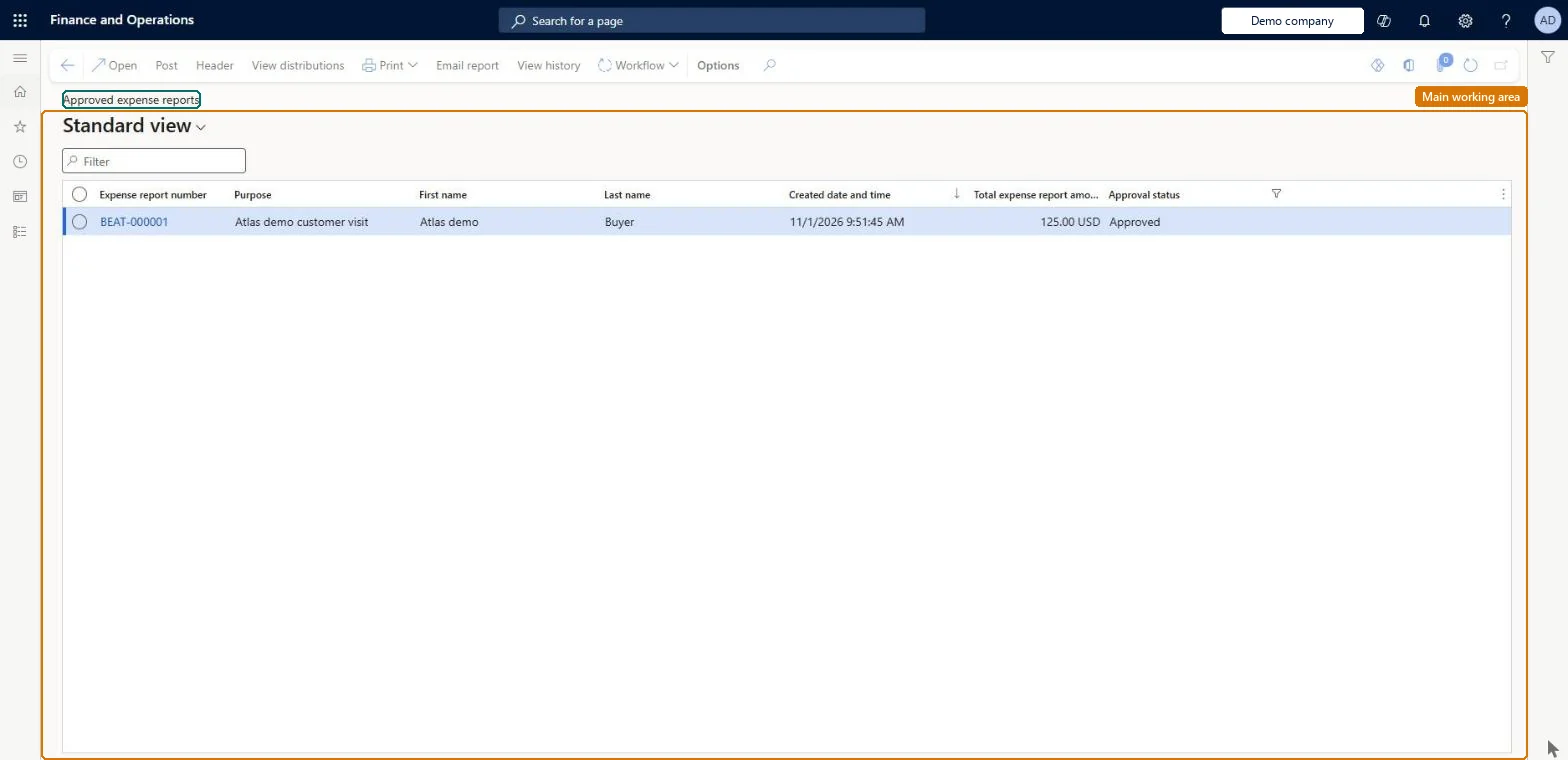
A list page of approved expense reports that are ready to be posted.
What you do here
Use this page to post approved expense reports to the general ledger, one at a time or all at once.
Example
For example, an employee of the DAT company charges a 300.00 USD client dinner to the DIR company; before posting, accounts payable checks that the journal lines charge DIR and that DAT is owed the amount, then posts.
The page in Dynamics 365. page title tab to open what to set or check
About the examples: Examples and screenshots in this guide use BEAT, a demo company in a Dynamics 365 test environment. Use your own company's codes and values instead of copying them.
When to run it
When to run it
After expense reports are approved in workflow, when accounts payable posts them for payment.
How often
Daily or per payment run, depending on how often employees are reimbursed.
What the output shows
Posted expense reports with ledger vouchers; posting also identifies expenses eligible for VAT recovery. A report that stays in the list after posting usually failed on missing tax or account information.
The number of the report, from the Expense report number sequence.Microsoft Learn
Approval status
Where the report is in its life: draft, in review, approved, or processed for payment.Microsoft Learn
Post (button)
Posts the selected approved reports to the general ledger; select several to post them together.Microsoft Learn
Common errors and fixes
Message
What to do
The approved expense report can't be posted because an item sales tax group is missing
Open Expense management > Setup > General > Tax configurations, find the item sales tax group for the country/region of the expense, add it to the line and post again. Microsoft Learn
Posting fails because the accounting date is in a period that is on hold or closed
Turn on Correct accounting date during posting on the Financial tab of Expense management parameters, so the date moves to the next open period, or open the period. Microsoft Learn
You do not have access to enter expense reports because you are not mapped to an employee record. Contact your manager or support team for assistance.
Link the user to an employee with active employment and set a company on the user account. In the live system the pages under My expenses, Process expense reports and Process cash advances showed this message for a user with no employee record. Checked in Dynamics 365
Test checklist
Approve a test expense report with one cash and one card line.
Open Approved expense reports, select the report and select Post.
Check the report leaves the list and a voucher is posted to the expense accounts.
For a report with tax recovery lines, check the posting message lists the VAT transactions found.
Post daily or before each payment run, and use the Expense report auto posting workflow once posting runs without errors.Posting creates the ledger voucher and the amount owed to the employee, and it finds the expenses eligible for VAT recovery; auto posting removes the manual step.
Posting takes the voucher from the TrvExpenseVoucher reference; BEAT uses number sequence Trav_13. Checked in Dynamics 365
Invoice
Per company
The Invoice reference (TrvExpInvoiceId) used by expense posting; BEAT uses number sequence Trav_17. Checked in Dynamics 365
Feature management and licence
Feature to turn on
Ability to post expense liability in vendor currency for cash payment method (Recommended)
Licence or add-in
In this system Employee and Contractor enter their own expenses, and Expense administrator sets up the module and processes documents. The expense mobile app needs the Employee role, a company on the user account and a link to an employee with active employment. Accounts payable or the expense administrator posts approved reports.
Per company: approved reports are posted in the legal entity they belong to; an intercompany line also posts to the borrowing legal entity. Microsoft Learn
Can it be undone
No: Posted expense reports can't be unposted from this list. Correct mistakes before you post. Microsoft Learn
If you change it later
With the Ability to post expense liability in vendor currency for cash payment method feature turned on, posting records the vendor balance in the vendor currency. Microsoft Learn
Technical architect
6Technical
Menu item
TrvExpRptListPage_ApprovedChecked in Dynamics 365
Data entities
TrvExpTableMobileEntityExpense reports (the expense report header used by the mobile app) Checked in Dynamics 365
Roles to set it up and use it
To set it up or change itExpense administrator ExpenseAdministratorGive people one of these roles. On this system, 1 role can open this page.Checked in Dynamics 365
Load order: The approved report list has no data entity in Data management, so it can't be loaded from a file or a configuration template. Post every approved report in the old system before cutover.Microsoft Learn