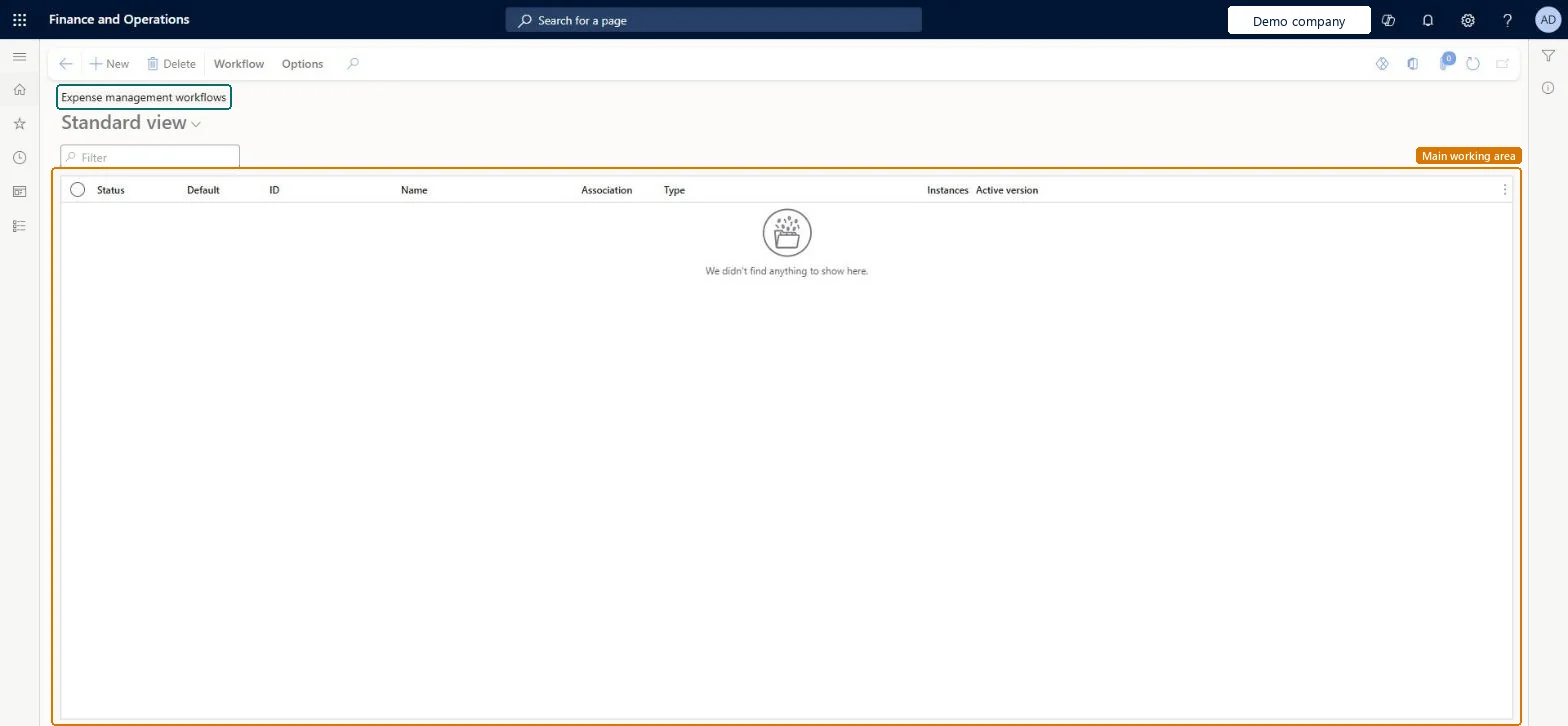
About the examples: Examples and screenshots in this guide use BEAT, a demo company in a Dynamics 365 test environment. Use your own company's codes and values instead of copying them.
Setup steps on this page
Set up Expense management workflows
Use this page to set up review and approval for expense reports, expense lines, travel requisitions, cash advances and VAT recovery.
Steps from Microsoft
Go to Expense management > Setup > General > Expense management workflows.
Select New and pick the workflow type, such as Expense report auto approval.
In the workflow editor, add an approval element and set its assignment, for example the managerial hierarchy or Expenditure participants.
Add conditions, such as an amount above which a second approver is needed.
No active workflow exists for this document type. Create and activate the matching workflow on Expense management > Setup > General > Expense management workflows. Microsoft Learn
The report goes to the wrong approver
Check the assignment of the approval element. With Expenditure participants, the dimension owner or project role must be filled for the value on the report. Microsoft Learn
Test checklist
Create and activate an Expense report auto approval workflow and a Cash advance request workflow.
Submit a test expense report and check the approval task reaches the expected approver's work list.
Approve it and check the report moves to approved expense reports for posting.
If Expense report auto posting is active, check the approved report posts without selecting Post.
Submit a cash advance request and check it reaches Cash advances for my review.
Expense report auto approval for header approval, plus Expense report auto posting if approved reports should post without an accountant; if you approve expense lines instead, use Expense line item with Expense line item auto postingLearn lists a separate workflow type for header approval, line approval and automatic posting of each. Auto posting only happens when the matching auto posting workflow is configured.
In this system Employee and Contractor enter their own expenses, and Expense administrator sets up the module and processes documents. The expense mobile app needs the Employee role, a company on the user account and a link to an employee with active employment. The expense administrator designs workflows; approvers act on them from the Process pages or the mobile app.
Per company: expense workflows are created for each legal entity. Microsoft Learn
Can it be undone
Hard to reverse: You can edit or replace a workflow, but reports already posted by an auto posting workflow stay posted. Microsoft Learn
If you change it later
A new or changed workflow version applies to documents submitted after it is activated; documents already in review keep the version they started with. Interim and final approvers and line-level submit and recall need the Expense reports reimagined enhancements feature. Microsoft Learn
Technical architect
6Technical
Menu item
WorkflowConfigurationExpenseChecked in Dynamics 365
Form
WorkflowTableListPageRnrChecked in Dynamics 365
Table
WorkflowTableShown as “Workflow configurations” in Record infoKey field: SequenceNumberChecked in Dynamics 365
Who can open it
PrivilegesAuthor Expense management workflows WorkflowAuthorExpenseWorkflowsDutiesEnable expense management process TrvTravelAndExpenseProcessEnableMaintain workflow and alerts settings WorkflowAlertsSettingsMaintain2 security rolesExpense administrator ExpenseAdministratorInformation technology manager SysServerITManagerChecked in Dynamics 365
Roles to set it up and use it
To set it up or change itExpense administrator ExpenseAdministratorInformation technology manager SysServerITManagerGive people one of these roles. On this system, 2 roles can open this page.Checked in Dynamics 365
Actions on the page
Workflow: Manage, HierarchyOptions: Personalize, Page options, ShareChecked in Dynamics 365
Load order: An expense management workflow has no data entity in Data management, so it can't be loaded from a file or a configuration template. Recreate and activate each workflow in the new environment, or export it from the workflow editor and import it there.Microsoft Learn