Business Performance Planning app role, Data management administrator, Data management migration user and 3 more roles
Business process
Develop people strategy
Menu item
TrvExpenseTaxConfiguration
Main table
TrvExpenseTaxConfiguration
Data entity
TrvExpenseTaxConfigurationEntity
Setup steps
1 on this page
Show what matters for
PAGE GUIDEWhat the page does and how to use it8 sections. Choose a role to highlight what matters to you.
Everyone
1What it is and why
What it is
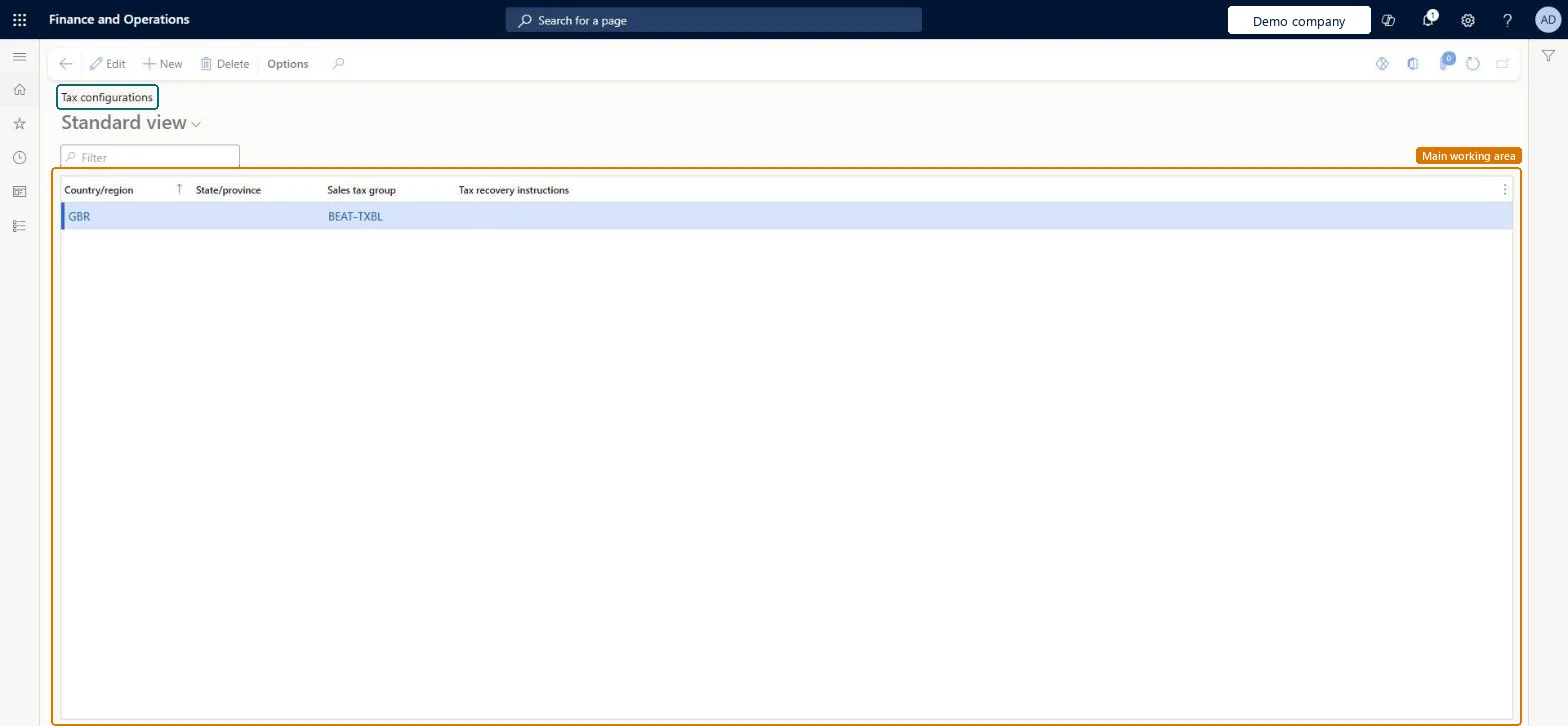
A setup page where you set up sales tax information for specific countries/regions for use on expense reports.
What you do here
Use this page to provide the sales tax and item sales tax groups that workers choose when they enter expenses.
Example
For example, an accounts payable coordinator who finds a missing item sales tax group on an approved report looks up the right group here for the country/region and transaction type before posting.
The page in Dynamics 365. page title tab to open what to set or check
About the examples: Examples and screenshots in this guide use BEAT, a demo company in a Dynamics 365 test environment. Use your own company's codes and values instead of copying them.
Step by step, with screenshots
Set up Tax configurations1 screen
Use this page to provide the sales tax and item sales tax groups that workers choose when they enter expenses.
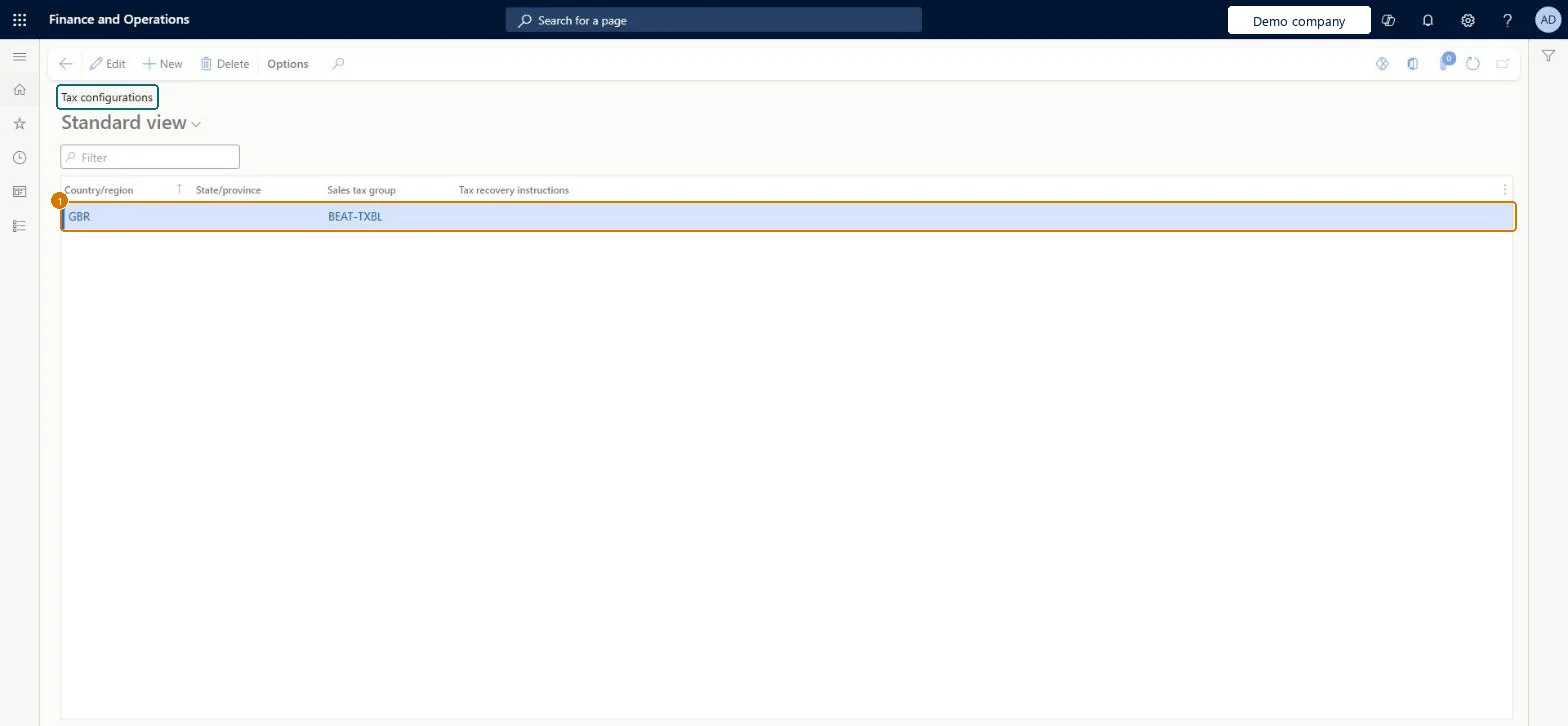
Screen 1
Add a tax configuration for expenses
Go to Expense management > Setup > General > Tax configurations
Make sure the sales tax group exists
Select New
Select the country or region
Select the sales tax group workers can choose
Select Save
1Sales tax group
BEAT-TXBL
Country/region
GBR
Show the full screen page title tab to open what to set or check
Steps from Microsoft
Go to Expense management > Setup > General > Tax configurations.
Select New and choose the Country/region.
Select the Sales tax group and the item sales tax group used for expenses there.
Save, and repeat for each country/region where employees incur VAT.
The country or region that the sales tax setup applies to.Microsoft Learn
GBR
CountryRegionId
Sales tax group
The sales tax group used for expenses in that country or region.Microsoft Learn
TAXABLE
TaxGroup
Common errors and fixes
Message
What to do
The approved expense report can't be posted because an item sales tax group is missing
Open Expense management > Setup > General > Tax configurations, find the item sales tax group for the country/region of the expense, add it to the line and post again. Microsoft Learn
Test checklist
Set up the sales tax group, item sales tax group and tax code for a test country, and add the line on Tax configurations.
Enter an expense with that Country/region and check only that country's sales tax groups are offered.
For a type with a single group (for example lodging), check the groups are filled in automatically.
Post the report and check the VAT transactions are identified for recovery in the posting message.
One line per country/region where employees incur expenses, with the sales tax group and the item sales tax group for each type of expenseLearn shows that choosing the Country/region on an expense filters the sales tax groups to that country, and that when only one sales tax group and item sales tax group exist for a transaction type they are filled in automatically.
In this system Employee and Contractor enter their own expenses, and Expense administrator sets up the module and processes documents. The expense mobile app needs the Employee role, a company on the user account and a link to an employee with active employment. The expense administrator or tax manager maintains this page. No Feature management feature is needed for this page.
Reversible: Tax configurations only supply the lists and defaults on new expense lines. Lines already entered keep the groups chosen on them. Microsoft Learn
If you change it later
When employees pick a country/region on an expense, the sales tax groups are filtered to it; with one group and one item group, both fill in automatically. A report with a missing item sales tax group can't be posted. Microsoft Learn
Technical architect
6Technical
Menu item
TrvExpenseTaxConfigurationChecked in Dynamics 365
Form
TrvExpenseTaxConfigurationChecked in Dynamics 365
Table
TrvExpenseTaxConfigurationShown as “Expense tax recovery configuration” in Record infoKey field: CountryRegionId, TaxGroup, StateIdChecked in Dynamics 365
Data entities
TrvExpenseTaxConfigurationEntityExpense tax recovery configuration Microsoft data model
Who can open it
PrivilegesMaintain tax configurations TrvExpenseTaxConfigurationMaintainView tax configurations TrvExpenseTaxConfigurationViewDutiesMaintain Reference entity data for data management DataManagementApplicationReferenceEntitiesMaintainView Reference entity data for data management DataManagementApplicationReferenceEntitiesViewEnable expense management process TrvTravelAndExpenseProcessEnableInquire into expense management reference data TrvTravelAndExpenseReferenceDataInquire6 security rolesBusiness Performance Planning app role BPPBudgetPlanningAppRoleData management administrator DataManagementAdministratorData management migration user DataManagementMigrationUserExpense administrator ExpenseAdministratorDemand planning app role ScpDemandPlanningAppRoleInformation technology manager SysServerITManagerChecked in Dynamics 365
Roles to set it up and use it
To set it up or change itExpense administrator ExpenseAdministratorInformation technology manager SysServerITManagerBusiness Performance Planning app role BPPBudgetPlanningAppRoleData management migration user DataManagementMigrationUserDemand planning app role ScpDemandPlanningAppRoleGive people one of these roles. On this system, 6 roles can open this page.Checked in Dynamics 365
Actions on the page
Options: Personalize, Page options, ShareChecked in Dynamics 365
TrvExpenseTaxConfigurationEntity (Expense tax recovery configuration): loaded for each company, in Microsoft's default template 600 - Expense.Load order: Microsoft's default template 600 - Expense loads Expense tax recovery configuration at execution unit 1, level 600, sequence 10. Lower levels load first, and entities at the same level load in sequence order.Load first: the default templates at lower levels (System setup to Retail)Microsoft Learn
Checked in a working Dynamics 365 system, version 10.0.49: the menu item, form, table and security, the page, the demo records and the values in the screenshots.