Accounts payable manager, Chief executive officer, Chief financial officer and 6 more roles
Business process
Analyze cash position in Dynamics 365 Finance
Menu item
LedgerCovCompanyWorkspaceEmbeddedReport
Setup steps
1 on this page
Show what matters for
SETUP GUIDEHow to set it up8 sections. Choose a role to highlight what matters to you.
Everyone
1What it is and why
What it is
A workspace that shows cash flow forecasts and bank account balances for the current company, in its accounting currency.
What you do here
Use this workspace to review the company's future cash inflows and outflows and its forecasted currency balances.
Example
For example, after the forecast calculation and the entity store refresh, BEAT's accountant sees inflows of 850,000.00 and outflows of 620,000.00 for the next 30 days in the company's accounting currency, and the forecasted balance per currency.
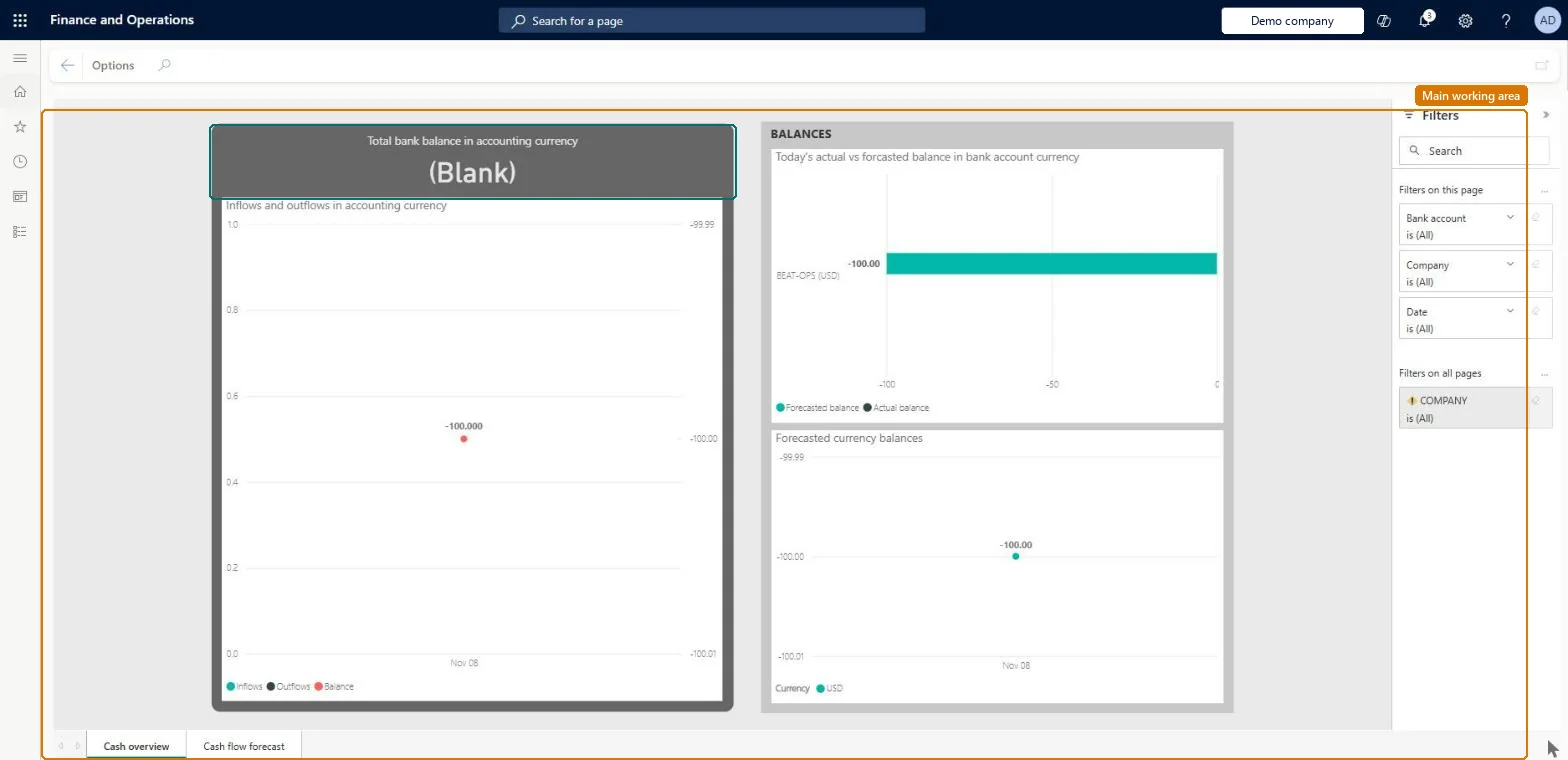
The page in Dynamics 365. page title tab to open what to set or check
About the examples: Examples and screenshots in this guide use BEAT, a demo company in a Dynamics 365 test environment. Use your own company's codes and values instead of copying them.
Setup steps on this page
Use the Cash overview - current company workspace
Review forecast inflows, outflows and bank balances for the current company in its accounting currency.
Steps from Microsoft
Set System currency and System exchange rate on System parameters, and Accounting currency and Exchange rate type on the Ledger page.
Define exchange rates between the transaction, accounting, system and bank currencies on Currency exchange rates.
Run Calculate cash flow forecasts for each company included in the forecast, or schedule it with Cash flow forecast automation.
Go to System administration > Setup > Entity store and refresh the LedgerCovLiquidityMeasurementV2 aggregate measurement.
Go to Cash and bank management > Workspaces > Cash overview - current company and review inflows and outflows, forecasted currency balances and bank balances.
The total of the bank balances in the accounting currency.Microsoft Learn
Today's actual vs forecasted balance
Each bank account's actual balance today against the last forecast, in the bank account currency.Microsoft Learn
Common errors and fixes
Message
What to do
The workspace opens but shows no forecast data
Run the cash flow forecast calculation for each company first, then refresh the LedgerCovLiquidityMeasurementV2 aggregate measurement on the Entity store page. Microsoft Learn
Amounts are converted with the wrong currency or rate
The current-company view uses the accounting currency and exchange rate type on the Ledger page; check them and the exchange rates to the bank currencies. Microsoft Learn
Test checklist
Run Calculate cash flow forecasts with method Total for the company.
Refresh LedgerCovLiquidityMeasurementV2 on the Entity store page.
Open the workspace and check that inflows and outflows appear for the next periods.
Compare today's actual bank balance with the balance on the Bank management workspace.
Schedule the forecast calculation with Cash flow forecast automation and refresh LedgerCovLiquidityMeasurementV2 after it, so the workspace is current each morning.The workspace reads the aggregate measurement only; without a fresh calculation and refresh it shows old or no figures.
In this system 9 roles can open this page, among them Chief executive officer, Chief financial officer, Accounts receivable manager and Accountant.
Checked in Dynamics 365
Solution architect
5Design impact
Shared or per company
Per company: the workspace shows the cash flow forecasts and bank balances of the current company in its accounting currency, set on the Ledger page. Microsoft Learn
Can it be undone
Reversible: The workspace changes no data.
If you change it later
The figures only change after the forecast calculation runs again and the entity store measurement is refreshed. Access is given through the View cash flow current company workspace duty, by default to the Accountant, Accounting manager, Accounting supervisor, Accounts payable manager and Accounts receivable manager roles. Microsoft Learn
Technical architect
6Technical
Menu item
LedgerCovCompanyWorkspaceEmbeddedReportChecked in Dynamics 365
Form
PowerBIReportFormChecked in Dynamics 365
Who can open it
PrivilegesView cash flow current company workspace LedgerCovCompanyWorkspaceViewDutiesView cash flow current company workspace LedgerCovCompanyWorkspaceView9 security rolesChief executive officer CompanyChiefExecutiveOfficerChief financial officer CompanyChiefFinancialOfficerAccounts receivable manager CustInvoiceAccountsReceivableManagerAccountant LedgerAccountantAccounting manager LedgerAccountingManagerAccounting supervisor LedgerAccountingSupervisorFinancial controller LedgerFinancialControllerTreasurer PaymTreasurerAccounts payable manager VendInvoiceAccountsPayableManagerChecked in Dynamics 365
Roles to set it up and use it
To use itTreasurer PaymTreasurerChief financial officer CompanyChiefFinancialOfficerAccounting manager LedgerAccountingManagerFinancial controller LedgerFinancialControllerAccountant LedgerAccountantGive people one of these roles. On this system, 9 roles can open this page.Checked in Dynamics 365
Actions on the page
Options: Page options, Share, Power BIChecked in Dynamics 365
Load order: The Cash overview workspace has no data entity in Data management, so it can't be loaded from a file or a configuration template. It reads the LedgerCovLiquidityMeasurement aggregate measurement, which is rebuilt from the cash flow forecast calculation in each environment.Microsoft Learn
Checked in a working Dynamics 365 system, version 10.0.49: the menu item, form, table and security, the page.
To cite this step: CB-WS-030, Use the Cash overview - current company workspace. Beyond ERP Atlas Hub, 2026-11-11. https://www.beyonderp.cloud/atlas/step/CB-WS-030