Prove the bank subledger to the ledger at period end
Cash and bank managementPeriodic tasks
output:BankLedgerReconciliation
Business process
Reconcile bank accounts
Menu item
output:BankLedgerReconciliation
Setup steps
1 on this page
Show what matters for
SETUP GUIDEHow to set it up8 sections. Choose a role to highlight what matters to you.
Everyone
1What it is and why
What it is
A report that compares the bank transactions of each bank account with the general ledger transactions on its main account and shows the differences.
What you do here
Use this report at period end to prove that the bank subledger agrees with the bank main accounts in the general ledger.
Example
For example, at March close BEAT runs the report with Differences only = Yes: one line shows a difference of 150.00 on main account 110110, a manual general journal entry posted to the bank main account without a bank transaction.
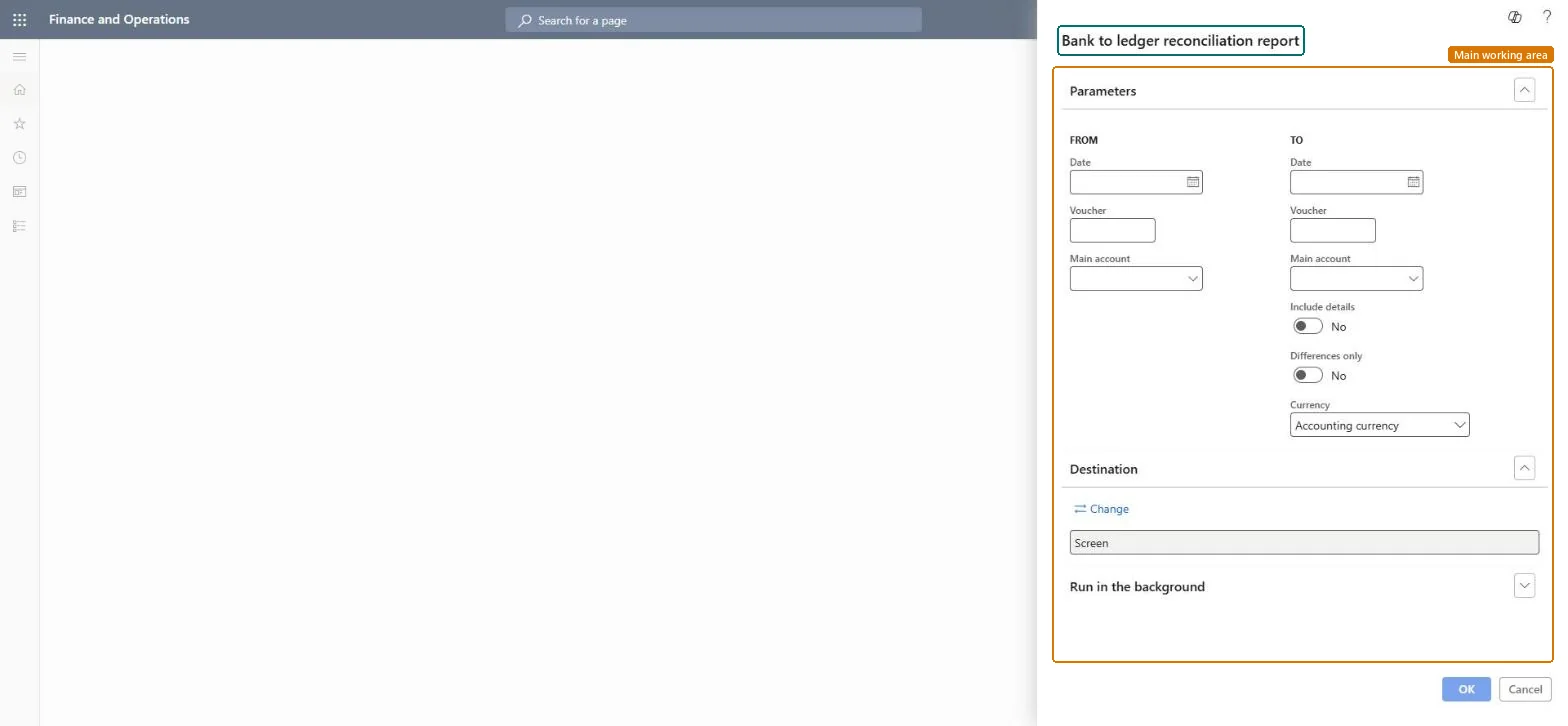
The page in Dynamics 365. page title tab to open what to set or check
About the examples: Examples and screenshots in this guide use BEAT, a demo company in a Dynamics 365 test environment. Use your own company's codes and values instead of copying them.
When to run it
When to run it
At period end, before you close the period, to prove that bank transactions agree with the general ledger.
How often
At each period end, and again after you correct a difference.
What the output shows
Bank balance, ledger balance and difference for each bank summary account, with voucher lines when Include details is Yes. A difference means a voucher reached the main account without a matching bank transaction, or the other way round. Microsoft's Account reconciliation workspace can do this comparison on a schedule.
Prove the bank subledger to the ledger at period end
Compare bank transactions with the bank main accounts before closing the period.
How to use it
Go to Cash and bank management > Periodic tasks > Bank to ledger reconciliation report.
Enter the From and To dates of the period, and a Voucher if you investigate one posting.
Enter a Main account range, or leave it empty to show only the summary accounts set on the bank accounts.
Set Include details to Yes for voucher lines with bank balance, ledger balance and difference, and Differences only to Yes to list only lines that don't agree.
Leave Currency at Accounting currency unless you reconcile in another currency, run the report and correct each difference.
Source: Checked in Dynamics 365
Fields on the page
Field
What it means
Example
Main account
The main account range; when left empty, only the summary accounts set on the bank accounts are shown.Checked in Dynamics 365
110110
Include details
Shows transaction lines with voucher, bank balance, ledger balance and difference.Checked in Dynamics 365
Yes
Differences only
Shows only the lines that have reconciliation differences.Checked in Dynamics 365
Yes
Correction lines
When a bank transaction was corrected during reconciliation, the report shows two bank lines, the original and the correction, matching the two general ledger lines.Microsoft Learn
Common errors and fixes
Message
What to do
Differences appear although every bank transaction is posted
The bank balance and the main account only agree when the main account is used by one bank account and all postings to it have posting type Bank. Look for manual journal entries posted straight to the main account. Microsoft Learn
Test checklist
Run the report for the closed month with Differences only = Yes.
Post a general journal line straight to the bank main account and run it again.
Check the new line shows as a difference with its voucher.
Reverse the test entry and check the difference is gone.
Run it at each period end with Differences only = Yes and close the period only when no line is listed.A bank main account must hold only postings made through its bank account, or the bank and ledger balances drift apart.
In this system 10 roles can open this page, among them Treasurer, Chief financial officer, Accounting manager and Financial controller.
Checked in Dynamics 365
Solution architect
5Design impact
Shared or per company
Per company: the bank accounts and main accounts of the current legal entity. Microsoft Learn
Can it be undone
Reversible: The report changes no data.
If you change it later
The report reads only. Differences are fixed with journal entries through the bank account, so the bank transaction and the ledger entry are created together. Microsoft Learn
Technical architect
6Technical
Menu item
output:BankLedgerReconciliationChecked in Dynamics 365
Form
SysOperationTemplateFormChecked in Dynamics 365
Roles to set it up and use it
To use itTreasurer PaymTreasurerChief financial officer CompanyChiefFinancialOfficerAccounting manager LedgerAccountingManagerFinancial controller LedgerFinancialControllerAccountant LedgerAccountantGive people one of these roles. On this system, 10 roles can run this page.Checked in Dynamics 365
Load order: The Bank to ledger reconciliation report has no data entity in Data management, so it can't be loaded from a file or a configuration template. Post the opening bank balance through a journal to the bank account, not straight to the main account, so the report agrees from the first day.Microsoft Learn
Checked in a working Dynamics 365 system, version 10.0.49: the menu item, form, table and security, the page.
To cite this step: CB-RPT-140, Prove the bank subledger to the ledger at period end. Beyond ERP Atlas Hub, 2026-11-11. https://www.beyonderp.cloud/atlas/step/CB-RPT-140