Transaction page · Cash and bank management
Bank accounts
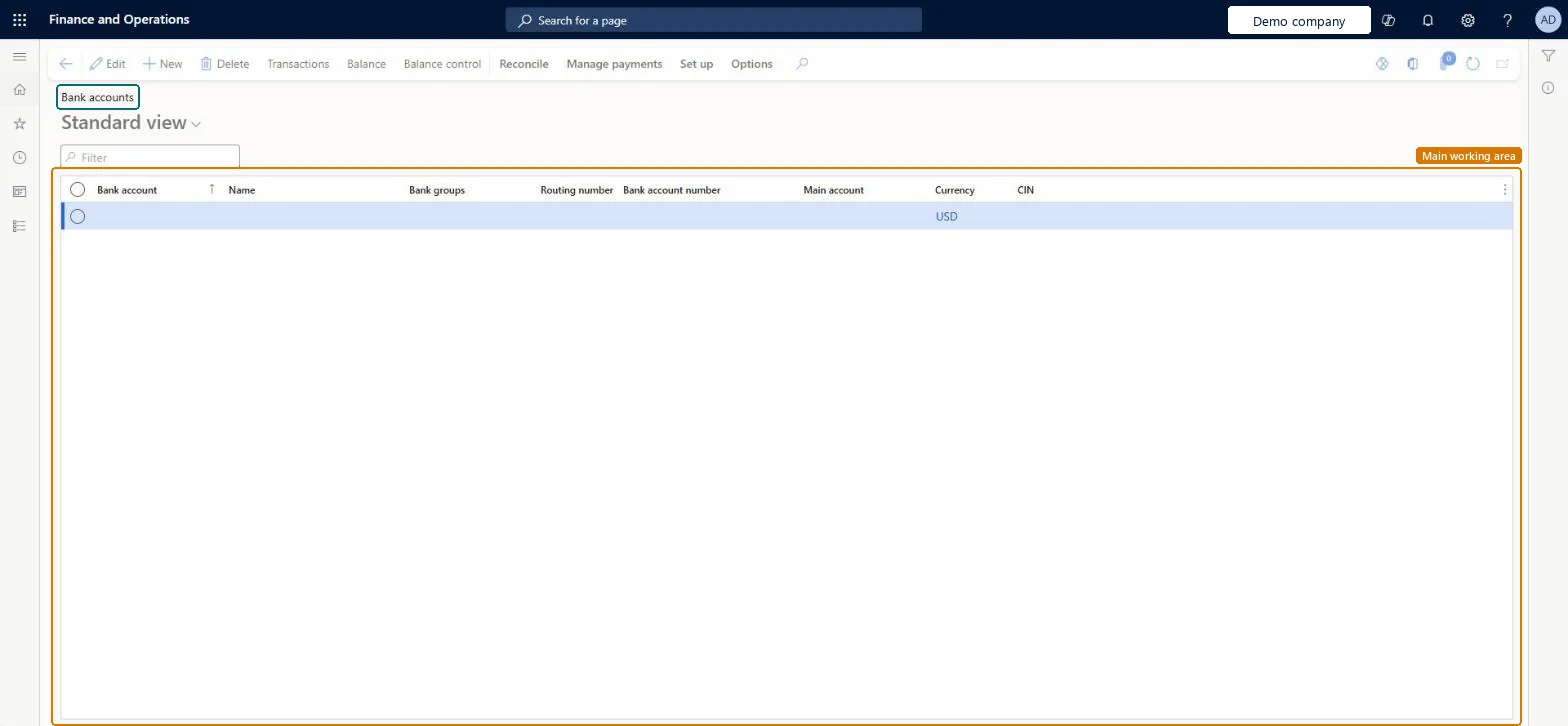
A list page where you enter and maintain all the information for the company's bank accounts.
- Used by
- Accounts payable manager, Chief financial officer, Accounts receivable manager and 6 more roles
- Business process
- —
- Menu item
BankAccountTableListPage- Main table
BankAccountTable- Data entity
BankAccountEntity- Setup steps
- —
Show what matters for
Everyone
1What it is and why
| What it is | A list page where you enter and maintain all the information for the company's bank accounts. |
|---|---|
| What you do here | Used to reconcile a bank account with its bank statement and to set the reconciliation options for each account. |
| Example | For example, when a bank statement arrives, you select the bank account here and choose Reconcile > Account reconciliation to match it. |
Functional consultant · Solution architect
2Where it fits
| Business process | — |
|---|---|
| Menu path | Cash and bank management › Bank statement reconciliation › Bank accounts |
| Set up first | Bank groups Microsoft Learn ↗Cash and bank master data change setup Microsoft Learn ↗ |
| Used next by | Bank management Microsoft Learn ↗Bank statements Microsoft Learn ↗Checks Microsoft Learn ↗Unreconciled bank transactions Microsoft Learn ↗ |
| Related pages | Bank account change history Microsoft Learn ↗ |
End user · Functional consultant
3How to do it
Microsoft's steps
- Select the bank account and select Reconcile > Account reconciliation.
- Enter the Bank statement date and Bank statement fields, and enter the statement balance in the Ending balance field.
- Select Transactions to open the Account reconciliation page.
- Select the Cleared checkbox for each transaction that matches the bank statement.
- Enter any difference in the Correction amount field.
- Add transactions such as fees and interest that are on the statement but not yet in Finance.
- When the Unreconciled amount reaches zero, select Reconcile account.
Source: Microsoft Learn ↗
Field guide
| Field | What it means | Worked example | Table column |
|---|---|---|---|
| Main account | The general ledger account that the bank account posts to.Microsoft Learn ↗ | — | — |
| Bank groups | The bank group whose address and routing details are copied to the bank account.Microsoft Learn ↗ | — | — |
| Prenote required | Turn on when the bank needs a prenote before it accepts electronic payments.Microsoft Learn ↗ | — | isBankPrenote |
| Prenote response days | How many days the bank takes to process a prenote.Microsoft Learn ↗ | — | PrenoteResponseDays |
| Bank account status | Whether the account is active for all transactions, inactive for new ones, or inactive for all.Microsoft Learn ↗ | — | BankAccountStatus |
| Active from | The date from which the account can be used for new transactions.Microsoft Learn ↗ | — | ActiveFrom |
| Active to | The date after which the account can't be used for new transactions.Microsoft Learn ↗ | — | ActiveTo |
| Credit limit | The credit amount that the bank offers on this account.Microsoft Learn ↗ | — | — |
| Advanced bank reconciliation | Turns on electronic statement import and automatic matching for this account.Microsoft Learn ↗ | — | — |
| Allowed penny difference | The largest amount difference that still counts as a match during reconciliation.Microsoft Learn ↗ | — | — |
| Statement format | The import format used to read this account's electronic bank statements.Microsoft Learn ↗ | — | — |
| Clear bridged transactions during reconciliation | When on, bridged payments are cleared to the bank automatically when the reconciliation worksheet is marked as reconciled.Microsoft Learn ↗ | — | — |
Functional consultant
4Setup decisions
| Setup step | Recommended value and why | Decision · common mistake · test |
|---|---|---|
| — No setup is made on this page. | ||
Solution architect
5Design impact
| Shared or per company | Per company: each legal entity has its own records. Microsoft data model ↗ |
|---|---|
| Can it be undone | — |
| Feature or country | — |
| If you change it later | After a reconciliation is posted, its transactions can't be changed or corrected and no longer appear for later reconciliations. Microsoft Learn ↗ |
Technical architect
6Technical
| Menu item | BankAccountTableListPage Checked in Dynamics 365 |
|---|---|
| Form | BankAccountTable Checked in Dynamics 365 |
| Table | BankAccountTableShown as “Bank accounts” in Record infoKey field: AccountID, BankCodeType, RegistrationNum, AccountNum, BankCIN, SWIFTNo, IBAN, CompanyPaymId, DivisionPaymIdChecked in Dynamics 365 |
| Data entities | BankAccountEntityBank accounts Microsoft data model ↗DimAttributeBankAccountTableEntityBank accounts Microsoft data model ↗ |
| Who can open it | PrivilegesMaintain bank accounts BankAccountTableMaintainView bank accounts BankAccountTableViewDutiesInquire into bank accounts master BankBankAccountsInquireMaintain bank accounts master BankBankAccountsMaintain9 security rolesChief financial officerCompanyChiefFinancialOfficerAccounts receivable manager CustInvoiceAccountsReceivableManagerPayroll administrator HcmPayrollAdministratorAccountant LedgerAccountantAccounting manager LedgerAccountingManagerAccounting supervisor LedgerAccountingSupervisorFinancial controller LedgerFinancialControllerTreasurer PaymTreasurerAccounts payable manager VendInvoiceAccountsPayableManager |
| Actions on the page | Reconcile: ReconcileManage payments: Deposits, Remittances, Journals, Related information, Statistics, Positive paySet up: Negotiable instruments, Layout, Methods of paymentOptions: Personalize, Page options, ShareChecked in Dynamics 365 |
Developer
7Developer
| Open it directly | https://<your-environment>/?mi=BankAccountTableListPage |
|---|---|
| Integrate with | BankAccountEntity data entity Microsoft data model ↗ |
| Table definition | BankAccountTable columns and relations Microsoft data model ↗ |
Everyone
8Sources and checks
- learn.microsoft.com/training/modules/configure-cash-bank-management-dyn365-finance/6-check-layout
- learn.microsoft.com/dynamics365/finance/cash-bank-management/reconcile-bank-account
- learn.microsoft.com/common-data-model/schema/core/operationscommon/tables/finance/bank/main/bankaccounttable
- learn.microsoft.com/dynamics365/finance/localizations/russia/rus-local-settings-requisites-bank-module
- learn.microsoft.com/dynamics365/finance/cash-bank-management/configure-advanced-bank-reconciliation
- learn.microsoft.com/dynamics365/finance/cash-bank-management/clear-bridging-pyts-adv-bank-rec
- learn.microsoft.com/dynamics365/finance/cash-bank-management/bank-acct-workflow
- learn.microsoft.com/dynamics365/finance/cash-bank-management/bank-management-workspace
- learn.microsoft.com/dynamics365/finance/cash-bank-management/reconcile-bank-statements-advanced-bank-reconciliation
- Checked in a working Dynamics 365 system, version 10.0.49: the menu item, form, table and security, the page.