Accounts payable clerk, Accounts payable manager, Auditor and 15 more roles
Business process
Use netting agreements to settle customer balances with vendor balances in Dynamics 365 Finance
Menu item
CustVendNettingAgreement
Main table
CustVendNettingAgreement
Data entity
None for this page's own settings
Setup steps
1 on this page
Show what matters for
SETUP GUIDEHow to set it up8 sections. Choose a role to highlight what matters to you.
Everyone
1What it is and why
What it is
A setup page where you keep the pairs of customer and vendor accounts that can be netted during an effective period.
What you do here
Use this page to pair a vendor account with a customer account, choose the netting journal and bridging account, and activate the agreement.
Example
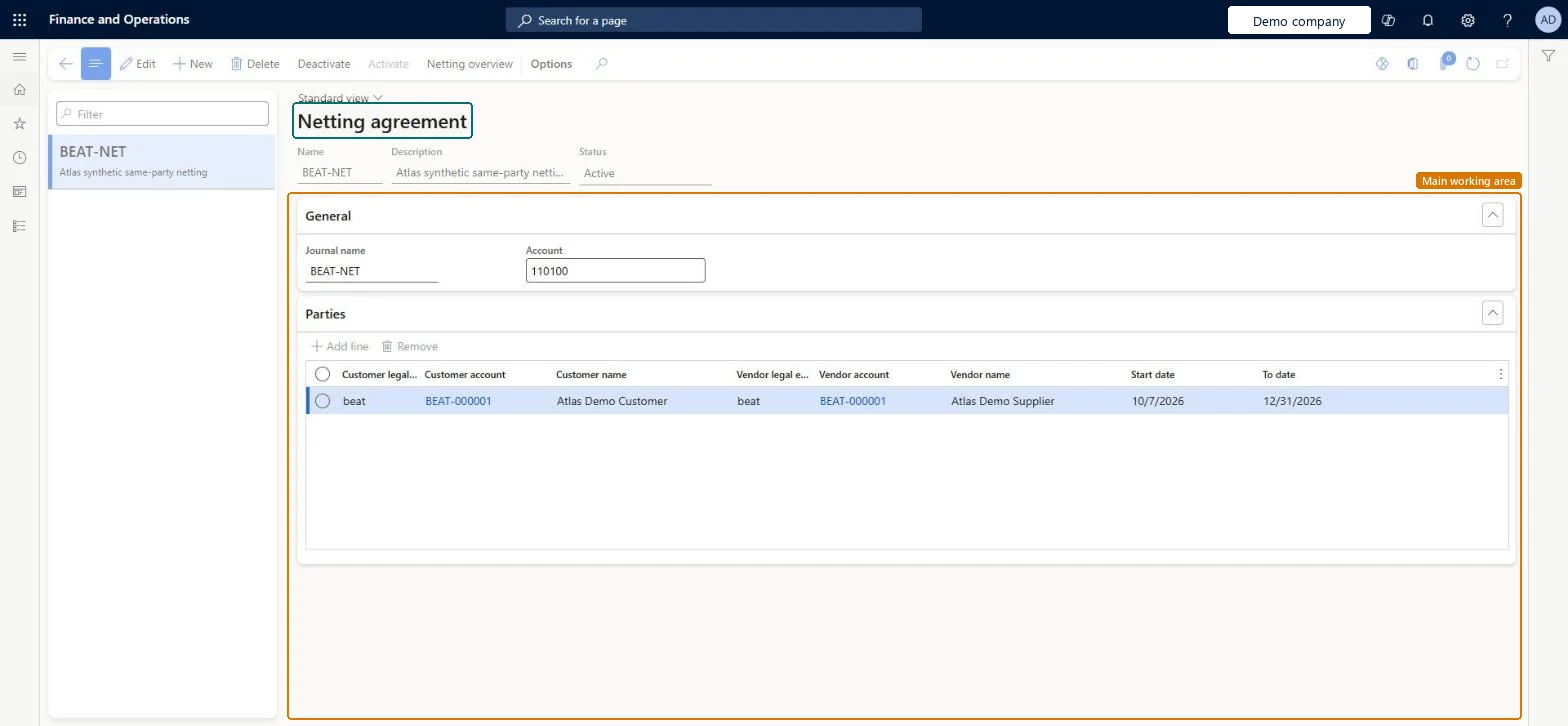
For example, BEAT's agreement BEAT-NET uses journal name BEAT-NET and bridging account 110100, pairs customer BEAT-000001 with vendor BEAT-000001 in the same company, and is effective from 10/7/2026 to 12/31/2026.
The page in Dynamics 365. page title tab to open what to set or check
About the examples: Examples and screenshots in this guide use BEAT, a demo company in a Dynamics 365 test environment. Use your own company's codes and values instead of copying them.
Setup steps on this page
Set up netting agreements
Use this page to pair the customer and vendor accounts of the same party, with the netting journal name and bridging account, before any netting runs.
Steps from Microsoft
Create a journal name of the Customer and vendor netting type and a main account to use as the netting bridge, if they don't exist yet.
Go to Cash and bank management > Netting > Netting agreements and create a record with a name and description.
Select the netting journal name, the bridging main account and the financial dimension values.
On the Parties FastTab, add each vendor account and customer account that belong to the same party as a pair. For an intercompany pair, select the customer legal entity and vendor legal entity first.
Activate the agreement; only active agreements show their pairs for netting.
The legal entity of the customer account, for intercompany netting.Microsoft Learn
CreditCompany
Vendor legal entity
The legal entity of the vendor account, for intercompany netting.Microsoft Learn
DebitCompany
Journal name
The journal name of the Customer and vendor netting type that posts the netting journal.Microsoft Learn
BEAT-NET
Main account
The bridging main account that the two netting journal lines post through.Microsoft Learn
110100
Effective dates
The period in which the agreement's pairs can be netted.Checked in Dynamics 365
10/7/2026 to 12/31/2026
Active
Whether the agreement is activated. Netting is possible only for active agreements.Microsoft Learn
Yes
Common errors and fixes
Message
What to do
Journal name must be filled in
Seen when an agreement is saved before a journal name of the Customer and vendor netting type exists: the Journal name lookup is empty. Create that journal name in General ledger > Journal setup > Journal names, then select it on the agreement. Checked in Dynamics 365
The other legal entity can't be selected on the Parties FastTab
Intercompany netting must be allowed first: on Cash and bank management parameters, Netting tab, select Allow intercompany netting. Either the customer legal entity or the vendor legal entity must be the legal entity that holds the agreement. Microsoft Learn
Test checklist
Create a journal name of the Customer and vendor netting type and a bridging main account.
Create an agreement with that journal name and main account, add a vendor and customer pair on the Parties FastTab, and activate it.
On Customer and vendor balances netting, select the pair, select Create netting, mark open invoices and select Post.
Check the posted netting journal has two lines and that both invoices are settled for the smaller balance.
On Netting history, select Reverse netting and check that the invoices are open again.
One agreement per trading party (or per group of parties netted the same way), with a journal name of the Customer and vendor netting type, a dedicated bridging main account and an effective period.Learn requires the journal name and bridging main account in advance and the agreement activated before netting transactions can be created.
The netting journal takes its vouchers from the voucher series on the journal name of the Customer and vendor netting type. In BEAT the journal name BEAT-NET uses voucher series Acco_116. Checked in Dynamics 365
Feature management and licence
Feature to turn on
Customer and vendor netting (Generally available in 10.0.40; on by default from 10.0.43)
Licence or add-in
In this system 18 roles can open this page, among them Auditor, Collections agent, Collections manager and Chief financial officer.
Per company: netting agreements are kept for each legal entity (the Data management entity Netting agreement isn't shared). For intercompany netting, the customer or the vendor legal entity must be the legal entity that holds the agreement. Checked in Dynamics 365
Can it be undone
Reversible: The agreement can be changed or deactivated; netting already posted under it is undone with Reverse netting.
If you change it later
The agreement decides which pairs can be netted and which journal name and bridging account the netting posts with. A change applies to the next netting; postings already made keep their journal and account. Microsoft Learn
Technical architect
6Technical
Menu item
CustVendNettingAgreementChecked in Dynamics 365
Form
CustVendNettingAgreementChecked in Dynamics 365
Table
CustVendNettingAgreementShown as “Netting agreement” in Record infoChecked in Dynamics 365
Data entities
CustVendNettingAgreementEntityNetting agreement (The agreement header: name, journal name, bridging account, dimensions and status.) CustVendNettingPairEntityNetting agreement pair (The customer and vendor pairs on the Parties FastTab.)
Who can open it
PrivilegesMaintain netting agreement CustVendNettingAgreementMaintainView netting agreement CustVendNettingAgreementViewDutiesInquire into invoice and cash policies CustInvoiceInvoiceAndCashPoliciesInquirEnable invoice and cash process CustInvoiceInvoiceAndCashProcessEnableInquire into customer payments status PaymCustomerPaymentsStatusInquireInquire into vendor payment status PaymVendorPaymentStatusInquireInquire into invoice and payment policies VendInvoiceInvoicePaymentPoliciesInquirEnable invoice and payment process VendInvoiceInvoicePaymentProcessEnable18 security rolesAuditor AuditPolicyManagerCollections agent CollectionLetterCollectionsAgentCollections manager CollectionLetterCollectionsManagerChief financial officer CompanyChiefFinancialOfficerAccounts receivable clerk CustInvoiceAccountsReceivableClerkAccounts receivable manager CustInvoiceAccountsReceivableManagerAccountant LedgerAccountantAccounting manager LedgerAccountingManagerAccounting supervisor LedgerAccountingSupervisorFinancial controller LedgerFinancialControllerAccounts payable centralized payments clerk PaymAccountsPayableCentralPaymClerkAccounts payable payments clerk PaymAccountsPayablePaymentsClerkAccounts receivable centralized payments clerk PaymAccountsReceivableCentralPaymClerkAccounts receivable payments clerk PaymAccountsReceivablePaymentsClerkRental coordinator agent RentalCoordinatorAgentRental manager RentalManagerAccounts payable clerk VendInvoiceAccountsPayableClerkAccounts payable manager VendInvoiceAccountsPayableManagerChecked in Dynamics 365
Roles to set it up and use it
To set it up or change itAccounting supervisor LedgerAccountingSupervisorAccounting manager LedgerAccountingManagerAccounts payable manager VendInvoiceAccountsPayableManagerAccounts receivable manager CustInvoiceAccountsReceivableManagerRental manager RentalManagerTo use itChief financial officer CompanyChiefFinancialOfficerFinancial controller LedgerFinancialControllerAccountant LedgerAccountantAuditor AuditPolicyManagerAccounts receivable payments clerk PaymAccountsReceivablePaymentsClerkGive people one of these roles. On this system, 18 roles can open this page.Checked in Dynamics 365
Actions on the page
Buttons: Deactivate, Activate, Netting overviewChecked in Dynamics 365
CustVendNettingAgreementEntity (Netting agreement): load first, for each company.CustVendNettingPairEntity (Netting agreement pair): load after the agreements, customers and vendors.Load order: Load the netting journal name and the bridging main account first, then customers and vendors, then Netting agreement and Netting agreement pair. Activate the agreements after the load.Load first: Journal names, Main accounts, Customers, VendorsMicrosoft Learn