About the examples: Examples and screenshots in this guide use BEAT, a demo company in a Dynamics 365 test environment. Use your own company's codes and values instead of copying them.
Step by step, with screenshots
Set up Accounts receivable parameters1 screen
Set up the parameters that govern the Accounts receivable module, and those for Credit and collections.
Screen 1
Set the default customer posting profile
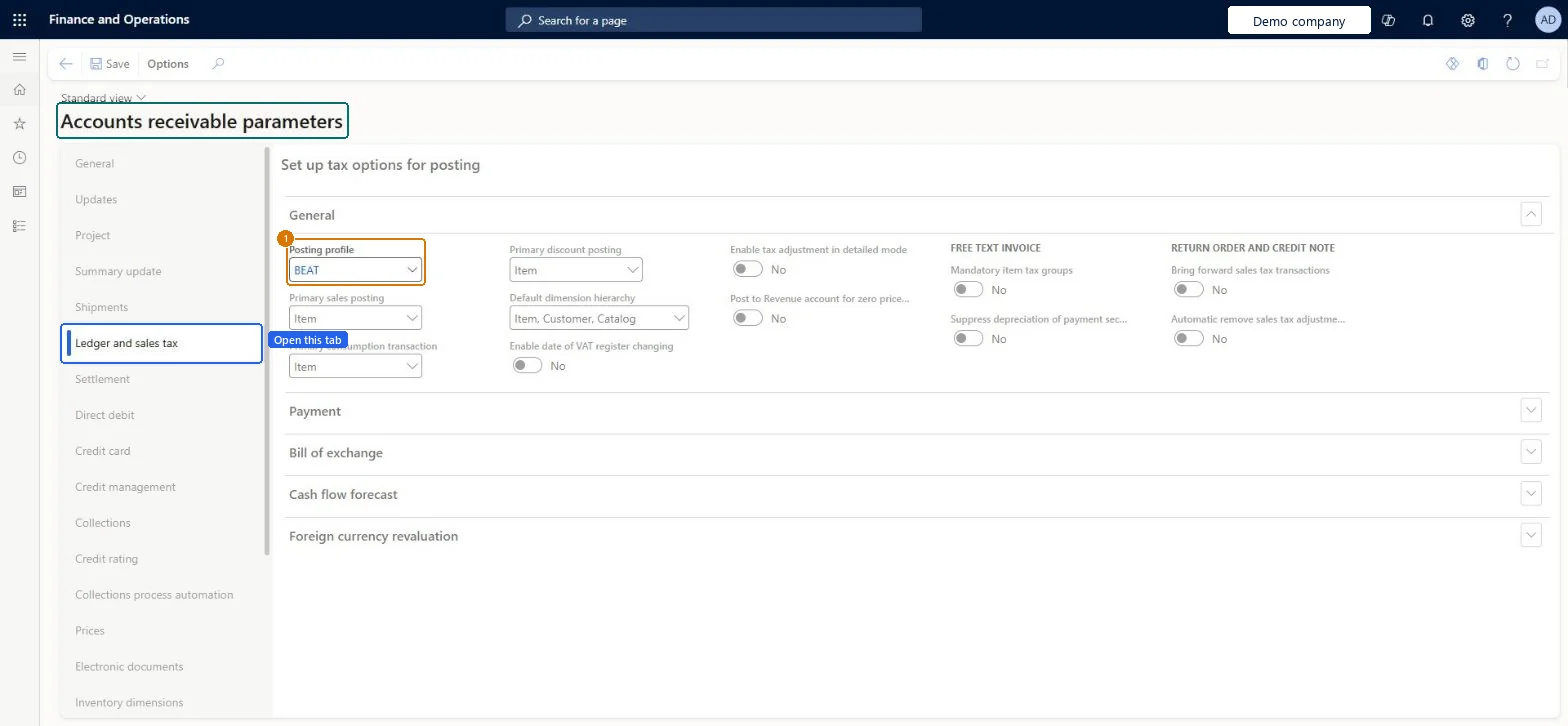
Go to Accounts receivable > Setup > Accounts receivable parameters, Ledger and sales tax tab
Open the Ledger and sales tax tab
In the General section, select the posting profile
Select Save
1Posting profile
BEAT
Show the full screen page title tab to open what to set or check
How to use it
Go to Accounts receivable > Setup > Accounts receivable parameters.
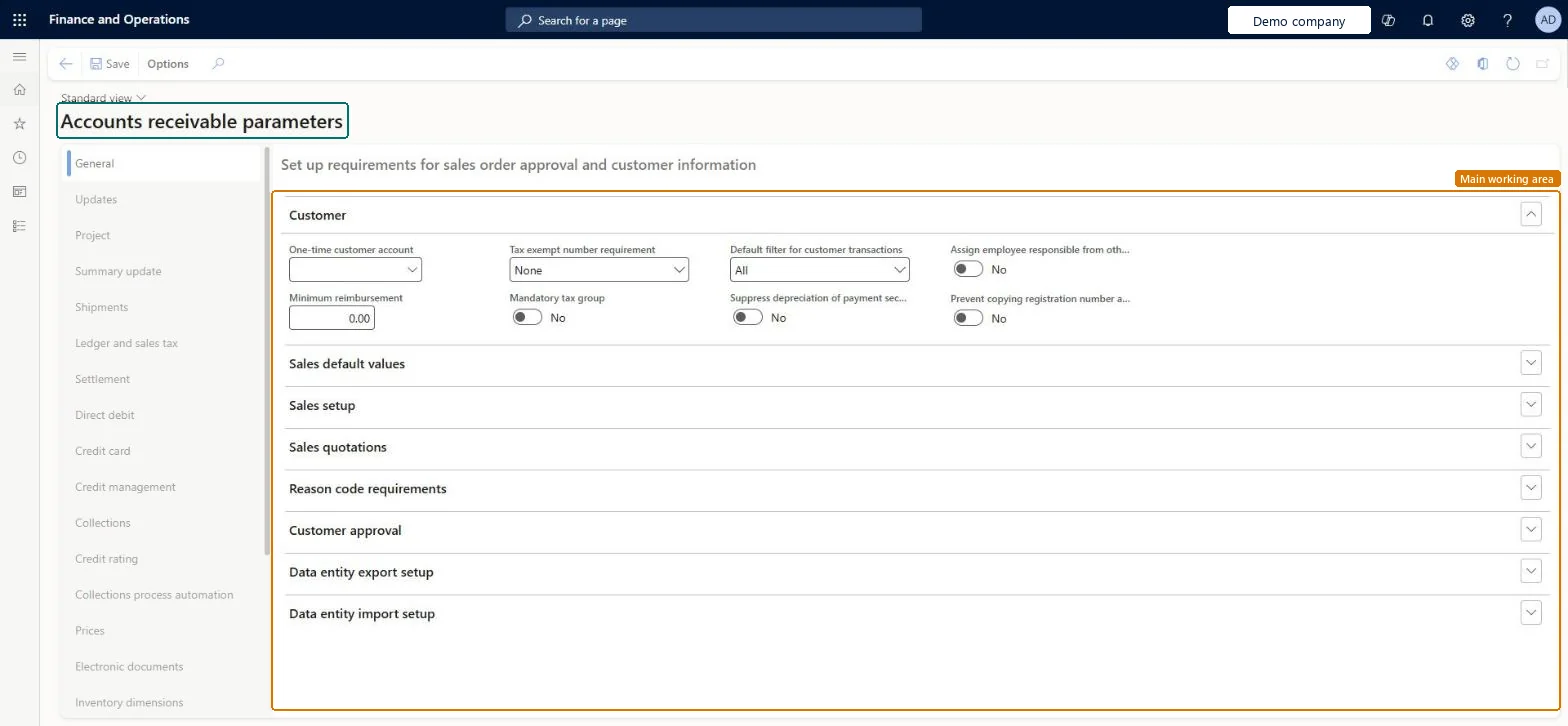
Select a tab on the left, such as General, Updates, Summary update, Shipments, Ledger and sales tax, Settlement, Credit card, Collections or Prices.
Open a section on the tab, such as Customer or Sales default values, to see its fields.
Change the fields you need, such as One-time customer account, Tax exempt number requirement or Default filter for customer transactions.
Select Save.
Source: Checked in Dynamics 365
Fields on the page
Field
What it means
Example
Table column
Automatic settlement
When set to Yes, a transaction is settled against other open transactions as soon as it is posted; when No, users settle manually.Microsoft Learn
AutoSettle
Cash discount administration
Decides how a cash discount is handled when an invoice is overpaid: reduced, posted as a difference, or left on the account.Microsoft Learn
CashDisc
Maximum penny difference
The largest small difference that is posted automatically to the penny difference account during settlement.Microsoft Learn
MaxMSTDiff
Maximum overpayment or underpayment
The amount accepted as an overpayment or underpayment.Microsoft Learn
MaxMSTOverUnder
Calculate cash discounts for partial payments
Lets cash discounts be calculated automatically on partial payments.Microsoft Learn
CashDiscForPartialPaym
Calculate cash discounts for credit notes
Lets a cash discount be calculated automatically for credit notes.Microsoft Learn
CashDiscForCreditNote
Prioritize settlement
Turns on the Mark by priority button so transactions are settled in a set order.Microsoft Learn
UseSettlementPriority
Use priority for automatic settlements
Uses the defined priority order when transactions settle automatically.Microsoft Learn
UsePriorityOnAutoSettlement
Posting profile with prepayment journal voucher
The customer posting profile used when customer prepayments are posted.Microsoft Learn
PrepaymentPostingProfile
Enable customer approvals
Turns on the approval workflow for changes to selected customer fields.Microsoft Learn
CustTableChangeProposalIsEnabled
Minimum reimbursement
The smallest customer overpayment amount that can be reimbursed.Microsoft Learn
MinRefund
Posting profile
The default customer posting profile, filled in on the header of new documents.Microsoft Learn
GEN
PostingProfile
Test checklist
Set Posting profile and Posting profile with prepayment journal voucher on the Ledger and sales tax tab.
Create a free text invoice and check the header posting profile equals the default.
Post a customer payment journal line marked Prepayment journal voucher and check it posts to the prepayment profile's summary account.
Post an unmarked payment and check whether it settles according to Automatic settlement and the settlement priority.
Posting profile = the standard customer profile; Posting profile with prepayment journal voucher = a separate prepayment profile whose summary account is a liabilityThe default posting profile appears on every new customer document. Learn notes organizations that accept prepayments usually set up a second profile for them and link it here, and that prepayments are normally recorded as a liability.
PrivilegesMaintain accounts receivable parameters CustParametersMaintainView accounts receivable parameters CustParametersViewDutiesEnable collections process CollectionLetterCollectionsProcessEnableEnable credit cards CreditCardCreditCardEnableEnable credit cards process CreditCardCreditCardsProcessEnableMaintain collections process automation setup CustAutomationSetupMaintainInquire into invoice and cash policies CustInvoiceInvoiceAndCashPoliciesInquirEnable invoice and cash process CustInvoiceInvoiceAndCashProcessEnableEnable shipping process InventShippingProcessEnableInquire into invoice and cash policies RentalCustInvInvoiceAndCashPolInquirEnable invoice and cash process RentalCustInvoiceInvAndCashProcEnableInquire into quotation to sales order policies RentalSalesQuotationToSlsOrdPoliciesInquireEnable quotation to sales order process RentalSalesQuotationToSlsOrdProcessEnableInquire into quotation to sales order policies SalesQuotationToSalesOrderPolInquireEnable quotation to sales order process SalesQuotationToSalesOrderProcessEnable15 security rolesAuditor AuditPolicyManagerCollections manager CollectionLetterCollectionsManagerAccounts receivable clerk CustInvoiceAccountsReceivableClerkAccounts receivable manager CustInvoiceAccountsReceivableManagerAccounting manager LedgerAccountingManagerAccounting supervisor LedgerAccountingSupervisorAccounts receivable centralized payments clerk PaymAccountsReceivableCentralPaymClerkAccounts receivable payments clerk PaymAccountsReceivablePaymentsClerkRental coordinator agent RentalCoordinatorAgentRental manager RentalManagerRental representative RentalRepresentativeRental sales manager RentalSalesManagerRetail service RetailServiceSales manager TradeSalesManagerWarehouse manager WMSWarehouseManagerChecked in Dynamics 365
Roles to set it up and use it
To set it up or change itRental manager RentalManagerAccounts receivable manager CustInvoiceAccountsReceivableManagerRental coordinator agent RentalCoordinatorAgentCollections manager CollectionLetterCollectionsManagerAccounting supervisor LedgerAccountingSupervisorTo use itAccounts receivable clerk CustInvoiceAccountsReceivableClerkAccounts receivable payments clerk PaymAccountsReceivablePaymentsClerkAccounts receivable centralized payments clerk PaymAccountsReceivableCentralPaymClerkAuditor AuditPolicyManagerRental representative RentalRepresentativeGive people one of these roles. On this system, 15 roles can open this page.Checked in Dynamics 365
Actions on the page
Options: Personalize, Page options, Edit, ShareChecked in Dynamics 365
CustomerParametersEntity (Customer parameters): loaded for each company, in Microsoft's default template 140 - Accounts receivable.Load order: Microsoft's default template 140 - Accounts receivable loads Customer parameters at execution unit 1, level 140, sequence 40. Lower levels load first, and entities at the same level load in sequence order.Load first: the default templates at lower levels (System setup to Tax)Microsoft Learn
Checked in a working Dynamics 365 system, version 10.0.49: the menu item, form, table and security, the page, the demo records and the values in the screenshots.
To cite this step: AR-SETUP-010, Set up Accounts receivable parameters. Beyond ERP Atlas Hub, 2026-11-11. https://www.beyonderp.cloud/atlas/step/AR-SETUP-010