SETUP GUIDEHow to set it up8 sections. Choose a role to highlight what matters to you.
Everyone
1What it is and why
What it is
A setup page where you create an automated collections process that schedules activities, sends emails and creates and posts collection letters.
What you do here
Use this page to set up process hierarchies by customer pool, with steps that run before or after the due date of the customer's oldest open invoice.
Example
For example, with a pre-dunning email step five days before the due date, a customer whose invoice is due on January 15 gets a reminder email on January 10.
The page in Dynamics 365. page title tab to open what to set or check
About the examples: Examples and screenshots in this guide use BEAT, a demo company in a Dynamics 365 test environment. Use your own company's codes and values instead of copying them.
Step by step, with screenshots
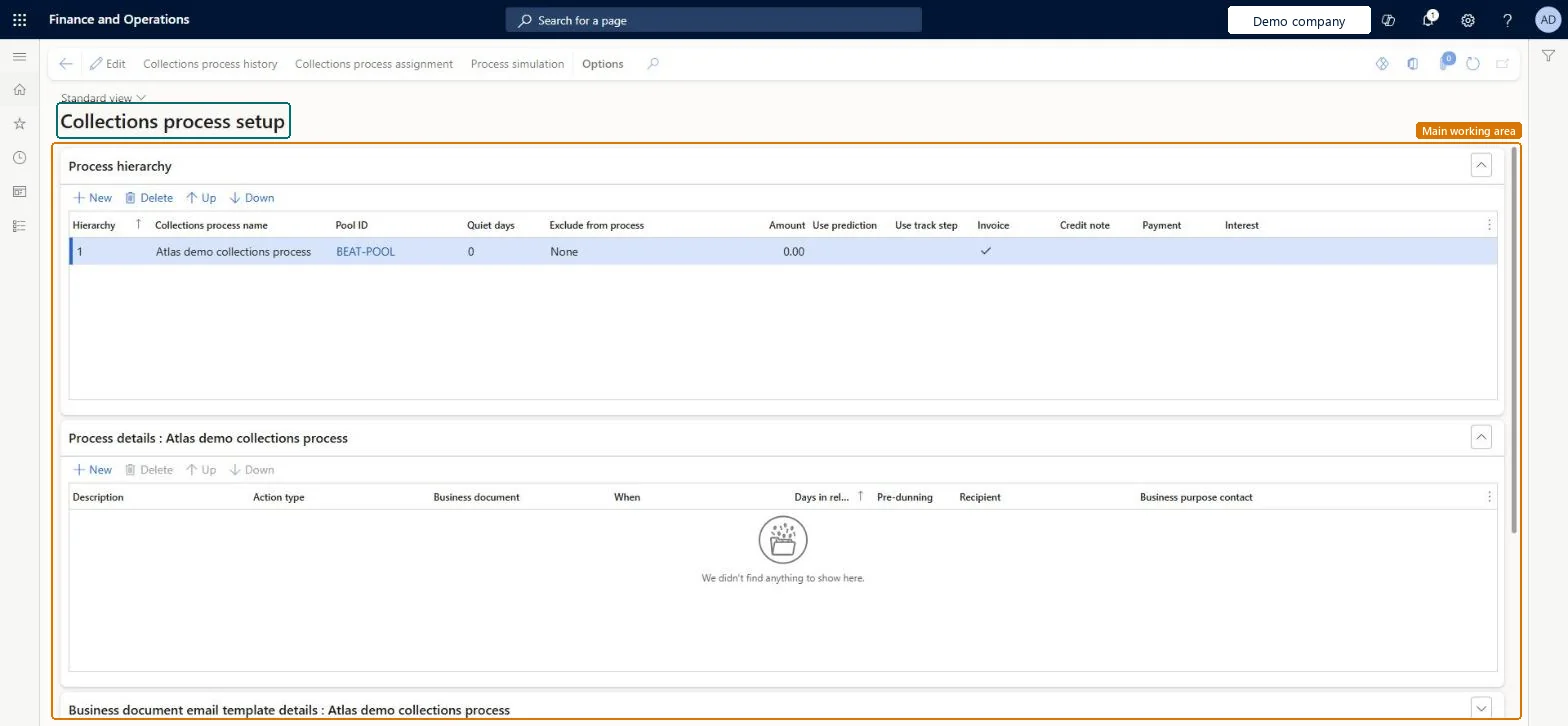
Set up Collections process setup1 screen
Use this page to set up process hierarchies by customer pool, with steps that run before or after the due date of the customer's oldest open invoice.
Screen 1
Create a collections process
Go to Credit and collections > Setup > Collections process setup
Make sure the customer pool exists on Customer pools
Select Edit
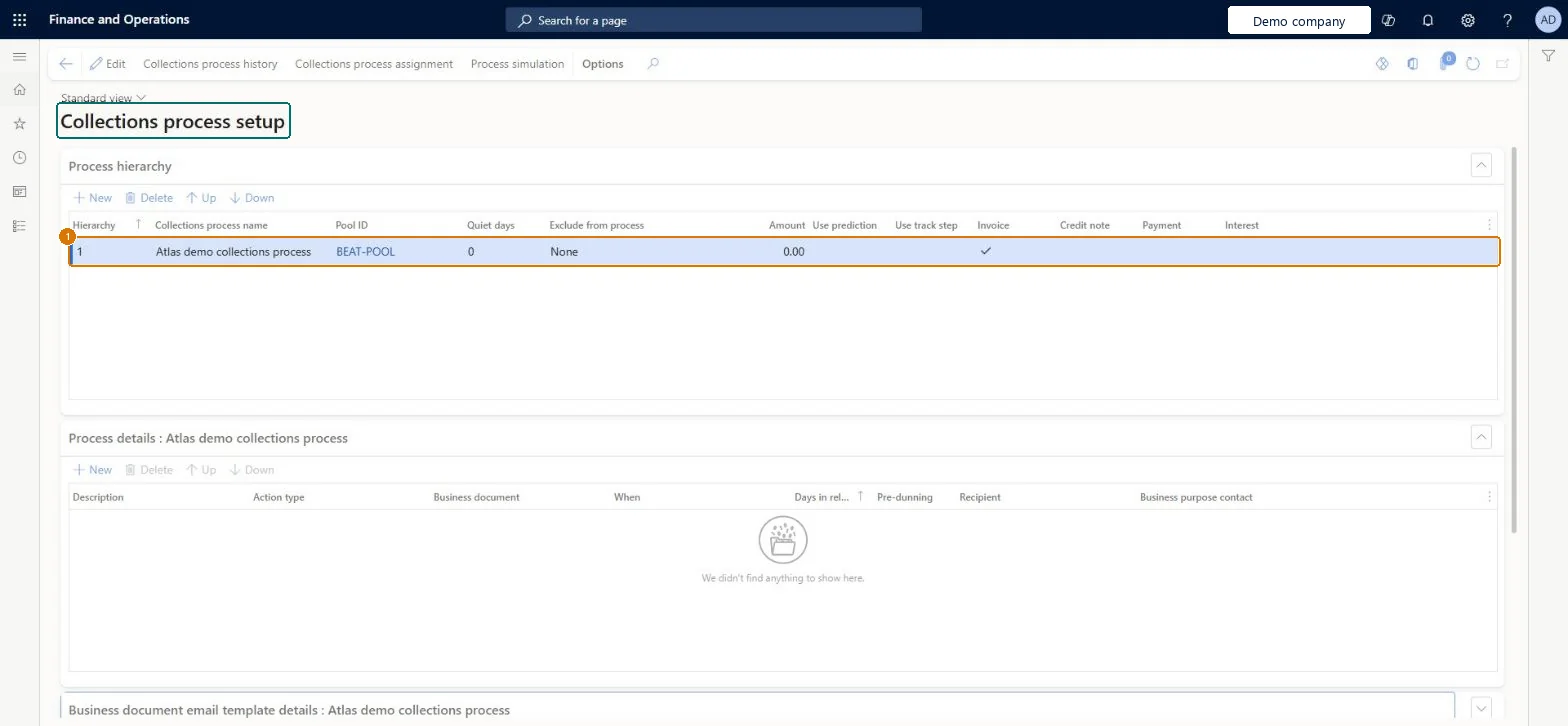
Under Process hierarchy, select New
Enter the collections process name and select the pool ID
Select Save
Add steps under Process details when the process is ready to be used
Collections process name
Collections process
Pool ID
BEAT-POOL
Quiet days
0
Show the full screen page title tab to open what to set or check
Steps from Microsoft
Go to Credit and collections > Setup > Collections process setup.
Create a process hierarchy and select the customer pool, hierarchy rank and quiet days.
Set Exclude from process, Use prediction and Use track step as needed.
On the Process details tab, select New for each step.
For each step, enter a Description, Action type, Business document, When and the days in relation to the invoice due date.
Mark one activity or email step as Pre-dunning if you send early notices.
Use Process simulation to preview the actions before the automation runs.
One process hierarchy per customer pool, steps timed against the oldest open invoice due date, one pre-dunning step (activity or email) per hierarchy, and quiet days set so a customer isn't contacted too often.Each pool can be assigned to only one hierarchy, steps are driven by the leading (oldest) open invoice, only one step per hierarchy can be pre-dunning and it must be an activity or email, and quiet days stop repeated contact.
Selecting Use track step to test it: once the track step enhancement is on the check box can't be cleared, and every open invoice continues from the last step that ran.Test: Process simulation for a collections hierarchy
Feature management and licence
Feature to turn on
Collections process automation track step enhancement (Optional)Include project and General journal invoices in Collections process automation (Optional)
One-way: Warning: after the Collections process automation track step enhancement feature is enabled, the Use track step check box can't be disabled, and each open invoice is assigned the last step run in the process automation history.
If you change it later
Once the track step enhancement is turned on it can't be turned off, and each open invoice continues from the last step that ran. Microsoft Learn
Technical architect
6Technical
Menu item
CustAutomationStrategySetupChecked in Dynamics 365
Form
CustAutomationStrategySetupChecked in Dynamics 365
Table
CustAutomationStrategyShown as “Collections process automation” in Record infoKey field: StrategyName, HierarchyChecked in Dynamics 365
Who can open it
PrivilegesMaintain collection process automation setup settings CustAutomationStrategySetupMaintainView collection process automation setup settings CustAutomationStrategySetupViewDutiesMaintain collections process automation setup CustAutomationSetupMaintainView collections process automation setup CustAutomationSetupView2 security rolesCollections agent CollectionLetterCollectionsAgentCollections manager CollectionLetterCollectionsManagerChecked in Dynamics 365
Roles to set it up and use it
To set it up or change itCollections manager CollectionLetterCollectionsManagerTo use itCollections agent CollectionLetterCollectionsAgentGive people one of these roles. On this system, 2 roles can open this page.Checked in Dynamics 365
Actions on the page
Options: Personalize, Page options, ShareChecked in Dynamics 365
Checked in a working Dynamics 365 system, version 10.0.49: the menu item, form, table and security, the page, the demo records and the values in the screenshots.
To cite this step: CC-SETUP-060, Set up Collections process setup. Beyond ERP Atlas Hub, 2026-11-11. https://www.beyonderp.cloud/atlas/step/CC-SETUP-060