Accounts payable clerk, Accounts payable manager, Landed cost agent and 4 more roles
Business process
Process supplier invoices
Menu item
VendInvoiceTemplate
Main table
VendInvoiceTemplate
Setup steps
1 on this page
Show what matters for
SETUP GUIDEHow to set it up8 sections. Choose a role to highlight what matters to you.
Everyone
1What it is and why
What it is
Vendor invoice templates hold header information, line information, charges, and accounting distributions for invoices that recur; an invoice can be saved as a template from the Pending vendor invoice page.
What you do here
Use this page for recurring vendor invoices: the templates are assigned to vendors with a start date, optional end date, frequency, and optional maximum amount, and then used to generate invoices.
Example
Use recurring vendor invoices when you regularly receive vendor invoices that have the same services, quantity, and price.
The page in Dynamics 365. page title tab to open what to set or check
About the examples: Examples and screenshots in this guide use BEAT, a demo company in a Dynamics 365 test environment. Use your own company's codes and values instead of copying them.
Step by step, with screenshots
Set up Vendor invoice templates6 screens
Holds reusable vendor invoice templates with header, line, charge and distribution data for invoices that recur with the same content.
Screen 1
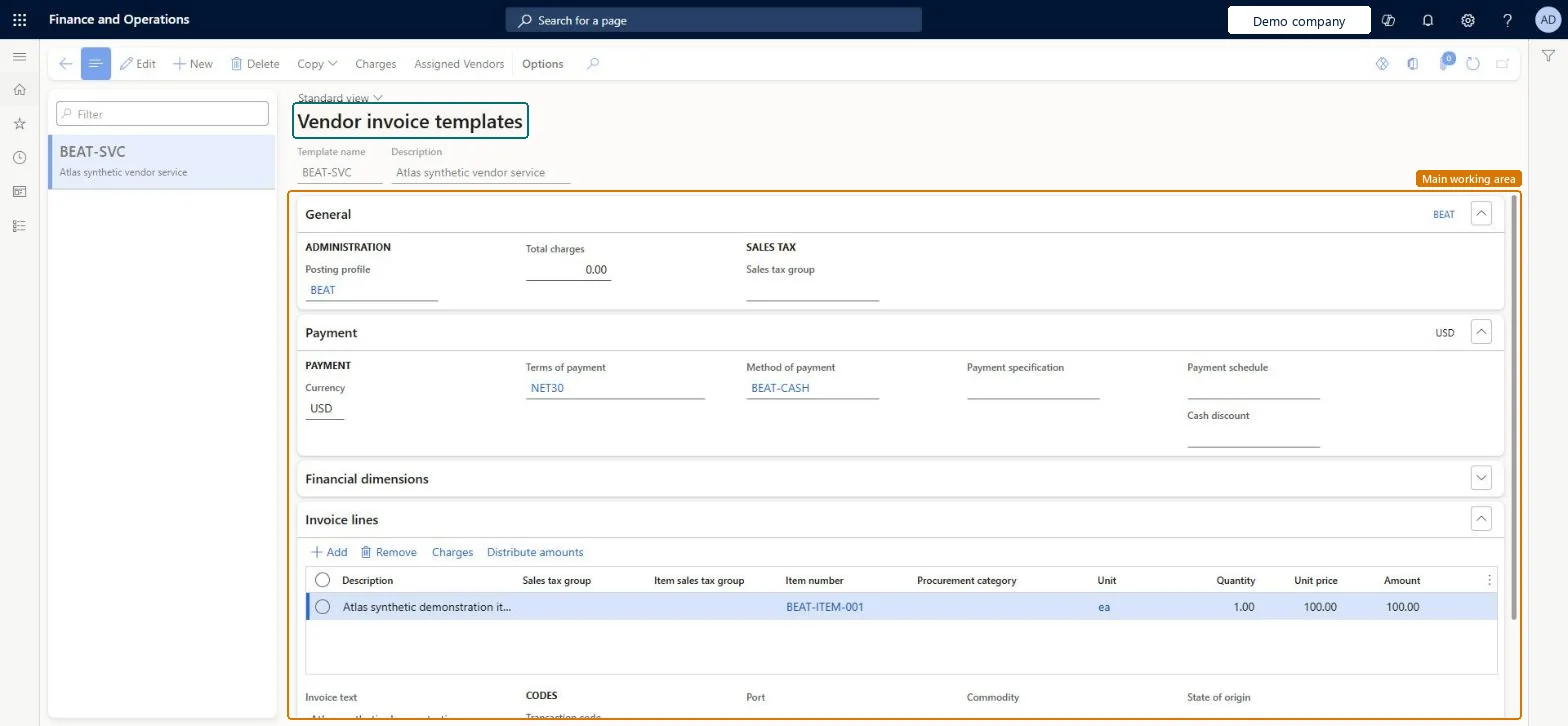
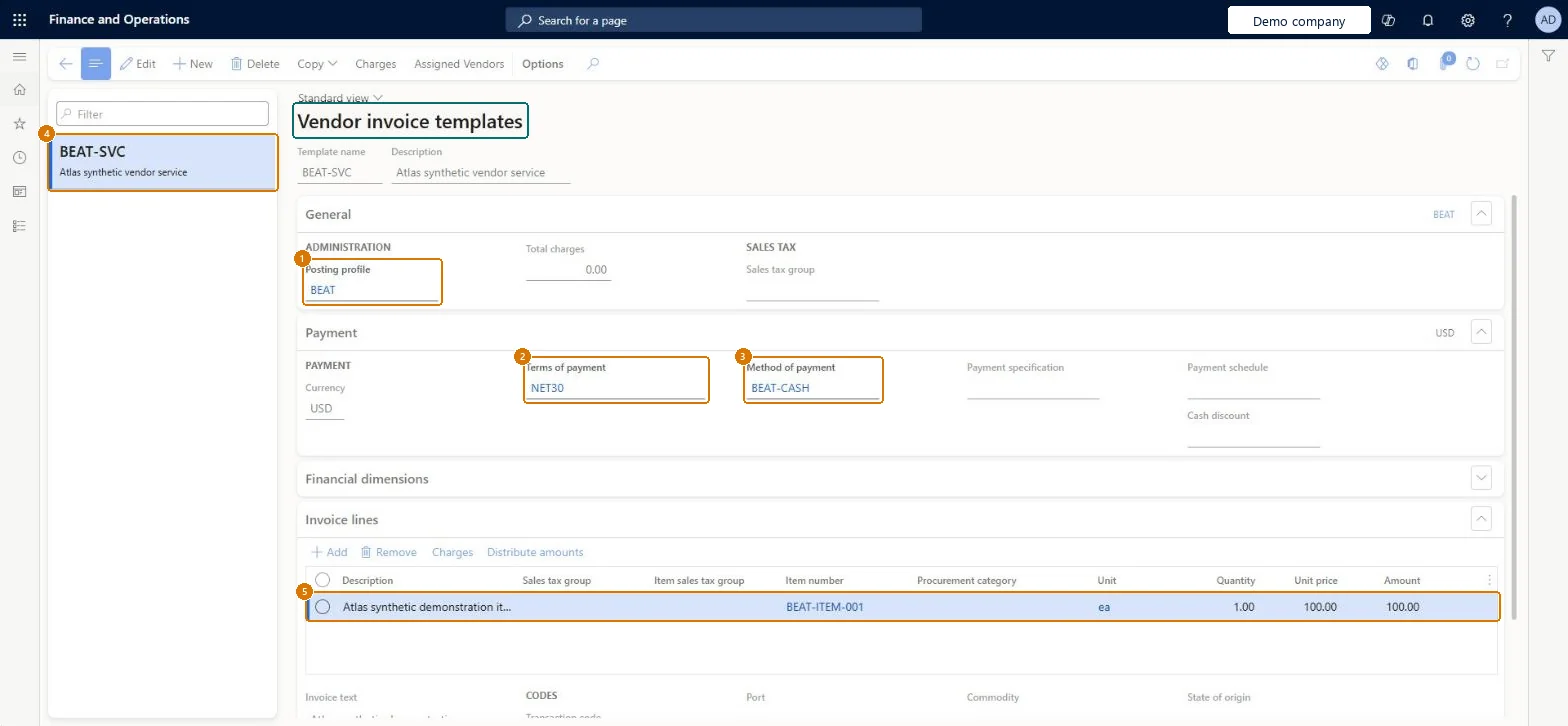
Create the vendor invoice template
Go to Accounts payable > Invoices > Recurring invoices > Vendor invoice templates
Select New and enter the Template name and Description
In the General section, set Posting profile
In the Payment section, set Terms of payment and Method of payment
On the Invoice lines section, select Add and enter the item line
1Posting profile
BEAT
2Terms of payment
NET30
3Method of payment
BEAT-CASH
4Template name
BEAT-SVC
5Item number
BEAT-ITEM-001
Description
Vendor service
Unit
ea
Quantity
1.00
Unit price
100.00
Amount
100.00
page title tab to open what to set or check
Screen 2
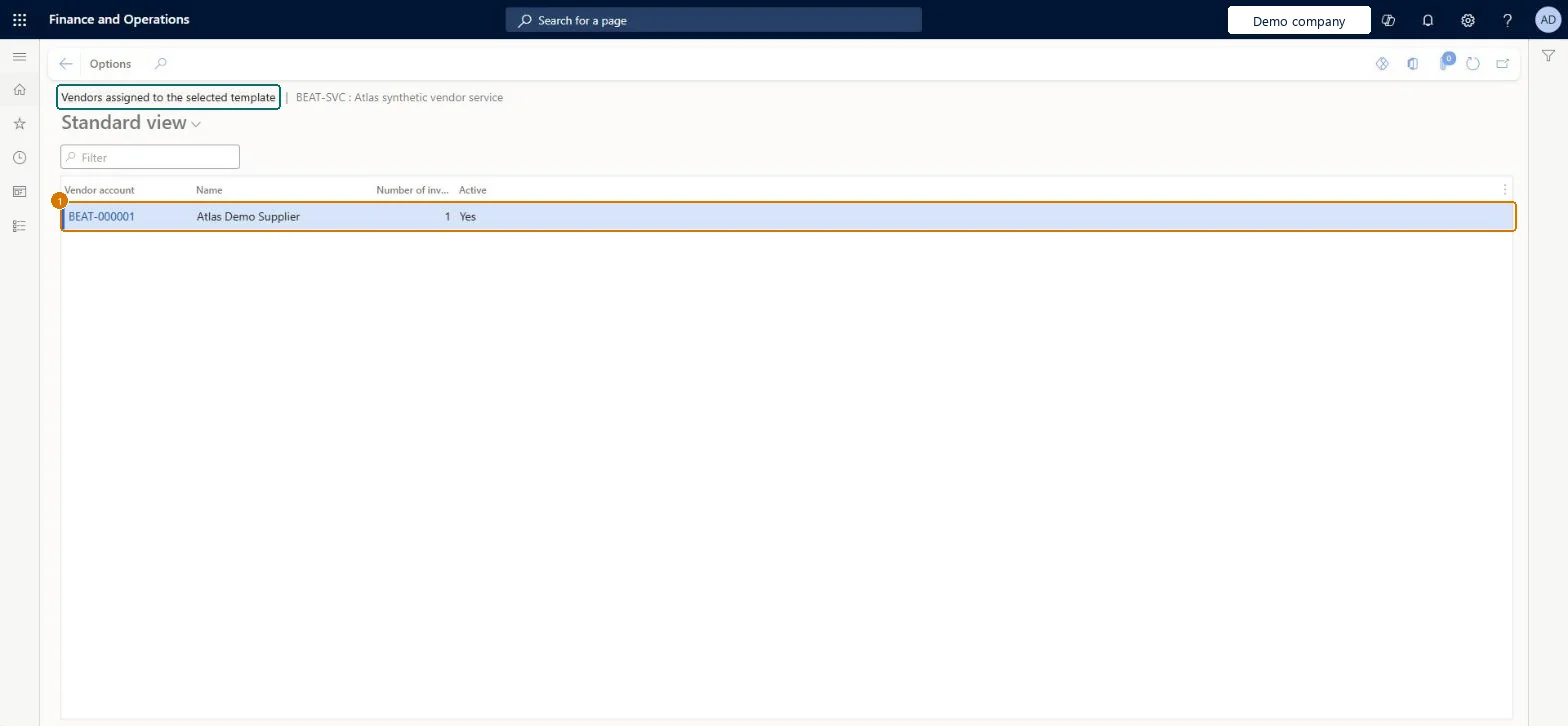
Assign the template to the vendor
Go to Accounts payable > Invoices > Recurring invoices > Vendor invoice templates, Assigned Vendors
Select the BEAT-SVC template
Select Assigned Vendors
Add the vendor and set Active to Yes
1Vendor account
BEAT-000001
Active
Yes
Show the full screen page title tab to open what to set or check
Screen 3
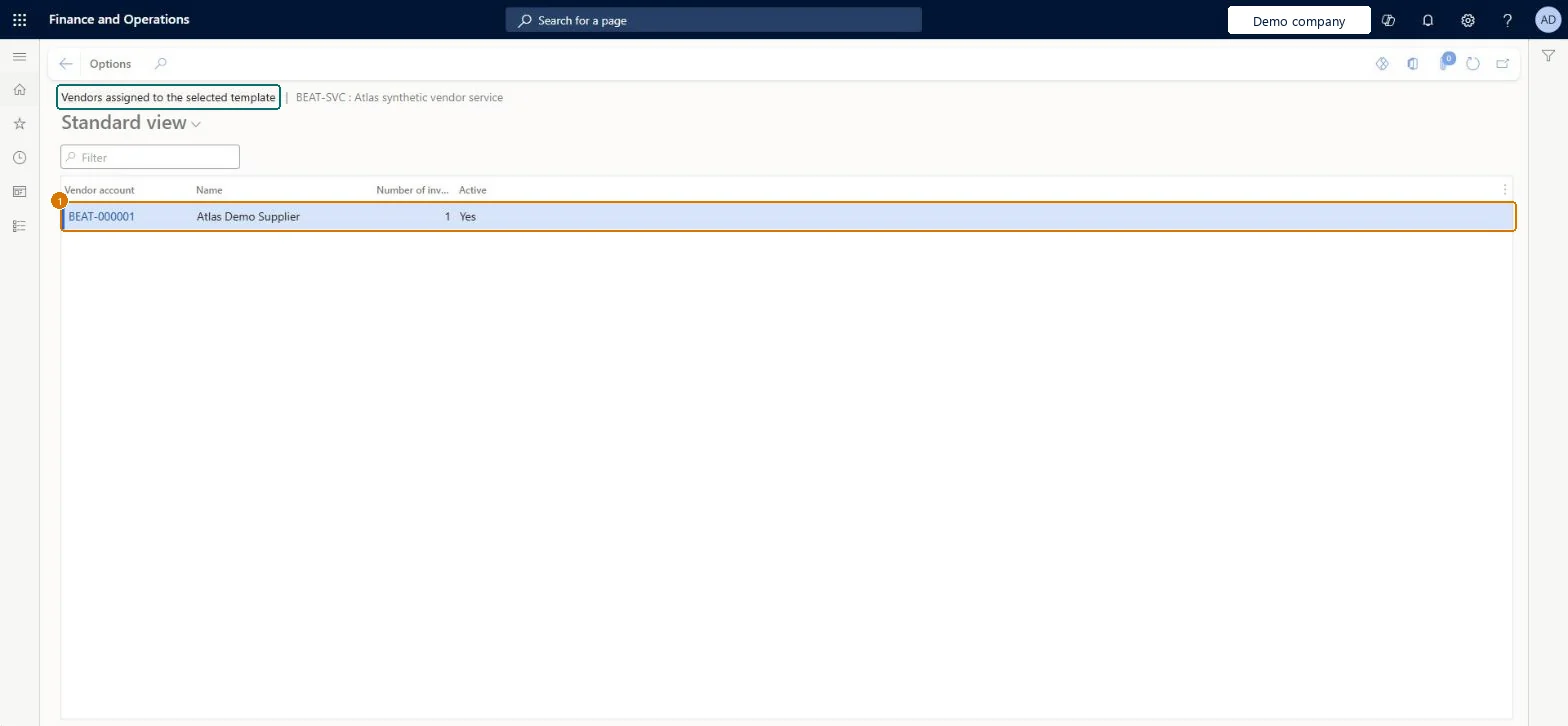
Generate the recurring invoice
Go to Accounts payable > Invoices > Recurring invoices > Vendor invoice templates, Assigned Vendors
Select the BEAT-SVC template and select Assigned Vendors
Review the Number of invoices column for the vendor
Check Vendor BEAT-000001 is Active and shows 1 in Number of invoices, so one invoice was generated from the template.
Show the full screen page title tab to open what to set or check
Screen 4
Post the generated invoice and find it in the invoice journal
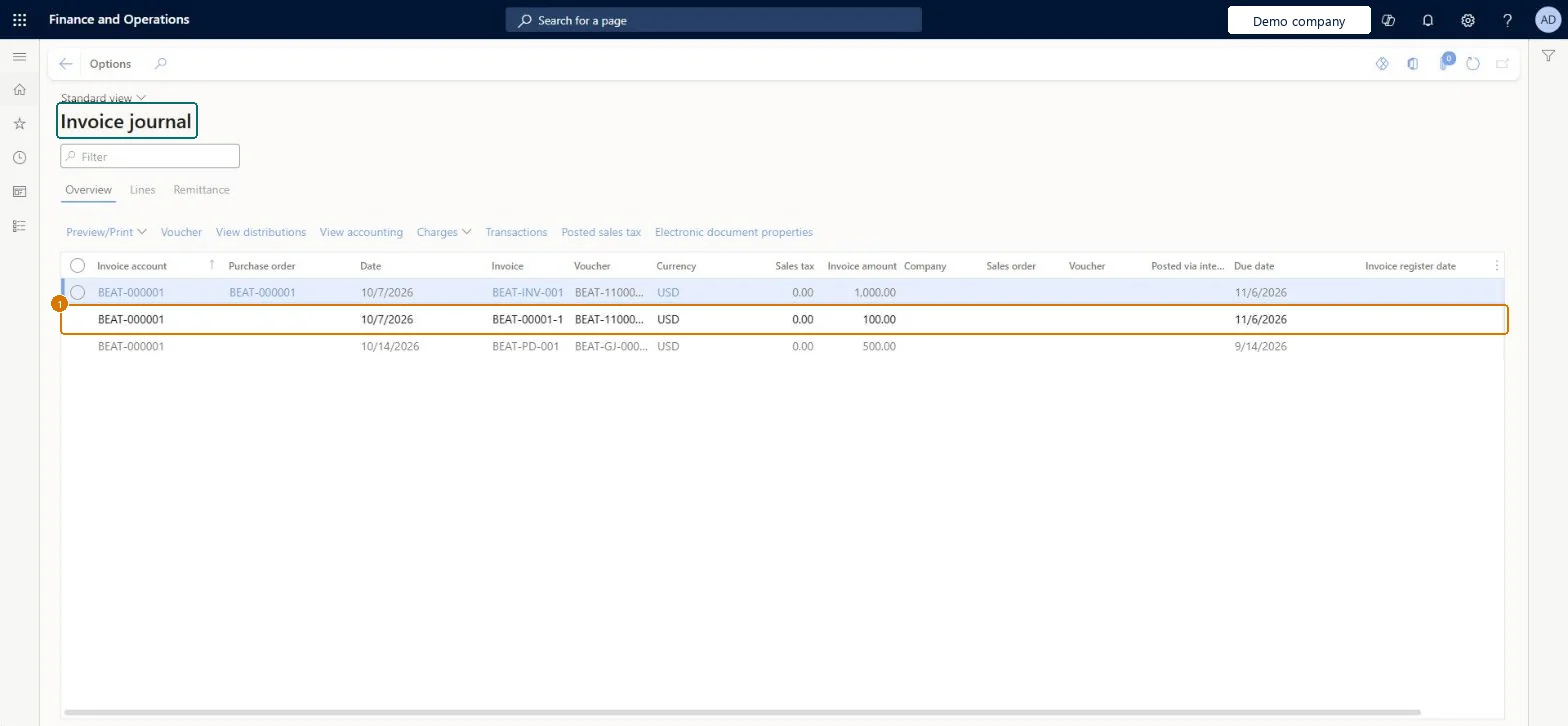
Go to Accounts payable > Inquiries and reports > Invoices > Invoice journal
Open the Invoice journal
Find the invoice for vendor BEAT-000001 dated 10/7/2026
Check Invoice BEAT-00001-1 for BEAT-000001 is listed, dated 10/7/2026, in USD, with an invoice amount of 100.00.
Show the full screen page title tab to open what to set or check
Screen 5
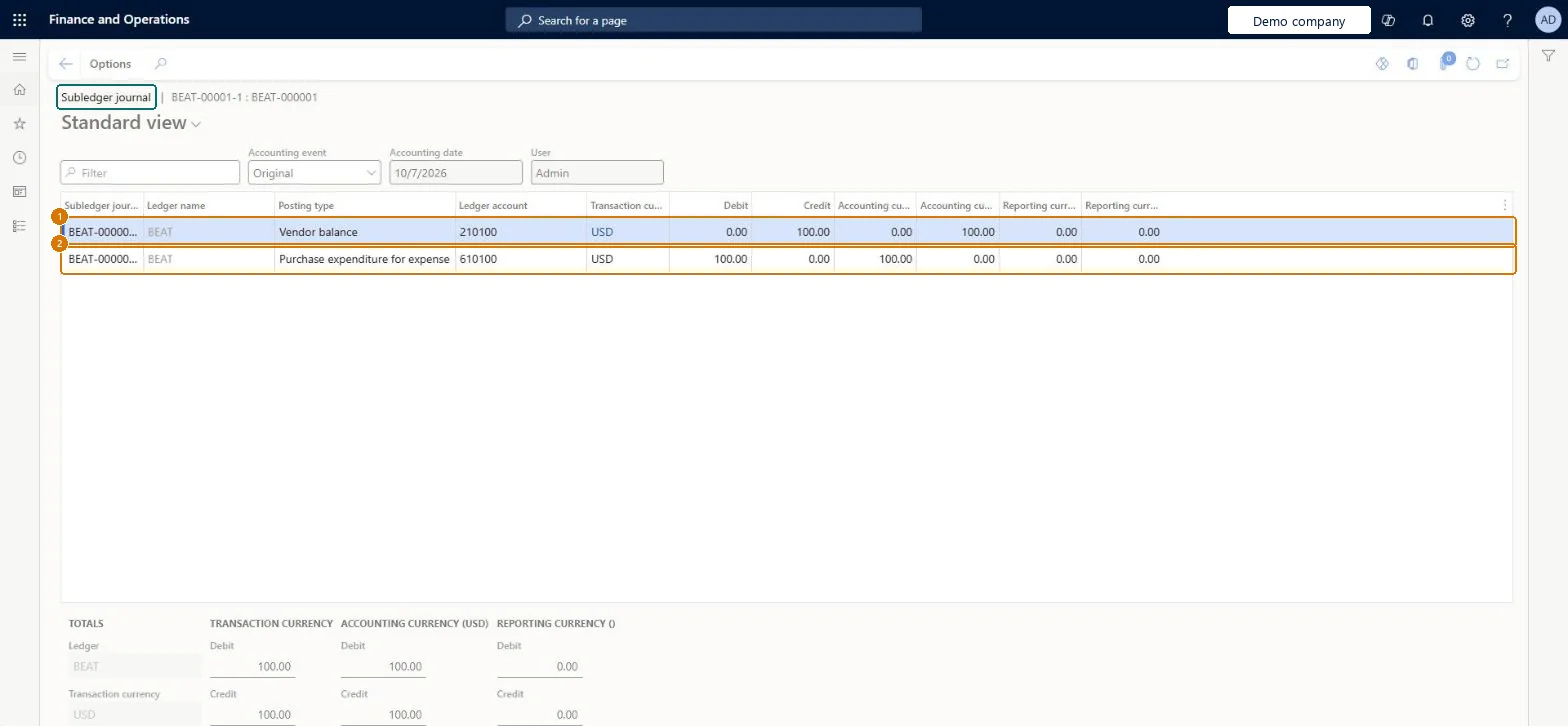
Check the invoice accounting
Go to Accounts payable > Inquiries and reports > Invoices > Invoice journal, View accounting
Select invoice BEAT-00001-1
Select View accounting
Check The subledger journal shows 610100 Purchase expenditure for expense debit 100.00 and 210100 Vendor balance credit 100.00, with debit and credit totals of 100.00.
Show the full screen page title tab to open what to set or check
Screen 6
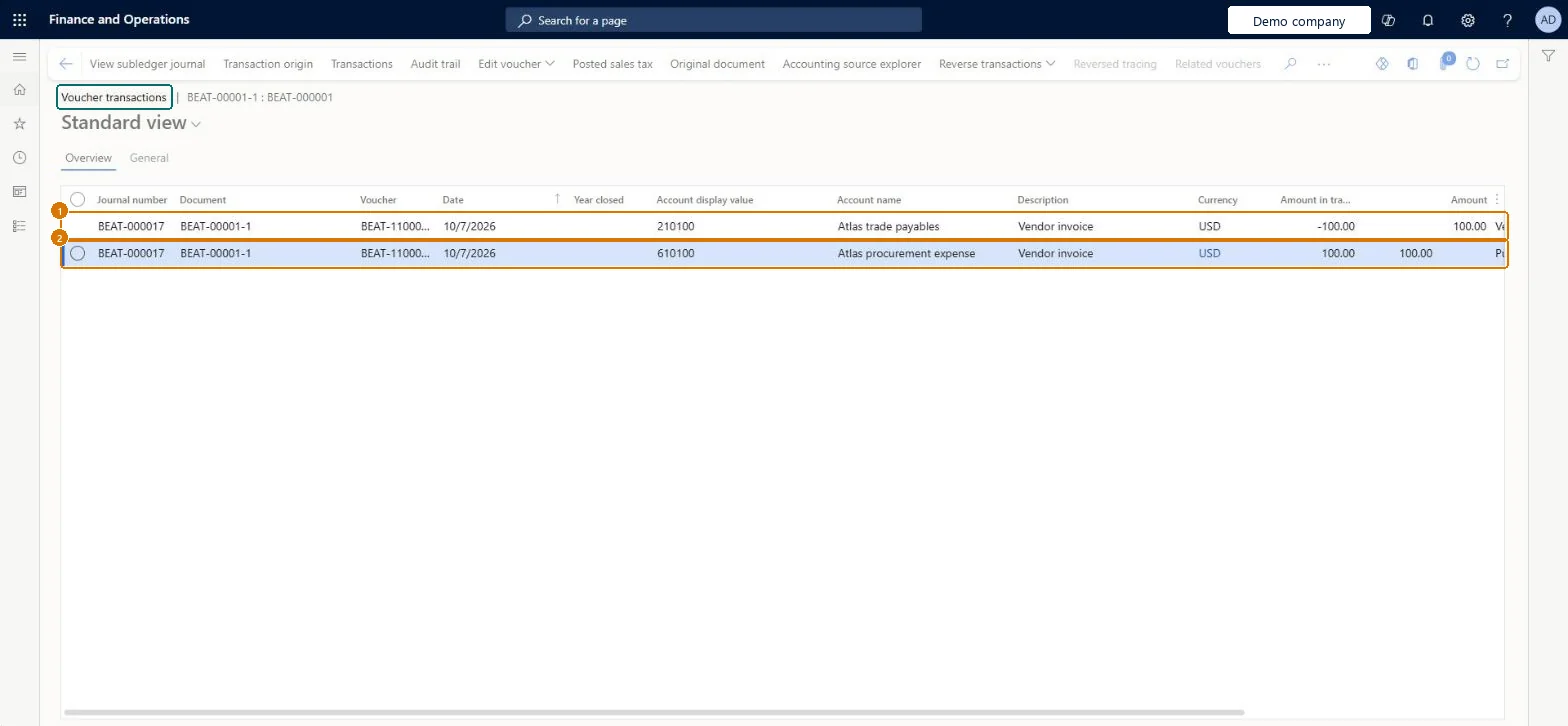
Check the general ledger voucher
Go to Accounts payable > Inquiries and reports > Invoices > Invoice journal, Voucher
Save a correct pending vendor invoice as the template, then assign it on the vendor's Invoice tab with a start date, frequency and, where useful, a maximum amountLearn describes saving an invoice as a template from the Pending vendor invoice page and setting the recurrence per vendor, so header, lines, charges and distributions are reused exactly.
Turning on workflow for vendor invoices and expecting generated recurring invoices to post directly: they must be submitted to workflow first, so they wait unposted.
Reversible: Templates and vendor assignments can be changed at any time. A generated invoice can be deleted before posting, and the system resets the vendor's recurrence for that template so it can be generated again.
If you change it later
One template can be used for many vendors, and each vendor can have several templates with different frequencies. Microsoft Learn
Technical architect
6Technical
Menu item
VendInvoiceTemplateChecked in Dynamics 365
Form
VendInvoiceTemplateChecked in Dynamics 365
Table
VendInvoiceTemplateShown as “Vendor invoice template” in Record infoChecked in Dynamics 365
Who can open it
PrivilegesMaintain vendor invoice templates VendInvoiceTemplateMaintainView a list of invoices that were generated for the vendor and the template that was used VendInvoiceTemplateViewDutiesMaintain vendor invoices VendInvoiceVendorInvoicesMaintain7 security rolesLanded cost agent ITMAgentRental coordinator agent RentalCoordinatorAgentRental manager RentalManagerRental purchasing manager RentalPurchasingManagerRental sales manager RentalSalesManagerAccounts payable clerk VendInvoiceAccountsPayableClerkAccounts payable manager VendInvoiceAccountsPayableManagerChecked in Dynamics 365
Roles to set it up and use it
To set it up or change itAccounts payable manager VendInvoiceAccountsPayableManagerRental manager RentalManagerRental coordinator agent RentalCoordinatorAgentRental sales manager RentalSalesManagerAccounts payable clerk VendInvoiceAccountsPayableClerkGive people one of these roles. On this system, 7 roles can open this page.Checked in Dynamics 365
Actions on the page
Buttons: Copy, Charges, Assigned VendorsChecked in Dynamics 365
Checked in a working Dynamics 365 system, version 10.0.49: the menu item, form, table and security, the page, the demo records and the values in the screenshots.
To cite this step: AP-INVOICES-020, Set up Vendor invoice templates. Beyond ERP Atlas Hub, 2026-11-11. https://www.beyonderp.cloud/atlas/step/AP-INVOICES-020