Setup page · Accounts payable
Vendor invoice templates
Vendor invoice templates hold header information, line information, charges, and accounting distributions for invoices that recur; an invoice can be saved as a template from the Pending vendor invoice page.
- Used by
- Accounts payable clerk, Accounts payable manager, Landed cost agent and 4 more roles
- Business process
- Process supplier invoices
- Menu item
VendInvoiceTemplate- Main table
VendInvoiceTemplate- Data entity
- —
- Setup steps
- 1 on this page
Everyone
1What it is and why
| What it is | Vendor invoice templates hold header information, line information, charges, and accounting distributions for invoices that recur; an invoice can be saved as a template from the Pending vendor invoice page. |
|---|---|
| What you do here | Used for recurring vendor invoices: the templates are assigned to vendors with a start date, optional end date, frequency, and optional maximum amount, and then used to generate invoices. |
| Example | Use recurring vendor invoices when you regularly receive vendor invoices that have the same services, quantity, and price. |
Functional consultant · Solution architect
2Where it fits
| Business process | Manage accounts payable › Process supplier invoices |
|---|---|
| Menu path | Accounts payable › Invoices › Recurring invoices › Vendor invoice templates |
| Set up first | Number sequences Microsoft Learn ↗Pending vendor invoices Microsoft Learn ↗ |
| Used next by | All vendors Microsoft Learn ↗Generate vendor recurring invoices Microsoft Learn ↗ |
| Related pages | — |
End user · Functional consultant
3How to do it
Step by step, with screenshots
Set up Vendor invoice templates6 screens
Holds reusable vendor invoice templates with header, line, charge and distribution data for invoices that recur with the same content.
Screen 1
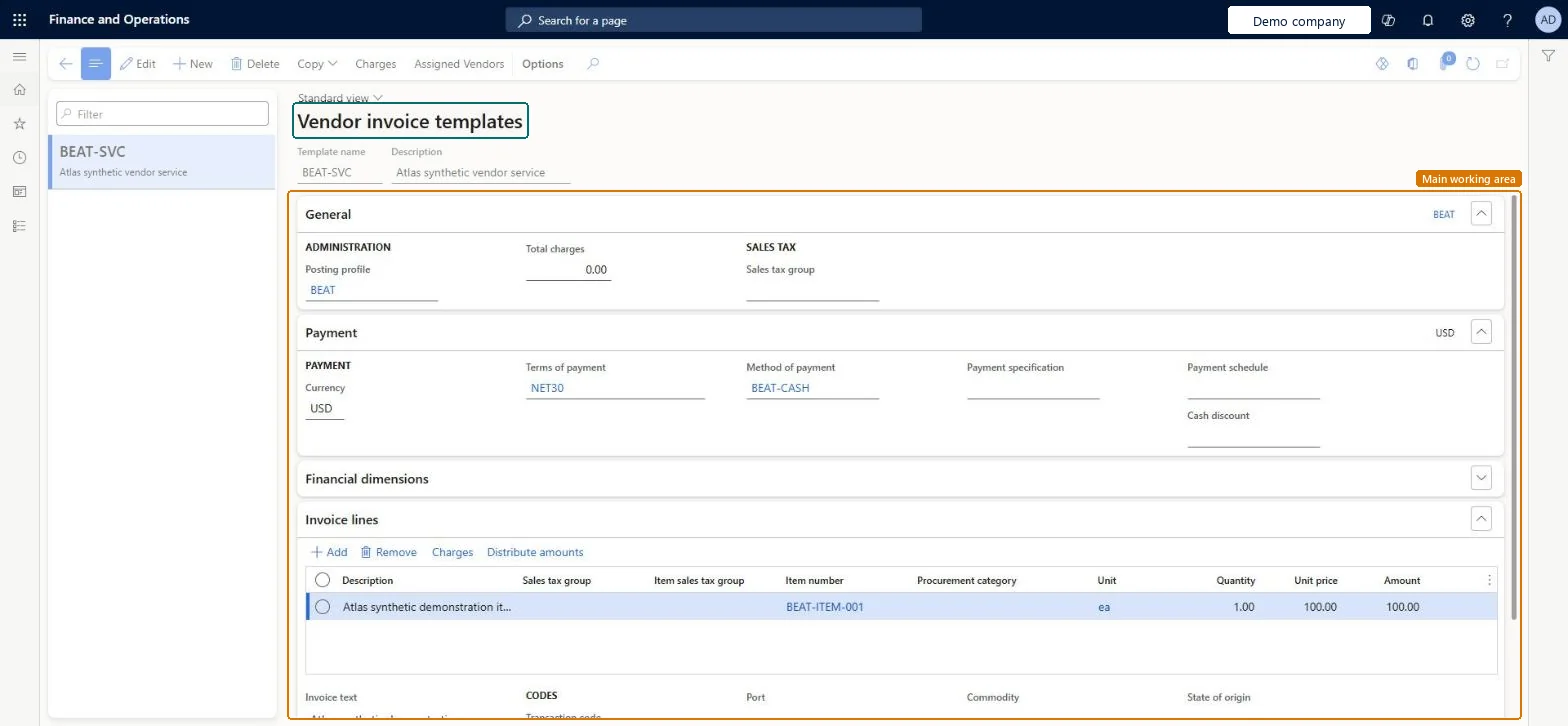
Create the vendor invoice template
Go to Accounts payable > Invoices > Recurring invoices > Vendor invoice templates
- Select New and enter the Template name and Description
- In the General section, set Posting profile
- In the Payment section, set Terms of payment and Method of payment
- On the Invoice lines section, select Add and enter the item line
1Posting profile BEAT 2Terms of payment NET30 3Method of payment BEAT-CASH 4Template name BEAT-SVC 5Item number BEAT-ITEM-001 Description Atlas synthetic vendor service Unit ea Quantity 1.00 Unit price 100.00 Amount 100.00 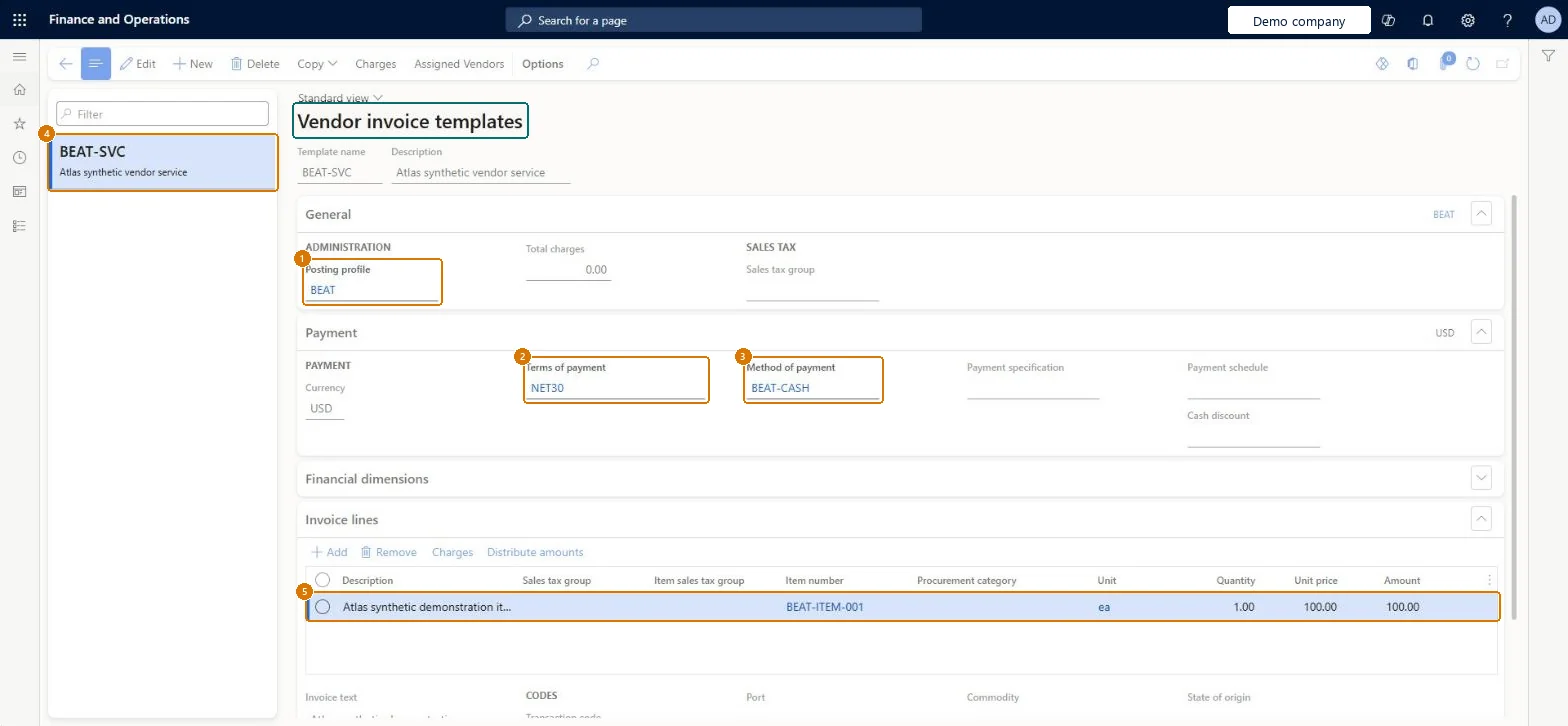
page title tab to open what to set or check Screen 2
Assign the template to the vendor
Go to Accounts payable > Invoices > Recurring invoices > Vendor invoice templates, Assigned Vendors
- Select the BEAT-SVC template
- Select Assigned Vendors
- Add the vendor and set Active to Yes
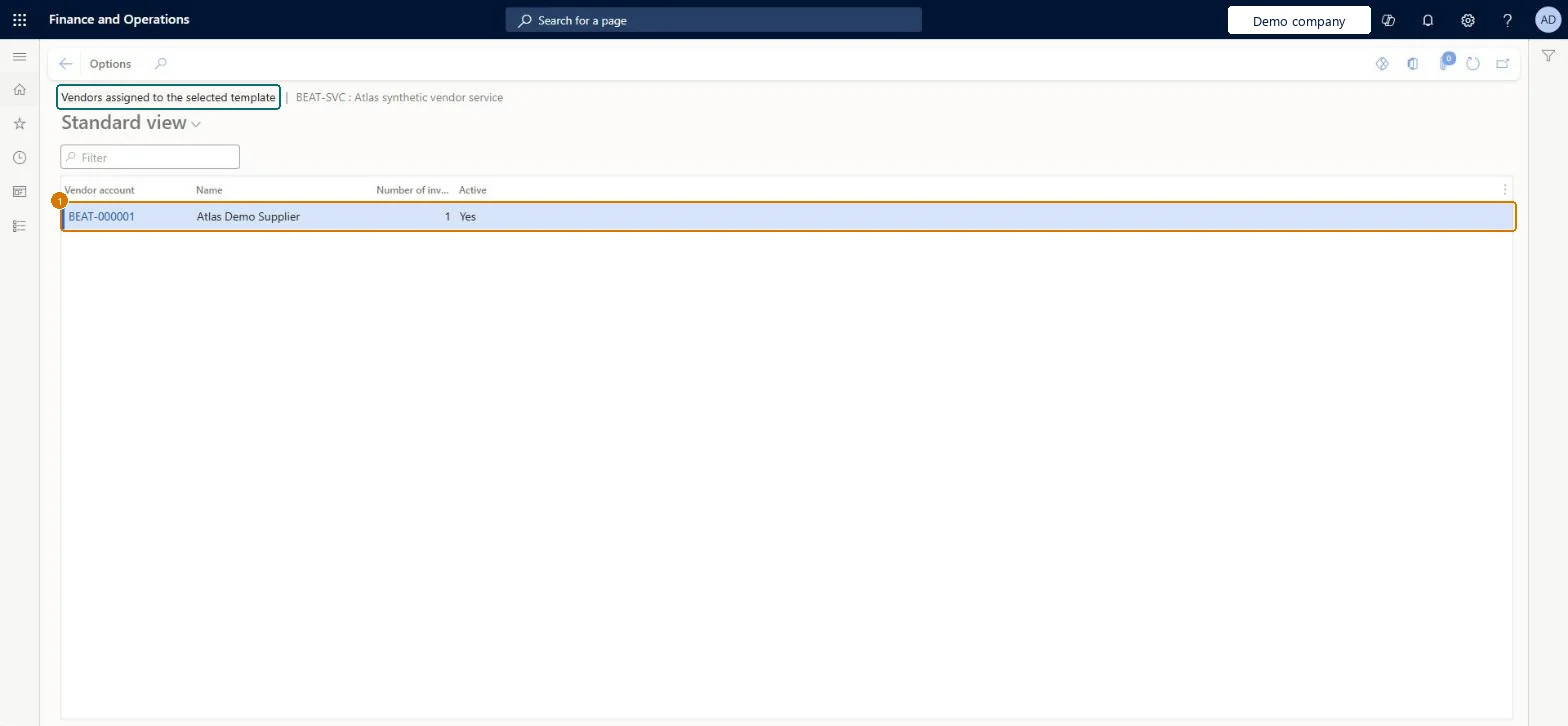
1Vendor account BEAT-000001 Active Yes 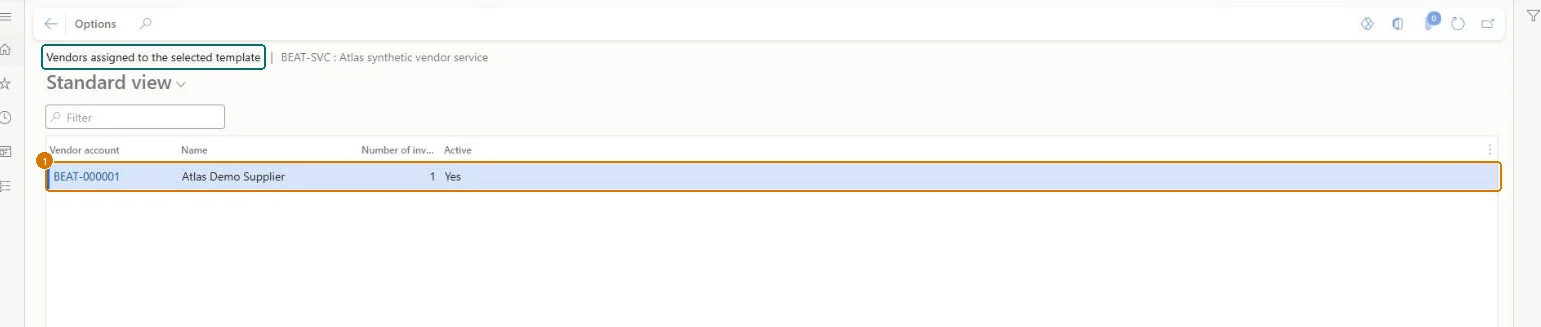
Show the full screen
page title tab to open what to set or check Screen 3
Generate the recurring invoice
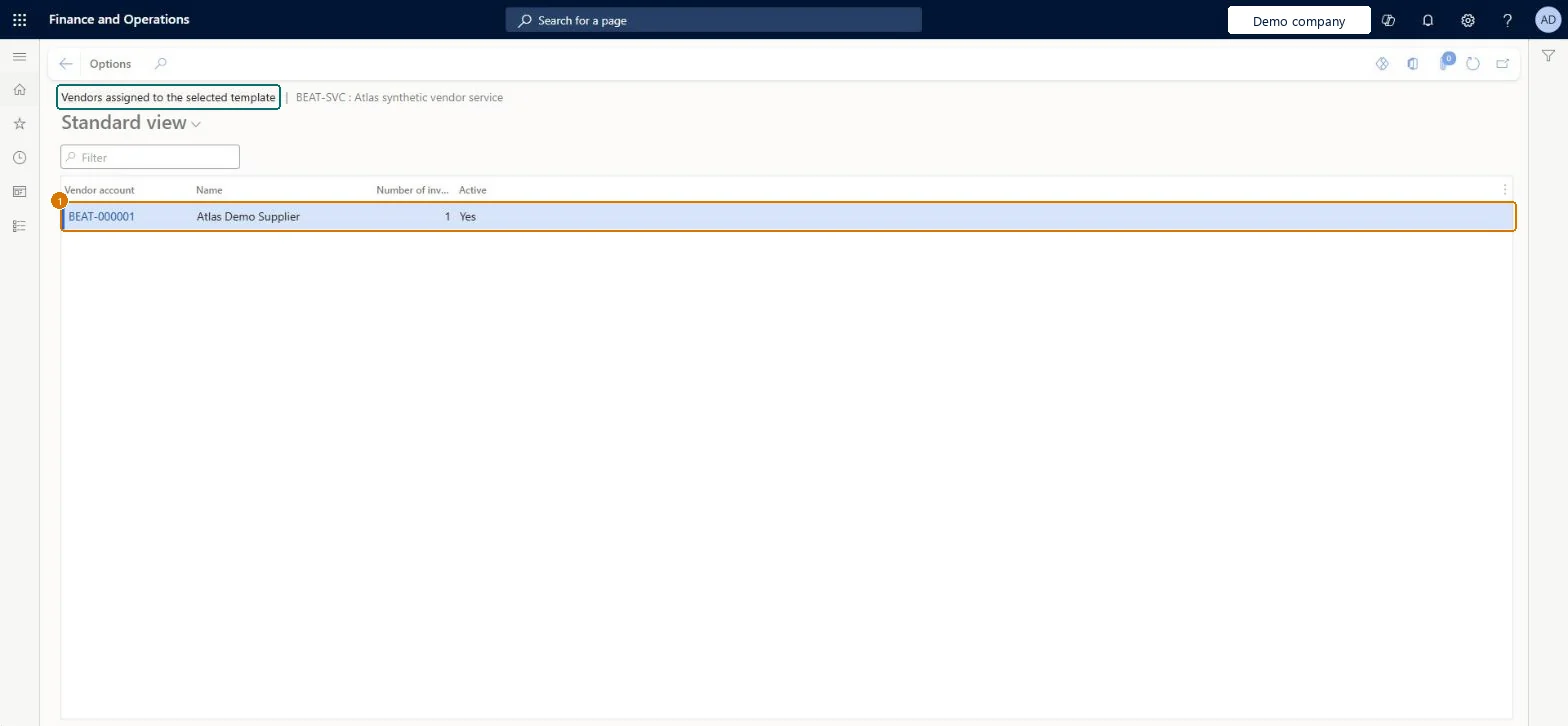
Go to Accounts payable > Invoices > Recurring invoices > Vendor invoice templates, Assigned Vendors
- Select the BEAT-SVC template and select Assigned Vendors
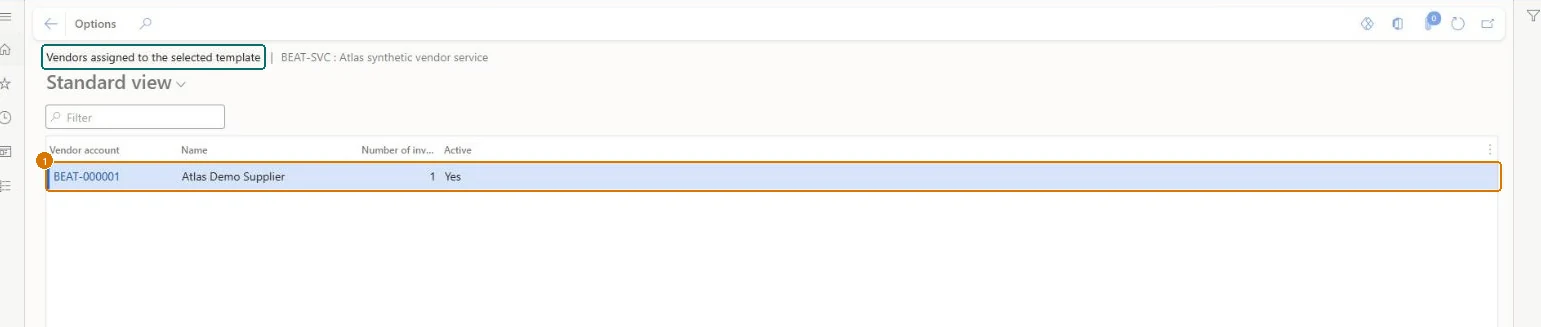
- Review the Number of invoices column for the vendor
Check Vendor BEAT-000001 is Active and shows 1 in Number of invoices, so one invoice was generated from the template.
Show the full screen
page title tab to open what to set or check Screen 4
Post the generated invoice and find it in the invoice journal
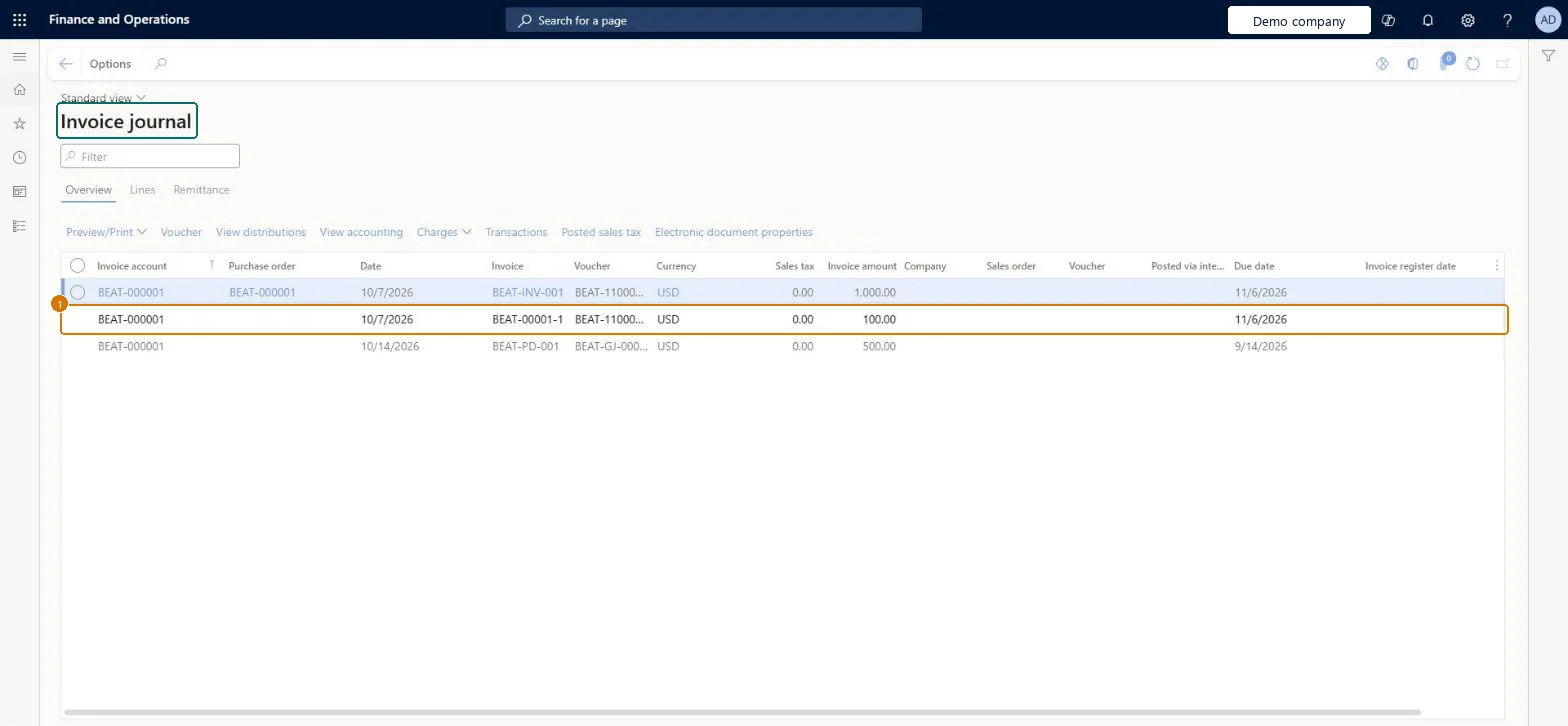
Go to Accounts payable > Inquiries and reports > Invoices > Invoice journal
- Open the Invoice journal
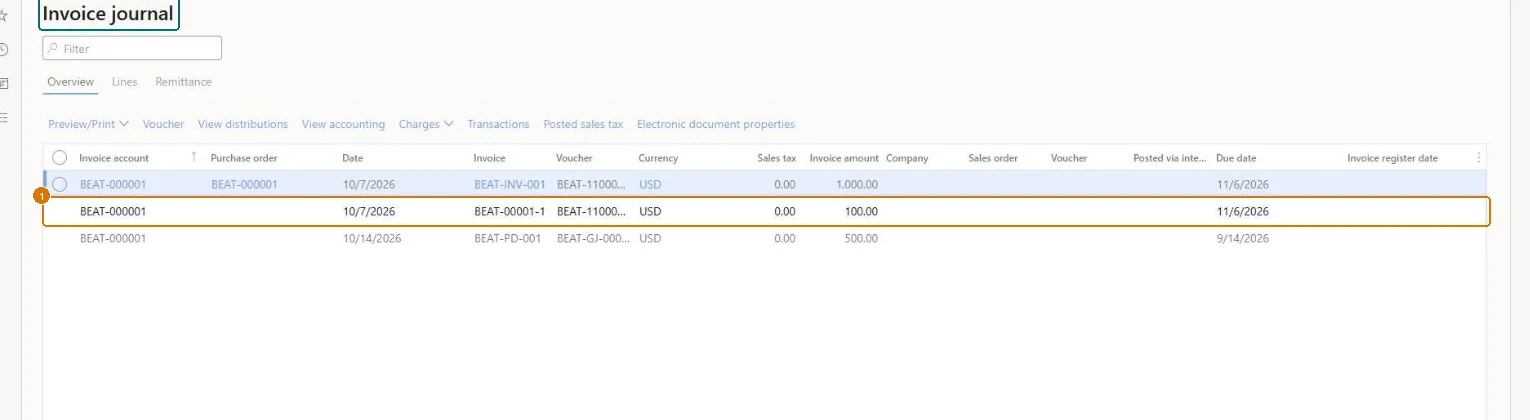
- Find the invoice for vendor BEAT-000001 dated 10/7/2026
Check Invoice BEAT-00001-1 for BEAT-000001 is listed, dated 10/7/2026, in USD, with an invoice amount of 100.00.
Show the full screen
page title tab to open what to set or check Screen 5
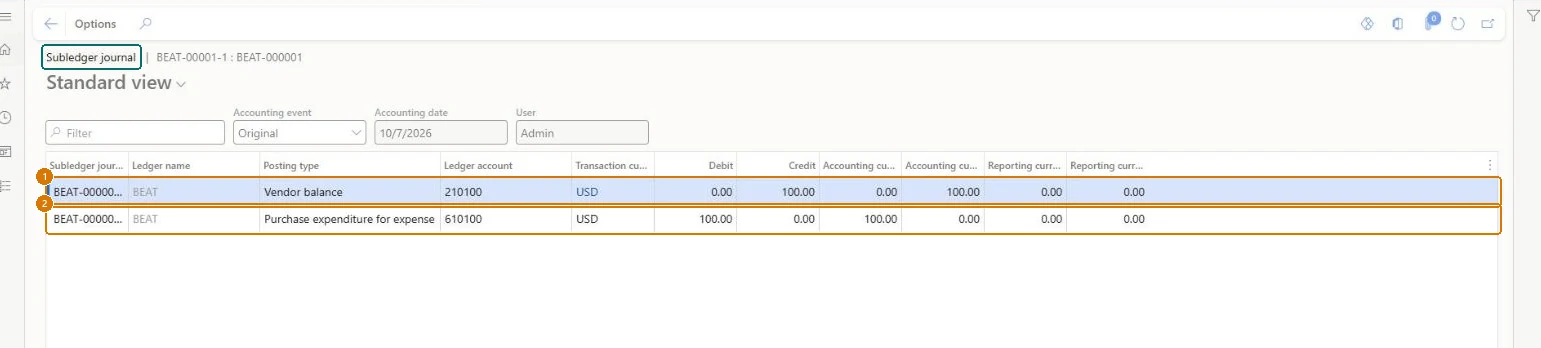
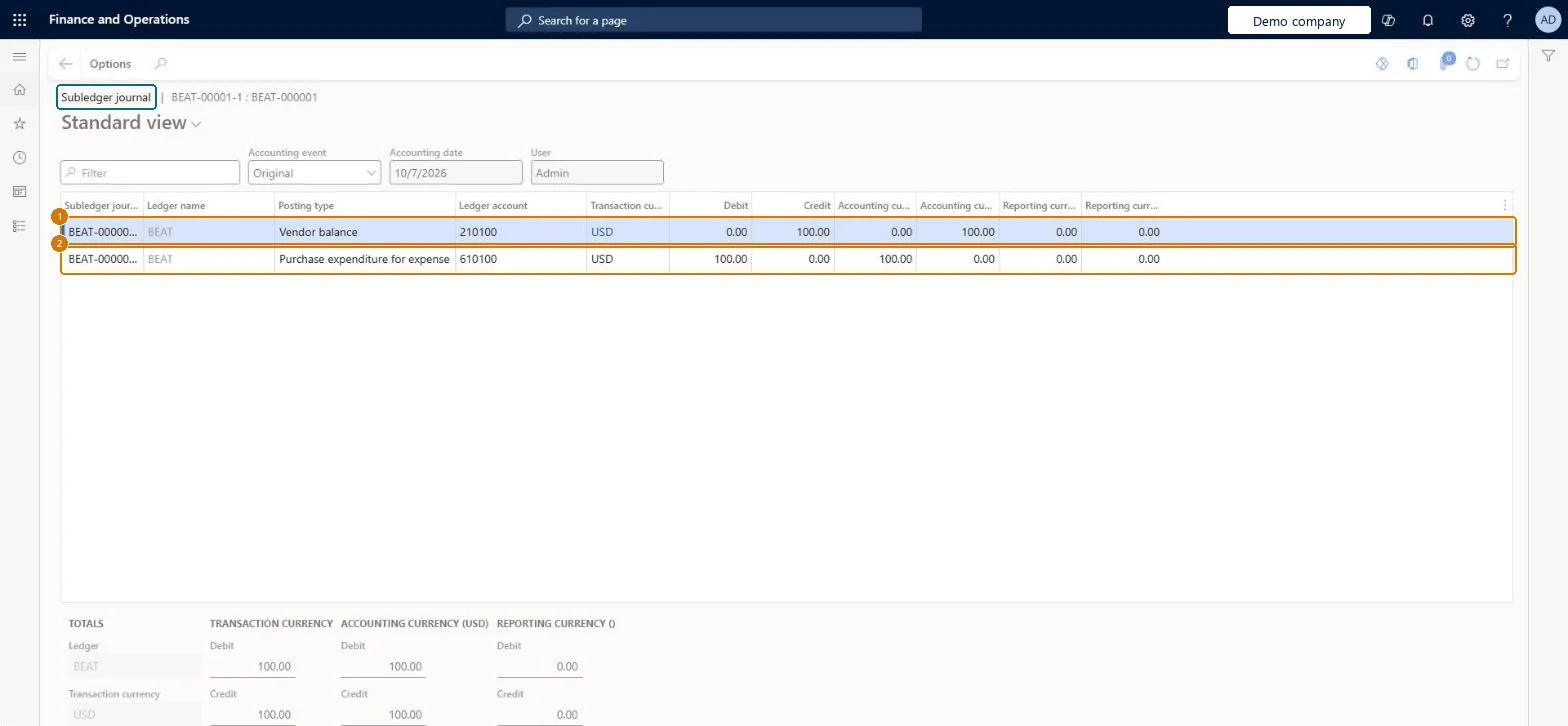
Check the invoice accounting
Go to Accounts payable > Inquiries and reports > Invoices > Invoice journal, View accounting
- Select invoice BEAT-00001-1
- Select View accounting
Check The subledger journal shows 610100 Purchase expenditure for expense debit 100.00 and 210100 Vendor balance credit 100.00, with debit and credit totals of 100.00.
Show the full screen
page title tab to open what to set or check Screen 6
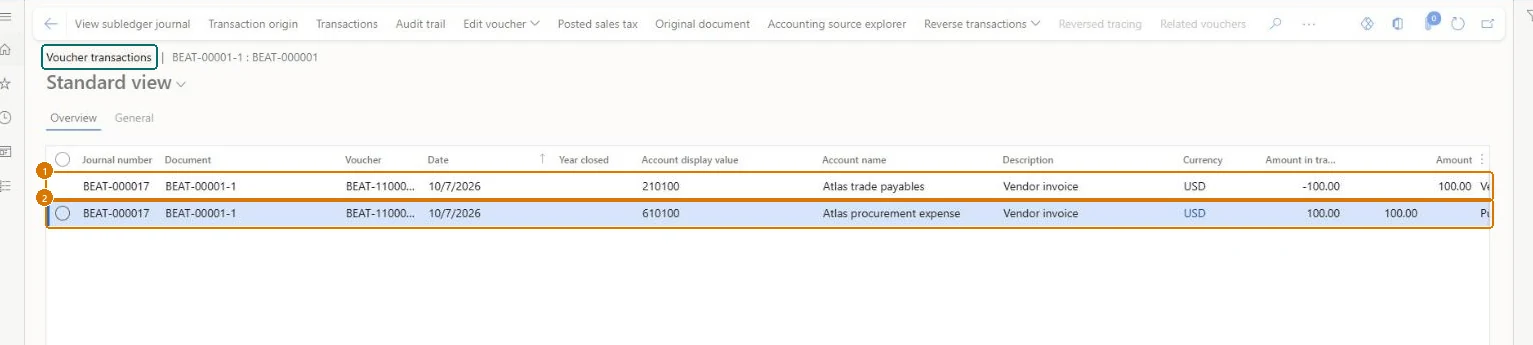
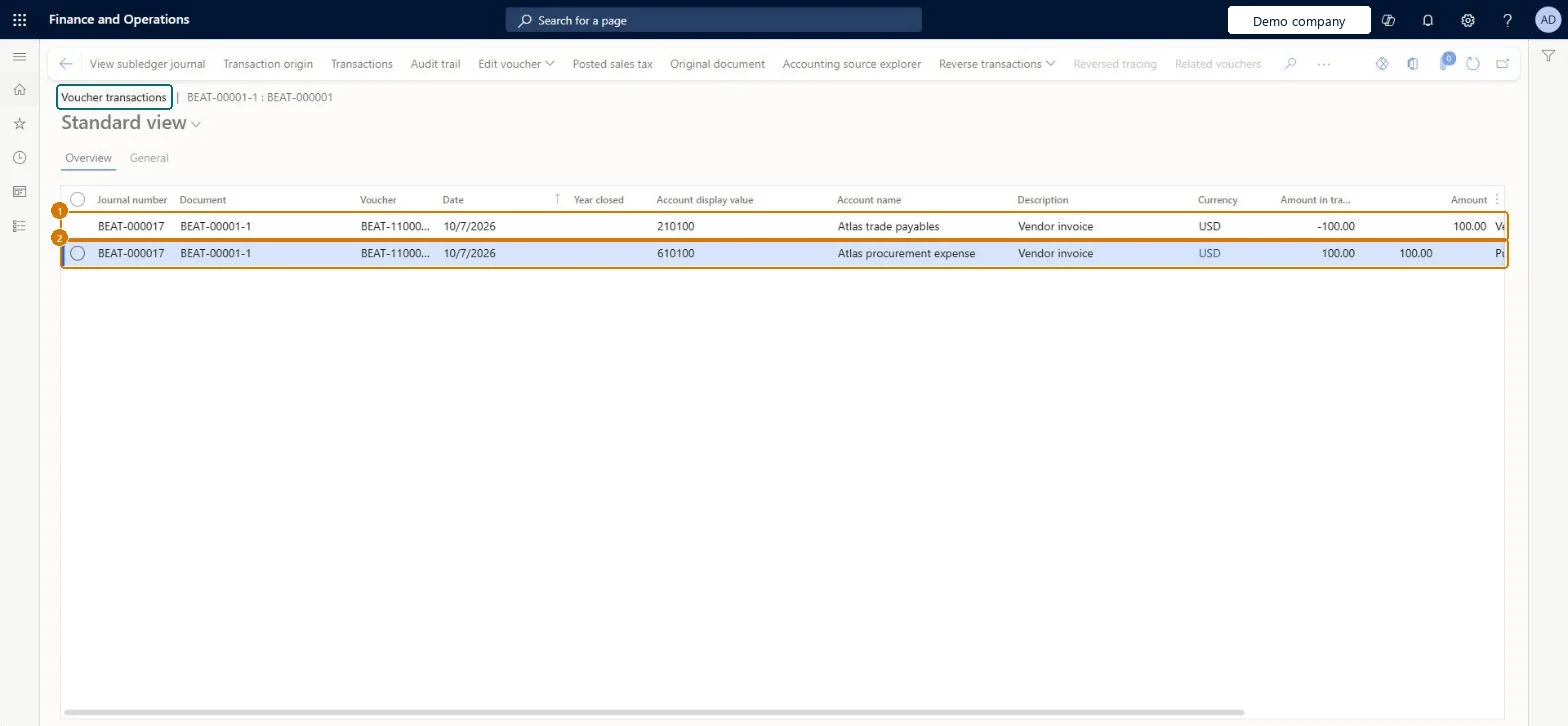
Check the general ledger voucher
Go to Accounts payable > Inquiries and reports > Invoices > Invoice journal, Voucher
- Select invoice BEAT-00001-1
- Select Voucher
Check Voucher BEAT-110000002 dated 10/7/2026 shows 210100 trade payables -100.00 and 610100 procurement expense 100.00 USD.
Show the full screen
page title tab to open what to set or check
Microsoft's steps
- Go to Accounts payable > Invoices > Recurring invoices > Vendor invoice templates.
- Select New, then enter a Template name and Description.
- On the General FastTab, select a Posting profile.
- On the Payment FastTab, select a Method of payment.
- On the Financial dimensions FastTab, enter the financial dimensions.
- On the Invoice lines FastTab, select Add and enter the line details.
- Select Save.
Source: Microsoft Learn ↗
Field guide
| Field | What it means | Worked example | Table column |
|---|---|---|---|
| Posting profile | The vendor posting profile used for invoices made from the template.Microsoft Learn ↗ | BEAT | — |
| Distribute amounts | Lets you pick main accounts for lines that don't use items or procurement categories.Microsoft Learn ↗ | — | — |
| Template name | — | BEAT-SVC | — |
| Description | — | Atlas synthetic vendor service | — |
| Terms of payment | — | NET30 | — |
| Method of payment | — | BEAT-CASH | — |
| Item number | — | BEAT-ITEM-001 | — |
| Unit | — | ea | — |
| Quantity | — | 1.00 | — |
| Unit price | — | 100.00 | — |
| Amount | — | 100.00 | — |
| Vendor account | — | BEAT-000001 | — |
| Active | — | Yes | — |
Functional consultant
4Setup decisions
| Setup step | Recommended value and why | Decision · common mistake · test |
|---|---|---|
| Set up Vendor invoice templates | — | — |
Solution architect
5Design impact
| Shared or per company | — |
|---|---|
| Can it be undone | — |
| Feature or country | — |
| If you change it later | One template can be used for many vendors, and each vendor can have several templates with different frequencies. Microsoft Learn ↗ |
Technical architect
6Technical
| Menu item | VendInvoiceTemplate Checked in Dynamics 365 |
|---|---|
| Form | VendInvoiceTemplate Checked in Dynamics 365 |
| Table | VendInvoiceTemplateShown as “Vendor invoice template” in Record infoChecked in Dynamics 365 |
| Data entities | — |
| Who can open it | PrivilegesMaintain vendor invoice templates VendInvoiceTemplateMaintainView a list of invoices that were generated for the vendor and the template that was used VendInvoiceTemplateViewDutiesMaintain vendor invoices VendInvoiceVendorInvoicesMaintain7 security rolesLanded cost agentITMAgentRental coordinator agent RentalCoordinatorAgentRental manager RentalManagerRental purchasing manager RentalPurchasingManagerRental sales manager RentalSalesManagerAccounts payable clerk VendInvoiceAccountsPayableClerkAccounts payable manager VendInvoiceAccountsPayableManager |
| Actions on the page | Buttons: Copy, Charges, Assigned VendorsChecked in Dynamics 365 |
Developer
7Developer
| Open it directly | https://<your-environment>/?mi=VendInvoiceTemplate |
|---|---|
| Integrate with | — |
| Table definition | — |
Everyone
8Sources and checks
- learn.microsoft.com/dynamics365/finance/accounts-payable/recurring-invoice
- learn.microsoft.com/dynamics365/finance/accounts-payable/recurring-invoice#create-a-recurring-vendor-invoice-template
- learn.microsoft.com/training/modules/purchase-order-invoices-finance/periodically-recurring-invoices
- learn.microsoft.com/dynamics365/finance/accounts-payable/recurring-invoice
- Checked in a working Dynamics 365 system, version 10.0.49: the menu item, form, table and security, the page, the demo records and the values in the screenshots.