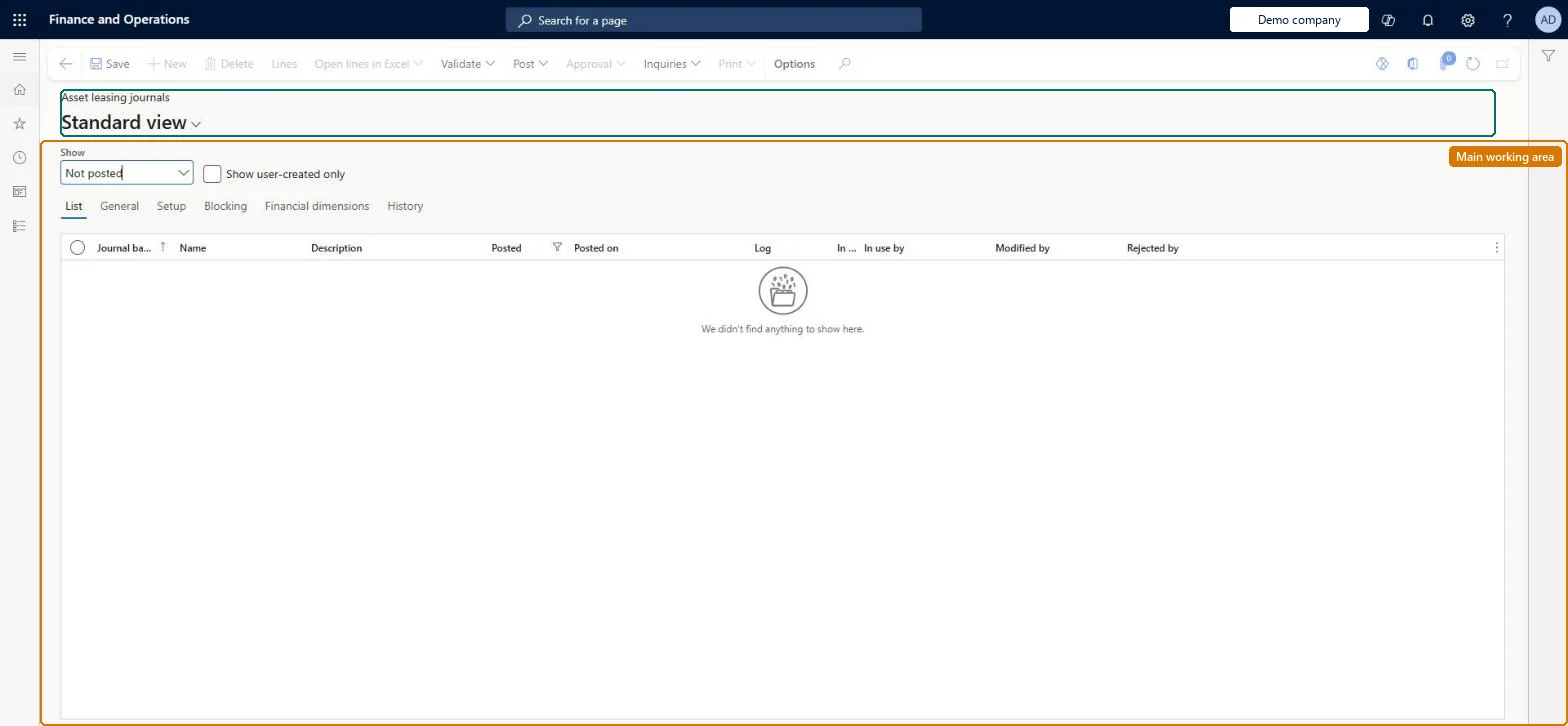
About the examples: Examples and screenshots in this guide use BEAT, a demo company in a Dynamics 365 test environment. Use your own company's codes and values instead of copying them.
Setup steps on this page
Review and post Asset leasing journals
Post the entries that Asset leasing creates from the lease schedules.
Steps from Microsoft
Go to Asset leasing > Journal entries > Asset leasing journals.
Filter the list by posting status and select the journal.
Review the journal lines and enter a Description if it is missing.
If the journal is correct, select Post on the Action Pane.
A required text on the journal line; the journal cannot be posted without it.Microsoft Learn
Initial recognition
Name
Invoice number
One of the journal line fields you can enter before posting, together with Date, Sales tax group and Item sales tax group.Microsoft Learn
Account
Locked on the journal line, like Amounts, Financial dimensions, Currency and Transaction type, so that the journal matches the lease schedules.Microsoft Learn
Common errors and fixes
Message
What to do
Account, amount, dimension or currency can't be changed on a line
Asset leasing journals lock these fields so schedules and transactions match. Fix the lease or its setup and create the journal again. Microsoft Learn
A modification journal waits for approval
The Lease modification journal name must not have a workflow or approval. Remove it from that journal name. Microsoft Learn
Test checklist
Create the initial recognition journal for one lease and open it here.
Try to change the account or amount on a line: the fields are locked.
Post it and check that the lease's Asset transactions and Liability transactions show the entry.
Keep separate journal names for initial recognition, the monthly lease journal and lease modifications, and post them from this page after a line review.Each kind of entry goes to its own journal name (initial recognition, lease journal, lease modification), so a reviewer can post them separately; the lines can't be edited, only reviewed and posted.
Asset leasing must be turned on in Feature management (feature Asset leasing). Microsoft Learn describes three Asset leasing roles: Maintain lease (add, edit and post leases), View lease (view leases and schedules and run reports) and Lease clerk (create new leases only). Maintain lease users review and post these journals.
To set it up or change itLease accountant AssetLeaseLeaseMaintainAccountant LedgerAccountantTo use itLease manager AssetLeaseLeaseViewAccounting manager LedgerAccountingManagerGive people one of these roles. On this system, 4 roles can open this page.Checked in Dynamics 365
Actions on the page
(Action Pane without tabs): Lines, Open lines in Excel, Validate, Post, Approval, Inquiries, PrintChecked in Dynamics 365
Load order: An Asset leasing journal has no data entity in Data management, so it can't be loaded from a file or a configuration template. The journals can't be created by hand: Asset leasing creates them from the lease schedules. Migrate the leases and create their journals in the new system.Microsoft Learn
Checked in a working Dynamics 365 system, version 10.0.49: the menu item, form, table and security, the page.
To cite this step: AL-JRNL-010, Review and post Asset leasing journals. Beyond ERP Atlas Hub, 2026-11-11. https://www.beyonderp.cloud/atlas/step/AL-JRNL-010