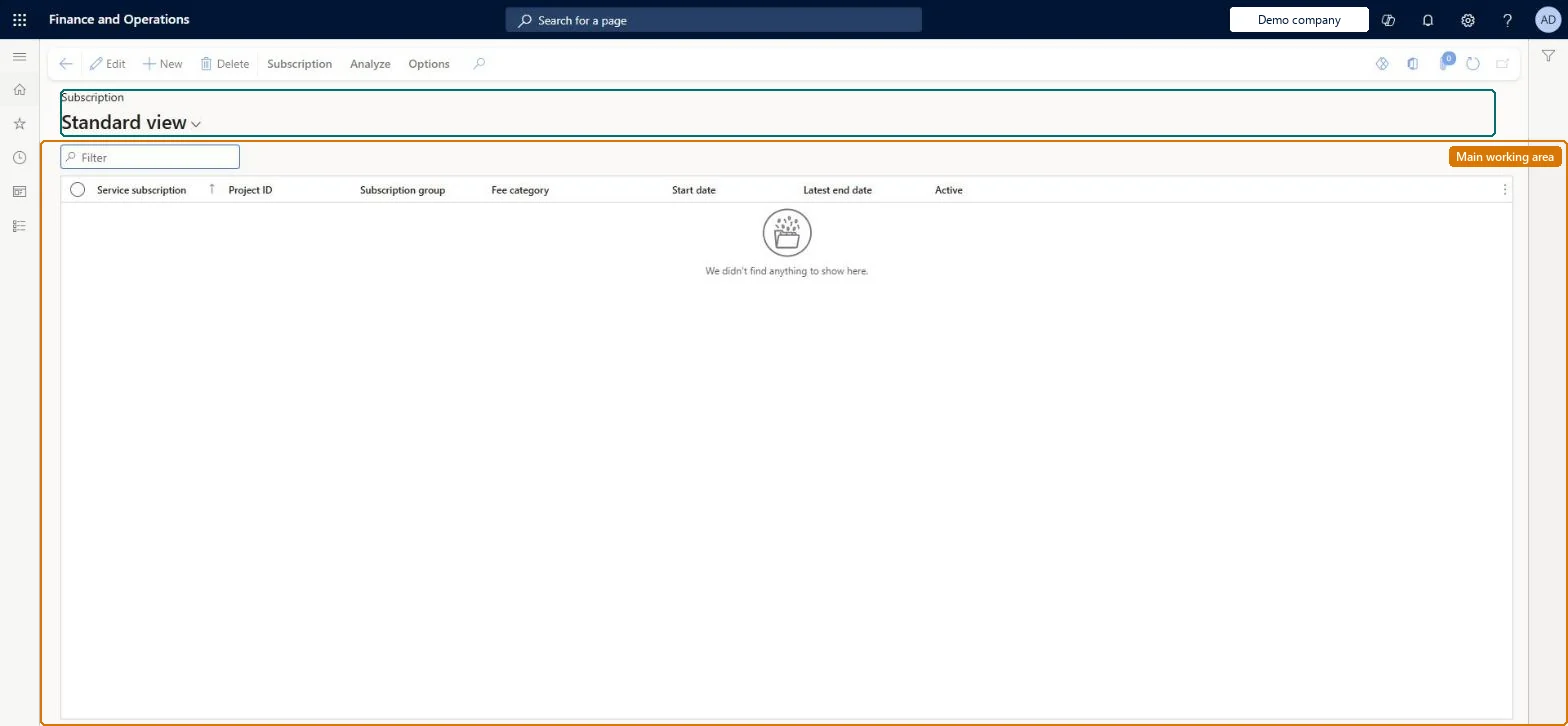
A list page that shows all service subscriptions, which are agreements based on a time-and-materials project under which a customer prepays for a periodic service and is invoiced through subscription fee transactions.
Service delivery manager, Sales manager, Sales representative
Business process
Sell subscriptions in Dynamics 365 Supply Chain Management
Menu item
SMASubscriptionTableListPage
Main table
SMASubscriptionTable
Show what matters for
PAGE GUIDEWhat the page does and how to use it7 sections. Choose a role to highlight what matters to you.
Everyone
1What it is and why
What it is
A list page that shows all service subscriptions, which are agreements based on a time-and-materials project under which a customer prepays for a periodic service and is invoiced through subscription fee transactions.
What you do here
Use this page to create and maintain subscriptions, create their subscription fee transactions, update their base price or index, and open the fee transactions to invoice, credit or accrue them.
Example
For example, a customer buys a yearly subscription for lighting rig maintenance: you create the subscription here, then create the fee transaction for the first one-year invoicing period.
The page in Dynamics 365. page title tab to open what to set or check
About the examples: Examples and screenshots in this guide use BEAT, a demo company in a Dynamics 365 test environment. Use your own company's codes and values instead of copying them.
Steps from Microsoft
Go to Service management > Service subscriptions > All service subscriptions.
Select Subscription to create a new subscription, or select a subscription and then Edit.
Enter the project, subscription group and remaining fields, and save.
On the Action Pane, on the Subscription tab, select Subscription fees to create a fee transaction.
Select Analyze > Fee transactions to invoice, credit or accrue the fees.
The group that supplies the number sequence, invoicing period code and accrual settings for the subscription.Microsoft Learn
GroupId
Period code
How long each subscription fee period lasts, or how often the subscription is invoiced; it comes from the subscription group.Microsoft Learn
Sales currency
The currency of the subscription; it cannot be changed afterwards.Microsoft Learn
CurrencyCode
Base price
The price that an indexed subscription fee is calculated from.Microsoft Learn
BasePrice
Index
The percentage applied to the base price to arrive at the fee sales price.Microsoft Learn
SubscriptionIndex
Active
Whether the subscription is active; fee transactions can only be created for active subscriptions.Microsoft Learn
Active
Test checklist
Create a subscription on a time-and-materials project in a subscription group, with a currency and period code that match a Sales price (subscription) line.
Select Subscription > Subscription fees and create a fee; check its sales price matches the most specific price line.
Select Index > Base price by percentage and create the next fee; check the new price.
Open Analyze > Fee transactions, select Functions > Invoice proposal, create and post the invoice.
Reversible: Base price and index can be updated again at any time (by percentage or to a new value). Subscription fees take their sales price from the subscription's price setup when they are created, and the invoicing period comes from the subscription group, so plan the group before creating fees. Microsoft Learn
If you change it later
Updating the base price or index of a subscription changes the sales price of the fee transactions created afterwards; existing fees keep the price they were created with. Microsoft Learn
Technical architect
5Technical
Menu item
SMASubscriptionTableListPageChecked in Dynamics 365
Form
SMASubscriptionTableChecked in Dynamics 365
Table
SMASubscriptionTableShown as “SUBSCRIPTION” in Record infoChecked in Dynamics 365
Who can open it
PrivilegesMaintain service subscriptions SMASubscriptionDetailsMaintainView service subscriptions SMASubscriptionDetailsViewDutiesInquire into service subscriptions SMAServiceSubscriptionProgressInquireMaintain service subscriptions SMAServiceSubscriptionSMAintain3 security rolesService delivery manager SMAServiceDeliveryManagerSales manager TradeSalesManagerSales representative TradeSalesRepresentativeChecked in Dynamics 365
Roles to set it up and use it
To set it up or change itService delivery manager SMAServiceDeliveryManagerSales manager TradeSalesManagerTo use itSales representative TradeSalesRepresentativeGive people one of these roles. On this system, 3 roles can open this page.Checked in Dynamics 365
Actions on the page
SubscriptionAnalyze: Project details, TransactionsChecked in Dynamics 365