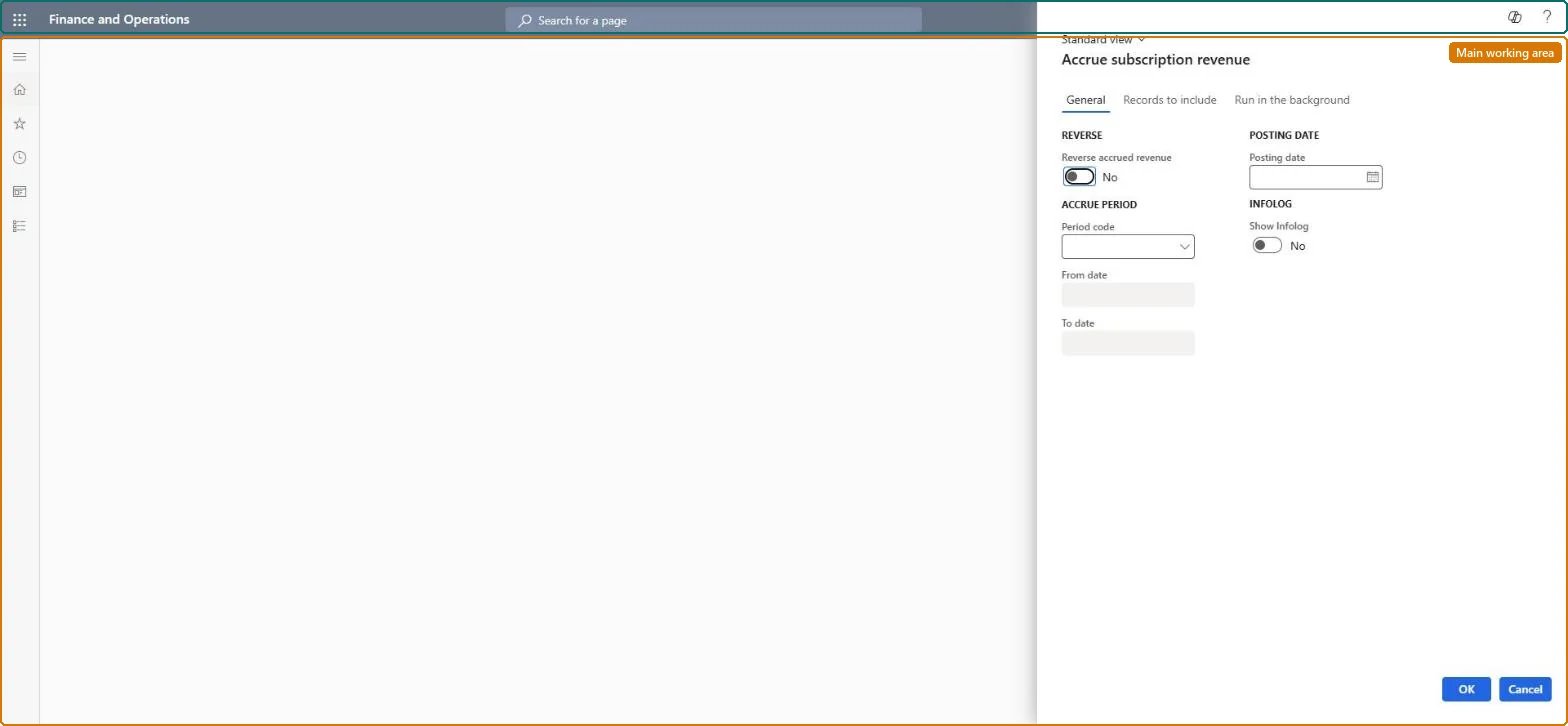
A periodic task dialog that posts accrued revenue for all invoiced subscription fee transactions that have the selected period code, on the posting date you enter.
Service managementPerform periodic tasksService subscriptions
SMAAccrueSubscription
Business process
Invoice subscription orders in Dynamics 365 Supply Chain Management
Menu item
SMAAccrueSubscription
Show what matters for
PAGE GUIDEWhat the page does and how to use it7 sections. Choose a role to highlight what matters to you.
Everyone
1What it is and why
What it is
A periodic task dialog that posts accrued revenue for all invoiced subscription fee transactions that have the selected period code, on the posting date you enter.
What you do here
Use this page to recognise one accrual period's share of invoiced subscription revenue, moving it between the WIP - subscription and Accrued revenue - subscription accounts; accrued revenue cannot be posted until the fee transactions are invoiced.
Example
For example, at the end of each month one month's revenue from a customer's yearly subscription is accrued to the profit and loss account and the WIP accounts.
The page in Dynamics 365. page title tab to open what to set or check
About the examples: Examples and screenshots in this guide use BEAT, a demo company in a Dynamics 365 test environment. Use your own company's codes and values instead of copying them.
When to run it
When to run it
At the end of each accrual period, after the subscription fee transactions for that period have been invoiced.
How often
Once per accrual period of the subscription group, for example monthly when fees are invoiced yearly.
Batch settings
Run it in the background when many subscriptions share the period code.
What the output shows
Posted accruals for every invoiced fee transaction with the selected period code, on the posting date you entered. A fee missing from the accrual is usually not invoiced yet, because accrued revenue can't be posted for uninvoiced fees.
Go to Service management > Perform periodic tasks > Service subscriptions > Accrue subscription revenue.
In Period code, select the accrual period code. The subscription group's accrual period is suggested, and revenue is posted for all subscription fee transactions with that period code.
In Posting date, enter the ledger date of the accrual.
Select OK, then check the voucher: WIP - subscription is debited and Accrued revenue - subscription is credited for the period's share of the invoiced fees.
Partly: Posted accruals stay in the ledger. They can be reversed, and you may have to reverse them before you credit an invoiced fee. Microsoft Learn
If you change it later
Each run debits WIP - subscription and credits Accrued revenue - subscription with the accrual amount; accruals can be reversed, and crediting an invoiced fee may require reversing them first. Microsoft Learn
Technical architect
5Technical
Menu item
SMAAccrueSubscriptionChecked in Dynamics 365
Form
SMASubscriptionAccrueDialogChecked in Dynamics 365
Roles to set it up and use it
To use itService delivery manager SMAServiceDeliveryManagerGive people one of these roles. On this system, 1 role can run this page.Checked in Dynamics 365