PAGE GUIDEWhat the page does and how to use it8 sections. Choose a role to highlight what matters to you.
Everyone
1What it is and why
What it is
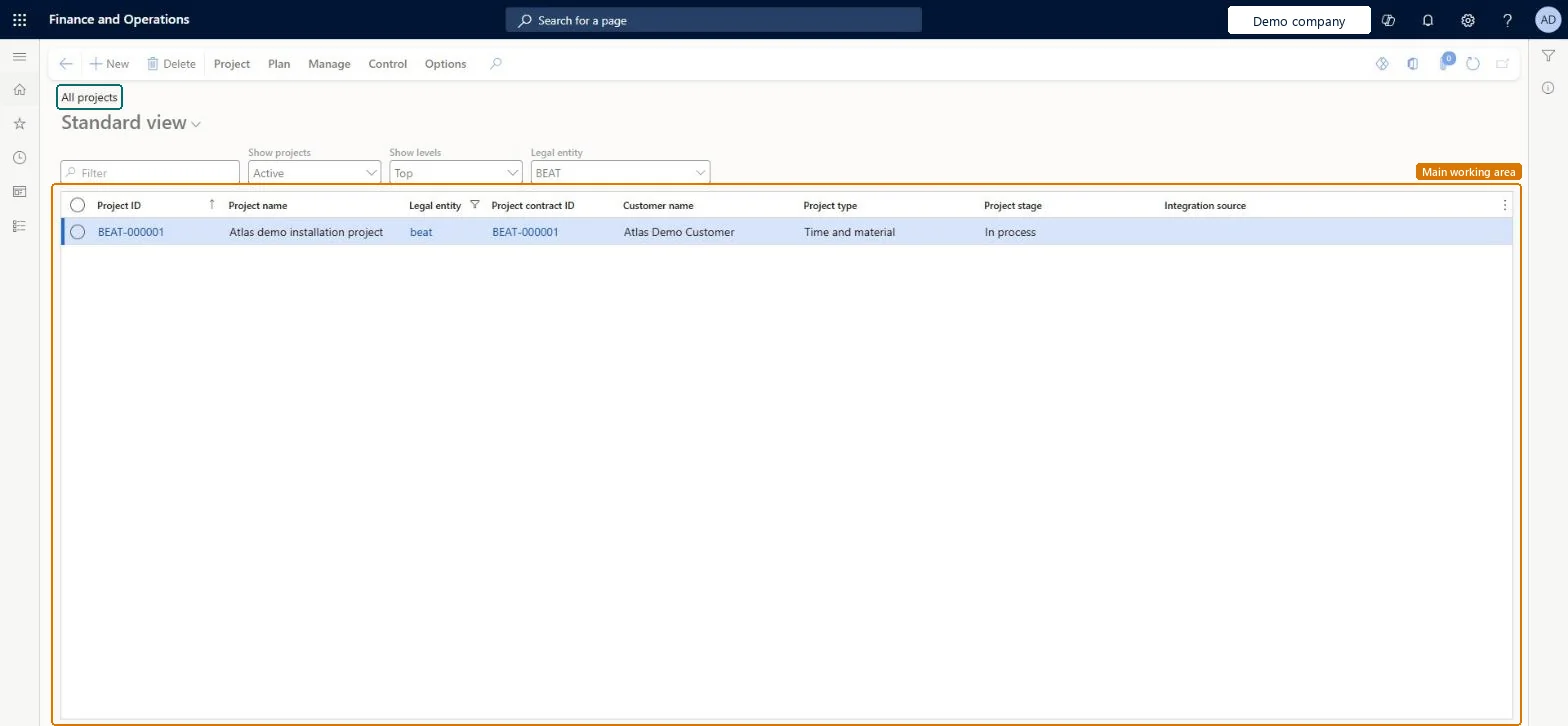
The list of every project in the legal entity, and the place where a project is created, opened and planned.
What you do here
Use it to create a project and then work on it: its work breakdown structure, forecasts, item requirements, purchase orders, journals and invoices start from the project's Action Pane.
Example
For example, BEAT creates PRJ-0042 Warehouse fit-out as a Time and material project in group TM-STD on contract PC-0017, then adds a work breakdown structure of 120.00 hours across three tasks.
The page in Dynamics 365. page title tab to open what to set or check
About the examples: Examples and screenshots in this guide use BEAT, a demo company in a Dynamics 365 test environment. Use your own company's codes and values instead of copying them.
Setup steps on this page
Create projects with the right type and group
Get the project type and project group right when the project is created.
Steps from Microsoft
Go to Project management and accounting > Projects > All projects.
Select New and choose the project type, for example Time and material.
Enter the project name, select the project group and the project contract, and select Create project.
On the Project team and scheduling FastTab, select the scheduling calendar.
On the Plan tab, under Activities, select Work breakdown structure and add the tasks with their effort in hours.
Select Publish, then open Plan > Item requirements or Forecast to plan the project's items and costs.
Sets how the project handles costs and revenue recognition, for example Time and material or Fixed-price. It can't be changed after the project is created.Microsoft Learn
Time and material
Type
Project contract
The contract that holds the billing terms; every project you invoice needs one.Microsoft Learn
PC-0017
Project group
Groups projects for ledger posting; the group's ledger update options can't be changed once a project is assigned to it.Microsoft Learn
TM-STD
Common errors and fixes
Message
What to do
Hours posted to a Cost or Internal project don't show on Create invoice proposals.
Only Time and material and Fixed-price projects can be invoiced. Create the project again with the right type; the type can't be changed. Microsoft Learn
Test checklist
Create a Time and material project in a project group set up for that type and attach it to a project contract.
Post one hour journal line to the project.
Open Posted project transactions and check the hour shows with the expected line property (chargeable or not).
Create an invoice proposal for the project and check the hour is offered for invoicing.
Repeat with a Cost project and check its hour doesn't appear on Create invoice proposals.
Select the project type and project group when you create the project, and attach a project contract to every Time and material or Fixed-price project.The project type can't be changed later, and the project group's ledger update options can't be changed once the project uses it.
One-way: Warning: you can change a project and its project contract later, but not its project type. Once a project is assigned to a project group, the ledger update options defined on that project group can't be changed. Get the project group and type right when you create the project. Microsoft Learn
If you change it later
You can change a project and its contract later, but not the project type. The project group's ledger update options are fixed once a project uses the group. Microsoft Learn
Technical architect
6Technical
Menu item
ProjProjectsListPageChecked in Dynamics 365
Form
ProjProjectsListPageChecked in Dynamics 365
Table
ProjTableShown as “Projects” in Record infoKey field: ProjId, JobIdChecked in Dynamics 365
To set it up or change itProject manager ProjProjectManagerProject accountant ProjProjectAccountantField Service Integration User FieldServiceIntegrationUserSales manager TradeSalesManagerTo use itProject supervisor ProjProjectSupervisorChief financial officer CompanyChiefFinancialOfficerProject assistant ProjProjectClerkService delivery manager SMAServiceDeliveryManagerResource manager ProjResourceManagerGive people one of these roles. On this system, 18 roles can open this page.Checked in Dynamics 365
ProjectEntity (Projects): loaded for each company, in Microsoft's default template 650 - Project accounting.ProjProjectV2Entity (Projects V2): loaded for each company.Load order: Microsoft's default template 650 - Project accounting loads Projects at execution unit 1, level 650, sequence 20. Lower levels load first, and entities at the same level load in sequence order.Load first: the default templates at lower levels (System setup to Expense management)Microsoft Learn